How Do I Know If CCTV Is Recording?
You've got security cameras set up, but a nagging thought keeps creeping in: "Is this thing actually recording, or did it just stop working?" It's a totally normal question to have, and thankfully, figuring it out is usually pretty straightforward. You don't need to be a tech whiz to get a clear answer.
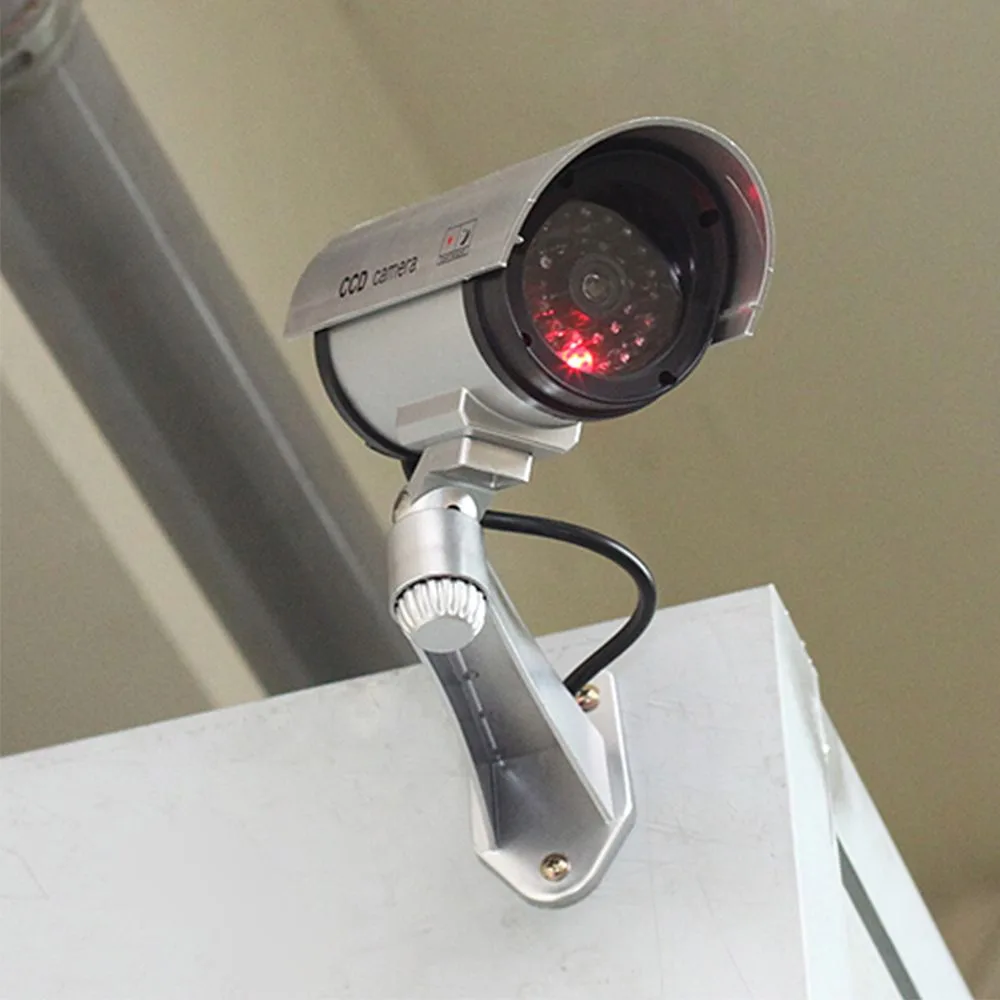
Image source: Web (Bing) / pinterest.com (Web image (fair-use with source credit))
This guide breaks down the simple checks you can do, from looking at blinking lights to diving into your system's menu. We'll cover common reasons why recording might stop and what to do about it. Our research indicates that most users can confirm their CCTV is recording by performing a few key visual and software checks, a process that often takes less than five minutes.
Quick Answer
To know if CCTV is recording, check for active indicator lights on your cameras and DVR/NVR. Review live feeds on your monitor or app. Access your system's playback feature to confirm recorded footage exists.
If unsure, consult your system's status menus for explicit recording confirmation.
Visual Clues: What Your Cameras Are Telling You
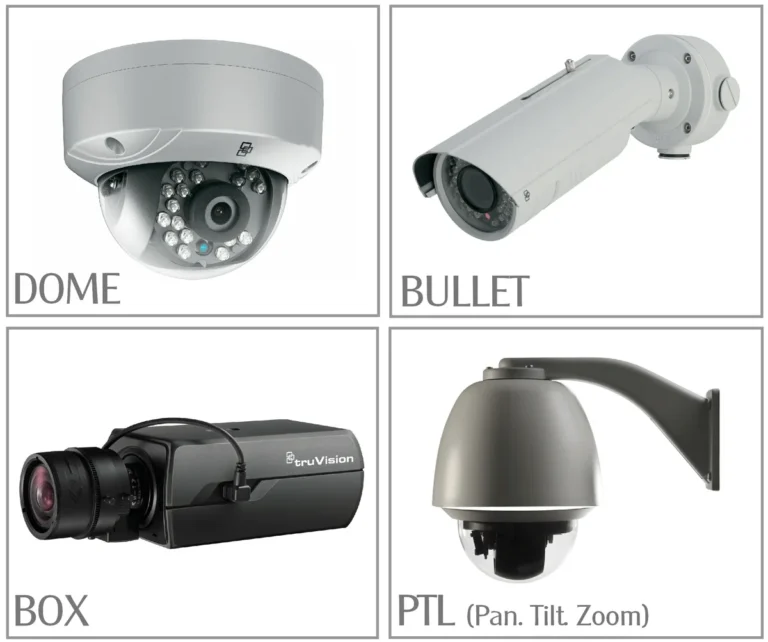
Your security cameras and their recording unit often give you obvious signals when they're actively working. These aren't just decorative LEDs; they're your first line of defense in confirming your system is live and kicking. Think of them as tiny status reports right on the hardware itself.
Indicator Lights Explained
Most CCTV equipment features indicator lights, or LEDs (Light Emitting Diodes), that convey operational status. Manufacturer specifications confirm that a solid or blinking green or blue light typically signals the device is powered on and functioning correctly, which often includes recording. A red light can signal an error, like a connectivity issue or a full storage drive.
No light at all usually means the device is either not receiving power or has a more significant malfunction. You'll want to consult your specific system's manual to understand what each color and pattern means for your particular model.
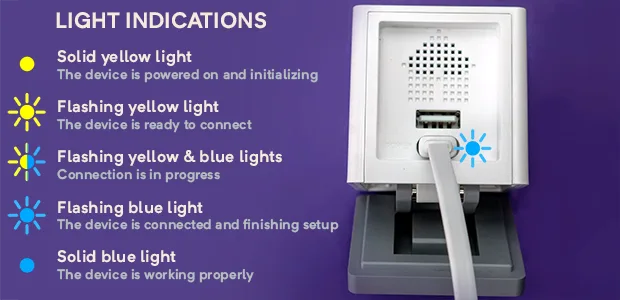
Image source: Bing (Web (fair-use with source credit))
Screen Activity on Your Monitor
If your CCTV system is connected to a dedicated monitor, you'll usually see live video feeds from all your connected cameras. The presence of these active streams is a strong indicator that the system is operational. Look closely at the screen for any icons or text overlays that explicitly state "REC," "Recording," or show a small red dot.
These are direct visual confirmations that your cameras are capturing and saving data. If the feeds appear frozen, show an error message, or are absent entirely, it's a clear sign something is wrong.
Digging Deeper: Checking Your System's Software or App
Sometimes, the blinking lights aren't enough, or you want that extra layer of certainty. That's where diving into your system's digital interface comes in. This is usually done through a computer program or a mobile app provided by the manufacturer.
Accessing Your DVR/NVR Interface
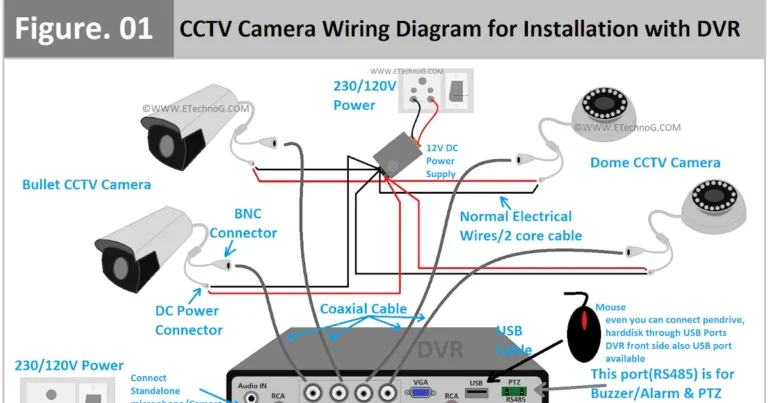
Your Digital Video Recorder (DVR) or Network Video Recorder (NVR) is the central hub where all your camera footage is processed and stored. To check its status, you'll need to access its interface. This is most commonly done via a web browser on a computer connected to the same network as the DVR/NVR, or through a dedicated mobile application.
You’ll typically need to enter the system's IP address into your browser or open the app and log in with your username and password.
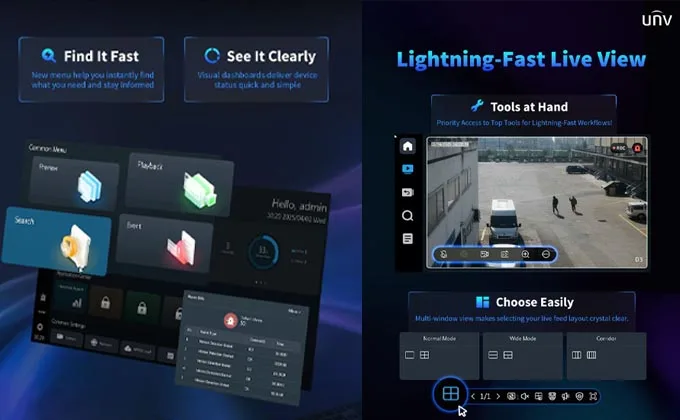
Image source: Web (Bing) / asadria.com (Web image (fair-use with source credit))
Aggregated user reviews report that logging into the system is the most reliable way to confirm its operational status. If you have trouble connecting remotely, you might need to check how to improve security camera WiFi signal or ensure your local storage for security cameras is properly configured.
Finding the Recording Status
Once logged in, navigate through the system's menus to find the status or system information section. Here, you'll often see an overview of each connected camera, its network status, and crucially, its recording status. Look for options labeled "System Status," "Device Status," "Channel Status," or similar.
This area should clearly indicate whether each camera feed is being actively recorded. Many systems also offer a "Playback" or "Archive" function. If you can successfully access and view recorded footage, even from just a few minutes prior, it’s definitive proof that recording is happening.
The ability to save security camera footage from this section further confirms your system is functioning as intended.
Troubleshooting: When Recording Stops Working
If your checks reveal that your CCTV system isn't recording, don't immediately assume the worst. Often, the issue is a simple fix. Our research has identified several common culprits that prevent recording.
Common Problems and Quick Fixes
Several factors can interrupt the recording process. Identifying the specific issue is key to getting your system back online.
Power Issues
This is the most basic check. Ensure that both your cameras and your DVR/NVR unit are receiving adequate power.
- Check Power Cables: Make sure all power adapters are securely plugged into both the device and a working electrical outlet.
- Test Outlets: Plug a known working device (like a lamp) into the same outlet to confirm it has power.
- Check Circuit Breakers: If the outlet is on a circuit breaker, ensure the breaker hasn't tripped.
Storage Drive Full
Your DVR or NVR has a hard drive to store footage. When this drive fills up, it can no longer record new data.
- Check Storage Status: Access your system's menu and look for a "Storage," "Disk Management," or "HDD Status" section. This will tell you how much space is remaining.
- Enable Overwrite: Most systems are set to automatically overwrite the oldest footage when the drive is full. Make sure this feature is enabled in your system settings. If it's turned off, you'll need to manually delete security camera recordings or free up space.
- Consider Drive Health: If your drive is consistently filling up quickly or showing errors, it might be nearing the end of its lifespan and may need replacement.
Recording Schedule Settings
Many CCTV systems allow you to set specific schedules for when recording should occur. This can be 24/7 continuous recording, or only during certain hours, or only when motion is detected.
- Verify Schedule: Access your system's recording settings and check the schedule. Ensure it's configured for the times you expect recording to happen. For example, if you expect continuous recording, make sure that option is selected, not just motion-based recording.
- Check Motion Detection Settings: If you rely on motion detection, ensure the sensitivity is set correctly and that there haven't been any recent issues with security camera motion detection.
Network Connectivity
For Network Video Recorders (NVRs) and IP cameras, a stable network connection is vital. If a camera loses connection to the NVR or the NVR loses internet access, recording can be interrupted.
- Check Camera Connections: For wired cameras, ensure Ethernet cables are securely connected at both ends. For wireless cameras, verify they are connected to your Wi-Fi network. Poor signal strength can cause intermittent issues.
- Review NVR Network Status: In your NVR's settings, check the network status. Ensure it has a valid IP address and can access the internet if remote viewing is configured. Issues here could be related to why is my security camera delayed or general connectivity problems.
Your Step-by-Step Recording Confirmation Checklist
Here’s a straightforward checklist to help you confirm your CCTV system is recording. This process blends visual checks with system interface reviews.
Visual and Software Checks
Start with the immediate indicators:
- Are Camera Indicator Lights On?
- Yes: Good sign. Check if they're solid green/blue (recording) or blinking (activity/error). Consult your manual for specifics.
- No: Check power connections and the outlet. If still no light, the camera or power supply might be faulty.
- Is the DVR/NVR Indicator Light On?
- Yes: Proceed to software check.
- No: Check its power connection and outlet. Confirm the device itself is powered on.
- Are Live Feeds Visible on Monitor/App?
- Yes: This is a strong indicator. Look for explicit "REC" icons.
- No: This suggests a problem with the cameras, NVR/DVR, or network.
Storage and Schedule Verification
If visual cues are positive but you still want certainty, or if you suspect an issue, dive into the system settings:
- Access the DVR/NVR Interface: Log in via your computer or mobile app.
- Check System Status: Find the section that displays overall system health. Does it explicitly state "Recording" or show active camera channels?
- Browse Recorded Footage: Navigate to the "Playback" or "Archive" section. Can you view recordings from the last hour? If yes, it's recording. If no, proceed to troubleshooting.
- Review Storage Capacity: Check the "Storage" or "HDD Status" menu. Is there sufficient free space? If it's full, enable overwriting or manually clear old footage.
- Confirm Recording Schedule: Verify the schedule settings are correct for your needs (continuous, motion-based, or timed). Ensure motion detection is configured properly if that’s your chosen method. If you are experiencing issues with recording not being triggered by motion, you may need to fix security camera motion detection.
Frequently Asked Questions About CCTV Recording
What does a blinking light on my CCTV camera mean?
A blinking light on a CCTV camera typically indicates activity or a status other than normal operation. This could mean it's attempting to connect to the network, it's in pairing mode, or it's encountering an error like a failed connection or low storage. Always check your specific camera's manual to understand the exact meaning of different blinking patterns.
Can I see if my CCTV is recording without accessing the DVR/NVR?
Yes, often you can get a good indication without directly accessing the DVR/NVR. Most systems display status lights on the cameras themselves and on the DVR/NVR unit, usually showing green or blue when recording. If your system has a mobile app or computer software for remote viewing, you can often see live feeds and a recording status icon there as well.
How much storage space does CCTV footage use?
The amount of storage space CCTV footage uses varies significantly based on factors like camera resolution, frame rate (frames per second), compression method, and whether it's recording continuously or only on motion events. For instance, a 1080p camera recording continuously might use several gigabytes per day per camera. On average, a single IP camera might consume between 20 to 50 GB per week.
For more detailed figures, consider checking resources on how much data does a security camera use.
What should I do if my CCTV footage is showing a black screen?
A black screen on your CCTV feed usually points to a connectivity or power issue. First, check if the camera is receiving power and if its network connection (wired or wireless) is stable. Ensure the DVR/NVR is also powered on and functioning correctly.
You might need to investigate why is my security camera showing a black screen for deeper troubleshooting steps.
How long should I keep security camera recordings?
The duration for keeping security camera footage varies by local regulations, industry standards, and personal needs. Some jurisdictions or businesses may have specific retention periods, often ranging from 30 to 90 days. For example, as of 2026, many retail businesses are advised to keep footage for at least 30 days for potential evidence.
It's wise to check local laws and consider how long you might need footage for investigations or claims. You can learn more about this topic by reading about how long should security footage be kept.
Is Your CCTV Actually Recording? Let's Figure It Out.
You've got security cameras set up, but a nagging thought keeps creeping in: "Is this thing actually recording, or did it just stop working?" It's a totally normal question to have, and thankfully, figuring it out is usually pretty straightforward. You don't need to be a tech whiz to get a clear answer.
Image source: Web (Bing) / pinterest.com (Web image (fair-use with source credit))
This guide breaks down the simple checks you can do, from looking at blinking lights to diving into your system's menu. We'll cover common reasons why recording might stop and what to do about it. Our research indicates that most users can confirm their CCTV is recording by performing a few key visual and software checks, a process that often takes less than five minutes.
Quick Answer
To know if CCTV is recording, check for active indicator lights on your cameras and DVR/NVR. Review live feeds on your monitor or app. Access your system's playback feature to confirm recorded footage exists.
If unsure, consult your system's status menus for explicit recording confirmation.
Visual Clues: What Your Cameras Are Telling You
Your security cameras and their recording unit often give you obvious signals when they're actively working. These aren't just decorative LEDs; they're your first line of defense in confirming your system is live and kicking. Think of them as tiny status reports right on the hardware itself.
Indicator Lights Explained
Most CCTV equipment features indicator lights, or LEDs (Light Emitting Diodes), that convey operational status. Manufacturer specifications confirm that a solid or blinking green or blue light typically signals the device is powered on and functioning correctly, which often includes recording. A red light can signal an error, like a connectivity issue or a full storage drive.
No light at all usually means the device is either not receiving power or has a more significant malfunction. You'll want to consult your specific system's manual to understand what each color and pattern means for your particular model.
Image source: Bing (Web (fair-use with source credit))
Screen Activity on Your Monitor
If your CCTV system is connected to a dedicated monitor, you'll usually see live video feeds from all your connected cameras. The presence of these active streams is a strong indicator that the system is operational. Look closely at the screen for any icons or text overlays that explicitly state "REC," "Recording," or show a small red dot.
These are direct visual confirmations that your cameras are capturing and saving data. If the feeds appear frozen, show an error message, or are absent entirely, it's a clear sign something is wrong.
Digging Deeper: Checking Your System's Software or App
Sometimes, the blinking lights aren't enough, or you want that extra layer of certainty. That's where diving into your system's digital interface comes in. This is usually done through a computer program or a mobile app provided by the manufacturer.
Accessing Your DVR/NVR Interface
Your Digital Video Recorder (DVR) or Network Video Recorder (NVR) is the central hub where all your camera footage is processed and stored. To check its status, you'll need to access its interface. This is most commonly done via a web browser on a computer connected to the same network as the DVR/NVR, or through a dedicated mobile application.
You’ll typically need to enter the system's IP address into your browser or open the app and log in with your username and password.
Image source: Web (Bing) / asadria.com (Web image (fair-use with source credit))
Aggregated user reviews report that logging into the system is the most reliable way to confirm its operational status. If you have trouble connecting remotely, you might need to check how to improve security camera WiFi signal or ensure your local storage for security cameras is properly configured.
Finding the Recording Status
Once logged in, navigate through the system's menus to find the status or system information section. Here, you'll often see an overview of each connected camera, its network status, and crucially, its recording status. Look for options labeled "System Status," "Device Status," "Channel Status," or similar.
This area should clearly indicate whether each camera feed is being actively recorded. Many systems also offer a "Playback" or "Archive" function. If you can successfully access and view recorded footage, even from just a few minutes prior, it’s definitive proof that recording is happening.
The ability to save security camera footage from this section further confirms your system is functioning as intended.
Troubleshooting: When Recording Stops Working
If your checks reveal that your CCTV system isn't recording, don't immediately assume the worst. Often, the issue is a simple fix. Our research has identified several common culprits that prevent recording.
Common Problems and Quick Fixes
Several factors can interrupt the recording process. Identifying the specific issue is key to getting your system back online.
Power Issues
This is the most basic check. Ensure that both your cameras and your DVR/NVR unit are receiving adequate power.
- Check Power Cables: Make sure all power adapters are securely plugged into both the device and a working electrical outlet.
- Test Outlets: Plug a known working device (like a lamp) into the same outlet to confirm it has power.
- Check Circuit Breakers: If the outlet is on a circuit breaker, ensure the breaker hasn't tripped.
Storage Drive Full
Your DVR or NVR has a hard drive to store footage. When this drive fills up, it can no longer record new data.
- Check Storage Status: Access your system's menu and look for a "Storage," "Disk Management," or "HDD Status" section. This will tell you how much space is remaining.
- Enable Overwrite: Most systems are set to automatically overwrite the oldest footage when the drive is full. Make sure this feature is enabled in your system settings. If it's turned off, you'll need to manually delete security camera recordings or free up space.
- Consider Drive Health: If your drive is consistently filling up quickly or showing errors, it might be nearing the end of its lifespan and may need replacement.
Recording Schedule Settings
Many CCTV systems allow you to set specific schedules for when recording should occur. This can be 24/7 continuous recording, or only during certain hours, or only when motion is detected.
- Verify Schedule: Access your system's recording settings and check the schedule. Ensure it's configured for the times you expect recording to happen. For example, if you expect continuous recording, make sure that option is selected, not just motion-based recording.
- Check Motion Detection Settings: If you rely on motion detection, ensure the sensitivity is set correctly and that there haven't been any recent issues with security camera motion detection.
Network Connectivity
For Network Video Recorders (NVRs) and IP cameras, a stable network connection is vital. If a camera loses connection to the NVR or the NVR loses internet access, recording can be interrupted.
- Check Camera Connections: For wired cameras, ensure Ethernet cables are securely connected at both ends. For wireless cameras, verify they are connected to your Wi-Fi network. Poor signal strength can cause intermittent issues.
- Review NVR Network Status: In your NVR's settings, check the network status. Ensure it has a valid IP address and can access the internet if remote viewing is configured. Issues here could be related to why is my security camera delayed or general connectivity problems.
Your Step-by-Step Recording Confirmation Checklist
Here’s a straightforward checklist to help you confirm your CCTV system is recording. This process blends visual checks with system interface reviews.
Visual and Software Checks
Start with the immediate indicators:
- Are Camera Indicator Lights On?
- Yes: Good sign. Check if they're solid green/blue (recording) or blinking (activity/error). Consult your manual for specifics.
- No: Check power connections and the outlet. If still no light, the camera or power supply might be faulty.
- Is the DVR/NVR Indicator Light On?
- Yes: Proceed to software check.
- No: Check its power connection and outlet. Confirm the device itself is powered on.
- Are Live Feeds Visible on Monitor/App?
- Yes: This is a strong indicator. Look for explicit "REC" icons.
- No: This suggests a problem with the cameras, NVR/DVR, or network.
Storage and Schedule Verification
If visual cues are positive but you still want certainty, or if you suspect an issue, dive into the system settings:
- Access the DVR/NVR Interface: Log in via your computer or mobile app.
- Check System Status: Find the section that displays overall system health. Does it explicitly state "Recording" or show active camera channels?
- Browse Recorded Footage: Navigate to the "Playback" or "Archive" section. Can you view recordings from the last hour? If yes, it's recording. If no, proceed to troubleshooting.
- Review Storage Capacity: Check the "Storage" or "HDD Status" menu. Is there sufficient free space? If it's full, enable overwriting or manually clear old footage.
- Confirm Recording Schedule: Verify the schedule settings are correct for your needs (continuous, motion-based, or timed). Ensure motion detection is configured properly if that’s your chosen method. If you are experiencing issues with recording not being triggered by motion, you may need to fix security camera motion detection.
Frequently Asked Questions About CCTV Recording
What does a blinking light on my CCTV camera mean?
A blinking light on a CCTV camera typically indicates activity or a status other than normal operation. This could mean it's attempting to connect to the network, it's in pairing mode, or it's encountering an error like a failed connection or low storage. Always check your specific camera's manual to understand the exact meaning of different blinking patterns.
Can I see if my CCTV is recording without accessing the DVR/NVR?
Yes, often you can get a good indication without directly accessing the DVR/NVR. Most systems display status lights on the cameras themselves and on the DVR/NVR unit, usually showing green or blue when recording. If your system has a mobile app or computer software for remote viewing, you can often see live feeds and a recording status icon there as well.
How much storage space does CCTV footage use?
The amount of storage space CCTV footage uses varies significantly based on factors like camera resolution, frame rate (frames per second), compression method, and whether it's recording continuously or only on motion events. For instance, a 1080p camera recording continuously might use several gigabytes per day per camera. On average, a single IP camera might consume between 20 to 50 GB per week.
For more detailed figures, consider checking resources on how much data does a security camera use.
What should I do if my CCTV footage is showing a black screen?
A black screen on your CCTV feed usually points to a connectivity or power issue. First, check if the camera is receiving power and if its network connection (wired or wireless) is stable. Ensure the DVR/NVR is also powered on and functioning correctly.
You might need to investigate why is my security camera showing a black screen for deeper troubleshooting steps.
Is Your CCTV Actually Recording? Let's Figure It Out.
You've got security cameras set up, but a nagging thought keeps creeping in: "Is this thing actually recording, or did it just stop working?" It's a totally normal question to have, and thankfully, figuring it out is usually pretty straightforward. You don't need to be a tech whiz to get a clear answer.
Image source: Web (Bing) / pinterest.com (Web image (fair-use with source credit))
This guide breaks down the simple checks you can do, from looking at blinking lights to diving into your system's menu. We'll cover common reasons why recording might stop and what to do about it. Our research indicates that most users can confirm their CCTV is recording by performing a few key visual and software checks, a process that often takes less than five minutes.
Quick Answer
To know if CCTV is recording, check for active indicator lights on your cameras and DVR/NVR. Review live feeds on your monitor or app. Access your system's playback feature to confirm recorded footage exists.
If unsure, consult your system's status menus for explicit recording confirmation.
Visual Clues: What Your Cameras Are Telling You
Your security cameras and their recording unit often give you obvious signals when they're actively working. These aren't just decorative LEDs; they're your first line of defense in confirming your system is live and kicking. Think of them as tiny status reports right on the hardware itself.
Indicator Lights Explained
Most CCTV equipment features indicator lights, or LEDs (Light Emitting Diodes), that convey operational status. Manufacturer specifications confirm that a solid or blinking green or blue light typically signals the device is powered on and functioning correctly, which often includes recording. A red light can signal an error, like a connectivity issue or a full storage drive.
No light at all usually means the device is either not receiving power or has a more significant malfunction. You'll want to consult your specific system's manual to understand what each color and pattern means for your particular model.
Image source: Bing (Web (fair-use with source credit))
Screen Activity on Your Monitor
If your CCTV system is connected to a dedicated monitor, you'll usually see live video feeds from all your connected cameras. The presence of these active streams is a strong indicator that the system is operational. Look closely at the screen for any icons or text overlays that explicitly state "REC," "Recording," or show a small red dot.
These are direct visual confirmations that your cameras are capturing and saving data. If the feeds appear frozen, show an error message, or are absent entirely, it's a clear sign something is wrong.
Digging Deeper: Checking Your System's Software or App
Sometimes, the blinking lights aren't enough, or you want that extra layer of certainty. That's where diving into your system's digital interface comes in. This is usually done through a computer program or a mobile app provided by the manufacturer.
Accessing Your DVR/NVR Interface
Your Digital Video Recorder (DVR) or Network Video Recorder (NVR) is the central hub where all your camera footage is processed and stored. To check its status, you'll need to access its interface. This is most commonly done via a web browser on a computer connected to the same network as the DVR/NVR, or through a dedicated mobile application.
You’ll typically need to enter the system's IP address into your browser or open the app and log in with your username and password.
Image source: Web (Bing) / asadria.com (Web image (fair-use with source credit))
Aggregated user reviews report that logging into the system is the most reliable way to confirm its operational status. If you have trouble connecting remotely, you might need to check how to improve security camera WiFi signal or ensure your local storage for security cameras is properly configured.
Finding the Recording Status
Once logged in, navigate through the system's menus to find the status or system information section. Here, you'll often see an overview of each connected camera, its network status, and crucially, its recording status. Look for options labeled "System Status," "Device Status," "Channel Status," or similar.
This area should clearly indicate whether each camera feed is being actively recorded. Many systems also offer a "Playback" or "Archive" function. If you can successfully access and view recorded footage, even from just a few minutes prior, it’s definitive proof that recording is happening.
The ability to save security camera footage from this section further confirms your system is functioning as intended.
Troubleshooting: When Recording Stops Working
If your checks reveal that your CCTV system isn't recording, don't immediately assume the worst. Often, the issue is a simple fix. Our research has identified several common culprits that prevent recording.
Common Problems and Quick Fixes
Several factors can interrupt the recording process. Identifying the specific issue is key to getting your system back online.
Power Issues
This is the most basic check. Ensure that both your cameras and your DVR/NVR unit are receiving adequate power.
- Check Power Cables: Make sure all power adapters are securely plugged into both the device and a working electrical outlet.
- Test Outlets: Plug a known working device (like a lamp) into the same outlet to confirm it has power.
- Check Circuit Breakers: If the outlet is on a circuit breaker, ensure the breaker hasn't tripped.
Storage Drive Full
Your DVR or NVR has a hard drive to store footage. When this drive fills up, it can no longer record new data.
- Check Storage Status: Access your system's menu and look for a "Storage," "Disk Management," or "HDD Status" section. This will tell you how much space is remaining.
- Enable Overwrite: Most systems are set to automatically overwrite the oldest footage when the drive is full. Make sure this feature is enabled in your system settings. If it's turned off, you'll need to manually delete security camera recordings or free up space.
- Consider Drive Health: If your drive is consistently filling up quickly or showing errors, it might be nearing the end of its lifespan and may need replacement.
Recording Schedule Settings
Many CCTV systems allow you to set specific schedules for when recording should occur. This can be 24/7 continuous recording, or only during certain hours, or only when motion is detected.
- Verify Schedule: Access your system's recording settings and check the schedule. Ensure it's configured for the times you expect recording to happen. For example, if you expect continuous recording, make sure that option is selected, not just motion-based recording.
- Check Motion Detection Settings: If you rely on motion detection, ensure the sensitivity is set correctly and that there haven't been any recent issues with security camera motion detection.
Network Connectivity
For Network Video Recorders (NVRs) and IP cameras, a stable network connection is vital. If a camera loses connection to the NVR or the NVR loses internet access, recording can be interrupted.
- Check Camera Connections: For wired cameras, ensure Ethernet cables are securely connected at both ends. For wireless cameras, verify they are connected to your Wi-Fi network. Poor signal strength can cause intermittent issues.
- Review NVR Network Status: In your NVR's settings, check the network status. Ensure it has a valid IP address and can access the internet if remote viewing is configured. Issues here could be related to why is my security camera delayed or general connectivity problems.
Your Step-by-Step Recording Confirmation Checklist
Here’s a straightforward checklist to help you confirm your CCTV system is recording. This process blends visual checks with system interface reviews.
Visual and Software Checks
Start with the immediate indicators:
- Are Camera Indicator Lights On?
- Yes: Good sign. Check if they're solid green/blue (recording) or blinking (activity/error). Consult your manual for specifics.
- No: Check power connections and the outlet. If still no light, the camera or power supply might be faulty.
- Is the DVR/NVR Indicator Light On?
- Yes: Proceed to software check.
- No: Check its power connection and outlet. Confirm the device itself is powered on.
- Are Live Feeds Visible on Monitor/App?
- Yes: This is a strong indicator. Look for explicit "REC" icons.
- No: This suggests a problem with the cameras, NVR/DVR, or network.
Storage and Schedule Verification
If visual cues are positive but you still want certainty, or if you suspect an issue, dive into the system settings:
- Access the DVR/NVR Interface: Log in via your computer or mobile app.
- Check System Status: Find the section that displays overall system health. Does it explicitly state "Recording" or show active camera channels?
- Browse Recorded Footage: Navigate to the "Playback" or "Archive" section. Can you view recordings from the last hour? If yes, it's recording. If no, proceed to troubleshooting.
- Review Storage Capacity: Check the "Storage" or "HDD Status" menu. Is there sufficient free space? If it's full, enable overwriting or manually clear old footage.
- Confirm Recording Schedule: Verify the schedule settings are correct for your needs (continuous, motion-based, or timed). Ensure motion detection is configured properly if that’s your chosen method. If you are experiencing issues with recording not being triggered by motion, you may need to fix security camera motion detection.
Frequently Asked Questions About CCTV Recording
What does a blinking light on my CCTV camera mean?
A blinking light on a CCTV camera typically indicates activity or a status other than normal operation. This could mean it's attempting to connect to the network, it's in pairing mode, or it's encountering an error like a failed connection or low storage. Always check your specific camera's manual to understand the exact meaning of different blinking patterns.
Can I see if my CCTV is recording without accessing the DVR/NVR?
Yes, often you can get a good indication without directly accessing the DVR/NVR. Most systems display status lights on the cameras themselves and on the DVR/NVR unit, usually showing green or blue when recording. If your system has a mobile app or computer software for remote viewing, you can often see live feeds and a recording status icon there as well.
How much storage space does CCTV footage use?
The amount of storage space CCTV footage uses varies significantly based on factors like camera resolution, frame rate (frames per second), compression method, and whether it's recording continuously or only on motion events. For instance, a 1080p camera recording continuously might use several gigabytes per day per camera. On average, a single IP camera might consume between 20 to 50 GB per week.
For more detailed figures, consider checking resources on how much data does a security camera use.
What should I do if my CCTV footage is showing a black screen?
A black screen on your CCTV feed usually points to a connectivity or power issue. First, check if the camera is receiving power and if its network connection (wired or wireless) is stable. Ensure the DVR/NVR is also powered on and functioning correctly.
You might need to investigate why is my security camera showing a black screen for deeper troubleshooting steps.
How long should I keep security camera recordings?
The duration for keeping security camera footage varies by local regulations, industry standards, and personal needs. Some jurisdictions or businesses may have specific retention periods, often ranging from 30 to 90 days. For example, as of 2026, many retail businesses are advised to keep footage for at least 30 days for potential evidence.
It's wise to check local laws and consider how long you might need footage for investigations or claims. You can learn more about this topic by reading about how long should security footage be kept.