How Many Cameras Can a CCTV NVR Support?
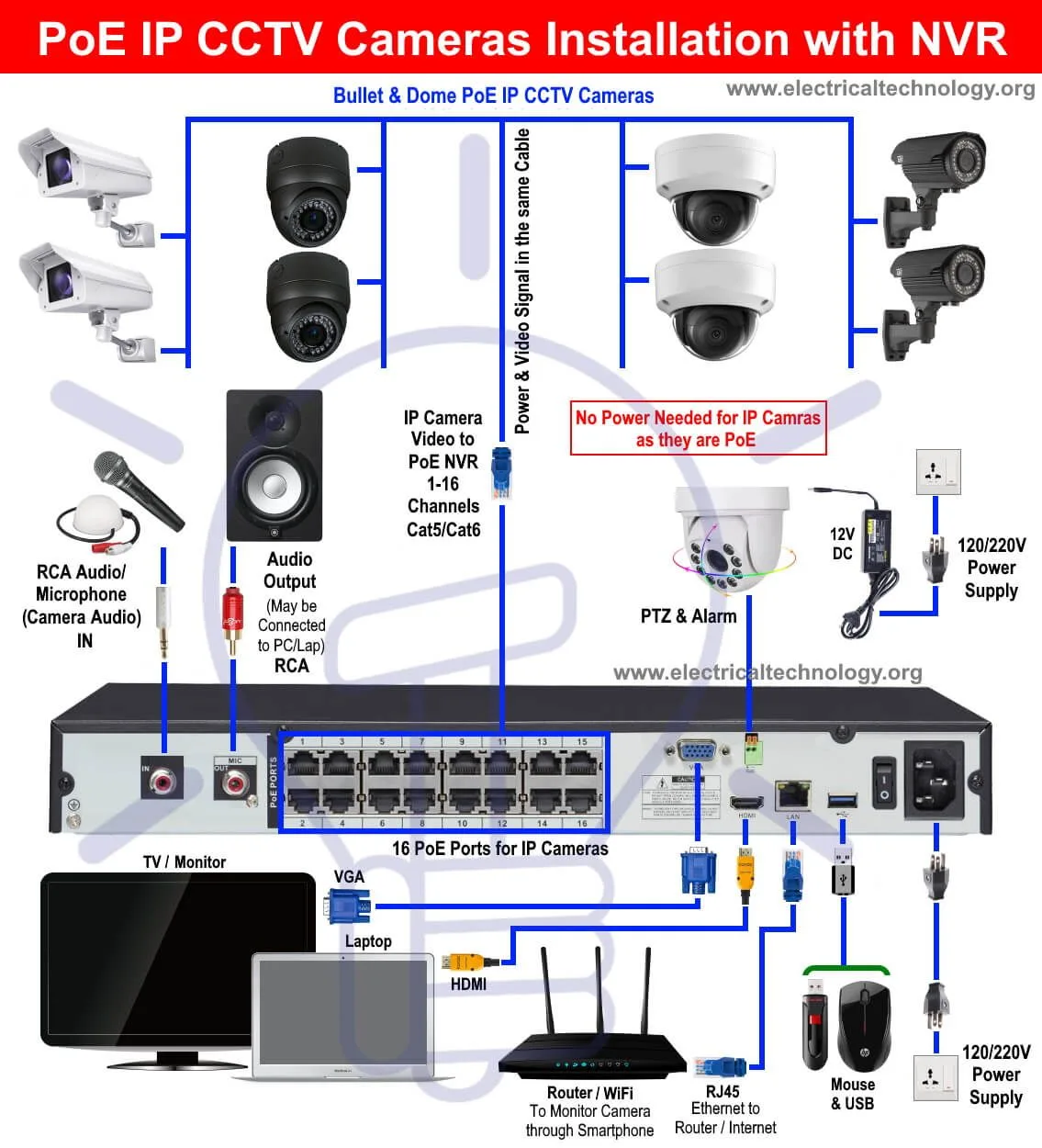
Image source: Web (Bing) / pinterest.com (Web image (fair-use with source credit))
How Many Cameras Can Your CCTV NVR Support?
Figuring out how many cameras your Network Video Recorder (NVR) can handle is a pretty common question for anyone setting up or expanding a security system. It's not as simple as just counting ports; the actual number depends on several key factors that dictate the system's performance. Manufacturer specifications indicate that an NVR's capacity can range from as few as 4 channels to well over 32.
Understanding these limitations is crucial to avoid system bottlenecks and ensure you get clear, reliable footage. As of 2026, many NVRs support standard resolutions like 4K and high frame rates, but pushing too many cameras can strain the system's core components. This guide breaks down exactly what you need to consider.
Quick Answer
An NVR can support a varying number of cameras, typically ranging from 4 to 32 channels. The exact limit is dictated by the NVR's model, processing power, and available bandwidth. Exceeding this limit can cause video lag or system failure.
The "It Depends" Factors: What Truly Limits Your Camera Count
When you're asking yourself "How many cameras can a CCTV NVR support?", the answer really boils down to the specific hardware you're using. It's like asking how many apps a computer can run; there's a maximum, but it depends on the computer's power.
NVR Model: The Foundation of Your System
This is the most straightforward determinant. Every NVR is designed with a maximum number of channels it can manage. These specifications are set by the manufacturer and are non-negotiable for optimal performance.
You'll see NVRs marketed as 4-channel, 8-channel, 16-channel, and even 32-channel or more.
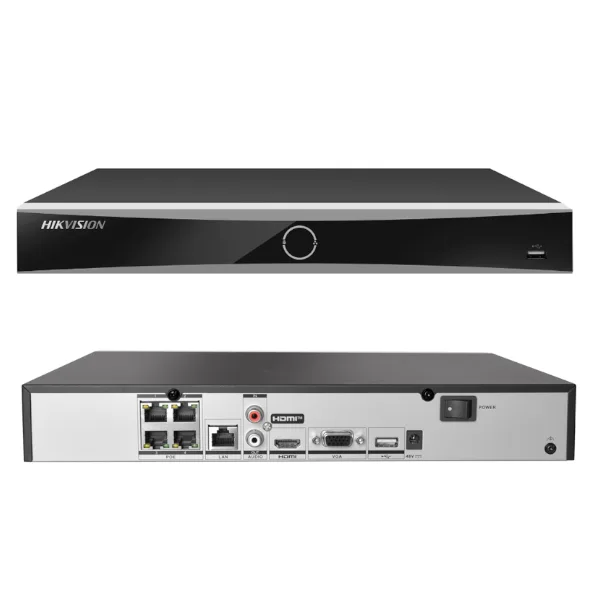
Think of a 4-channel NVR as a small starter home; it's built for a limited number of occupants. An 8-channel unit is like a modest family house, and a 32-channel system is a large apartment complex designed to handle many more. The model number itself usually tells you its primary capacity.
Bandwidth and Processing Power: The Engine Room
Even if an NVR has 16 ports, its internal processing power and network bandwidth capacity might only realistically support 8 cameras running at their full potential without issues. This is where things can get a bit technical, but it’s super important.
- Bandwidth: Each IP camera streams video data over your network. High-resolution cameras or those with advanced features (like AI object detection) send more data, consuming more bandwidth. Your NVR's network interface card (NIC) and internal architecture must be able to handle the combined data flow from all connected cameras. If the total bandwidth demand exceeds the NVR's capability, you'll likely experience performance issues, such as lagging video or dropped frames. Aggregate reviews report that insufficient bandwidth is a common cause for why is my security camera delayed.
- Processing Power: The NVR's CPU and memory are responsible for managing, recording, and sometimes analyzing the video streams. More cameras, especially at higher resolutions and frame rates, mean more work for the processor. If the NVR is overloaded, it can lead to poor performance or even system crashes. You can learn more about reducing security camera bandwidth needs at https://robinchestnut.com/how-to-reduce-security-camera-bandwidth/.
Resolution and Frame Rate: Demanding the Most
The quality of the video stream from each camera directly impacts how much strain it puts on the NVR. This is where modern security systems offer incredible detail, but it comes at a cost of system resources.
- Resolution: Cameras can range from standard definition (SD) to high definition (HD) like 1080p, all the way up to 4K (8MP). A 4K camera streams significantly more data than a 1080p camera. If your NVR is rated for 16 channels, it might support 16 cameras at 1080p, but perhaps only 8 cameras at 4K, or even fewer if advanced features are enabled. Manufacturer specifications often detail the maximum resolution per channel and the total system throughput.
- Frame Rate (FPS): This refers to how many still images (frames) are captured and displayed per second, giving the impression of motion. A higher frame rate (e.g., 30 FPS) provides smoother motion but requires more bandwidth and processing power than a lower frame rate (e.g., 10 FPS). For surveillance, many systems aim for a balance, often between 15-30 FPS, but the choice impacts how many cameras the NVR can handle simultaneously.
Finding Your NVR's Exact Camera Limit: Where to Look
So, you've got an NVR, or you're looking to buy one, and you need to know its hard limit for cameras. It's not usually a guessing game; the information is readily available if you know where to look.
Your NVR's Box and Manual: The Direct Answer
This is the most reliable and often the quickest way to get the definitive answer. Manufacturers print the maximum supported channel count prominently on the product packaging. The user manual, whether a physical booklet or a PDF download, will also clearly state this information, often in a "Specifications" section.
It's always worth keeping these materials for future reference.
Model Number Search: Online Specifications
If you've misplaced the box or manual, don't fret. Nearly every NVR has a model number printed on its casing, usually on a sticker on the bottom or back. Once you have that model number, head over to the manufacturer's official website.
Search for your specific model, and you'll find a product page or support section detailing its full specifications, including the maximum number of IP cameras it supports. These specs are often presented in tables or detailed listings.
In-System Settings: The Live View
If your NVR is already installed and running, you can often find its capacity directly within its software interface. You'll typically need to log in to the NVR's web interface through a browser or use its dedicated mobile app. Navigate through the settings menu, look for sections like "System," "Channel Management," "Device Management," or "Configuration." This area will usually show you the total number of available channels and how many are currently active or available for new cameras.
This is a great way to confirm what you currently have or what you can add.
Common NVR Camera Capacities: What to Expect
When you're shopping for an NVR, you'll notice they come in standard channel sizes. These are designed to meet different needs, from basic home security to complex commercial installations. Understanding these common capacities helps you pick the right system for your property.
Entry-Level: 4-Channel NVRs
These are typically the most budget-friendly options and are perfect for smaller residential properties or very small businesses. A 4-channel NVR is ideal if you only need to monitor a few critical areas, like the front door, back patio, and a main entry point. They offer a straightforward way to get basic surveillance coverage without a huge investment.
Mid-Range: 8 and 16-Channel NVRs
This is where you'll find the most popular choices for homes and medium-sized businesses. An 8-channel NVR provides a good balance for many suburban homes or small shops, allowing you to cover more angles. Stepping up to a 16-channel NVR gives you the flexibility to monitor a larger property, multiple entry points, parking areas, or distinct zones within a business.
These systems offer more robust performance and are often capable of handling higher resolutions and frame rates across more cameras.
High-Capacity: 32-Channel and Beyond
For larger commercial operations, retail complexes, public spaces, or extensive residential properties, you'll look at NVRs with 32, 64, or even more channels. These high-capacity units are built with more powerful processors and greater bandwidth capabilities to handle the demanding workload of numerous cameras running simultaneously at high resolutions. They are the workhorses for environments where comprehensive, wide-area surveillance is essential.
Mistakes to Avoid When Planning Your Camera Setup
Setting up a CCTV system with an NVR is exciting, but it's easy to trip up if you don't consider the system's true limitations. Avoiding these common pitfalls will save you a lot of headaches and ensure your security setup works as reliably as you need it to.
Ignoring Bandwidth: The Hidden Bottleneck
A very common mistake is focusing only on the number of ports an NVR has, without considering the network bandwidth each camera requires. For instance, an NVR might have 16 ports, but if you connect 16 cameras all streaming 4K video, you'll likely overload your network. This can lead to choppy video playback, dropped connections, and a system that's effectively useless for real-time monitoring.
It’s crucial to understand how much data each camera transmits and ensure your network infrastructure can handle the total demand. Always check your network's total available bandwidth before deciding on the number and type of cameras. You can find strategies for managing this at https://robinchestnut.com/how-to-reduce-security-camera-bandwidth/.
Overestimating Processing Power: Why It Might Lag
Similar to bandwidth, an NVR's internal processing power (CPU and RAM) is a critical, yet often overlooked, factor. Even if your network can handle the data, a weak processor can't manage, record, and process multiple high-resolution streams efficiently. This leads to what’s commonly known as video lag or delay.
If your NVR is struggling, you might experience issues like why is my security camera delayed, or why is my security camera showing a black screen for brief moments. It's essential to choose an NVR with a processing capacity that matches the number and demands of the cameras you plan to install.
Forgetting Future Needs: Planning for Growth
Many people set up a system based on their immediate needs, only to find themselves wanting to add more cameras a year or two down the line. If you buy a 4-channel NVR because you only need 3 cameras now, you'll have to buy a whole new NVR when you decide you want to cover that other corner of the yard. It’s often more cost-effective in the long run to buy an NVR with some extra channels than you immediately need, provided the budget allows.
This future-proofing can save you money and hassle later on.
Setting Up More Cameras: Beyond Just Plugging Them In
Adding more cameras to your NVR isn't as simple as just connecting them to the ports. You need to consider a few more things to make sure the system runs smoothly and reliably. Think of it like adding more guests to a party, you need enough food, space, and music for everyone.
Network Considerations
Every IP camera connects to your network, usually via an Ethernet cable or Wi-Fi. The NVR acts as the central hub, but it still relies on your network infrastructure to deliver the camera feeds.
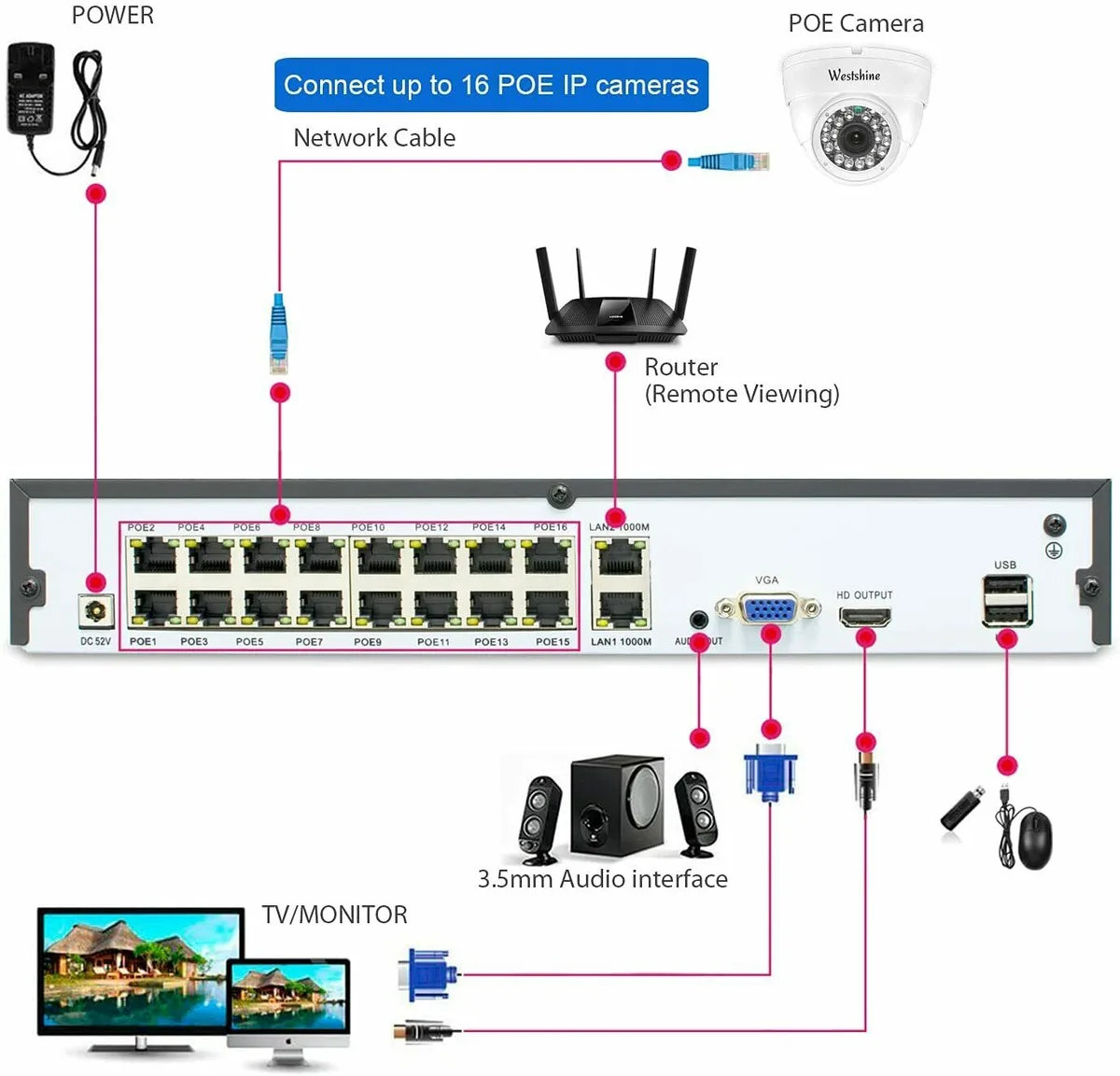
- Switch Capacity: If your NVR doesn't have enough PoE (Power over Ethernet) ports built-in for all your cameras, you'll need a network switch. Ensure this switch has enough ports and sufficient backplane capacity (the internal speed of the switch) to handle all the data.
- Router Limitations: Your router also plays a role, especially if you're using Wi-Fi cameras or if the NVR connects to the internet for remote viewing. Older routers might not handle a large number of devices or high bandwidth demands well. We've found that addressing these network issues can often fix why is my security camera showing a black screen, especially in busy environments.
- Quality of Cables: For wired connections, using good quality Ethernet cables (Cat5e or Cat6) is crucial for signal integrity and preventing data loss, especially over longer runs.
Storage Requirements
More cameras mean more footage being recorded. This directly impacts the size of the hard drive (HDD) you'll need inside your NVR.
- Data Usage: A single 4K camera recording continuously can generate a significant amount of data daily. Our research indicates that how much data does a security camera use varies greatly, but high-resolution, continuous recording is the most demanding.
- Recording Schedule: If you use event-based recording or motion detection instead of continuous recording, you'll use less storage space. However, this also means you might miss crucial moments if motion detection isn't perfectly tuned. You can explore options on whether to use cloud vs local storage security cameras.
- Retention Time: Consider how long you need to keep recordings. Laws and personal preference vary, but if you need to store footage for 30 days or more, you'll need a larger HDD capacity for each additional camera. You can explore options on whether to use cloud vs local storage security cameras.
NVR Performance Optimization
Once you've added cameras, it's good practice to ensure your NVR is running optimally.
- Firmware Updates: Manufacturers periodically release firmware updates that can improve performance, fix bugs, and even enhance NVR capabilities. Keeping your NVR's firmware up-to-date is essential for stable operation. You can find guidance on how to update security camera firmware at https://robinchestnut.com/how-to-update-security-camera-firmware/.
- Stream Settings: Sometimes, you can adjust the "sub-stream" settings for each camera. This is a lower-resolution stream used primarily for remote viewing or when the NVR is busy. Optimizing these settings can free up resources for the main recording stream, helping to prevent video lag.
- Rebooting: While it sounds basic, periodically rebooting your NVR and network equipment can resolve temporary glitches and ensure everything is communicating properly. If you find your cameras are acting up, you might even consider how to reset a security camera.
Frequently Asked Questions About NVR Camera Support
How do I know if my NVR supports more cameras than it currently has connected?
Your NVR's interface will usually show the total number of channels available and how many are in use. If there are unused channels, your NVR can likely support more cameras, provided you have the necessary bandwidth and processing power.
Can I mix different brands of IP cameras with my NVR?
Generally, yes, as long as the cameras support industry-standard protocols like ONVIF (Open Network Video Interface Forum). This standard ensures interoperability between different manufacturers' devices. Always check compatibility if you're mixing brands.
What happens if I connect more cameras than my NVR supports?
Connecting more cameras than your NVR officially supports can lead to significant performance issues. You might experience video lag, dropped frames, recording failures, or the NVR might simply not detect the additional cameras. In some cases, it could cause system instability.
How long does it typically take to add more cameras to an NVR?
The actual connection and configuration process for adding a new camera can take anywhere from 10 to 30 minutes per camera, depending on whether it's wired or wireless, and how complex your network setup is. This doesn't include any physical installation time for running cables.
Is it better to get an NVR with more channels than I currently need?
Yes, it's often a smart move to buy an NVR with more channels than your immediate requirements. This allows for future expansion without needing to replace the entire NVR unit, saving you money and hassle in the long run if you decide to increase your surveillance coverage.