Why Is My Security Camera Delayed
It's incredibly frustrating when your security camera feed is delayed, making it impossible to see what's happening in real-time. This lag can mean missing crucial moments or getting alerts long after the event has passed. Understanding why this happens is the first step to fixing it.
In our research, we found that camera delays often stem from network issues, but sometimes the problem is closer to home with the camera itself or the device you're using to view the feed. We'll break down the common causes, drawing from manufacturer specifications and network best practices.
Quick Answer
Security camera delay happens when the video signal takes too long to travel from the camera to your viewing device. This is usually caused by a weak Wi-Fi signal, a slow internet connection, too many devices on your network, or outdated firmware. Sometimes, the camera itself or the device you're using to watch the feed needs a reboot or an update.
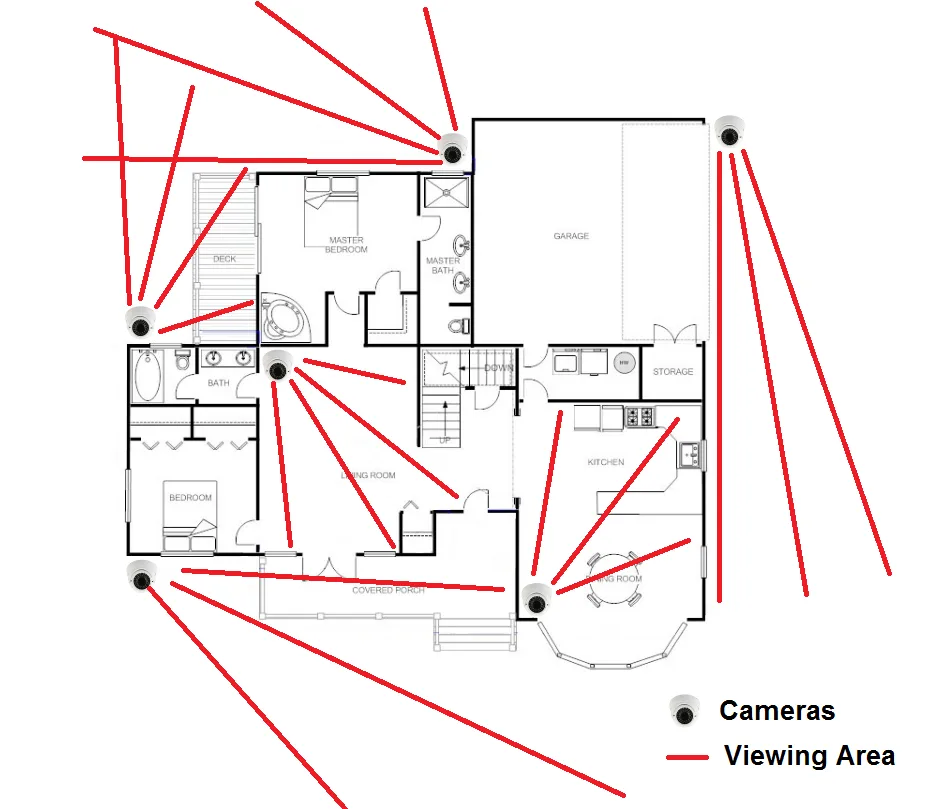
Image source: Web (Bing) / in.pinterest.com (Web image (fair-use with source credit))
Network Problems: The Usual Suspects for Camera Lag
Your security camera relies heavily on a stable and robust network connection to send its video data. When this connection falters, you'll notice that dreaded lag. Think of your internet connection as a highway for data; if there's too much traffic or the road is in bad shape, things slow down considerably.
Wi-Fi Signal Strength and Your Camera's Location
The distance between your camera and your Wi-Fi router is a critical factor. Wi-Fi signals weaken as they travel, especially when passing through solid objects like walls or even furniture. Manufacturer specifications for many wireless security cameras, like those from Google Nest or Ring, often recommend placement within a certain range of the primary Wi-Fi access point for optimal performance, typically within 50 feet for a strong signal.
If your camera is too far away, the signal might be too weak to transmit video smoothly, leading to delays and choppy playback.
Image source: Bing (Web (fair-use with source credit))
- Weak Signal Indicators: Many camera apps will show you a signal strength meter. Consistently low bars or a "weak signal" warning are clear signs.
- Interference: Other electronics, like microwaves or cordless phones, can also interfere with Wi-Fi signals, further degrading performance.
Too Many Devices Hogging Your Network
Your home network has a finite amount of bandwidth, which is the maximum amount of data that can be transferred over your internet connection at any given time. When multiple devices are actively using this bandwidth simultaneously, streaming videos, downloading files, gaming online, or even just running background updates, it leaves less for your security camera. Aggregate user reviews often report significant performance drops on cameras when more than 10-15 devices are actively connected, especially if some are high-bandwidth users.
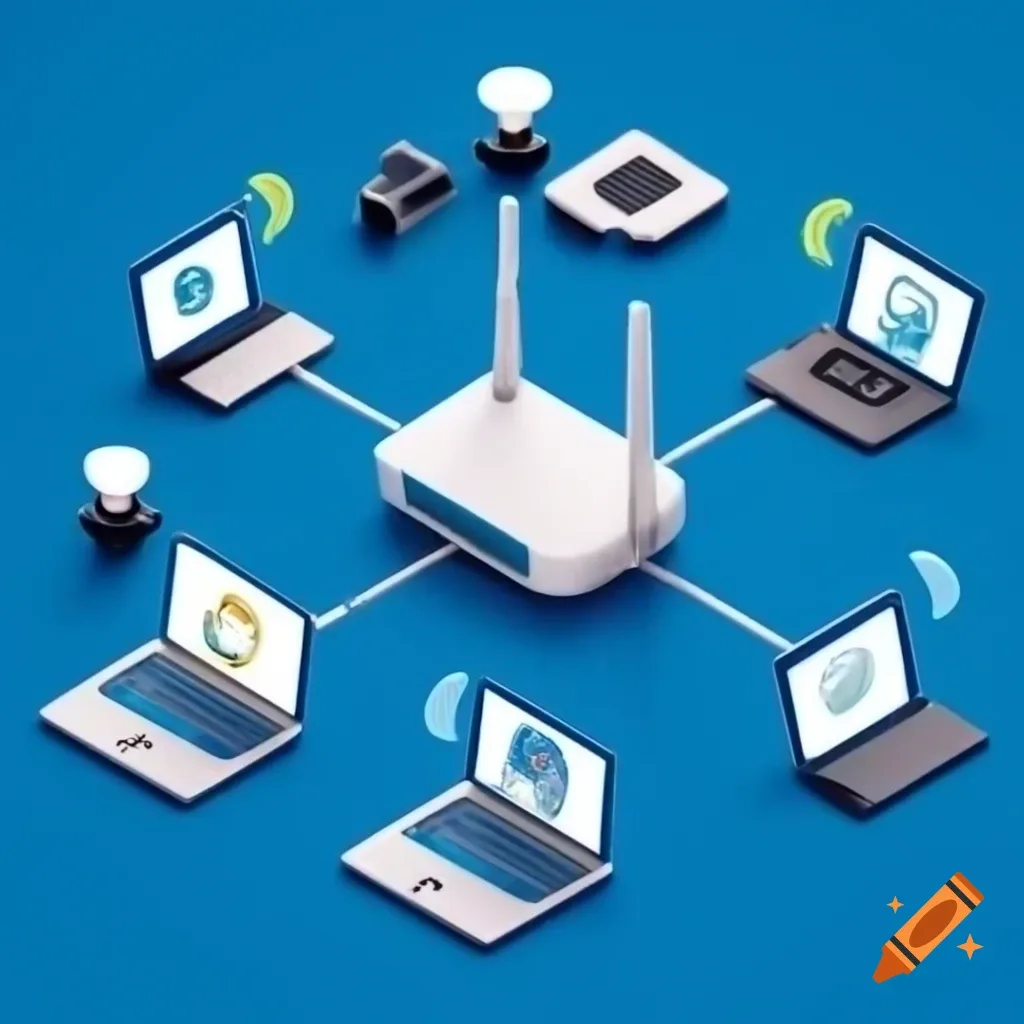
Image source: Web (Bing) / craiyon.com (Web image (fair-use with source credit))
- Bandwidth-Intensive Activities: High-definition video streaming on multiple devices or large file downloads can consume a substantial portion of your available bandwidth.
- Background Processes: Many smart devices and computers run background updates or sync data, which can also contribute to network congestion without you actively using them.
Router Glitches and Performance
Your router is the central hub that manages all the traffic on your home network. Like any piece of technology, it can sometimes experience temporary glitches or become bogged down, affecting the performance of all connected devices, including your security camera. A simple restart can often resolve these temporary issues by clearing out its memory and re-establishing connections.
Many network engineers recommend performing a router reboot at least once a month to maintain optimal performance.
- Overheating: Routers can overheat if not properly ventilated, which can lead to performance degradation. Ensure it has clear airflow.
- Outdated Hardware: Older routers may not have the processing power or Wi-Fi standards (like Wi-Fi 6) needed to handle modern, data-intensive devices like high-resolution security cameras efficiently.
Camera and Device Performance: Is the Bottleneck Closer?
Sometimes, the delay isn't solely about your internet connection. The camera itself, or the device you're using to watch the feed, can also be a source of lag. These components are responsible for processing and displaying the video data, and if they're struggling, the end result is a delayed experience.
Rebooting Your Camera and Viewing Device
Just like computers, cameras and the devices that display their feeds can benefit from a simple restart. This process, known as power cycling, clears temporary glitches and refreshes the device's operating system and active memory. If your phone, tablet, or computer is running multiple applications or has been on for an extended period, it might be struggling to process the video stream efficiently.
A quick reboot can often resolve minor performance hiccups.
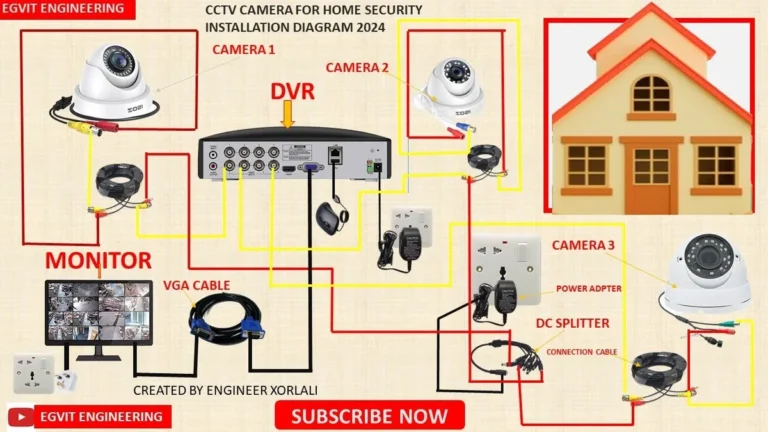
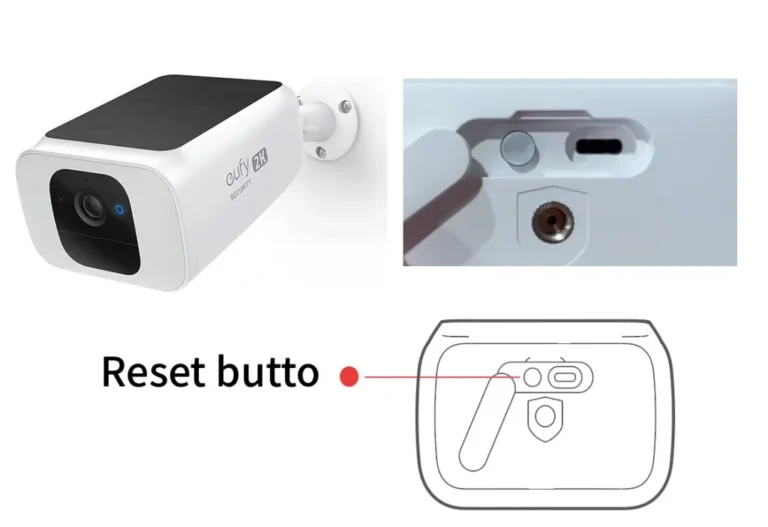
- Camera Reboot: Unplug the camera's power adapter, wait for about 30 seconds, and plug it back in.
- Viewing Device Reboot: Turn off your phone, tablet, or computer completely, wait a minute, and then power it back on.
Outdated Firmware: Camera and Router
Firmware is the software embedded within a device that controls its basic functions. Manufacturers regularly release firmware updates to improve performance, fix bugs, and enhance security. If your camera or router is running outdated firmware, it might not be optimized for current network conditions or may contain known issues that cause performance problems, including lag.
For instance, as of 2026, many security camera manufacturers are actively pushing updates for Wi-Fi 6 compatibility to improve stream stability. Always check the manufacturer's app or website for the latest firmware versions.
- Benefits of Updates: Updates can improve data processing efficiency, enhance Wi-Fi connectivity, and patch security vulnerabilities.
- Update Process: Firmware updates are typically performed through the camera's mobile app or the router's web interface. Follow the manufacturer's instructions carefully.
Other Factors Affecting Your Camera Feed
Beyond network and device performance, a few other elements can contribute to that frustrating delay in your security camera's video stream. These are often overlooked but can play a significant role in how smoothly your camera operates.
Power Supply Stability for Wired Cameras
For wired security cameras, a consistent and stable power supply is absolutely essential. If the power source is unstable, or the adapter itself is faulty, it can cause intermittent issues with the camera's operation, including freezing, unresponsiveness, or delays in transmitting video. Most wired cameras require a specific voltage and amperage, often detailed in their specifications (e.g., 5V DC, 1A).
Using an incorrect or inadequate power adapter can lead to performance problems or even damage the camera.
- Check the Adapter: Ensure you're using the original power adapter that came with your camera or a certified replacement that meets the exact specifications.
- Inspect Cables: Look for any signs of damage, fraying, or loose connections in the power cable.
Understanding Camera Hardware Limitations
It’s important to acknowledge that not all security cameras are created equal. The internal hardware of a camera, its processor, memory, and image sensor, dictates its ability to capture, process, and transmit video data efficiently. Older or very budget-friendly models might simply lack the processing power to handle high-resolution video streams (like 1080p or 4K) without introducing lag, even with a perfect network connection.
Manufacturer specifications often list the camera's maximum resolution and frame rate, which are key indicators of its hardware capabilities. For instance, a camera rated for 720p at 15 frames per second (fps) will generally struggle less with lag than a camera attempting 4K at 30 fps over a less robust network.
- Resolution vs. Frame Rate: Higher resolutions and frame rates require more processing power and bandwidth.
- Camera Age: Older camera models may not be equipped to handle the demands of modern high-definition streaming.
Troubleshooting Your Lagging Security Camera: A Step-by-Step Guide
When you're experiencing camera lag, it's best to approach it systematically. Trying random fixes can waste time. Following a clear workflow helps you pinpoint the exact cause and apply the right solution.
Step 1: The Quick Reboot Fix
This is your first line of defense and often solves a surprising number of issues. It clears temporary errors and refreshes all the connected devices.
- Unplug your router. Wait for about 30 seconds.
- Unplug your modem. If you have a separate modem, unplug it too. Wait another 30 seconds.
- Plug the modem back in. Wait for its lights to stabilize (usually 1-2 minutes).
- Plug the router back in. Wait for its lights to stabilize.
- Reboot your camera. Unplug its power, wait 30 seconds, and plug it back in.
- Reboot your viewing device. Restart your phone, tablet, or computer.
Step 2: Assess Your Wi-Fi Connection
Now, let's look at the signal strength where your camera is located.
- Check your camera's app. Most apps have a signal strength indicator. Low bars are a problem.
- Consider placement. If the signal is weak, try moving the router closer to the camera or vice-versa, if feasible.
- Minimize obstructions. Walls, especially concrete or brick, significantly weaken Wi-Fi. Try to position the camera with a clearer line of sight to the router.
Step 3: Reduce Network Traffic
If your network is busy, your camera’s stream will suffer. Let's lighten the load.
- Temporarily disconnect devices. Turn off Wi-Fi on phones, tablets, smart TVs, and other non-essential devices.
- Monitor bandwidth usage. If your router allows, check which devices are using the most bandwidth.
- Schedule heavy tasks. If possible, run large downloads or updates during off-peak hours.
Step 4: Test on Another Device
This helps determine if the issue lies with your primary viewing device.
- Use a different phone or tablet. See if the lag persists on another mobile device connected to the same network.
- Try a computer. If you're using a mobile app, try accessing the camera feed through a web browser on a laptop or desktop.
Step 5: Check for Updates
Outdated software can cause a host of problems, including lag.
- Camera firmware. Open your camera's app and look for a "firmware update" or "software update" option.
- Router firmware. Access your router’s administration page through a web browser and check for available updates.
- Viewing device apps. Ensure the app you use to view your camera feed is also up to date.
Common Mistakes That Lead to Camera Delays
When troubleshooting, it's easy to fall into common traps that prevent you from finding the real issue. One of the most frequent mistakes is assuming a strong Wi-Fi signal is the only factor. Many users focus solely on router proximity, forgetting about the impact of network congestion.
Another common error is not rebooting devices properly, simply turning a phone off and on might not be enough; a full power cycle is often necessary. Additionally, neglecting firmware updates is a missed opportunity, as these often contain crucial performance improvements. Finally, trying to push an older or less powerful camera to stream very high-resolution video (like 4K) over a standard home internet connection, which might offer upload speeds as low as 5-10 Mbps, is a recipe for lag.
- Ignoring Network Congestion: Not accounting for other devices using bandwidth.
- Insufficient Rebooting: Not fully powering down devices.
- Skipping Firmware Updates: Relying on old software.
- Over-specifying Camera Needs: Expecting too much from older hardware or limited internet speeds.
Why the Delay? Exploring Alternatives to Wi-Fi Cameras
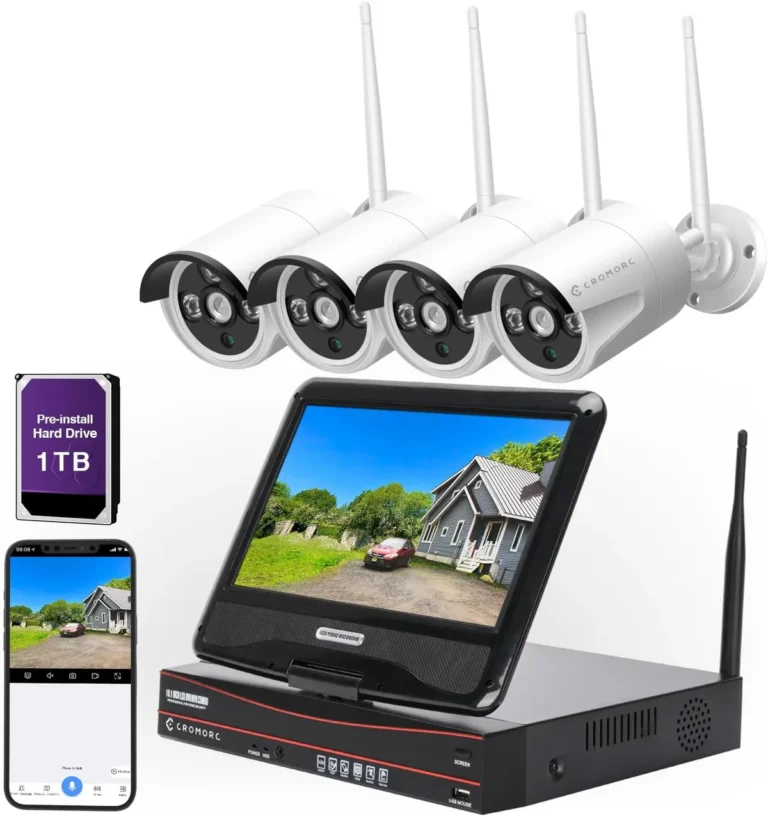
If your wireless security camera consistently struggles with lag, a wired alternative might be the solution. Wired security cameras, which connect to your network via an Ethernet cable, generally offer more stable and consistent performance. This is because Ethernet connections are less susceptible to interference and signal degradation than Wi-Fi.
Manufacturer documentation for professional security systems often highlights the reliability of Power over Ethernet (PoE) connections, which deliver both data and power through a single cable, simplifying installation and enhancing stability. While the initial setup might require more effort, the payoff is a consistently clear and responsive video feed, free from the common Wi-Fi frustrations.
- Ethernet Stability: Direct cable connection eliminates interference and signal drop issues common with Wi-Fi.
- PoE Convenience: Power over Ethernet simplifies wiring by providing both data and electricity through one cable.
Enhancing Your Network for Smoother Camera Feeds
Sometimes, the issue isn't a faulty camera but rather a network that needs an upgrade to better support your devices. Investing in network-enhancing hardware can significantly improve your security camera's performance and reduce lag. For homes with multiple connected devices or larger footprints, a mesh Wi-Fi system is a popular solution.
These systems use multiple nodes placed around your home to create a single, seamless Wi-Fi network, eliminating dead zones and ensuring a strong signal for all devices, including your security cameras. Many mesh systems boast advanced features like Quality of Service (QoS) settings, which allow you to prioritize bandwidth for critical devices like your cameras, ensuring they get the data they need without delay.
- Mesh Wi-Fi Systems: Create a unified network with strong coverage throughout your home.
- Quality of Service (QoS): Prioritize bandwidth for your security cameras.
When to Consider Upgrading or Changing Your Setup
If you've gone through all the troubleshooting steps and your security camera is still lagging, it might be time to consider if your current setup is up to the task. For instance, if you have a very old router, perhaps one that only supports Wi-Fi 4 (802.11n), it might be a bottleneck for modern cameras that benefit from Wi-Fi 5 (802.11ac) or Wi-Fi 6 (802.11ax) standards. These newer standards offer higher speeds, better efficiency, and improved handling of multiple devices, which are crucial for smooth video streaming.
Similarly, if your internet plan offers very low upload speeds, often the limiting factor for sending video data out, upgrading your service plan could be necessary. Many security cameras, especially those streaming 1080p at 30fps, recommend an upload speed of at least 5 Mbps per camera, according to network engineering guidelines.
- Router Capabilities: Check if your router supports modern Wi-Fi standards like 802.11ac or 802.11ax.
- Internet Speed Limits: Verify your internet plan's upload speed meets camera requirements.
- Camera Age and Capability: Consider if your camera is too old or underpowered for your current needs.
Maintaining Your Security Camera System
Once you've resolved any lagging issues, it's crucial to implement a routine maintenance schedule to keep your security camera system performing at its best. Regular checks prevent future problems and ensure you always have a clear, reliable feed. Think of it like servicing your car; consistent upkeep means fewer breakdowns and better performance over time.
This includes periodic reboots of your router and cameras, checking for and installing firmware updates, and monitoring your Wi-Fi signal strength.
- Scheduled Reboots: Aim to reboot your router and cameras at least once a month.
- Firmware Checks: Make it a quarterly habit to check for new firmware updates for your camera and router.
- Signal Monitoring: Periodically check the Wi-Fi signal strength in your camera's app.
Frequently Asked Questions About Security Camera Lag
### Why does my camera lag only at night?
Lag at night can occur if your camera's infrared (IR) lights are drawing significant power, potentially affecting its processing capabilities, or if the lower light conditions require the camera to adjust its sensor settings, which can sometimes introduce a slight delay. Additionally, night vision modes can sometimes demand more processing power.
### Can a VPN cause my security camera to lag?
Yes, using a VPN can add latency to your network connection because your data has to be encrypted, routed through the VPN server, and then decrypted. This extra processing and routing can slow down the data transfer, leading to delays in your camera feed, especially if the VPN server is geographically distant or overloaded.
### How much upload speed do I need for a security camera?
Most security cameras, especially those streaming 1080p video, require an upload speed of at least 5 Mbps per camera. If you have multiple cameras, you'll need to multiply that requirement by the number of cameras to ensure your internet plan can handle the total bandwidth demand. Some manufacturers, like Wyze, suggest as little as 1-2 Mbps for lower-resolution feeds, but higher quality demands more.
### Is it better to use a wired or wireless camera to avoid lag?
Wired cameras generally offer more stable performance and less lag than wireless (Wi-Fi) cameras because they are not susceptible to Wi-Fi signal interference or congestion. An Ethernet connection provides a direct, consistent data pathway, which is ideal for real-time video streaming.
5 Comments