How to Save Security Camera Footage
You've got security cameras rolling, and now you need to save that footage. It's smart to know how to capture those important moments, whether it's for a home security record, a potential insurance issue, or just to keep a memory safe. The process can seem a bit daunting at first, but it really boils down to your specific camera system and what you're trying to achieve.
There are two main ways most people store their video: in the cloud or locally on a device. Understanding which fits your setup, like knowing if your camera system supports at least 128GB of local storage or a 7-day cloud retention period, makes all the difference. We'll walk through the options to help you secure your footage.
Image source: Web (Bing) / gunsafesecurity.com (Web image (fair-use with source credit))
Quick Answer
Save security camera footage by using cloud storage plans or local storage options like SD cards or DVR/NVRs. Cloud storage offers convenience with subscription fees. Local storage requires direct management but avoids recurring costs.
Choose based on your camera type and desired accessibility. Download critical events immediately to prevent loss.
Understanding Your Footage Saving Options: Cloud vs. Local
The way you save footage primarily hinges on whether you opt for cloud-based storage or a local solution. Each has its own set of advantages and disadvantages that cater to different needs and budgets. It’s less about picking the "best" overall and more about finding the "best for you."
Cloud Storage: The Convenient Route
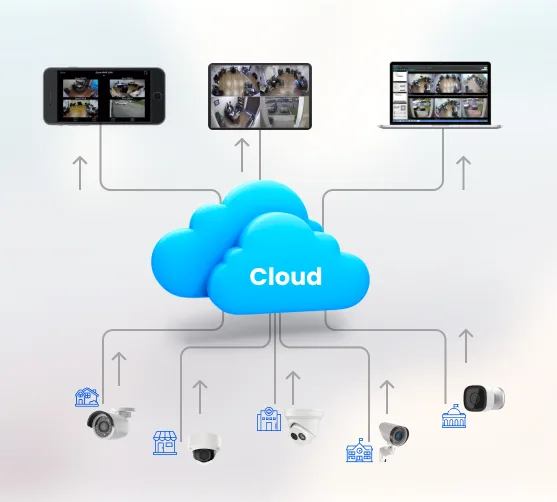
Cloud storage means your camera's video is sent over the internet to remote servers managed by the camera manufacturer or a third-party service. This is often the default for many modern, internet-connected cameras. You typically access your footage through the camera's mobile app or a web portal.
- Accessibility: Footage can be accessed from any device with an internet connection, anywhere in the world.
- Automatic Backups: Recordings are usually uploaded automatically, reducing the risk of losing data due to hardware failure on your end.
- No Local Hardware Hassle: You don't need to worry about managing hard drives or SD cards.
Image source: Web (Bing) / surveillanceguides.com (Web image (fair-use with source credit))
The main drawback is the recurring cost. Most cloud services require a monthly or annual subscription. For example, plans often start around $3 per camera per month for 7-day video history.
You're also reliant on your internet connection's upload speed and stability for recordings to save properly.
Local Storage: Taking Control
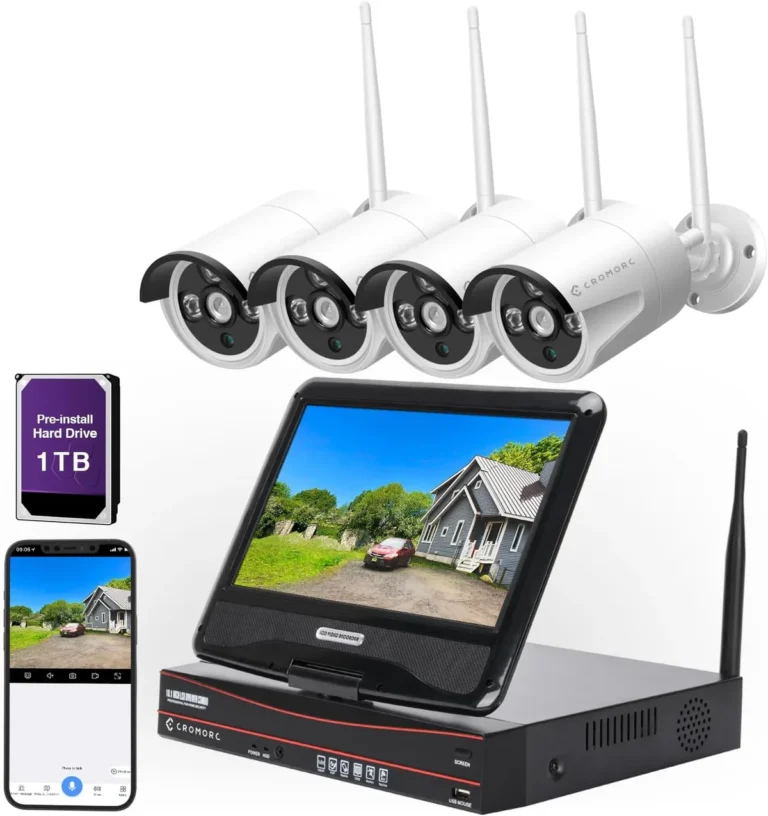
Local storage involves saving your footage directly onto a device you own and manage. This could be a microSD card inserted into the camera itself, or a dedicated Digital Video Recorder (DVR) or Network Video Recorder (NVR) box that all your cameras feed into. This method means you have physical possession of your data.
- No Recurring Fees: After the initial purchase of the storage device (SD card, hard drive), there are no ongoing subscription costs.
- Data Ownership: You have direct control over your recordings without relying on a third party.
- Offline Capability: Saving footage doesn't necessarily depend on an active internet connection, though remote viewing might.
However, local storage can require more hands-on management. You might need to manually transfer footage, replace failing hard drives, or ensure SD cards aren't full. For DVR/NVR systems, initial setup can be more involved.
My Camera Setup: What Path Should I Take?
Figuring out which storage method works best really depends on the type of security cameras you have. They're not all created equal, and manufacturers design them with specific storage solutions in mind. Let's see where your setup fits.
If You Have Standalone Wi-Fi Cameras
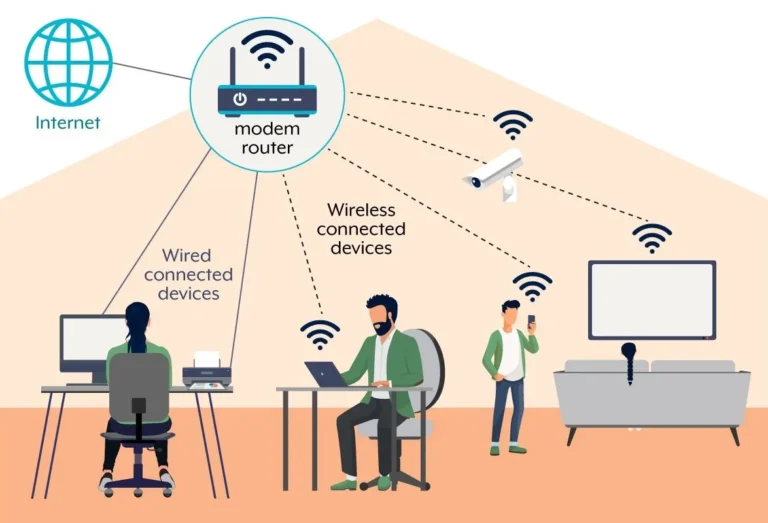
Many popular consumer security cameras, like those from Arlo, Wyze, or Ring, fall into this category. These are typically wireless or Wi-Fi-enabled cameras designed for easy DIY installation. They often connect directly to your home network and can use either cloud storage or local storage options, or sometimes both.
- Check for SD Card Slots: Many standalone cameras have a microSD card slot. If yours does, this is a primary local storage option. You'll need to purchase compatible microSD cards (often rated for high endurance for video recording) and insert them into each camera.
- Manufacturer's Cloud Service: Almost all standalone Wi-Fi cameras offer a cloud subscription. This is usually managed through the camera's dedicated app. You'll need to check the app settings to see what plans are available and if they meet your needs for recording duration (e.g., 7, 30, or 60 days of storage).
- Hubs or Base Stations: Some brands use a central hub or base station that connects to your router. This hub might have its own SD card slot or internal storage, serving as a central local repository for multiple cameras.
Manufacturer specifications often detail the exact storage capabilities. For instance, some systems might offer a free tier for limited cloud storage (like event clips only) or require a paid plan for continuous recording.
If You Have a DVR or NVR System
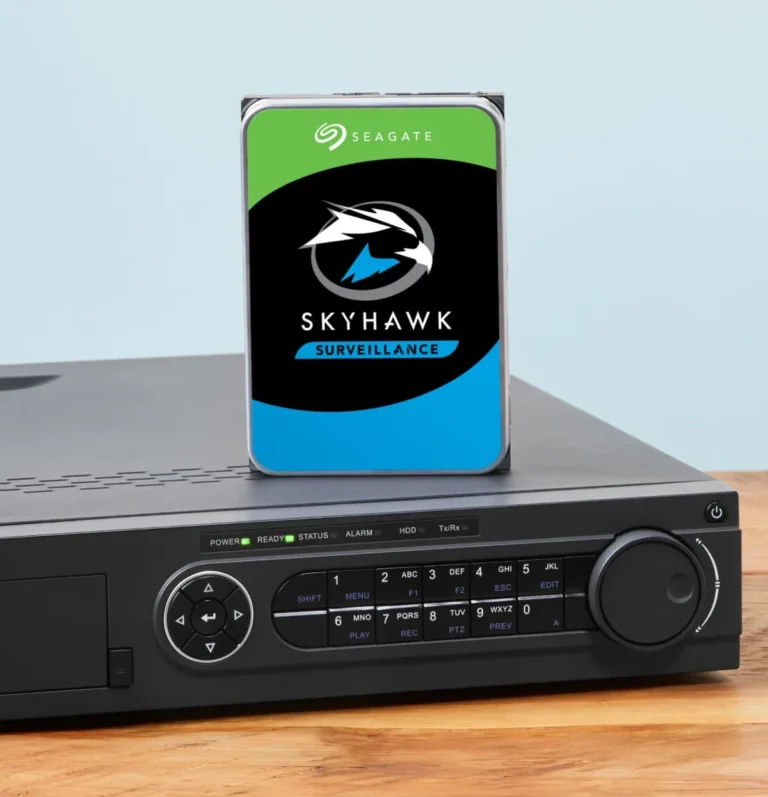
If you have a more traditional, wired security camera system, you likely have a DVR or an NVR as the central recording unit. These boxes are specifically designed to receive video feeds from multiple cameras and store them onto an internal hard drive.
- DVR (Digital Video Recorder): Typically used with analog or HD-TVI/CVI cameras. It directly records video signals from cameras connected via coaxial cables. The DVR unit itself houses the hard drive for storage.
- NVR (Network Video Recorder): Used with IP cameras. It receives video streams over your network (Ethernet cables or Wi-Fi). The NVR also contains a hard drive for storage.
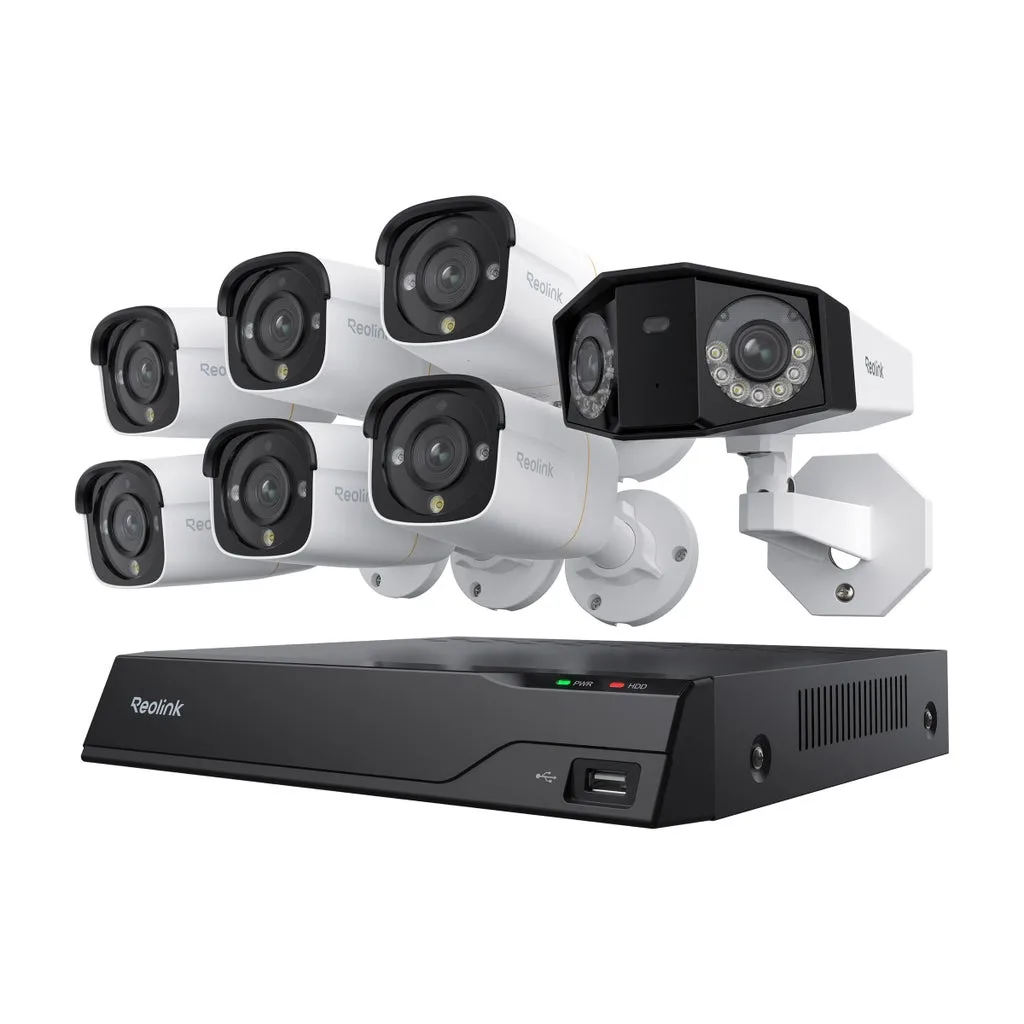
Image source: Web (Bing) / costco.com (Web image (fair-use with source credit))
For these systems, the primary method of saving footage is by exporting it from the DVR/NVR. This usually involves accessing the unit's interface, navigating to a playback or search menu, selecting the desired date and time range, and then exporting the video file, most commonly to a USB flash drive. The capacity of the DVR/NVR's hard drive dictates how much footage can be stored before older recordings are overwritten (loop recording).
Step-by-Step: Saving Footage from Cloud Services
Using cloud storage for your security camera footage is generally the most straightforward method, especially if your cameras were designed with this in mind. The process mainly involves interacting with your camera's manufacturer app.
Accessing and Downloading Clips
- Open Your Camera's App: Launch the mobile application associated with your security camera brand on your smartphone or tablet.
- Navigate to Playback/History: Look for a section within the app labeled "Playback," "History," "Timeline," "Recordings," or something similar. This is where you'll find your recorded video clips.
- Select the Desired Clip: Browse through the timeline or event list to find the specific footage you want to save. Most apps allow you to filter by date, time, or motion events. Tapping on a clip will usually start playback.
- Initiate Download: Once you're viewing the clip you wish to keep, look for a "Download," "Save," "Export," or a similar icon (often a downward-pointing arrow). Tap this option.
- Choose Save Location: The app will typically prompt you to save the video file to your phone's camera roll or internal storage. Some apps might offer options to save directly to cloud storage services like Google Drive or Dropbox, but downloading to your device is the most common.
It's crucial to remember that cloud services often have limited retention periods. For example, a 7-day plan means footage older than a week will be automatically deleted to make space. Therefore, if a particular event is important, download it immediately after you discover it to ensure it's saved permanently on your device.
Step-by-Step: Saving Footage from Local Storage
Saving footage locally offers more control and can be cost-effective, but it requires a bit more interaction with your hardware. The exact steps depend heavily on whether you're using an SD card directly in a camera or a DVR/NVR system.
Using SD Cards
If your cameras have microSD card slots, this is your go-to for local storage.
- Ensure SD Card is Inserted and Recording: Verify in your camera's app or settings that the SD card is recognized and set to record. Many cameras will automatically start recording to the card if it's present and configured. This process often involves loop recording, where older footage is automatically overwritten as new footage is captured.
- Access Footage via App (if supported): Many modern standalone cameras allow you to view and download footage directly from the SD card through their app. Navigate to the playback or gallery section within the app, and you should see an option to download clips to your phone.
- Remove Card for Computer Access (if app download isn't available): If your camera's app doesn't offer direct download from the SD card, you'll need to physically remove the microSD card from the camera.
- Use an SD Card Reader: Insert the microSD card into a compatible SD card reader (many laptops have built-in readers, or you can use an external USB reader).
- Locate and Copy Files: The card will appear as a drive on your computer. Navigate to the camera’s specific folder (this can vary by brand, check your camera manual if unsure) and copy the video files you want to save to your computer's hard drive.
- Back Up Your Files: Once copied to your computer, consider backing up these important video files to another location, like an external hard drive or another cloud service, for extra security.
Regularly checking your SD card's status and storage capacity is a good practice to ensure continuous recording.
Saving from Your DVR or NVR
For traditional wired systems, your DVR or NVR is the hub for saving footage.
- Connect a Monitor and Mouse: You'll need a monitor connected directly to the DVR/NVR (often via HDMI or VGA) and a USB mouse plugged into the unit for navigation.
- Access the Playback Menu: Power on the DVR/NVR. Use the mouse to navigate the on-screen interface. Look for a "Playback," "Search," or "Event" menu option.
- Select Camera and Timeframe: Choose the specific camera you want to review footage from. Then, select the date and time range you are interested in. The system will display the recorded video for that period.
- Locate the Target Clip: Play through the footage to find the exact clip or event you need to save. Many systems allow you to zoom in on the timeline or use search filters for motion events.
- Export Footage: Once you've found the clip, look for an "Export," "Backup," "Save," or "USB" option. You'll need a USB flash drive plugged into the DVR/NVR's USB port.
- Choose Format and Save: The system will typically ask you to specify the start and end times for the export, and you can usually choose a video format (like AVI or MP4). Select the destination as your USB drive and initiate the export. This process can take several minutes depending on the length of the clip.
Ensure your USB drive has sufficient free space before starting the export. Manufacturer documentation provides detailed instructions for your specific DVR/NVR model.
Common Mistakes When Saving Footage
Even with the right tools, it's easy to make mistakes that can lead to lost footage. Being aware of these common pitfalls can save you a lot of frustration down the line.
Incorrect Export Settings
When exporting footage from a DVR, NVR, or even some camera apps, the file format or resolution settings can cause problems.
- Incompatible Formats: Exporting in an obscure video format (like proprietary DVR formats) might make the file unplayable on standard computers or phones without special software. Always aim for widely compatible formats like MP4 or AVI.
- Low Resolution Exports: If you need to share footage as evidence, exporting at a very low resolution will make details indistinguishable. Check the export options and choose the highest quality your system allows.
- Not Verifying Exports: After exporting, play the file from the USB drive or your computer to confirm it's what you expected and that it plays correctly. Don't assume the export was successful without checking.
Neglecting Regular Backups of Archived Footage
Even if you save important clips locally, they can still be lost. Think of your local storage (SD card or DVR/NVR drive) as a temporary archive.
- Single Point of Failure: If your camera, SD card, or DVR/NVR fails, all the footage stored on it can be lost if it's the only copy.
- Physical Damage or Theft: Local storage devices are susceptible to physical damage, power surges, or even theft of the device itself.
For truly critical footage, implement a "backup of the backup" strategy. Regularly transfer important clips from your local storage to a separate location, such as an external hard drive kept off-site or a secure cloud storage service.
Costs and Specifications to Consider
When looking at how to save your footage, the financial and technical specifications are vital. They directly impact your experience and the long-term viability of your chosen method.
Cloud Storage Costs and Specs
- Subscription Fees: Typically range from $3 to $15 per camera per month, depending on features and retention. Annual plans often offer a discount.
- Retention Periods: Usually 7, 14, or 30 days of video history are standard. Longer periods cost more.
- Storage Capacity: Often unlimited for the defined retention period, but some plans might have limits on continuous recording hours per month.
- Bandwidth Usage: High-definition, continuous recording can consume significant internet upload bandwidth. Check your internet plan limits.
- Camera Compatibility: Not all cameras support all cloud services; often, you're locked into the manufacturer's ecosystem.
Local Storage Costs and Specs
- Hardware Costs:
- SD Cards: Prices vary by capacity and speed rating, from $10 for 32GB to $50+ for 256GB high-endurance cards.
- DVR/NVR Systems: Can range from $100 for a basic 4-channel DVR to $500+ for a multi-channel NVR with pre-installed hard drives.
- Hard Drives: Replacement or additional HDDs can cost $50-$150+ depending on size (1TB to 4TB is common).
- Storage Capacity:
- SD Cards: Commonly 32GB to 256GB.
- DVR/NVR: Typically 1TB to 4TB internal hard drives, expandable in some models. Storage duration depends on drive size, camera resolution, and frame rate. For example, a 2TB drive might store 2-4 weeks of continuous 1080p footage from 4 cameras.
- No Recurring Fees: The primary advantage is avoiding monthly subscription costs.
When researching, always check the recommended specifications for your specific camera model, such as the maximum supported SD card size or the recommended hard drive type for DVR/NVR systems.
Best For: Who is This Storage Method Right For?
Choosing between cloud and local storage really comes down to your personal priorities and technical comfort level. Each option serves different needs best.
Cloud Storage is Ideal For:
- The Tech-Unsavvy: If you prefer a set-it-and-forget-it approach without managing hardware, cloud storage is simpler.
- Remote Access Enthusiasts: Those who travel frequently or want to check footage from anywhere will find cloud services most convenient.
- Users Needing Quick Access: Immediate access to event clips on your phone is a major plus for cloud-based systems.
- Those Prioritizing Ease of Use: With minimal setup beyond an account and subscription, it's the easiest to get started.
Local Storage is Ideal For:
- Budget-Conscious Users: Avoiding monthly fees can lead to significant savings over time, especially for systems with many cameras.
- Privacy-Focused Individuals: Keeping all footage on your own hardware offers maximum control over your data.
- Users with Unreliable Internet: If your internet connection is spotty, local storage ensures recording continues uninterrupted.
- DIY Enthusiasts: Those comfortable with managing hardware, occasional maintenance, and direct data handling.
Consider your internet bandwidth, too. Uploading high-definition video to the cloud requires a strong, stable connection. Local storage bypasses this dependency for the recording itself.
Mistakes to Avoid When Saving Footage
We've touched on a couple of common errors, but let's reinforce some critical missteps to prevent data loss or access issues. Getting these right is key to actually benefiting from your security cameras.
Incorrect Export Settings
When exporting footage from a DVR, NVR, or even some camera apps, the file format or resolution settings can cause problems.
- Incompatible Formats: Exporting in an obscure video format (like proprietary DVR formats) might make the file unplayable on standard computers or phones without special software. Always aim for widely compatible formats like MP4 or AVI.
- Low Resolution Exports: If you need to share footage as evidence, exporting at a very low resolution will make details indistinguishable. Check the export options and choose the highest quality your system allows.
- Not Verifying Exports: After exporting, play the file from the USB drive or your computer to confirm it's what you expected and that it plays correctly. Don't assume the export was successful without checking.
Neglecting Regular Backups of Archived Footage
Even if you save important clips locally, they can still be lost. Think of your local storage (SD card or DVR/NVR drive) as a temporary archive.
- Single Point of Failure: If your camera, SD card, or DVR/NVR fails, all the footage stored on it can be lost if it's the only copy.
- Physical Damage or Theft: Local storage devices are susceptible to physical damage, power surges, or even theft of the device itself.
For truly critical footage, implement a "backup of the backup" strategy. Regularly transfer important clips from your local storage to a separate location, such as an external hard drive kept off-site or a secure cloud storage service.
Best For: Who is This Storage Method Right For?
Choosing between cloud and local storage really comes down to your personal priorities and technical comfort level. Each option serves different needs best.
Cloud Storage is Ideal For:
- The Tech-Unsavvy: If you prefer a set-it-and-forget-it approach without managing hardware, cloud storage is simpler.
- Remote Access Enthusiasts: Those who travel frequently or want to check footage from anywhere will find cloud services most convenient.
- Users Needing Quick Access: Immediate access to event clips on your phone is a major plus for cloud-based systems.
- Those Prioritizing Ease of Use: With minimal setup beyond an account and subscription, it's the easiest to get started.
Local Storage is Ideal For:
- Budget-Conscious Users: Avoiding monthly fees can lead to significant savings over time, especially for systems with many cameras.
- Privacy-Focused Individuals: Keeping all footage on your own hardware offers maximum control over your data.
- Users with Unreliable Internet: If your internet connection is spotty, local storage ensures recording continues uninterrupted.
- DIY Enthusiasts: Those comfortable with managing hardware, occasional maintenance, and direct data handling.
Consider your internet bandwidth, too. Uploading high-definition video to the cloud requires a strong, stable connection. Local storage bypasses this dependency for the recording itself.
Mistakes to Avoid When Saving Footage
We've touched on a couple of common errors, but let's reinforce some critical missteps to prevent data loss or access issues. Getting these right is key to actually benefiting from your security cameras.
Incorrect Export Settings
When exporting footage from a DVR, NVR, or even some camera apps, the file format or resolution settings can cause problems.
- Incompatible Formats: Exporting in an obscure video format (like proprietary DVR formats) might make the file unplayable on standard computers or phones without special software. Always aim for widely compatible formats like MP4 or AVI.
- Low Resolution Exports: If you need to share footage as evidence, exporting at a very low resolution will make details indistinguishable. Check the export options and choose the highest quality your system allows.
- Not Verifying Exports: After exporting, play the file from the USB drive or your computer to confirm it's what you expected and that it plays correctly. Don't assume the export was successful without checking.
Neglecting Regular Backups of Archived Footage
Even if you save important clips locally, they can still be lost. Think of your local storage (SD card or DVR/NVR drive) as a temporary archive.
- Single Point of Failure: If your camera, SD card, or DVR/NVR fails, all the footage stored on it can be lost if it's the only copy.
- Physical Damage or Theft: Local storage devices are susceptible to physical damage, power surges, or even theft of the device itself.
For truly critical footage, implement a "backup of the backup" strategy. Regularly transfer important clips from your local storage to a separate location, such as an external hard drive kept off-site or a secure cloud storage service.
Costs and Specifications to Consider
When looking at how to save your footage, the financial and technical specifications are vital. They directly impact your experience and the long-term viability of your chosen method.
Cloud Storage Costs and Specs
- Subscription Fees: Typically range from $3 to $15 per camera per month, depending on features and retention. Annual plans often offer a discount.
- Retention Periods: Usually 7, 14, or 30 days of video history are standard. Longer periods cost more.
- Storage Capacity: Often unlimited for the defined retention period, but some plans might have limits on continuous recording hours per month.
- Bandwidth Usage: High-definition, continuous recording can consume significant internet upload bandwidth. Check your internet plan limits.
- Camera Compatibility: Not all cameras support all cloud services; often, you're locked into the manufacturer's ecosystem.
Local Storage Costs and Specs
- Hardware Costs:
- SD Cards: Prices vary by capacity and speed rating, from $10 for 32GB to $50+ for 256GB high-endurance cards.
- DVR/NVR Systems: Can range from $100 for a basic 4-channel DVR to $500+ for a multi-channel NVR with pre-installed hard drives.
- Hard Drives: Replacement or additional HDDs can cost $50-$150+ depending on size (1TB to 4TB is common).
- Storage Capacity:
- SD Cards: Commonly 32GB to 256GB.
- DVR/NVR: Typically 1TB to 4TB internal hard drives, expandable in some models. Storage duration depends on drive size, camera resolution, and frame rate. For example, a 2TB drive might store 2-4 weeks of continuous 1080p footage from 4 cameras.
- No Recurring Fees: The primary advantage is avoiding monthly subscription costs.
When researching, always check the recommended specifications for your specific camera model, such as the maximum supported SD card size or the recommended hard drive type for DVR/NVR systems.
Best For: Who is This Storage Method Right For?
Choosing between cloud and local storage really comes down to your personal priorities and technical comfort level. Each option serves different needs best.
Cloud Storage is Ideal For:
- The Tech-Unsavvy: If you prefer a set-it-and-forget-it approach without managing hardware, cloud storage is simpler.
- Remote Access Enthusiasts: Those who travel frequently or want to check footage from anywhere will find cloud services most convenient.
- Users Needing Quick Access: Immediate access to event clips on your phone is a major plus for cloud-based systems.
- Those Prioritizing Ease of Use: With minimal setup beyond an account and subscription, it's the easiest to get started.
Local Storage is Ideal For:
- Budget-Conscious Users: Avoiding monthly fees can lead to significant savings over time, especially for systems with many cameras.
- Privacy-Focused Individuals: Keeping all footage on your own hardware offers maximum control over your data.
- Users with Unreliable Internet: If your internet connection is spotty, local storage ensures recording continues uninterrupted.
- DIY Enthusiasts: Those comfortable with managing hardware, occasional maintenance, and direct data handling.
Consider your internet bandwidth, too. Uploading high-definition video to the cloud requires a strong, stable connection. Local storage bypasses this dependency for the recording itself.
Mistakes to Avoid When Saving Footage
We've touched on a couple of common errors, but let's reinforce some critical missteps to prevent data loss or access issues. Getting these right is key to actually benefiting from your security cameras.
Incorrect Export Settings
When exporting footage from a DVR, NVR, or even some camera apps, the file format or resolution settings can cause problems.
- Incompatible Formats: Exporting in an obscure video format (like proprietary DVR formats) might make the file unplayable on standard computers or phones without special software. Always aim for widely compatible formats like MP4 or AVI.
- Low Resolution Exports: If you need to share footage as evidence, exporting at a very low resolution will make details indistinguishable. Check the export options and choose the highest quality your system allows.
- Not Verifying Exports: After exporting, play the file from the USB drive or your computer to confirm it's what you expected and that it plays correctly. Don't assume the export was successful without checking.
Neglecting Regular Backups of Archived Footage
Even if you save important clips locally, they can still be lost. Think of your local storage (SD card or DVR/NVR drive) as a temporary archive.
- Single Point of Failure: If your camera, SD card, or DVR/NVR fails, all the footage stored on it can be lost if it's the only copy.
- Physical Damage or Theft: Local storage devices are susceptible to physical damage, power surges, or even theft of the device itself.
For truly critical footage, implement a "backup of the backup" strategy. Regularly transfer important clips from your local storage to a separate location, such as an external hard drive kept off-site or a secure cloud storage service.
Costs and Specifications to Consider
When looking at how to save your footage, the financial and technical specifications are vital. They directly impact your experience and the long-term viability of your chosen method.
Cloud Storage Costs and Specs
- Subscription Fees: Typically range from $3 to $15 per camera per month, depending on features and retention. Annual plans often offer a discount.
- Retention Periods: Usually 7, 14, or 30 days of video history are standard. Longer periods cost more.
- Storage Capacity: Often unlimited for the defined retention period, but some plans might have limits on continuous recording hours per month.
- Bandwidth Usage: High-definition, continuous recording can consume significant internet upload bandwidth. Check your internet plan limits.
- Camera Compatibility: Not all cameras support all cloud services; often, you're locked into the manufacturer's ecosystem.
Local Storage Costs and Specs
- Hardware Costs:
- SD Cards: Prices vary by capacity and speed rating, from $10 for 32GB to $50+ for 256GB high-endurance cards.
- DVR/NVR Systems: Can range from $100 for a basic 4-channel DVR to $500+ for a multi-channel NVR with pre-installed hard drives.
- Hard Drives: Replacement or additional HDDs can cost $50-$150+ depending on size (1TB to 4TB is common).
- Storage Capacity:
- SD Cards: Commonly 32GB to 256GB.
- DVR/NVR: Typically 1TB to 4TB internal hard drives, expandable in some models. Storage duration depends on drive size, camera resolution, and frame rate. For example, a 2TB drive might store 2-4 weeks of continuous 1080p footage from 4 cameras.
- No Recurring Fees: The primary advantage is avoiding monthly subscription costs.
When researching, always check the recommended specifications for your specific camera model, such as the maximum supported SD card size or the recommended hard drive type for DVR/NVR systems.
Best For: Who is This Storage Method Right For?
Choosing between cloud and local storage really comes down to your personal priorities and technical comfort level. Each option serves different needs best.
Cloud Storage is Ideal For:
- The Tech-Unsavvy: If you prefer a set-it-and-forget-it approach without managing hardware, cloud storage is simpler.
- Remote Access Enthusiasts: Those who travel frequently or want to check footage from anywhere will find cloud services most convenient.
- Users Needing Quick Access: Immediate access to event clips on your phone is a major plus for cloud-based systems.
- Those Prioritizing Ease of Use: With minimal setup beyond an account and subscription, it's the easiest to get started.
Local Storage is Ideal For:
- Budget-Conscious Users: Avoiding monthly fees can lead to significant savings over time, especially for systems with many cameras.
- Privacy-Focused Individuals: Keeping all footage on your own hardware offers maximum control over your data.
- Users with Unreliable Internet: If your internet connection is spotty, local storage ensures recording continues uninterrupted.
- DIY Enthusiasts: Those comfortable with managing hardware, occasional maintenance, and direct data handling.
Consider your internet bandwidth, too. Uploading high-definition video to the cloud requires a strong, stable connection. Local storage bypasses this dependency for the recording itself.
Mistakes to Avoid When Saving Footage
We've touched on a couple of common errors, but let's reinforce some critical missteps to prevent data loss or access issues. Getting these right is key to actually benefiting from your security cameras.
Incorrect Export Settings
When exporting footage from a DVR, NVR, or even some camera apps, the file format or resolution settings can cause problems.
- Incompatible Formats: Exporting in an obscure video format (like proprietary DVR formats) might make the file unplayable on standard computers or phones without special software. Always aim for widely compatible formats like MP4 or AVI.
- Low Resolution Exports: If you need to share footage as evidence, exporting at a very low resolution will make details indistinguishable. Check the export options and choose the highest quality your system allows.
- Not Verifying Exports: After exporting, play the file from the USB drive or your computer to confirm it's what you expected and that it plays correctly. Don't assume the export was successful without checking.
Neglecting Regular Backups of Archived Footage
Even if you save important clips locally, they can still be lost. Think of your local storage (SD card or DVR/NVR drive) as a temporary archive.
- Single Point of Failure: If your camera, SD card, or DVR/NVR fails, all the footage stored on it can be lost if it's the only copy.
- Physical Damage or Theft: Local storage devices are susceptible to physical damage, power surges, or even theft of the device itself.
For truly critical footage, implement a "backup of the backup" strategy. Regularly transfer important clips from your local storage to a separate location, such as an external hard drive kept off-site or a secure cloud storage service.
Costs and Specifications to Consider
When looking at how to save your footage, the financial and technical specifications are vital. They directly impact your experience and the long-term viability of your chosen method.
Cloud Storage Costs and Specs
- Subscription Fees: Typically range from $3 to $15 per camera per month, depending on features and retention. Annual plans often offer a discount.
- Retention Periods: Usually 7, 14, or 30 days of video history are standard. Longer periods cost more.
- Storage Capacity: Often unlimited for the defined retention period, but some plans might have limits on continuous recording hours per month.
- Bandwidth Usage: High-definition, continuous recording can consume significant internet upload bandwidth. Check your internet plan limits.
- Camera Compatibility: Not all cameras support all cloud services; often, you're locked into the manufacturer's ecosystem.
Local Storage Costs and Specs
- Hardware Costs:
- SD Cards: Prices vary by capacity and speed rating, from $10 for 32GB to $50+ for 256GB high-endurance cards.
- DVR/NVR Systems: Can range from $100 for a basic 4-channel DVR to $500+ for a multi-channel NVR with pre-installed hard drives.
- Hard Drives: Replacement or additional HDDs can cost $50-$150+ depending on size (1TB to 4TB is common).
- Storage Capacity:
- SD Cards: Commonly 32GB to 256GB.
- DVR/NVR: Typically 1TB to 4TB internal hard drives, expandable in some models. Storage duration depends on drive size, camera resolution, and frame rate. For example, a 2TB drive might store 2-4 weeks of continuous 1080p footage from 4 cameras.
- No Recurring Fees: The primary advantage is avoiding monthly subscription costs.
When researching, always check the recommended specifications for your specific camera model, such as the maximum supported SD card size or the recommended hard drive type for DVR/NVR systems.
Best For: Who is This Storage Method Right For?
Choosing between cloud and local storage really comes down to your personal priorities and technical comfort level. Each option serves different needs best.
Cloud Storage is Ideal For:
- The Tech-Unsavvy: If you prefer a set-it-and-forget-it approach without managing hardware, cloud storage is simpler.
- Remote Access Enthusiasts: Those who travel frequently or want to check footage from anywhere will find cloud services most convenient.
- Users Needing Quick Access: Immediate access to event clips on your phone is a major plus for cloud-based systems.
- Those Prioritizing Ease of Use: With minimal setup beyond an account and subscription, it's the easiest to get started.
Local Storage is Ideal For:
- Budget-Conscious Users: Avoiding monthly fees can lead to significant savings over time, especially for systems with many cameras.
- Privacy-Focused Individuals: Keeping all footage on your own hardware offers maximum control over your data.
- Users with Unreliable Internet: If your internet connection is spotty, local storage ensures recording continues uninterrupted.
- DIY Enthusiasts: Those comfortable with managing hardware, occasional maintenance, and direct data handling.
Consider your internet bandwidth, too. Uploading high-definition video to the cloud requires a strong, stable connection. Local storage bypasses this dependency for the recording itself.
Mistakes to Avoid When Saving Footage
We've touched on a couple of common errors, but let's reinforce some critical missteps to prevent data loss or access issues. Getting these right is key to actually benefiting from your security cameras.
Incorrect Export Settings
When exporting footage from a DVR, NVR, or even some camera apps, the file format or resolution settings can cause problems.
- Incompatible Formats: Exporting in an obscure video format (like proprietary DVR formats) might make the file unplayable on standard computers or phones without special software. Always aim for widely compatible formats like MP4 or AVI.
- Low Resolution Exports: If you need to share footage as evidence, exporting at a very low resolution will make details indistinguishable. Check the export options and choose the highest quality your system allows.
- Not Verifying Exports: After exporting, play the file from the USB drive or your computer to confirm it's what you expected and that it plays correctly. Don't assume the export was successful without checking.
Neglecting Regular Backups of Archived Footage
Even if you save important clips locally, they can still be lost. Think of your local storage (SD card or DVR/NVR drive) as a temporary archive.
- Single Point of Failure: If your camera, SD card, or DVR/NVR fails, all the footage stored on it can be lost if it's the only copy.
- Physical Damage or Theft: Local storage devices are susceptible to physical damage, power surges, or even theft of the device itself.
For truly critical footage, implement a "backup of the backup" strategy. Regularly transfer important clips from your local storage to a separate location, such as an external hard drive kept off-site or a secure cloud storage service.
Costs and Specifications to Consider
When looking at how to save your footage, the financial and technical specifications are vital. They directly impact your experience and the long-term viability of your chosen method.
Cloud Storage Costs and Specs
- Subscription Fees: Typically range from $3 to $15 per camera per month, depending on features and retention. Annual plans often offer a discount.
- Retention Periods: Usually 7, 14, or 30 days of video history are standard. Longer periods cost more.
- Storage Capacity: Often unlimited for the defined retention period, but some plans might have limits on continuous recording hours per month.
- Bandwidth Usage: High-definition, continuous recording can consume significant internet upload bandwidth. Check your internet plan limits.
- Camera Compatibility: Not all cameras support all cloud services; often, you're locked into the manufacturer's ecosystem.
Local Storage Costs and Specs
- Hardware Costs:
- SD Cards: Prices vary by capacity and speed rating, from $10 for 32GB to $50+ for 256GB high-endurance cards.
- DVR/NVR Systems: Can range from $100 for a basic 4-channel DVR to $500+ for a multi-channel NVR with pre-installed hard drives.
- Hard Drives: Replacement or additional HDDs can cost $50-$150+ depending on size (1TB to 4TB is common).
- Storage Capacity:
- SD Cards: Commonly 32GB to 256GB.
- DVR/NVR: Typically 1TB to 4TB internal hard drives, expandable in some models. Storage duration depends on drive size, camera resolution, and frame rate. For example, a 2TB drive might store 2-4 weeks of continuous 1080p footage from 4 cameras.
- No Recurring Fees: The primary advantage is avoiding monthly subscription costs.
When researching, always check the recommended specifications for your specific camera model, such as the maximum supported SD card size or the recommended hard drive type for DVR/NVR systems.
Best For: Who is This Storage Method Right For?
Choosing between cloud and local storage really comes down to your personal priorities and technical comfort level. Each option serves different needs best.
Cloud Storage is Ideal For:
- The Tech-Unsavvy: If you prefer a set-it-and-forget-it approach without managing hardware, cloud storage is simpler.
- Remote Access Enthusiasts: Those who travel frequently or want to check footage from anywhere will find cloud services most convenient.
- Users Needing Quick Access: Immediate access to event clips on your phone is a major plus for cloud-based systems.
- Those Prioritizing Ease of Use: With minimal setup beyond an account and subscription, it's the easiest to get started.
Local Storage is Ideal For:
- Budget-Conscious Users: Avoiding monthly fees can lead to significant savings over time, especially for systems with many cameras.
- Privacy-Focused Individuals: Keeping all footage on your own hardware offers maximum control over your data.
- Users with Unreliable Internet: If your internet connection is spotty, local storage ensures recording continues uninterrupted.
- DIY Enthusiasts: Those comfortable with managing hardware, occasional maintenance, and direct data handling.
Consider your internet bandwidth, too. Uploading high-definition video to the cloud requires a strong, stable connection. Local storage bypasses this dependency for the recording itself.
Mistakes to Avoid When Saving Footage
We've touched on a couple of common errors, but let's reinforce some critical missteps to prevent data loss or access issues. Getting these right is key to actually benefiting from your security cameras.
Incorrect Export Settings
When exporting footage from a DVR, NVR, or even some camera apps, the file format or resolution settings can cause problems.
- Incompatible Formats: Exporting in an obscure video format (like proprietary DVR formats) might make the file unplayable on standard computers or phones without special software. Always aim for widely compatible formats like MP4 or AVI.
- Low Resolution Exports: If you need to share footage as evidence, exporting at a very low resolution will make details indistinguishable. Check the export options and choose the highest quality your system allows.
- Not Verifying Exports: After exporting, play the file from the USB drive or your computer to confirm it's what you expected and that it plays correctly. Don't assume the export was successful without checking.
Neglecting Regular Backups of Archived Footage
Even if you save important clips locally, they can still be lost. Think of your local storage (SD card or DVR/NVR drive) as a temporary archive.
- Single Point of Failure: If your camera, SD card, or DVR/NVR fails, all the footage stored on it can be lost if it's the only copy.
- Physical Damage or Theft: Local storage devices are susceptible to physical damage, power surges, or even theft of the device itself.
For truly critical footage, implement a "backup of the backup" strategy. Regularly transfer important clips from your local storage to a separate location, such as an external hard drive kept off-site or a secure cloud storage service.
Costs and Specifications to Consider
When looking at how to save your footage, the financial and technical specifications are vital. They directly impact your experience and the long-term viability of your chosen method.
Cloud Storage Costs and Specs
- Subscription Fees: Typically range from $3 to $15 per camera per month, depending on features and retention. Annual plans often offer a discount.
- Retention Periods: Usually 7, 14, or 30 days of video history are standard. Longer periods cost more.
- Storage Capacity: Often unlimited for the defined retention period, but some plans might have limits on continuous recording hours per month.
- Bandwidth Usage: High-definition, continuous recording can consume significant internet upload bandwidth. Check your internet plan limits.
- Camera Compatibility: Not all cameras support all cloud services; often, you're locked into the manufacturer's ecosystem.
Local Storage Costs and Specs
- Hardware Costs:
- SD Cards: Prices vary by capacity and speed rating, from $10 for 32GB to $50+ for 256GB high-endurance cards.
- DVR/NVR Systems: Can range from $100 for a basic 4-channel DVR to $500+ for a multi-channel NVR with pre-installed hard drives.
- Hard Drives: Replacement or additional HDDs can cost $50-$150+ depending on size (1TB to 4TB is common).
- Storage Capacity:
- SD Cards: Commonly 32GB to 256GB.
- DVR/NVR: Typically 1TB to 4TB internal hard drives, expandable in some models. Storage duration depends on drive size, camera resolution, and frame rate. For example, a 2TB drive might store 2-4 weeks of continuous 1080p footage from 4 cameras.
- No Recurring Fees: The primary advantage is avoiding monthly subscription costs.
When researching, always check the recommended specifications for your specific camera model, such as the maximum supported SD card size or the recommended hard drive type for DVR/NVR systems.
Best For: Who is This Storage Method Right For?
Choosing between cloud and local storage really comes down to your personal priorities and technical comfort level. Each option serves different needs best.
Cloud Storage is Ideal For:
- The Tech-Unsavvy: If you prefer a set-it-and-forget-it approach without managing hardware, cloud storage is simpler.
- Remote Access Enthusiasts: Those who travel frequently or want to check footage from anywhere will find cloud services most convenient.
- Users Needing Quick Access: Immediate access to event clips on your phone is a major plus for cloud-based systems.
- Those Prioritizing Ease of Use: With minimal setup beyond an account and subscription, it's the easiest to get started.
Local Storage is Ideal For:
- Budget-Conscious Users: Avoiding monthly fees can lead to significant savings over time, especially for systems with many cameras.
- Privacy-Focused Individuals: Keeping all footage on your own hardware offers maximum control over your data.
- Users with Unreliable Internet: If your internet connection is spotty, local storage ensures recording continues uninterrupted.
- DIY Enthusiasts: Those comfortable with managing hardware, occasional maintenance, and direct data handling.
Consider your internet bandwidth, too. Uploading high-definition video to the cloud requires a strong, stable connection. Local storage bypasses this dependency for the recording itself.
Mistakes to Avoid When Saving Footage
We've touched on a couple of common errors, but let's reinforce some critical missteps to prevent data loss or access issues. Getting these right is key to actually benefiting from your security cameras.
Incorrect Export Settings
When exporting footage from a DVR, NVR, or even some camera apps, the file format or resolution settings can cause problems.
- Incompatible Formats: Exporting in an obscure video format (like proprietary DVR formats) might make the file unplayable on standard computers or phones without special software. Always aim for widely compatible formats like MP4 or AVI.
- Low Resolution Exports: If you need to share footage as evidence, exporting at a very low resolution will make details indistinguishable. Check the export options and choose the highest quality your system allows.
- Not Verifying Exports: After exporting, play the file from the USB drive or your computer to confirm it's what you expected and that it plays correctly. Don't assume the export was successful without checking.
Neglecting Regular Backups of Archived Footage
Even if you save important clips locally, they can still be lost. Think of your local storage (SD card or DVR/NVR drive) as a temporary archive.
- Single Point of Failure: If your camera, SD card, or DVR/NVR fails, all the footage stored on it can be lost if it's the only copy.
- Physical Damage or Theft: Local storage devices are susceptible to physical damage, power surges, or even theft of the device itself.
For truly critical footage, implement a "backup of the backup" strategy. Regularly transfer important clips from your local storage to a separate location, such as an external hard drive kept off-site or a secure cloud storage service.
Costs and Specifications to Consider
When looking at how to save your footage, the financial and technical specifications are vital. They directly impact your experience and the long-term viability of your chosen method.
Cloud Storage Costs and Specs
- Subscription Fees: Typically range from $3 to $15 per camera per month, depending on features and retention. Annual plans often offer a discount.
- Retention Periods: Usually 7, 14, or 30 days of video history are standard. Longer periods cost more.
- Storage Capacity: Often unlimited for the defined retention period, but some plans might have limits on continuous recording hours per month.
- Bandwidth Usage: High-definition, continuous recording can consume significant internet upload bandwidth. Check your internet plan limits.
- Camera Compatibility: Not all cameras support all cloud services; often, you're locked into the manufacturer's ecosystem.
Local Storage Costs and Specs
- Hardware Costs:
- SD Cards: Prices vary by capacity and speed rating, from $10 for 32GB to $50+ for 256GB high-endurance cards.
- DVR/NVR Systems: Can range from $100 for a basic 4-channel DVR to $500+ for a multi-channel NVR with pre-installed hard drives.
- Hard Drives: Replacement or additional HDDs can cost $50-$150+ depending on size (1TB to 4TB is common).
- Storage Capacity:
- SD Cards: Commonly 32GB to 256GB.
- DVR/NVR: Typically 1TB to 4TB internal hard drives, expandable in some models. Storage duration depends on drive size, camera resolution, and frame rate. For example, a 2TB drive might store 2-4 weeks of continuous 1080p footage from 4 cameras.
- No Recurring Fees: The primary advantage is avoiding monthly subscription costs.
When researching, always check the recommended specifications for your specific camera model, such as the maximum supported SD card size or the recommended hard drive type for DVR/NVR systems.
Best For: Who is This Storage Method Right For?
Choosing between cloud and local storage really comes down to your personal priorities and technical comfort level. Each option serves different needs best.
Cloud Storage is Ideal For:
- The Tech-Unsavvy: If you prefer a set-it-and-forget-it approach without managing hardware, cloud storage is simpler.
- Remote Access Enthusiasts: Those who travel frequently or want to check footage from anywhere will find cloud services most convenient.
- Users Needing Quick Access: Immediate access to event clips on your phone is a major plus for cloud-based systems.
- Those Prioritizing Ease of Use: With minimal setup beyond an account and subscription, it's the easiest to get started.
Local Storage is Ideal For:
- Budget-Conscious Users: Avoiding monthly fees can lead to significant savings over time, especially for systems with many cameras.
- Privacy-Focused Individuals: Keeping all footage on your own hardware offers maximum control over your data.
- Users with Unreliable Internet: If your internet connection is spotty, local storage ensures recording continues uninterrupted.
- DIY Enthusiasts: Those comfortable with managing hardware, occasional maintenance, and direct data handling.
Consider your internet bandwidth, too. Uploading high-definition video to the cloud requires a strong, stable connection. Local storage bypasses this dependency for the recording itself.
Mistakes to Avoid When Saving Footage
We've touched on a couple of common errors, but let's reinforce some critical missteps to prevent data loss or access issues. Getting these right is key to actually benefiting from your security cameras.
Incorrect Export Settings
When exporting footage from a DVR, NVR, or even some camera apps, the file format or resolution settings can cause problems.
- Incompatible Formats: Exporting in an obscure video format (like proprietary DVR formats) might make the file unplayable on standard computers or phones without special software. Always aim for widely compatible formats like MP4 or AVI.
- Low Resolution Exports: If you need to share footage as evidence, exporting at a very low resolution will make details indistinguishable. Check the export options and choose the highest quality your system allows.
- Not Verifying Exports: After exporting, play the file from the USB drive or your computer to confirm it's what you expected and that it plays correctly. Don't assume the export was successful without checking.
Neglecting Regular Backups of Archived Footage
Even if you save important clips locally, they can still be lost. Think of your local storage (SD card or DVR/NVR drive) as a temporary archive.
- Single Point of Failure: If your camera, SD card, or DVR/NVR fails, all the footage stored on it can be lost if it's the only copy.
- Physical Damage or Theft: Local storage devices are susceptible to physical damage, power surges, or even theft of the device itself.
For truly critical footage, implement a "backup of the backup" strategy. Regularly transfer important clips from your local storage to a separate location, such as an external hard drive kept off-site or a secure cloud storage service.
Costs and Specifications to Consider
When looking at how to save your footage, the financial and technical specifications are vital. They directly impact your experience and the long-term viability of your chosen method.
Cloud Storage Costs and Specs
- Subscription Fees: Typically range from $3 to $15 per camera per month, depending on features and retention. Annual plans often offer a discount.
- Retention Periods: Usually 7, 14, or 30 days of video history are standard. Longer periods cost more.
- Storage Capacity: Often unlimited for the defined retention period, but some plans might have limits on continuous recording hours per month.
- Bandwidth Usage: High-definition, continuous recording can consume significant internet upload bandwidth. Check your internet plan limits.
- Camera Compatibility: Not all cameras support all cloud services; often, you're locked into the manufacturer's ecosystem.
Local Storage Costs and Specs
- Hardware Costs:
- SD Cards: Prices vary by capacity and speed rating, from $10 for 32GB to $50+ for 256GB high-endurance cards.
- DVR/NVR Systems: Can range from $100 for a basic 4-channel DVR to $500+ for a multi-channel NVR with pre-installed hard drives.
- Hard Drives: Replacement or additional HDDs can cost $50-$150+ depending on size (1TB to 4TB is common).
- Storage Capacity:
- SD Cards: Commonly 32GB to 256GB.
- DVR/NVR: Typically 1TB to 4TB internal hard drives, expandable in some models. Storage duration depends on drive size, camera resolution, and frame rate. For example, a 2TB drive might store 2-4 weeks of continuous 1080p footage from 4 cameras.
- No Recurring Fees: The primary advantage is avoiding monthly subscription costs.
When researching, always check the recommended specifications for your specific camera model, such as the maximum supported SD card size or the recommended hard drive type for DVR/NVR systems.
Best For: Who is This Storage Method Right For?
Choosing between cloud and local storage really comes down to your personal priorities and technical comfort level. Each option serves different needs best.
Cloud Storage is Ideal For:
- The Tech-Unsavvy: If you prefer a set-it-and-forget-it approach without managing hardware, cloud storage is simpler.
- Remote Access Enthusiasts: Those who travel frequently or want to check footage from anywhere will find cloud services most convenient.
- Users Needing Quick Access: Immediate access to event clips on your phone is a major plus for cloud-based systems.
- Those Prioritizing Ease of Use: With minimal setup beyond an account and subscription, it's the easiest to get started.
Local Storage is Ideal For:
- Budget-Conscious Users: Avoiding monthly fees can lead to significant savings over time, especially for systems with many cameras.
- Privacy-Focused Individuals: Keeping all footage on your own hardware offers maximum control over your data.
- Users with Unreliable Internet: If your internet connection is spotty, local storage ensures recording continues uninterrupted.
- DIY Enthusiasts: Those comfortable with managing hardware, occasional maintenance, and direct data handling.
Consider your internet bandwidth, too. Uploading high-definition video to the cloud requires a strong, stable connection. Local storage bypasses this dependency for the recording itself.
Mistakes to Avoid When Saving Footage
We've touched on a couple of common errors, but let's reinforce some critical missteps to prevent data loss or access issues. Getting these right is key to actually benefiting from your security cameras.
Incorrect Export Settings
When exporting footage from a DVR, NVR, or even some camera apps, the file format or resolution settings can cause problems.
- Incompatible Formats: Exporting in an obscure video format (like proprietary DVR formats) might make the file unplayable on standard computers or phones without special software. Always aim for widely compatible formats like MP4 or AVI.
- Low Resolution Exports: If you need to share footage as evidence, exporting at a very low resolution will make details indistinguishable. Check the export options and choose the highest quality your system allows.
- Not Verifying Exports: After exporting, play the file from the USB drive or your computer to confirm it's what you expected and that it plays correctly. Don't assume the export was successful without checking.
Neglecting Regular Backups of Archived Footage
Even if you save important clips locally, they can still be lost. Think of your local storage (SD card or DVR/NVR drive) as a temporary archive.
- Single Point of Failure: If your camera, SD card, or DVR/NVR fails, all the footage stored on it can be lost if it's the only copy.
- Physical Damage or Theft: Local storage devices are susceptible to physical damage, power surges, or even theft of the device itself.
For truly critical footage, implement a "backup of the backup" strategy. Regularly transfer important clips from your local storage to a separate location, such as an external hard drive kept off-site or a secure cloud storage service.
Costs and Specifications to Consider
When looking at how to save your footage, the financial and technical specifications are vital. They directly impact your experience and the long-term viability of your chosen method.
Cloud Storage Costs and Specs
- Subscription Fees: Typically range from $3 to $15 per camera per month, depending on features and retention. Annual plans often offer a discount.
- Retention Periods: Usually 7, 14, or 30 days of video history are standard. Longer periods cost more.
- Storage Capacity: Often unlimited for the defined retention period, but some plans might have limits on continuous recording hours per month.
- Bandwidth Usage: High-definition, continuous recording can consume significant internet upload bandwidth. Check your internet plan limits.
- Camera Compatibility: Not all cameras support all cloud services; often, you're locked into the manufacturer's ecosystem.
Local Storage Costs and Specs
- Hardware Costs:
- SD Cards: Prices vary by capacity and speed rating, from $10 for 32GB to $50+ for 256GB high-endurance cards.
- DVR/NVR Systems: Can range from $100 for a basic 4-channel DVR to $500+ for a multi-channel NVR with pre-installed hard drives.
- Hard Drives: Replacement or additional HDDs can cost $50-$150+ depending on size (1TB to 4TB is common).
- Storage Capacity:
- SD Cards: Commonly 32GB to 256GB.
- DVR/NVR: Typically 1TB to 4TB internal hard drives, expandable in some models. Storage duration depends on drive size, camera resolution, and frame rate. For example, a 2TB drive might store 2-4 weeks of continuous 1080p footage from 4 cameras.
- No Recurring Fees: The primary advantage is avoiding monthly subscription costs.
When researching, always check the recommended specifications for your specific camera model, such as the maximum supported SD card size or the recommended hard drive type for DVR/NVR systems.
Best For: Who is This Storage Method Right For?
Choosing between cloud and local storage really comes down to your personal priorities and technical comfort level. Each option serves different needs best.
Cloud Storage is Ideal For:
- The Tech-Unsavvy: If you prefer a set-it-and-forget-it approach without managing hardware, cloud storage is simpler.
- Remote Access Enthusiasts: Those who travel frequently or want to check footage from anywhere will find cloud services most convenient.
- Users Needing Quick Access: Immediate access to event clips on your phone is a major plus for cloud-based systems.
- Those Prioritizing Ease of Use: With minimal setup beyond an account and subscription, it's the easiest to get started.
Local Storage is Ideal For:
- Budget-Conscious Users: Avoiding monthly fees can lead to significant savings over time, especially for systems with many cameras.
- Privacy-Focused Individuals: Keeping all footage on your own hardware offers maximum control over your data.
- Users with Unreliable Internet: If your internet connection is spotty, local storage ensures recording continues uninterrupted.
- DIY Enthusiasts: Those comfortable with managing hardware, occasional maintenance, and direct data handling.
Consider your internet bandwidth, too. Uploading high-definition video to the cloud requires a strong, stable connection. Local storage bypasses this dependency for the recording itself.
Mistakes to Avoid When Saving Footage
We've touched on a couple of common errors, but let's reinforce some critical missteps to prevent data loss or access issues. Getting these right is key to actually benefiting from your security cameras.
Incorrect Export Settings
When exporting footage from a DVR, NVR, or even some camera apps, the file format or resolution settings can cause problems.
- Incompatible Formats: Exporting in an obscure video format (like proprietary DVR formats) might make the file unplayable on standard computers or phones without special software. Always aim for widely compatible formats like MP4 or AVI.
- Low Resolution Exports: If you need to share footage as evidence, exporting at a very low resolution will make details indistinguishable. Check the export options and choose the highest quality your system allows.
- Not Verifying Exports: After exporting, play the file from the USB drive or your computer to confirm it's what you expected and that it plays correctly. Don't assume the export was successful without checking.
Neglecting Regular Backups of Archived Footage
Even if you save important clips locally, they can still be lost. Think of your local storage (SD card or DVR/NVR drive) as a temporary archive.
- Single Point of Failure: If your camera, SD card, or DVR/NVR fails, all the footage stored on it can be lost if it's the only copy.
- Physical Damage or Theft: Local storage devices are susceptible to physical damage, power surges, or even theft of the device itself.
For truly critical footage, implement a "backup of the backup" strategy. Regularly transfer important clips from your local storage to a separate location, such as an external hard drive kept off-site or a secure cloud storage service.
Costs and Specifications to Consider
When looking at how to save your footage, the financial and technical specifications are vital. They directly impact your experience and the long-term viability of your chosen method.
Cloud Storage Costs and Specs
- Subscription Fees: Typically range from $3 to $15 per camera per month, depending on features and retention. Annual plans often offer a discount.
- Retention Periods: Usually 7, 14, or 30 days of video history are standard. Longer periods cost more.
- Storage Capacity: Often unlimited for the defined retention period, but some plans might have limits on continuous recording hours per month.
- Bandwidth Usage: High-definition, continuous recording can consume significant internet upload bandwidth. Check your internet plan limits.
- Camera Compatibility: Not all cameras support all cloud services; often, you're locked into the manufacturer's ecosystem.
Local Storage Costs and Specs
- Hardware Costs:
- SD Cards: Prices vary by capacity and speed rating, from $10 for 32GB to $50+ for 256GB high-endurance cards.
- DVR/NVR Systems: Can range from $100 for a basic 4-channel DVR to $500+ for a multi-channel NVR with pre-installed hard drives.
- Hard Drives: Replacement or additional HDDs can cost $50-$150+ depending on size (1TB to 4TB is common).
- Storage Capacity:
- SD Cards: Commonly 32GB to 256GB.
- DVR/NVR: Typically 1TB to 4TB internal hard drives, expandable in some models. Storage duration depends on drive size, camera resolution, and frame rate. For example, a 2TB drive might store 2-4 weeks of continuous 1080p footage from 4 cameras.
- No Recurring Fees: The primary advantage is avoiding monthly subscription costs.
When researching, always check the recommended specifications for your specific camera model, such as the maximum supported SD card size or the recommended hard drive type for DVR/NVR systems.
Best For: Who is This Storage Method Right For?
Choosing between cloud and local storage really comes down to your personal priorities and technical comfort level. Each option serves different needs best.
Cloud Storage is Ideal For:
- The Tech-Unsavvy: If you prefer a set-it-and-forget-it approach without managing hardware, cloud storage is simpler.
- Remote Access Enthusiasts: Those who travel frequently or want to check footage from anywhere will find cloud services most convenient.
- Users Needing Quick Access: Immediate access to event clips on your phone is a major plus for cloud-based systems.
- Those Prioritizing Ease of Use: With minimal setup beyond an account and subscription, it's the easiest to get started.
Local Storage is Ideal For:
- Budget-Conscious Users: Avoiding monthly fees can lead to significant savings over time, especially for systems with many cameras.
- Privacy-Focused Individuals: Keeping all footage on your own hardware offers maximum control over your data.
- Users with Unreliable Internet: If your internet connection is spotty, local storage ensures recording continues uninterrupted.
- DIY Enthusiasts: Those comfortable with managing hardware, occasional maintenance, and direct data handling.
Consider your internet bandwidth, too. Uploading high-definition video to the cloud requires a strong, stable connection. Local storage bypasses this dependency for the recording itself.
Mistakes to Avoid When Saving Footage
We've touched on a couple of common errors, but let's reinforce some critical missteps to prevent data loss or access issues. Getting these right is key to actually benefiting from your security cameras.
Incorrect Export Settings
When exporting footage from a DVR, NVR, or even some camera apps, the file format or resolution settings can cause problems.
- Incompatible Formats: Exporting in an obscure video format (like proprietary DVR formats) might make the file unplayable on standard computers or phones without special software. Always aim for widely compatible formats like MP4 or AVI.
- Low Resolution Exports: If you need to share footage as evidence, exporting at a very low resolution will make details indistinguishable. Check the export options and choose the highest quality your system allows.
- Not Verifying Exports: After exporting, play the file from the USB drive or your computer to confirm it's what you expected and that it plays correctly. Don't assume the export was successful without checking.
Neglecting Regular Backups of Archived Footage
Even if you save important clips locally, they can still be lost. Think of your local storage (SD card or DVR/NVR drive) as a temporary archive.
- Single Point of Failure: If your camera, SD card, or DVR/NVR fails, all the footage stored on it can be lost if it's the only copy.
- Physical Damage or Theft: Local storage devices are susceptible to physical damage, power surges, or even theft of the device itself.
For truly critical footage, implement a "backup of the backup" strategy. Regularly transfer important clips from your local storage to a separate location, such as an external hard drive kept off-site or a secure cloud storage service.
Costs and Specifications to Consider
When looking at how to save your footage, the financial and technical specifications are vital. They directly impact your experience and the long-term viability of your chosen method.
Cloud Storage Costs and Specs
- Subscription Fees: Typically range from $3 to $15 per camera per month, depending on features and retention. Annual plans often offer a discount.
- Retention Periods: Usually 7, 14, or 30 days of video history are standard. Longer periods cost more.
- Storage Capacity: Often unlimited for the defined retention period, but some plans might have limits on continuous recording hours per month.
- Bandwidth Usage: High-definition, continuous recording can consume significant internet upload bandwidth. Check your internet plan limits.
- Camera Compatibility: Not all cameras support all cloud services; often, you're locked into the manufacturer's ecosystem.
Local Storage Costs and Specs
- Hardware Costs:
- SD Cards: Prices vary by capacity and speed rating, from $10 for 32GB to $50+ for 256GB high-endurance cards.
- DVR/NVR Systems: Can range from $100 for a basic 4-channel DVR to $500+ for a multi-channel NVR with pre-installed hard drives.
- Hard Drives: Replacement or additional HDDs can cost $50-$150+ depending on size (1TB to 4TB is common).
- Storage Capacity:
- SD Cards: Commonly 32GB to 256GB.
- DVR/NVR: Typically 1TB to 4TB internal hard drives, expandable in some models. Storage duration depends on drive size, camera resolution, and frame rate. For example, a 2TB drive might store 2-4 weeks of continuous 1080p footage from 4 cameras.
- No Recurring Fees: The primary advantage is avoiding monthly subscription costs.
When researching, always check the recommended specifications for your specific camera model, such as the maximum supported SD card size or the recommended hard drive type for DVR/NVR systems.
Best For: Who is This Storage Method Right For?
Choosing between cloud and local storage really comes down to your personal priorities and technical comfortlevel. Each option serves different needs best.
Cloud Storage is Ideal For:
- The Tech-Unsavvy: If you prefer a set-it-and-forget-it approach without managing hardware, cloud storage is simpler.
- Remote Access Enthusiasts: Those who travel frequently or want to check footage from anywhere will find cloud services most convenient.
- Users Needing Quick Access: Immediate access to event clips on your phone is a major plus for cloud-based systems.
- Those Prioritizing Ease of Use: With minimal setup beyond an account and subscription, it's the easiest to get started.
Local Storage is Ideal For:
- Budget-Conscious Users: Avoiding monthly fees can lead to significant savings over time, especially for systems with many cameras.
- Privacy-Focused Individuals: Keeping all footage on your own hardware offers maximum control over your data.
- Users with Unreliable Internet: If your internet connection is spotty, local storage ensures recording continues uninterrupted.
- DIY Enthusiasts: Those comfortable with managing hardware, occasional maintenance, and direct data handling.
Consider your internet bandwidth, too. Uploading high-definition video to the cloud requires a strong, stable connection. Local storage bypasses this dependency for the recording itself.
Mistakes to Avoid When Saving Footage
We've touched on a couple of common errors, but let's reinforce some critical missteps to prevent data loss or access issues. Getting these right is key to actually benefiting from your security cameras.
Incorrect Export Settings
When exporting footage from a DVR, NVR, or even some camera apps, the file format or resolution settings can cause problems.
- Incompatible Formats: Exporting in an obscure video format (like proprietary DVR formats) might make the file unplayable on standard computers or phones without special software. Always aim for widely compatible formats like MP4 or AVI.
- Low Resolution Exports: If you need to share footage as evidence, exporting at a very low resolution will make details indistinguishable. Check the export options and choose the highest quality your system allows.
- Not Verifying Exports: After exporting, play the file from the USB drive or your computer to confirm it's what you expected and that it plays correctly. Don't assume the export was successful without checking.
Neglecting Regular Backups of Archived Footage
Even if you save important clips locally, they can still be lost. Think of your local storage (SD card or DVR/NVR drive) as a temporary archive.
- Single Point of Failure: If your camera, SD card, or DVR/NVR fails, all the footage stored on it can be lost if it's the only copy.
- Physical Damage or Theft: Local storage devices are susceptible to physical damage, power surges, or even theft of the device itself.
For truly critical footage, implement a "backup of the backup" strategy. Regularly transfer important clips from your local storage to a separate location, such as an external hard drive kept off-site or a secure cloud storage service.
Costs and Specifications to Consider
When looking at how to save your footage, the financial and technical specifications are vital. They directly impact your experience and the long-term viability of your chosen method.
Cloud Storage Costs and Specs
- Subscription Fees: Typically range from $3 to $15 per camera per month, depending on features and retention. Annual plans often offer a discount.
- Retention Periods: Usually 7, 14, or 30 days of video history are standard. Longer periods cost more.
- Storage Capacity: Often unlimited for the defined retention period, but some plans might have limits on continuous recording hours per month.
- Bandwidth Usage: High-definition, continuous recording can consume significant internet upload bandwidth. Check your internet plan limits.
- Camera Compatibility: Not all cameras support all cloud services; often, you're locked into the manufacturer's ecosystem.
Local Storage Costs and Specs
- Hardware Costs:
- SD Cards: Prices vary by capacity and speed rating, from $10 for 32GB to $50+ for 256GB high-endurance cards.
- DVR/NVR Systems: Can range from $100 for a basic 4-channel DVR to $500+ for a multi-channel NVR with pre-installed hard drives.
- Hard Drives: Replacement or additional HDDs can cost $50-$150+ depending on size (1TB to 4TB is common).
- Storage Capacity:
- SD Cards: Commonly 32GB to 256GB.
- DVR/NVR: Typically 1TB to 4TB internal hard drives, expandable in some models. Storage duration depends on drive size, camera resolution, and frame rate. For example, a 2TB drive might store 2-4 weeks of continuous 1080p footage from 4 cameras.
- No Recurring Fees: The primary advantage is avoiding monthly subscription costs.
When researching, always check the recommended specifications for your specific camera model, such as the maximum supported SD card size or the recommended hard drive type for DVR/NVR systems.
Best For: Who is This Storage Method Right For?
Choosing between cloud and local storage really comes down to your personal priorities and technical comfort level. Each option serves different needs best.
Cloud Storage is Ideal For:
- The Tech-Unsavvy: If you prefer a set-it-and-forget-it approach without managing hardware, cloud storage is simpler.
- Remote Access Enthusiasts: Those who travel frequently or want to check footage from anywhere will find cloud services most convenient.
- Users Needing Quick Access: Immediate access to event clips on your phone is a major plus for cloud-based systems.
- Those Prioritizing Ease of Use: With minimal setup beyond an account and subscription, it's the easiest to get started.
Local Storage is Ideal For:
- Budget-Conscious Users: Avoiding monthly fees can lead to significant savings over time, especially for systems with many cameras.
- Privacy-Focused Individuals: Keeping all footage on your own hardware offers maximum control over your data.
- Users with Unreliable Internet: If your internet connection is spotty, local storage ensures recording continues uninterrupted.
- DIY Enthusiasts: Those comfortable with managing hardware, occasional maintenance, and direct data handling.
Consider your internet bandwidth, too. Uploading high-definition video to the cloud requires a strong, stable connection. Local storage bypasses this dependency for the recording itself.
Mistakes to Avoid When Saving Footage
We've touched on a couple of common errors, but let's reinforce some critical missteps to prevent data loss or access issues. Getting these right is key to actually benefiting from your security cameras.
Incorrect Export Settings
When exporting footage from a DVR, NVR, or even some camera apps, the file format or resolution settings can cause problems.
- Incompatible Formats: Exporting in an obscure video format (like proprietary DVR formats) might make the file unplayable on standard computers or phones without special software. Always aim for widely compatible formats like MP4 or AVI.
- Low Resolution Exports: If you need to share footage as evidence, exporting at a very low resolution will make details indistinguishable. Check the export options and choose the highest quality your system allows.
- Not Verifying Exports: After exporting, play the file from the USB drive or your computer to confirm it's what you expected and that it plays correctly. Don't assume the export was successful without checking.
Neglecting Regular Backups of Archived Footage
Even if you save important clips locally, they can still be lost. Think of your local storage (SD card or DVR/NVR drive) as a temporary archive.
- Single Point of Failure: If your camera, SD card, or DVR/NVR fails, all the footage stored on it can be lost if it's the only copy.
- Physical Damage or Theft: Local storage devices are susceptible to physical damage, power surges, or even theft of the device itself.
For truly critical footage, implement a "backup of the backup" strategy. Regularly transfer important clips from your local storage to a separate location, such as an external hard drive kept off-site or a secure cloud storage service.
Costs and Specifications to Consider
When looking at how to save your footage, the financial and technical specifications are vital. They directly impact your experience and the long-term viability of your chosen method.
Cloud Storage Costs and Specs
- Subscription Fees: Typically range from $3 to $15 per camera per month, depending on features and retention. Annual plans often offer a discount.
- Retention Periods: Usually 7, 14, or 30 days of video history are standard. Longer periods cost more.
- Storage Capacity: Often unlimited for the defined retention period, but some plans might have limits on continuous recording hours per month.
- Bandwidth Usage: High-definition, continuous recording can consume significant internet upload bandwidth. Check your internet plan limits.
- Camera Compatibility: Not all cameras support all cloud services; often, you're locked into the manufacturer's ecosystem.
Local Storage Costs and Specs
- Hardware Costs:
- SD Cards: Prices vary by capacity and speed rating, from $10 for 32GB to $50+ for 256GB high-endurance cards.
- DVR/NVR Systems: Can range from $100 for a basic 4-channel DVR to $500+ for a multi-channel NVR with pre-installed hard drives.
- Hard Drives: Replacement or additional HDDs can cost $50-$150+ depending on size (1TB to 4TB is common).
- Storage Capacity:
- SD Cards: Commonly 32GB to 256GB.
- DVR/NVR: Typically 1TB to 4TB internal hard drives, expandable in some models. Storage duration depends on drive size, camera resolution, and frame rate. For example, a 2TB drive might store 2-4 weeks of continuous 1080p footage from 4 cameras.
- No Recurring Fees: The primary advantage is avoiding monthly subscription costs.
When researching, always check the recommended specifications for your specific camera model, such as the maximum supported SD card size or the recommended hard drive type for DVR/NVR systems.
Best For: Who is This Storage Method Right For?
Choosing between cloud and local storage really comes down to your personal priorities and technical comfort level. Each option serves different needs best.
Cloud Storage is Ideal For:
- The Tech-Unsavvy: If you prefer a set-it-and-forget-it approach without managing hardware, cloud storage is simpler.
- Remote Access Enthusiasts: Those who travel frequently or want to check footage from anywhere will find cloud services most convenient.
- Users Needing Quick Access: Immediate access to event clips on your phone is a major plus for cloud-based systems.
- Those Prioritizing Ease of Use: With minimal setup beyond an account and subscription, it's the easiest to get started.
Local Storage is Ideal For:
- Budget-Conscious Users: Avoiding monthly fees can lead to significant savings over time, especially for systems with many cameras.
- Privacy-Focused Individuals: Keeping all footage on your own hardware offers maximum control over your data.
- Users with Unreliable Internet: If your internet connection is spotty, local storage ensures recording continues uninterrupted.
- DIY Enthusiasts: Those comfortable with managing hardware, occasional maintenance, and direct data handling.
Consider your internet bandwidth, too. Uploading high-definition video to the cloud requires a strong, stable connection. Local storage bypasses this dependency for the recording itself.
Mistakes to Avoid When Saving Footage
We've touched on a couple of common errors, but let's reinforce some critical missteps to prevent data loss or access issues. Getting these right is key to actually benefiting from your security cameras.
Incorrect Export Settings
When exporting footage from a DVR, NVR, or even some camera apps, the file format or resolution settings can cause problems.
- Incompatible Formats: Exporting in an obscure video format (like proprietary DVR formats) might make the file unplayable on standard computers or phones without special software. Always aim for widely compatible formats like MP4 or AVI.
- Low Resolution Exports: If you need to share footage as evidence, exporting at a very low resolution will make details indistinguishable. Check the export options and choose the highest quality your system allows.
- Not Verifying Exports: After exporting, play the file from the USB drive or your computer to confirm it's what you expected and that it plays correctly. Don't assume the export was successful without checking.
Neglecting Regular Backups of Archived Footage
Even if you save important clips locally, they can still be lost. Think of your local storage (SD card or DVR/NVR drive) as a temporary archive.
- Single Point of Failure: If your camera, SD card, or DVR/NVR fails, all the footage stored on it can be lost if it's the only copy.
- Physical Damage or Theft: Local storage devices are susceptible to physical damage, power surges, or even theft of the device itself.
For truly critical footage, implement a "backup of the backup" strategy. Regularly transfer important clips from your local storage to a separate location, such as an external hard drive kept off-site or a secure cloud storage service.
Costs and Specifications to Consider
When looking at how to save your footage, the financial and technical specifications are vital. They directly impact your experience and the long-term viability of your chosen method.
Cloud Storage Costs and Specs
- Subscription Fees: Typically range from $3 to $15 per camera per month, depending on features and retention. Annual plans often offer a discount.
- Retention Periods: Usually 7, 14, or 30 days of video history are standard. Longer periods cost more.
- Storage Capacity: Often unlimited for the defined retention period, but some plans might have limits on continuous recording hours per month.
- Bandwidth Usage: High-definition, continuous recording can consume significant internet upload bandwidth. Check your internet plan limits.
- Camera Compatibility: Not all cameras support all cloud services; often, you're locked into the manufacturer's ecosystem.
Local Storage Costs and Specs
- Hardware Costs:
- SD Cards: Prices vary by capacity and speed rating, from $10 for 32GB to $50+ for 256GB high-endurance cards.
- DVR/NVR Systems: Can range from $100 for a basic 4-channel DVR to $500+ for a multi-channel NVR with pre-installed hard drives.
- Hard Drives: Replacement or additional HDDs can cost $50-$150+ depending on size (1TB to 4TB is common).
- Storage Capacity:
- SD Cards: Commonly 32GB to 256GB.
- DVR/NVR: Typically 1TB to 4TB internal hard drives, expandable in some models. Storage duration depends on drive size, camera resolution, and frame rate. For example, a 2TB drive might store 2-4 weeks of continuous 1080p footage from 4 cameras.
- No Recurring Fees: The primary advantage is avoiding monthly subscription costs.
When researching, always check the recommended specifications for your specific camera model, such as the maximum supported SD card size or the recommended hard drive type for DVR/NVR systems.
Best For: Who is This Storage Method Right For?
Choosing between cloud and local storage really comes down to your personal priorities and technical comfort level. Each option serves different needs best.
Cloud Storage is Ideal For:
- The Tech-Unsavvy: If you prefer a set-it-and-forget-it approach without managing hardware, cloud storage is simpler.
- Remote Access Enthusiasts: Those who travel frequently or want to check footage from anywhere will find cloud services most convenient.
- Users Needing Quick Access: Immediate access to event clips on your phone is a major plus for cloud-based systems.
- Those Prioritizing Ease of Use: With minimal setup beyond an account and subscription, it's the easiest to get started.
Local Storage is Ideal For:
- Budget-Conscious Users: Avoiding monthly fees can lead to significant savings over time, especially for systems with many cameras.
- Privacy-Focused Individuals: Keeping all footage on your own hardware offers maximum control over your data.
- Users with Unreliable Internet: If your internet connection is spotty, local storage ensures recording continues uninterrupted.
- DIY Enthusiasts: Those comfortable with managing hardware, occasional maintenance, and direct data handling.
Consider your internet bandwidth, too. Uploading high-definition video to the cloud requires a strong, stable connection. Local storage bypasses this dependency for the recording itself.
Mistakes to Avoid When Saving Footage
We've touched on a couple of common errors, but let's reinforce some critical missteps to prevent data loss or access issues. Getting these right is key to actually benefiting from your security cameras.
Incorrect Export Settings
When exporting footage from a DVR, NVR, or even some camera apps, the file format or resolution settings can cause problems.
- Incompatible Formats: Exporting in an obscure video format (like proprietary DVR formats) might make the file unplayable on standard computers or phones without special software. Always aim for widely compatible formats like MP4 or AVI.
- Low Resolution Exports: If you need to share footage as evidence, exporting at a very low resolution will make details indistinguishable. Check the export options and choose the highest quality your system allows.
- Not Verifying Exports: After exporting, play the file from the USB drive or your computer to confirm it's what you expected and that it plays correctly. Don't assume the export was successful without checking.
Neglecting Regular Backups of Archived Footage
Even if you save important clips locally, they can still be lost. Think of your local storage (SD card or DVR/NVR drive) as a temporary archive.
- Single Point of Failure: If your camera, SD card, or DVR/NVR fails, all the footage stored on it can be lost if it's the only copy.
- Physical Damage or Theft: Local storage devices are susceptible to physical damage, power surges, or even theft of the device itself.
For truly critical footage, implement a "backup of the backup" strategy. Regularly transfer important clips from your local storage to a separate location, such as an external hard drive kept off-site or a secure cloud storage service.
Costs and Specifications to Consider
When looking at how to save your footage, the financial and technical specifications are vital. They directly impact your experience and the long-term viability of your chosen method.
Cloud Storage Costs and Specs
- Subscription Fees: Typically range from $3 to $15 per camera per month, depending on features and retention. Annual plans often offer a discount.
- Retention Periods: Usually 7, 14, or 30 days of video history are standard. Longer periods cost more.
- Storage Capacity: Often unlimited for the defined retention period, but some plans might have limits on continuous recording hours per month.
- Bandwidth Usage: High-definition, continuous recording can consume significant internet upload bandwidth. Check your internet plan limits.
- Camera Compatibility: Not all cameras support all cloud services; often, you're locked into the manufacturer's ecosystem.
Local Storage Costs and Specs
- Hardware Costs:
- SD Cards: Prices vary by capacity and speed rating, from $10 for 32GB to $50+ for 256GB high-endurance cards.
- DVR/NVR Systems: Can range from $100 for a basic 4-channel DVR to $500+ for a multi-channel NVR with pre-installed hard drives.
- Hard Drives: Replacement or additional HDDs can cost $50-$150+ depending on size (1TB to 4TB is common).
- Storage Capacity:
- SD Cards: Commonly 32GB to 256GB.
- DVR/NVR: Typically 1TB to 4TB internal hard drives, expandable in some models. Storage duration depends on drive size, camera resolution, and frame rate. For example, a 2TB drive might store 2-4 weeks of continuous 1080p footage from 4 cameras.
- No Recurring Fees: The primary advantage is avoiding monthly subscription costs.
When researching, always check the recommended specifications for your specific camera model, such as the maximum supported SD card size or the recommended hard drive type for DVR/NVR systems.
Best For: Who is This Storage Method Right For?
Choosing between cloud and local storage really comes down to your personal priorities and technical comfort level. Each option serves different needs best.
Cloud Storage is Ideal For:
- The Tech-Unsavvy: If you prefer a set-it-and-forget-it approach without managing hardware, cloud storage is simpler.
- Remote Access Enthusiasts: Those who travel frequently or want to check footage from anywhere will find cloud services most convenient.
- Users Needing Quick Access: Immediate access to event clips on your phone is a major plus for cloud-based systems.
- Those Prioritizing Ease of Use: With minimal setup beyond an account and subscription, it's the easiest to get started.
Local Storage is Ideal For:
- Budget-Conscious Users: Avoiding monthly fees can lead to significant savings over time, especially for systems with many cameras.
- Privacy-Focused Individuals: Keeping all footage on your own hardware offers maximum control over your data.
- Users with Unreliable Internet: If your internet connection is spotty, local storage ensures recording continues uninterrupted.
- DIY Enthusiasts: Those comfortable with managing hardware, occasional maintenance, and direct data handling.
Consider your internet bandwidth, too. Uploading high-definition video to the cloud requires a strong, stable connection. Local storage bypasses this dependency for the recording itself.
Mistakes to Avoid When Saving Footage
We've touched on a couple of common errors, but let's reinforce some critical missteps to prevent data loss or access issues. Getting these right is key to actually benefiting from your security cameras.
Incorrect Export Settings
When exporting footage from a DVR, NVR, or even some camera apps, the file format or resolution settings can cause problems.
- Incompatible Formats: Exporting in an obscure video format (like proprietary DVR formats) might make the file unplayable on standard computers or phones without special software. Always aim for widely compatible formats like MP4 or AVI.
- Low Resolution Exports: If you need to share footage as evidence, exporting at a very low resolution will make details indistinguishable. Check the export options and choose the highest quality your system allows.
- Not Verifying Exports: After exporting, play the file from the USB drive or your computer to confirm it's what you expected and that it plays correctly. Don't assume the export was successful without checking.
Neglecting Regular Backups of Archived Footage
Even if you save important clips locally, they can still be lost. Think of your local storage (SD card or DVR/NVR drive) as a temporary archive.
- Single Point of Failure: If your camera, SD card, or DVR/NVR fails, all the footage stored on it can be lost if it's the only copy.
- Physical Damage or Theft: Local storage devices are susceptible to physical damage, power surges, or even theft of the device itself.
For truly critical footage, implement a "backup of the backup" strategy. Regularly transfer important clips from your local storage to a separate location, such as an external hard drive kept off-site or a secure cloud storage service.
Costs and Specifications to Consider
When looking at how to save your footage, the financial and technical specifications are vital. They directly impact your experience and the long-term viability of your chosen method.
Cloud Storage Costs and Specs
- Subscription Fees: Typically range from $3 to $15 per camera per month, depending on features and retention. Annual plans often offer a discount.
- Retention Periods: Usually 7, 14, or 30 days of video history are standard. Longer periods cost more.
- Storage Capacity: Often unlimited for the defined retention period, but some plans might have limits on continuous recording hours per month.
- Bandwidth Usage: High-definition, continuous recording can consume significant internet upload bandwidth. Check your internet plan limits.
- Camera Compatibility: Not all cameras support all cloud services; often, you're locked into the manufacturer's ecosystem.
Local Storage Costs and Specs
- Hardware Costs:
- SD Cards: Prices vary by capacity and speed rating, from $10 for 32GB to $50+ for 256GB high-endurance cards.
- DVR/NVR Systems: Can range from $100 for a basic 4-channel DVR to $500+ for a multi-channel NVR with pre-installed hard drives.
- Hard Drives: Replacement or additional HDDs can cost $50-$150+ depending on size (1TB to 4TB is common).
- Storage Capacity:
- SD Cards: Commonly 32GB to 256GB.
- DVR/NVR: Typically 1TB to 4TB internal hard drives, expandable in some models. Storage duration depends on drive size, camera resolution, and frame rate. For example, a 2TB drive might store 2-4 weeks of continuous 1080p footage from 4 cameras.
- No Recurring Fees: The primary advantage is avoiding monthly subscription costs.
When researching, always check the recommended specifications for your specific camera model, such as the maximum supported SD card size or the recommended hard drive type for DVR/NVR systems.
Best For: Who is This Storage Method Right For?
Choosing between cloud and local storage really comes down to your personal priorities and technical comfort level. Each option serves different needs best.
Cloud Storage is Ideal For:
- The Tech-Unsavvy: If you prefer a set-it-and-forget-it approach without managing hardware, cloud storage is simpler.
- Remote Access Enthusiasts: Those who travel frequently or want to check footage from anywhere will find cloud services most convenient.
- Users Needing Quick Access: Immediate access to event clips on your phone is a major plus for cloud-based systems.
- Those Prioritizing Ease of Use: With minimal setup beyond an account and subscription, it's the easiest to get started.
Local Storage is Ideal For:
- Budget-Conscious Users: Avoiding monthly fees can lead to significant savings over time, especially for systems with many cameras.
- Privacy-Focused Individuals: Keeping all footage on your own hardware offers maximum control over your data.
- Users with Unreliable Internet: If your internet connection is spotty, local storage ensures recording continues uninterrupted.
- DIY Enthusiasts: Those comfortable with managing hardware, occasional maintenance, and direct data handling.
Consider your internet bandwidth, too. Uploading high-definition video to the cloud requires a strong, stable connection. Local storage bypasses this dependency for the recording itself.
Mistakes to Avoid When Saving Footage
We've touched on a couple of common errors, but let's reinforce some critical missteps to prevent data loss or access issues. Getting these right is key to actually benefiting from your security cameras.
Incorrect Export Settings
When exporting footage from a DVR, NVR, or even some camera apps, the file format or resolution settings can cause problems.
- Incompatible Formats: Exporting in an obscure video format (like proprietary DVR formats) might make the file unplayable on standard computers or phones without special software. Always aim for widely compatible formats like MP4 or AVI.
- Low Resolution Exports: If you need to share footage as evidence, exporting at a very low resolution will make details indistinguishable. Check the export options and choose the highest quality your system allows.
- Not Verifying Exports: After exporting, play the file from the USB drive or your computer to confirm it's what you expected and that it plays correctly. Don't assume the export was successful without checking.
Neglecting Regular Backups of Archived Footage
Even if you save important clips locally, they can still be lost. Think of your local storage (SD card or DVR/NVR drive) as a temporary archive.
- Single Point of Failure: If your camera, SD card, or DVR/NVR fails, all the footage stored on it can be lost if it's the only copy.
- Physical Damage or Theft: Local storage devices are susceptible to physical damage, power surges, or even theft of the device itself.
For truly critical footage, implement a "backup of the backup" strategy. Regularly transfer important clips from your local storage to a separate location, such as an external hard drive kept off-site or a secure cloud storage service.
Costs and Specifications to Consider
When looking at how to save your footage, the financial and technical specifications are vital. They directly impact your experience and the long-term viability of your chosen method.
Cloud Storage Costs and Specs
- Subscription Fees: Typically range from $3 to $15 per camera per month, depending on features and retention. Annual plans often offer a discount.
- Retention Periods: Usually 7, 14, or 30 days of video history are standard. Longer periods cost more.
- Storage Capacity: Often unlimited for the defined retention period, but some plans might have limits on continuous recording hours per month.
- Bandwidth Usage: High-definition, continuous recording can consume significant internet upload bandwidth. Check your internet plan limits.
- Camera Compatibility: Not all cameras support all cloud services; often, you're locked into the manufacturer's ecosystem.
Local Storage Costs and Specs
- Hardware Costs:
- SD Cards: Prices vary by capacity and speed rating, from $10 for 32GB to $50+ for 256GB high-endurance cards.
- DVR/NVR Systems: Can range from $100 for a basic 4-channel DVR to $500+ for a multi-channel NVR with pre-installed hard drives.
- Hard Drives: Replacement or additional HDDs can cost $50-$150+ depending on size (1TB to 4TB is common).
- Storage Capacity:
- SD Cards: Commonly 32GB to 256GB.
- DVR/NVR: Typically 1TB to 4TB internal hard drives, expandable in some models. Storage duration depends on drive size, camera resolution, and frame rate. For example, a 2TB drive might store 2-4 weeks of continuous 1080p footage from 4 cameras.
- No Recurring Fees: The primary advantage is avoiding monthly subscription costs.
When researching, always check the recommended specifications for your specific camera model, such as the maximum supported SD card size or the recommended hard drive type for DVR/NVR systems.
Best For: Who is This Storage Method Right For?
Choosing between cloud and local storage really comes down to your personal priorities and technical comfort level. Each option serves different needs best.
Cloud Storage is Ideal For:
- The Tech-Unsavvy: If you prefer a set-it-and-forget-it approach without managing hardware, cloud storage is simpler.
- Remote Access Enthusiasts: Those who travel frequently or want to check footage from anywhere will find cloud services most convenient.
- Users Needing Quick Access: Immediate access to event clips on your phone is a major plus for cloud-based systems.
- Those Prioritizing Ease of Use: With minimal setup beyond an account and subscription, it's the easiest to get started.
Local Storage is Ideal For:
- Budget-Conscious Users: Avoiding monthly fees can lead to significant savings over time, especially for systems with many cameras.
- Privacy-Focused Individuals: Keeping all footage on your own hardware offers maximum control over your data.
- Users with Unreliable Internet: If your internet connection is spotty, local storage ensures recording continues uninterrupted.
- DIY Enthusiasts: Those comfortable with managing hardware, occasional maintenance, and direct data handling.
Consider your internet bandwidth, too. Uploading high-definition video to the cloud requires a strong, stable connection. Local storage bypasses this dependency for the recording itself.
Mistakes to Avoid When Saving Footage
We've touched on a couple of common errors, but let's reinforce some critical missteps to prevent data loss or access issues. Getting these right is key to actually benefiting from your security cameras.
Incorrect Export Settings
When exporting footage from a DVR, NVR, or even some camera apps, the file format or resolution settings can cause problems.
- Incompatible Formats: Exporting in an obscure video format (like proprietary DVR formats) might make the file unplayable on standard computers or phones without special software. Always aim for widely compatible formats like MP4 or AVI.
- Low Resolution Exports: If you need to share footage as evidence, exporting at a very low resolution will make details indistinguishable. Check the export options and choose the highest quality your system allows.
- Not Verifying Exports: After exporting, play the file from the USB drive or your computer to confirm it's what you expected and that it plays correctly. Don't assume the export was successful without checking.
Neglecting Regular Backups of Archived Footage
Even if you save important clips locally, they can still be lost. Think of your local storage (SD card or DVR/NVR drive) as a temporary archive.
- Single Point of Failure: If your camera, SD card, or DVR/NVR fails, all the footage stored on it can be lost if it's the only copy.
- Physical Damage or Theft: Local storage devices are susceptible to physical damage, power surges, or even theft of the device itself.
For truly critical footage, implement a "backup of the backup" strategy. Regularly transfer important clips from your local storage to a separate location, such as an external hard drive kept off-site or a secure cloud storage service.
Costs and Specifications to Consider
When looking at how to save your footage, the financial and technical specifications are vital. They directly impact your experience and the long-term viability of your chosen method.
Cloud Storage Costs and Specs
- Subscription Fees: Typically range from $3 to $15 per camera per month, depending on features and retention. Annual plans often offer a discount.
- Retention Periods: Usually 7, 14, or 30 days of video history are standard. Longer periods cost more.
- Storage Capacity: Often unlimited for the defined retention period, but some plans might have limits on continuous recording hours per month.
- Bandwidth Usage: High-definition, continuous recording can consume significant internet upload bandwidth. Check your internet plan limits.
- Camera Compatibility: Not all cameras support all cloud services; often, you're locked into the manufacturer's ecosystem.
Local Storage Costs and Specs
- Hardware Costs:
- SD Cards: Prices vary by capacity and speed rating, from $10 for 32GB to $50+ for 256GB high-endurance cards.
- DVR/NVR Systems: Can range from $100 for a basic 4-channel DVR to $500+ for a multi-channel NVR with pre-installed hard drives.
- Hard Drives: Replacement or additional HDDs can cost $50-$150+ depending on size (1TB to 4TB is common).
- Storage Capacity:
- SD Cards: Commonly 32GB to 256GB.
- DVR/NVR: Typically 1TB to 4TB internal hard drives, expandable in some models. Storage duration depends on drive size, camera resolution, and frame rate. For example, a 2TB drive might store 2-4 weeks of continuous 1080p footage from 4 cameras.
- No Recurring Fees: The primary advantage is avoiding monthly subscription costs.
When researching, always check the recommended specifications for your specific camera model, such as the maximum supported SD card size or the recommended hard drive type for DVR/NVR systems.
Best For: Who is This Storage Method Right For?
Choosing between cloud and local storage really comes down to your personal priorities and technical comfort level. Each option serves different needs best.
Cloud Storage is Ideal For:
- The Tech-Unsavvy: If you prefer a set-it-and-forget-it approach without managing hardware, cloud storage is simpler.
- Remote Access Enthusiasts: Those who travel frequently or want to check footage from anywhere will find cloud services most convenient.
- Users Needing Quick Access: Immediate access to event clips on your phone is a major plus for cloud-based systems.
- Those Prioritizing Ease of Use: With minimal setup beyond an account and subscription, it's the easiest to get started.
Local Storage is Ideal For:
- Budget-Conscious Users: Avoiding monthly fees can lead to significant savings over time, especially for systems with many cameras.
- Privacy-Focused Individuals: Keeping all footage on your own hardware offers maximum control over your data.
- Users with Unreliable Internet: If your internet connection is spotty, local storage ensures recording continues uninterrupted.
- DIY Enthusiasts: Those comfortable with managing hardware, occasional maintenance, and direct data handling.
Consider your internet bandwidth, too. Uploading high-definition video to the cloud requires a strong, stable connection. Local storage bypasses this dependency for the recording itself.
Mistakes to Avoid When Saving Footage
We've touched on a couple of common errors, but let's reinforce some critical missteps to prevent data loss or access issues. Getting these right is key to actually benefiting from your security cameras.
Incorrect Export Settings
When exporting footage from a DVR, NVR, or even some camera apps, the file format or resolution settings can cause problems.
- Incompatible Formats: Exporting in an obscure video format (like proprietary DVR formats) might make the file unplayable on standard computers or phones without special software. Always aim for widely compatible formats like MP4 or AVI.
- Low Resolution Exports: If you need to share footage as evidence, exporting at a very low resolution will make details indistinguishable. Check the export options and choose the highest quality your system allows.
- Not Verifying Exports: After exporting, play the file from the USB drive or your computer to confirm it's what you expected and that it plays correctly. Don't assume the export was successful without checking.
Neglecting Regular Backups of Archived Footage
Even if you save important clips locally, they can still be lost. Think of your local storage (SD card or DVR/NVR drive) as a temporary archive.
- Single Point of Failure: If your camera, SD card, or DVR/NVR fails, all the footage stored on it can be lost if it's the only copy.
- Physical Damage or Theft: Local storage devices are susceptible to physical damage, power surges, or even theft of the device itself.
For truly critical footage, implement a "backup of the backup" strategy. Regularly transfer important clips from your local storage to a separate location, such as an external hard drive kept off-site or a secure cloud storage service.
Costs and Specifications to Consider
When looking at how to save your footage, the financial and technical specifications are vital. They directly impact your experience and the long-term viability of your chosen method.
Cloud Storage Costs and Specs
- Subscription Fees: Typically range from $3 to $15 per camera per month, depending on features and retention. Annual plans often offer a discount.
- Retention Periods: Usually 7, 14, or 30 days of video history are standard. Longer periods cost more.
- Storage Capacity: Often unlimited for the defined retention period, but some plans might have limits on continuous recording hours per month.
- Bandwidth Usage: High-definition, continuous recording can consume significant internet upload bandwidth. Check your internet plan limits.
- Camera Compatibility: Not all cameras support all cloud services; often, you're locked into the manufacturer's ecosystem.
Local Storage Costs and Specs
- Hardware Costs:
- SD Cards: Prices vary by capacity and speed rating, from $10 for 32GB to $50+ for 256GB high-endurance cards.
- DVR/NVR Systems: Can range from $100 for a basic 4-channel DVR to $500+ for a multi-channel NVR with pre-installed hard drives.
- Hard Drives: Replacement or additional HDDs can cost $50-$150+ depending on size (1TB to 4TB is common).
- Storage Capacity:
- SD Cards: Commonly 32GB to 256GB.
- DVR/NVR: Typically 1TB to 4TB internal hard drives, expandable in some models. Storage duration depends on drive size, camera resolution, and frame rate. For example, a 2TB drive might store 2-4 weeks of continuous 1080p footage from 4 cameras.
- No Recurring Fees: The primary advantage is avoiding monthly subscription costs.
When researching, always check the recommended specifications for your specific camera model, such as the maximum supported SD card size or the recommended hard drive type for DVR/NVR systems.
Best For: Who is This Storage Method Right For?
Choosing between cloud and local storage really comes down to your personal priorities and technical comfort level. Each option serves different needs best.
Cloud Storage is Ideal For:
- The Tech-Unsavvy: If you prefer a set-it-and-forget-it approach without managing hardware, cloud storage is simpler.
- Remote Access Enthusiasts: Those who travel frequently or want to check footage from anywhere will find cloud services most convenient.
- Users Needing Quick Access: Immediate access to event clips on your phone is a major plus for cloud-based systems.
- Those Prioritizing Ease of Use: With minimal setup beyond an account and subscription, it's the easiest to get started.
Local Storage is Ideal For:
- Budget-Conscious Users: Avoiding monthly fees can lead to significant savings over time, especially for systems with many cameras.
- Privacy-Focused Individuals: Keeping all footage on your own hardware offers maximum control over your data.
- Users with Unreliable Internet: If your internet connection is spotty, local storage ensures recording continues uninterrupted.
- DIY Enthusiasts: Those comfortable with managing hardware, occasional maintenance, and direct data handling.
Consider your internet bandwidth, too. Uploading high-definition video to the cloud requires a strong, stable connection. Local storage bypasses this dependency for the recording itself.
Mistakes to Avoid When Saving Footage
We've touched on a couple of common errors, but let's reinforce some critical missteps to prevent data loss or access issues. Getting these right is key to actually benefiting from your security cameras.
Incorrect Export Settings
When exporting footage from a DVR, NVR, or even some camera apps, the file format or resolution settings can cause problems.
- Incompatible Formats: Exporting in an obscure video format (like proprietary DVR formats) might make the file unplayable on standard computers or phones without special software. Always aim for widely compatible formats like MP4 or AVI.
- Low Resolution Exports: If you need to share footage as evidence, exporting at a very low resolution will make details indistinguishable. Check the export options and choose the highest quality your system allows.
- Not Verifying Exports: After exporting, play the file from the USB drive or your computer to confirm it's what you expected and that it plays correctly. Don't assume the export was successful without checking.
Neglecting Regular Backups of Archived Footage
Even if you save important clips locally, they can still be lost. Think of your local storage (SD card or DVR/NVR drive) as a temporary archive.
- Single Point of Failure: If your camera, SD card, or DVR/NVR fails, all the footage stored on it can be lost if it's the only copy.
- Physical Damage or Theft: Local storage devices are susceptible to physical damage, power surges, or even theft of the device itself.
For truly critical footage, implement a "backup of the backup" strategy. Regularly transfer important clips from your local storage to a separate location, such as an external hard drive kept off-site or a secure cloud storage service.
Costs and Specifications to Consider
When looking at how to save your footage, the financial and technical specifications are vital. They directly impact your experience and the long-term viability of your chosen method.
Cloud Storage Costs and Specs
- Subscription Fees: Typically range from $3 to $15 per camera per month, depending on features and retention. Annual plans often offer a discount.
- Retention Periods: Usually 7, 14, or 30 days of video history are standard. Longer periods cost more.
- Storage Capacity: Often unlimited for the defined retention period, but some plans might have limits on continuous recording hours per month.
- Bandwidth Usage: High-definition, continuous recording can consume significant internet upload bandwidth. Check your internet plan limits.
- Camera Compatibility: Not all cameras support all cloud services; often, you're locked into the manufacturer's ecosystem.
Local Storage Costs and Specs
- Hardware Costs:
- SD Cards: Prices vary by capacity and speed rating, from $10 for 32GB to $50+ for 256GB high-endurance cards.
- DVR/NVR Systems: Can range from $100 for a basic 4-channel DVR to $500+ for a multi-channel NVR with pre-installed hard drives.
- Hard Drives: Replacement or additional HDDs can cost $50-$150+ depending on size (1TB to 4TB is common).
- Storage Capacity:
- SD Cards: Commonly 32GB to 256GB.
- DVR/NVR: Typically 1TB to 4TB internal hard drives, expandable in some models. Storage duration depends on drive size, camera resolution, and frame rate. For example, a 2TB drive might store 2-4 weeks of continuous 1080p footage from 4 cameras.
- No Recurring Fees: The primary advantage is avoiding monthly subscription costs.
When researching, always check the recommended specifications for your specific camera model, such as the maximum supported SD card size or the recommended hard drive type for DVR/NVR systems.
Best For: Who is This Storage Method Right For?
Choosing between cloud and local storage really comes down to your personal priorities and technical comfort level. Each option serves different needs best.
Cloud Storage is Ideal For:
- The Tech-Unsavvy: If you prefer a set-it-and-forget-it approach without managing hardware, cloud storage is simpler.
- Remote Access Enthusiasts: Those who travel frequently or want to check footage from anywhere will find cloud services most convenient.
- Users Needing Quick Access: Immediate access to event clips on your phone is a major plus for cloud-based systems.
- Those Prioritizing Ease of Use: With minimal setup beyond an account and subscription, it's the easiest to get started.
Local Storage is Ideal For:
- Budget-Conscious Users: Avoiding monthly fees can lead to significant savings over time, especially for systems with many cameras.
- Privacy-Focused Individuals: Keeping all footage on your own hardware offers maximum control over your data.
- Users with Unreliable Internet: If your internet connection is spotty, local storage ensures recording continues uninterrupted.
- DIY Enthusiasts: Those comfortable with managing hardware, occasional maintenance, and direct data handling.
Consider your internet bandwidth, too. Uploading high-definition video to the cloud requires a strong, stable connection. Local storage bypasses this dependency for the recording itself.
Mistakes to Avoid When Saving Footage
We've touched on a couple of common errors, but let's reinforce some critical missteps to prevent data loss or access issues. Getting these right is key to actually benefiting from your security cameras.
Incorrect Export Settings
When exporting footage from a DVR, NVR, or even some camera apps, the file format or resolution settings can cause problems.
- Incompatible Formats: Exporting in an obscure video format (like proprietary DVR formats) might make the file unplayable on standard computers or phones without special software. Always aim for widely compatible formats like MP4 or AVI.
- Low Resolution Exports: If you need to share footage as evidence, exporting at a very low resolution will make details indistinguishable. Check the export options and choose the highest quality your system allows.
- Not Verifying Exports: After exporting, play the file from the USB drive or your computer to confirm it's what you expected and that it plays correctly. Don't assume the export was successful without checking.
Neglecting Regular Backups of Archived Footage
Even if you save important clips locally, they can still be lost. Think of your local storage (SD card or DVR/NVR drive) as a temporary archive.
- Single Point of Failure: If your camera, SD card, or DVR/NVR fails, all the footage stored on it can be lost if it's the only copy.
- Physical Damage or Theft: Local storage devices are susceptible to physical damage, power surges, or even theft of the device itself.
For truly critical footage, implement a "backup of the backup" strategy. Regularly transfer important clips from your local storage to a separate location, such as an external hard drive kept off-site or a secure cloud storage service.
Costs and Specifications to Consider
When looking at how to save your footage, the financial and technical specifications are vital. They directly impact your experience and the long-term viability of your chosen method.
Cloud Storage Costs and Specs
- Subscription Fees: Typically range from $3 to $15 per camera per month, depending on features and retention. Annual plans often offer a discount.
- Retention Periods: Usually 7, 14, or 30 days of video history are standard. Longer periods cost more.
- Storage Capacity: Often unlimited for the defined retention period, but some plans might have limits on continuous recording hours per month.
- Bandwidth Usage: High-definition, continuous recording can consume significant internet upload bandwidth. Check your internet plan limits.
- Camera Compatibility: Not all cameras support all cloud services; often, you're locked into the manufacturer's ecosystem.
Local Storage Costs and Specs
- Hardware Costs:
- SD Cards: Prices vary by capacity and speed rating, from $10 for 32GB to $50+ for 256GB high-endurance cards.
- DVR/NVR Systems: Can range from $100 for a basic 4-channel DVR to $500+ for a multi-channel NVR with pre-installed hard drives.
- Hard Drives: Replacement or additional HDDs can cost $50-$150+ depending on size (1TB to 4TB is common).
- Storage Capacity:
- SD Cards: Commonly 32GB to 256GB.
- DVR/NVR: Typically 1TB to 4TB internal hard drives, expandable in some models. Storage duration depends on drive size, camera resolution, and frame rate. For example, a 2TB drive might store 2-4 weeks of continuous 1080p footage from 4 cameras.
- No Recurring Fees: The primary advantage is avoiding monthly subscription costs.
When researching, always check the recommended specifications for your specific camera model, such as the maximum supported SD card size or the recommended hard drive type for DVR/NVR systems.
Best For: Who is This Storage Method Right For?
Choosing between cloud and local storage really comes down to your personal priorities and technical comfort level. Each option serves different needs best.
Cloud Storage is Ideal For:
- The Tech-Unsavvy: If you prefer a set-it-and-forget-it approach without managing hardware, cloud storage is simpler.
- Remote Access Enthusiasts: Those who travel frequently or want to check footage from anywhere will find cloud services most convenient.
- Users Needing Quick Access: Immediate access to event clips on your phone is a major plus for cloud-based systems.
- Those Prioritizing Ease of Use: With minimal setup beyond an account and subscription, it's the easiest to get started.
Local Storage is Ideal For:
- Budget-Conscious Users: Avoiding monthly fees can lead to significant savings over time, especially for systems with many cameras.
- Privacy-Focused Individuals: Keeping all footage on your own hardware offers maximum control over your data.
- Users with Unreliable Internet: If your internet connection is spotty, local storage ensures recording continues uninterrupted.
- DIY Enthusiasts: Those comfortable with managing hardware, occasional maintenance, and direct data handling.
Consider your internet bandwidth, too. Uploading high-definition video to the cloud requires a strong, stable connection. Local storage bypasses this dependency for the recording itself.
Mistakes to Avoid When Saving Footage
We've touched on a couple of common errors, but let's reinforce some critical missteps to prevent data loss or access issues. Getting these right is key to actually benefiting from your security cameras.
Incorrect Export Settings
When exporting footage from a DVR, NVR, or even some camera apps, the file format or resolution settings can cause problems.
- Incompatible Formats: Exporting in an obscure video format (like proprietary DVR formats) might make the file unplayable on standard computers or phones without special software. Always aim for widely compatible formats like MP4 or AVI.
- Low Resolution Exports: If you need to share footage as evidence, exporting at a very low resolution will make details indistinguishable. Check the export options and choose the highest quality your system allows.
- Not Verifying Exports: After exporting, play the file from the USB drive or your computer to confirm it's what you expected and that it plays correctly. Don't assume the export was successful without checking.
Neglecting Regular Backups of Archived Footage
Even if you save important clips locally, they can still be lost. Think of your local storage (SD card or DVR/NVR drive) as a temporary archive.
- Single Point of Failure: If your camera, SD card, or DVR/NVR fails, all the footage stored on it can be lost if it's the only copy.
- Physical Damage or Theft: Local storage devices are susceptible to physical damage, power surges, or even theft of the device itself.
For truly critical footage, implement a "backup of the backup" strategy. Regularly transfer important clips from your local storage to a separate location, such as an external hard drive kept off-site or a secure cloud storage service.
Costs and Specifications to Consider
When looking at how to save your footage, the financial and technical specifications are vital. They directly impact your experience and the long-term viability of your chosen method.
Cloud Storage Costs and Specs
- Subscription Fees: Typically range from $3 to $15 per camera per month, depending on features and retention. Annual plans often offer a discount.
- Retention Periods: Usually 7, 14, or 30 days of video history are standard. Longer periods cost more.
- Storage Capacity: Often unlimited for the defined retention period, but some plans might have limits on continuous recording hours per month.
- Bandwidth Usage: High-definition, continuous recording can consume significant internet upload bandwidth. Check your internet plan limits.
- Camera Compatibility: Not all cameras support all cloud services; often, you're locked into the manufacturer's ecosystem.
Local Storage Costs and Specs
- Hardware Costs:
- SD Cards: Prices vary by capacity and speed rating, from $10 for 32GB to $50+ for 256GB high-endurance cards.
- DVR/NVR Systems: Can range from $100 for a basic 4-channel DVR to $500+ for a multi-channel NVR with pre-installed hard drives.
- Hard Drives: Replacement or additional HDDs can cost $50-$150+ depending on size (1TB to 4TB is common).
- Storage Capacity:
- SD Cards: Commonly 32GB to 256GB.
- DVR/NVR: Typically 1TB to 4TB internal hard drives, expandable in some models. Storage duration depends on drive size, camera resolution, and frame rate. For example, a 2TB drive might store 2-4 weeks of continuous 1080p footage from 4 cameras.
- No Recurring Fees: The primary advantage is avoiding monthly subscription costs.
When researching, always check the recommended specifications for your specific camera model, such as the maximum supported SD card size or the recommended hard drive type for DVR/NVR systems.