How Much Storage Does a Security Camera Need
When you're setting up security cameras, thinking about storage is probably one of the first things on your mind. It’s not just about buying a hard drive; it's about ensuring you have reliable access to footage when you need it most, whether that's for reviewing a recent event or keeping an eye on your property long-term. Getting this wrong means you might lose crucial evidence or pay for more storage than you actually need.
In our research, we found that a single 4K security camera, recording 24/7, can use up to 350 GB of data per day. That's a massive amount, and it quickly shows why understanding storage requirements is so important for everything from home security to business surveillance.
Your Storage Needs: The Big Picture
When you're setting up security cameras, thinking about storage is probably one of the first things on your mind. It’s not just about buying a hard drive; it's about ensuring you have reliable access to footage when you need it most, whether that's for reviewing a recent event or keeping an eye on your property long-term.
What's at Stake: Why Storage Matters
The amount of storage your security camera system needs directly impacts its usefulness. Too little, and you'll be overwriting old footage before you've had a chance to review it. Too much, and you're paying for capacity you're not utilizing.
This balance is key for effective surveillance.
For instance, if you’re capturing footage for potential insurance claims or legal evidence, having enough storage to retain that critical timeline is non-negotiable. Manufacturer specifications often indicate that a single 1080p camera using H.265 compression might require around 20-40 GB per day for continuous recording.
Quick Answer: How Much Storage Does a Security Camera Need?
Most home security cameras need between 25 GB to 350 GB per camera daily. This range depends heavily on video resolution and recording settings. Continuous 1080p recording uses less storage than 4K continuous recording.
Event-based recording uses significantly less.
The Key Factors That Eat Up Storage Space
Storage requirements aren't a one-size-fits-all deal. Several technical settings on your cameras play a huge role in how quickly that storage fills up. Understanding these will help you make a much more informed decision about what kind of storage setup you'll need.
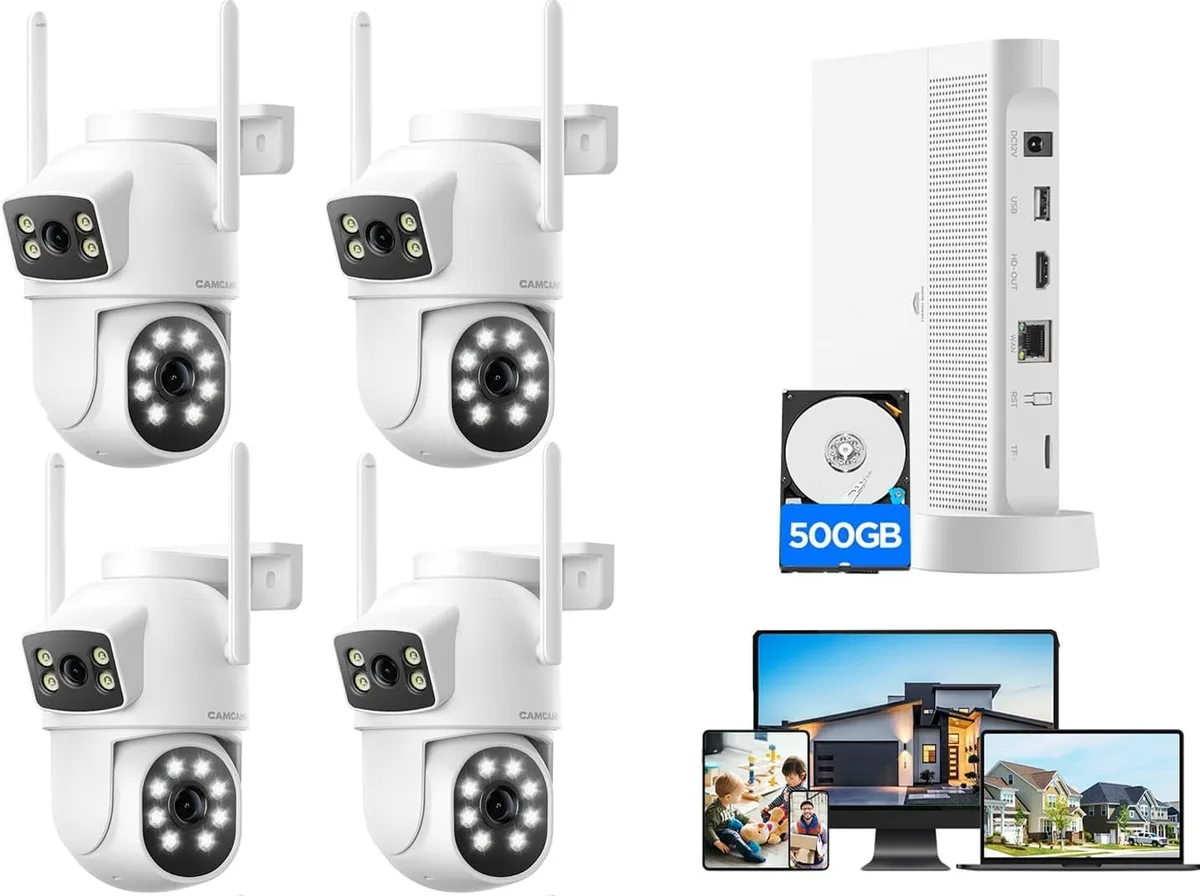
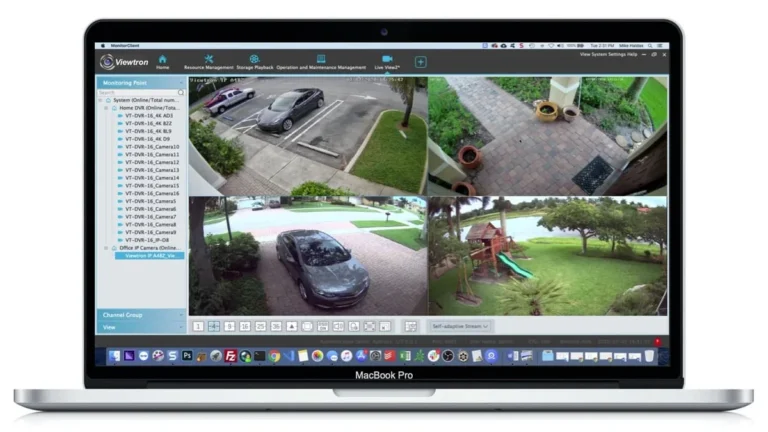
Image source: Bing (Web (fair-use with source credit))
Resolution: Big Pixels, Big Files
The higher the resolution of your security camera, the more detail it captures, and the larger each frame of video becomes. Think of it like megapixels in a digital camera; more megapixels mean bigger image files. For security cameras, this translates directly to storage.
- 1080p (Full HD): Offers a good balance of detail and file size.
- 2K/4MP: Provides noticeably sharper images than 1080p.
- 4K (8MP): Delivers incredibly detailed video, ideal for identifying faces or license plates, but requires significantly more storage.
Our research indicates that upgrading from 1080p to 4K resolution can increase daily storage needs by as much as 200-300%, assuming all other settings remain the same.
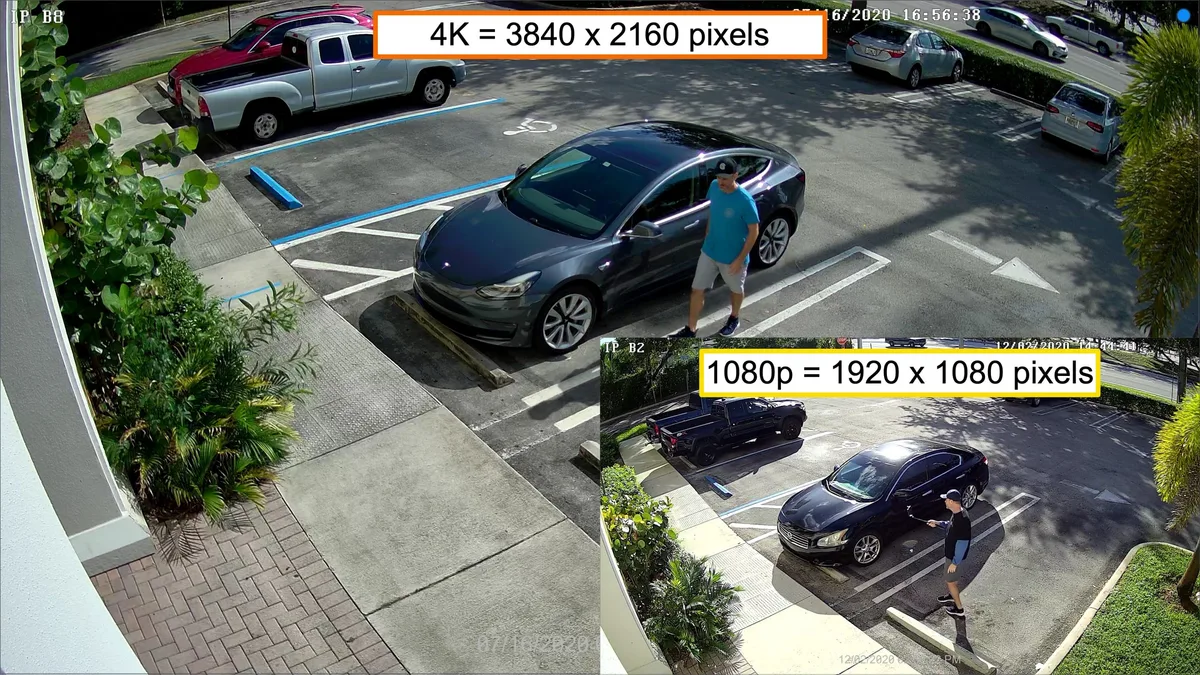
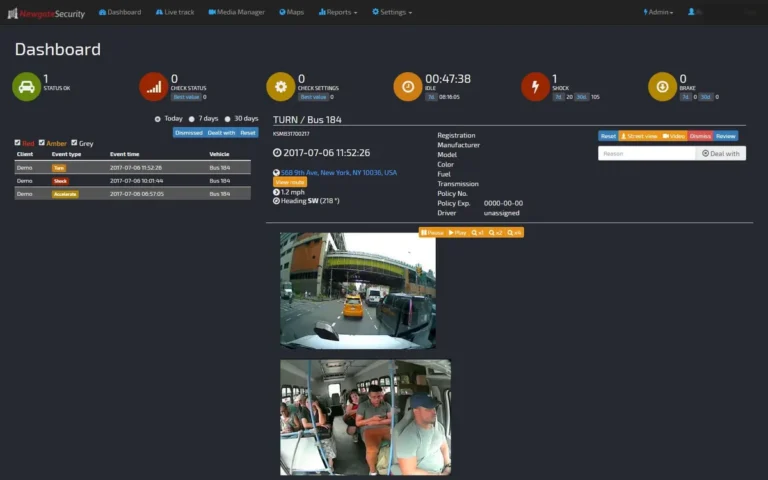
Image source: Web (Bing) / videos.cctvcamerapros.com (Web image (fair-use with source credit))
Frame Rate & Bitrate: Smoothness vs. Size
Frame rate (fps) is how many still images your camera captures per second to create motion. Bitrate is the amount of data used per second of video. Higher frame rates and bitrates result in smoother, more detailed video, but they also consume much more storage.
- Frame Rate: Most security cameras operate between 15 to 30 fps. Lower fps (like 15) means choppier motion but smaller files. Higher fps (30) offers fluid video but uses more space.
- Bitrate: This is often tied to resolution and frame rate. A camera recording 4K at 30 fps will have a much higher bitrate than a 1080p camera at 15 fps. Manufacturer specs often list the bitrate in Mbps (megabits per second). For example, a 4K stream might have a bitrate of 10-12 Mbps, while a 1080p stream might be 2-4 Mbps.
Aggregated reviews report that halving the frame rate can reduce storage needs by roughly 30-50%.
Recording Mode: Continuous vs. Event-Triggered
The way your camera records footage makes a huge difference in storage consumption. You have two main options: continuous recording and event-triggered recording.
- Continuous Recording: This mode records 24/7, capturing everything that happens. It provides the most comprehensive record but uses the most storage.
- Event-Triggered Recording: This is where cameras record only when motion is detected or a specific event occurs. This drastically reduces storage needs because footage is only captured when something "happens."
For example, a system set to record only on motion detection might use 75-90% less storage than a continuously recording system, making it a popular choice for homes and businesses looking to conserve space.
Compression Codecs: Smarter Storage
Video compression is like zipping a file on your computer to make it smaller. Codecs are the algorithms used for this compression. Newer codecs are much more efficient at reducing file size without significantly sacrificing video quality.
- H.264: The older, widely used standard. It’s effective but less efficient than newer options.
- H.265 (HEVC): This is the current standard for most modern security cameras. It can reduce file sizes by up to 50% compared to H.264 for the same video quality.
According to standards bodies like the ITU-T, H.265 can significantly lower bandwidth and storage requirements, making it a crucial feature for managing large video archives.
Your Storage Options: Where to Keep the Footage
Once you understand what influences storage needs, you'll want to know your options for actually storing all that video data. There are several popular methods, each with its own pros and cons. Your choice will depend on your budget, technical comfort, and how long you need to keep recordings.
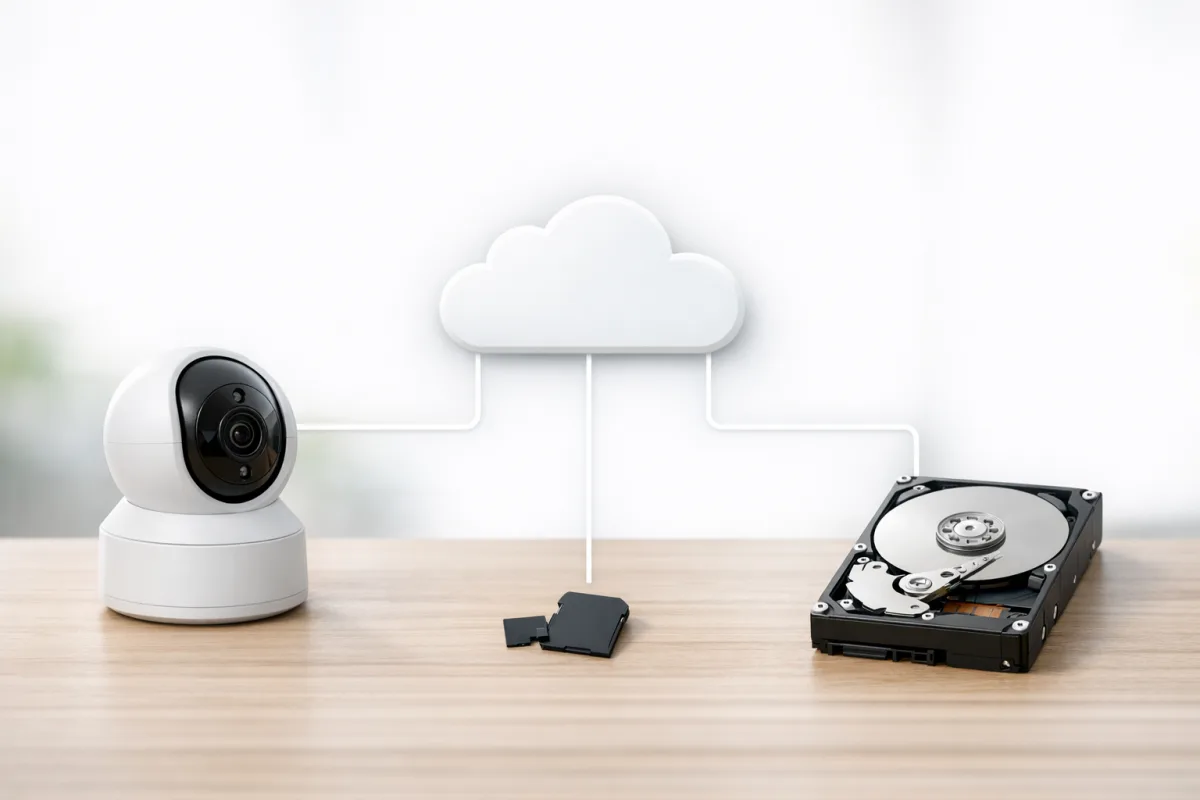
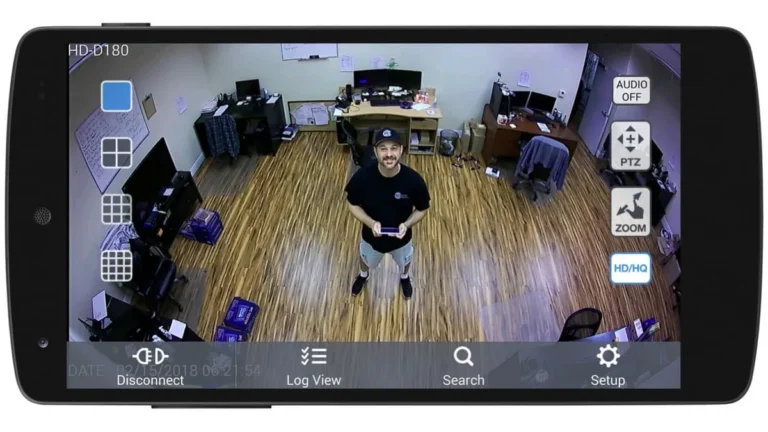
Image source: Web (Bing) / idarb.com (Web image (fair-use with source credit))
Local Storage: NVRs, NAS, and SD Cards
Local storage keeps your video files on devices physically located with you. This means you have direct control over your data and avoid monthly fees that can add up over time.
- SD Cards: These are great for single cameras and offer simple, plug-and-play storage. They’re convenient for basic recording needs but have limited capacity.
- NVRs (Network Video Recorders): Designed specifically for multi-camera systems, NVRs offer substantial storage capacity, often in the terabytes. They're generally straightforward to set up for video recording purposes.
- NAS (Network Attached Storage): A NAS is a more versatile storage solution. It can handle security footage along with other data backup and media serving. They offer expandable storage and advanced features but can be more complex to manage initially.
Manufacturer specifications often show that a 4 TB hard drive in an NVR can hold weeks of footage from multiple 1080p cameras, provided they're not recording in 4K non-stop.
Cloud Storage: Convenience vs. Cost
Cloud storage services are popular for their ease of access and automatic backups. Your footage is stored off-site on servers managed by a provider, accessible from anywhere with an internet connection.
- Subscription Model: These services typically charge a monthly or annual fee, often priced per camera. The cost usually scales with the storage duration (e.g., 7 days, 30 days, 60 days) and the number of cameras.
- Benefits: No need to manage local hardware, off-site data protection against theft or damage to your property, and simple remote viewing.
- Drawbacks: Ongoing costs can become significant, performance depends heavily on your internet connection's upload speed, and some users have privacy concerns about storing footage with a third party.
For example, typical cloud plans might start around $5 per camera per month for 7 days of storage, with higher tiers for longer retention or higher resolutions.
NVR vs. NAS: Which System is Right for You?
The choice between an NVR and a NAS often depends on your primary goal. NVRs are purpose-built for security camera systems. They are typically simpler to integrate with compatible cameras and manage for surveillance tasks.
NAS devices, on the other hand, are more generalized storage solutions. They can support multiple hard drives in RAID configurations for data redundancy and run various applications. While they can certainly handle security camera feeds, setting them up for this purpose might involve a steeper learning curve.
Editorial analysis often finds that for a dedicated surveillance setup, an NVR provides a more streamlined experience and can be more cost-effective initially. A NAS might be a better fit if you're looking for a central hub for all your digital data and want to combine surveillance with other functions.
Putting It All Together: Your Storage Decision Guide
Now that we've covered the variables, let's walk through how to put it all together to figure out exactly how much storage you need. It’s like building a custom solution, and it’s less complicated than it sounds when you break it down.
Step 1: Count Your Cameras and Their Settings
First, take stock of your current or planned camera setup.
- How many cameras will you have?
- What resolution will each camera be? (e.g., 1080p, 4K)
- What will their frame rate be? (e.g., 15 fps, 30 fps)
- What compression codec are they using? (e.g., H.264, H.265)
Knowing these details is your foundation. For instance, if you're planning on four 4K cameras with H.265 compression, your storage needs will be considerably higher than someone with two 1080p cameras using H.264 and motion detection only.
Step 2: Decide on Recording Quality and Duration
Next, determine how you want your cameras to record and for how long.
- Recording Mode:
- Continuous Recording: Captures everything, 24/7.
- Motion Detection / Event Recording: Records only when triggered.
- Retention Period:
- How many days, weeks, or months of footage do you need to keep? (e.g., 7 days, 30 days, 90 days).
If you need to keep footage for an extended period, say 90 days, you'll obviously require much more storage than if you only need to look back over the last week. For most homes, 7 to 30 days of continuous recording is ample, while businesses might opt for longer.
Step 3: Choose Your Storage Type
Consider your preferences and budget for where the data will live.
- Local Storage (NVR, NAS, SD Card):
- Pros: One-time cost (mostly), no monthly fees, direct control.
- Cons: Requires some setup, physical security needed for devices, potential for device failure.
- Cloud Storage:
- Pros: Easy access from anywhere, automatic backups, no local hardware to manage.
- Cons: Ongoing monthly fees, reliant on internet connection, potential privacy concerns.
If you’re comfortable with a bit of technical setup and want to avoid subscription fees, local storage is usually the way to go. Cloud storage is great for ultimate convenience and peace of mind, provided you're okay with the recurring costs.
Step 4: Calculate Your Storage Needs (and Add Buffer!)
Now, let’s use some rough numbers. There are online calculators available, but here’s a simplified approach. The National Institute of Standards and Technology (NIST) provides guidelines on data management that inform these estimates.
- Example Calculation (approximate):
- Scenario: 4 cameras, 1080p resolution, H.265 compression, 30 fps, motion detection, retaining 30 days of footage.
- Estimated Daily Usage per Camera: 20-40 GB (using average for H.265, 1080p, motion detection)
- Total Daily Usage: 4 cameras * 30 GB/camera = 120 GB per day
- Total Storage for 30 Days: 120 GB/day * 30 days = 3600 GB (or 3.6 TB)
This means for this specific scenario, a 4 TB NVR or NAS drive would be a good starting point. However, it’s always recommended to add a buffer of at least 20-30% for unexpected events or future upgrades. So, aim for at least a 5 TB drive in this case.
Common Storage Pitfalls to Avoid
Many people run into the same storage problems, and spotting them early can save you a lot of headaches. One of the biggest mistakes is not accounting for the future. You might start with two cameras, but what happens when you want to add two more?
- Underestimating Needs: Thinking that 250 GB is "enough" without considering higher resolutions or longer retention periods.
- Ignoring Compression: Not checking if your cameras support H.265, which can practically halve your storage requirements.
- Forgetting Bandwidth: If you plan on cloud storage, ensure your internet upload speed is sufficient to send footage reliably. A slow connection can mean missed recordings.
- Not Factoring in a Buffer: Buying storage that just meets your current needs leaves no room for growth or unexpected recording spikes.
According to manufacturer documentation, always size your storage to accommodate at least 20% more data than your current calculation suggests.
When to Consider More Storage (Or Less)
Deciding on storage isn't a permanent decision; it’s often a balancing act. You might start with one amount and realize it's not quite right.
- When to Consider More Storage:
- You're constantly running out of space and overwriting footage too soon.
- You've upgraded your cameras to a higher resolution (e.g., from 1080p to 4K).
- You need to retain footage for longer periods due to new regulations or personal preference.
- You're adding more cameras to your system.
- When You Might Need Less Storage (or a different approach):
- Your current storage is consistently underutilized, and you're paying for capacity you don't use.
- You find that motion-detection recording is sufficient and continuous recording was overkill.
- You're moving from continuous recording to event-based recording to save space and cost.
Adjusting your camera settings (like frame rate or resolution) or switching to a more efficient recording mode can also significantly reduce your storage needs, sometimes avoiding the need for larger drives altogether.
Frequently Asked Questions About Security Camera Storage
How long does it take to set up a security camera storage system?
Setup time varies greatly. A simple microSD card in a single camera can take minutes. Installing an NVR system with multiple cameras might take a few hours, depending on cabling and configuration.
Cloud storage setup is usually very quick, often under an hour for basic systems.
Can I use a regular external hard drive for my security cameras?
While some older systems might have supported it, most modern security cameras and NVRs are designed for specific internal or network-attached storage solutions. Regular external drives are not typically compatible for continuous, reliable recording without specialized software or hardware adapters.
What happens when my security camera storage is full?
Most systems are set to automatically overwrite the oldest footage when the storage capacity is reached. If you have continuous recording enabled, this means older events will be permanently deleted to make room for new ones. This is why planning your storage capacity and retention period is crucial.
Is cloud storage secure for my security camera footage?
Reputable cloud storage providers use robust encryption and security measures to protect your data. However, security is a shared responsibility. Ensure you use strong, unique passwords for your account and enable two-factor authentication to add an extra layer of protection against unauthorized access.