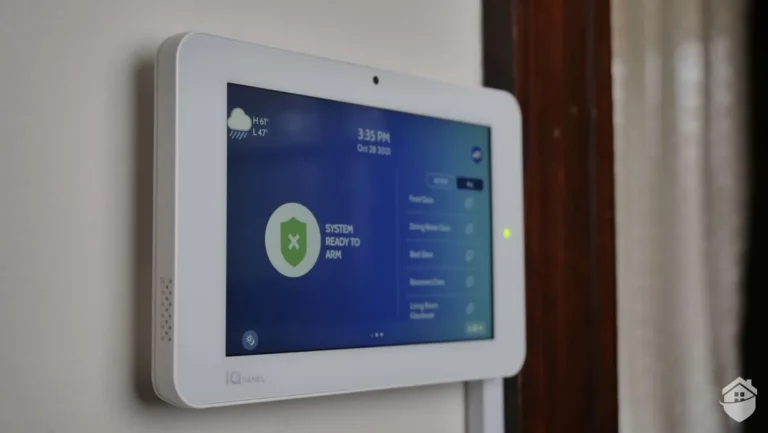
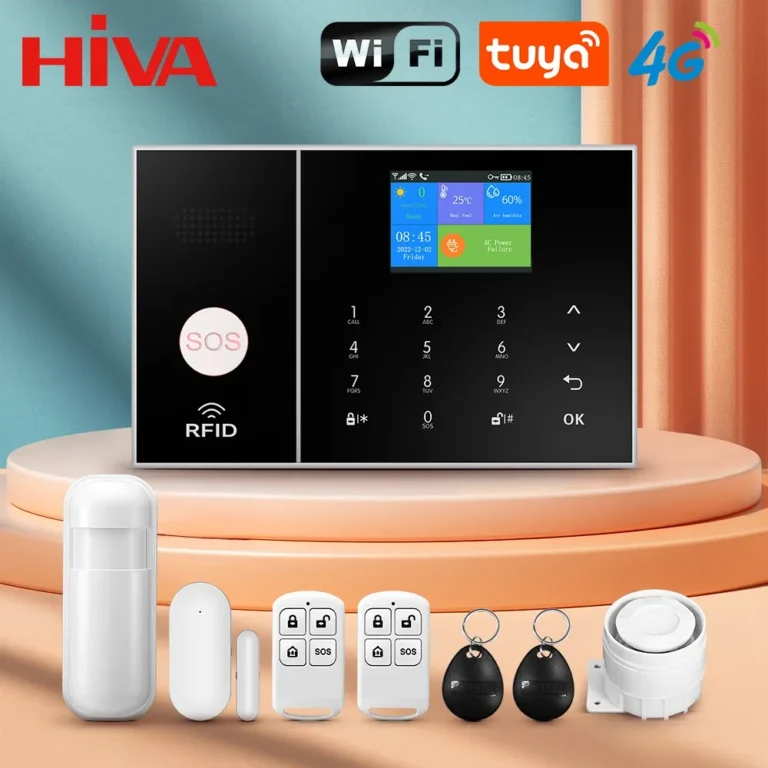
How to Connect a Security System to WiFi
Getting your security system online is crucial for remote access and real-time alerts, but the process can sometimes feel a bit tricky. If you're wondering how to connect a security system to WiFi, you're in the right place. We’ve broken down what you need to know to get your system talking to your home network smoothly.
Most modern wireless security systems rely on a stable WiFi connection to send notifications and allow remote control via a mobile app. Manufacturers often specify that a network speed of at least 5 Mbps download and 2 Mbps upload is required for basic functionality, with higher speeds recommended for camera-based systems. Let’s get your system hooked up.
Quick Answer
Connect your security system to WiFi by first downloading its mobile app and locating the network setup function. You’ll need your WiFi network name (SSID) and password. Follow the app prompts to scan for networks, select yours, and enter the password.
Confirm the connection status in the app and test functionality with a sensor trigger.
Why Connecting to WiFi Matters for Your Security System
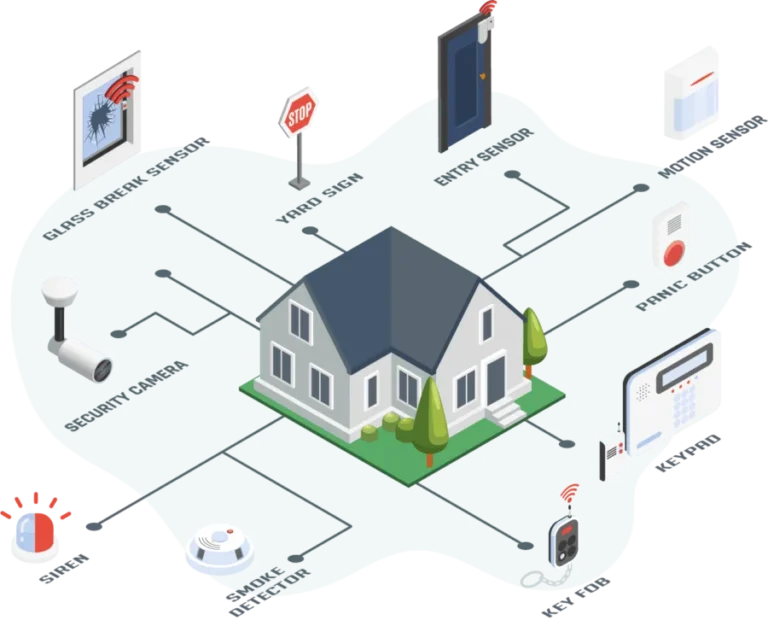
Your home security system’s ability to connect to your WiFi network is the backbone of its smart functionality. Without it, you're essentially looking at a traditional, less capable alarm. For instance, per manufacturer specifications, systems lacking a WiFi connection often cannot deliver instant push notifications to your smartphone when a sensor is triggered, a key feature for homeowners seeking peace of mind.
This connectivity allows your system to communicate with the outside world, enabling features like remote arming and disarming, live video feeds from cameras, and a history of system events accessible through a dedicated app. It transforms a simple alarm into a smart home security solution that keeps you informed, no matter where you are. This is a core reason why understanding how do home alarm systems work often begins with their network capabilities.
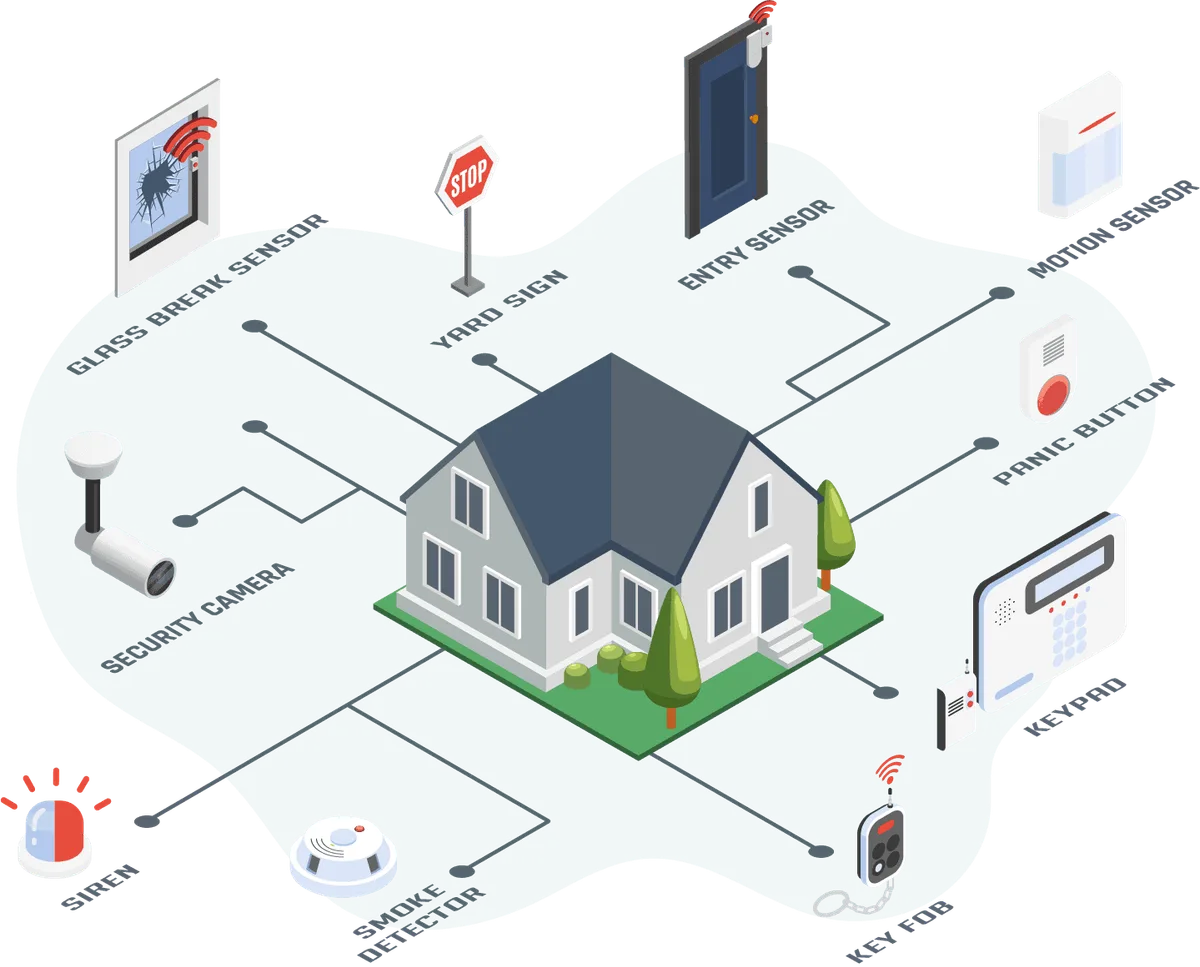
Image source: Bing (Web (fair-use with source credit))
Before You Start: What You'll Need & Network Check
Before diving into the setup process, a little preparation goes a long way. Making sure you have the right tools and that your network is ready can save you a lot of frustration down the line. Think of this as laying the groundwork for a smooth connection.
Your WiFi Network Basics (SSID & Password)
This sounds obvious, but it’s the most common tripping point. You’ll need to know your WiFi network’s name, officially called the Service Set Identifier (SSID), and its password, often referred to as the network key or passphrase. These are usually found on a sticker on your router or modem, or in your router’s administration settings if you’ve customized them.
Many systems require you to enter these precisely, so double-check for typos and correct capitalization. For example, a network named "MyHomeWiFi" is different from "Myhomewifi". If you're unsure, consult your router’s manual or your internet service provider.
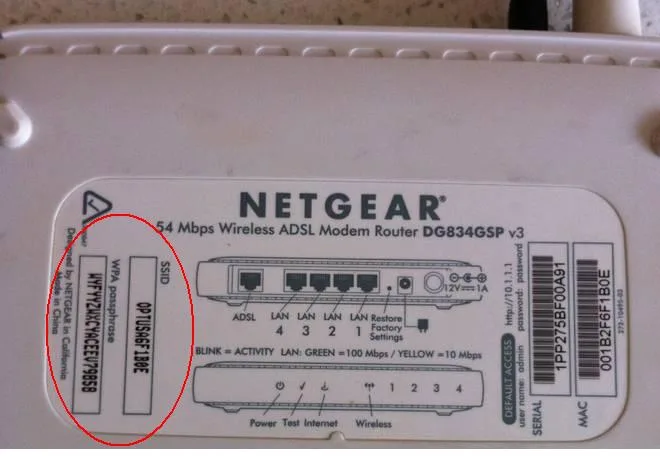
Image source: Web (Bing) / kb.netgear.com (Web image (fair-use with source credit))
Router Compatibility Check
Not all security systems play nicely with every router. Most modern systems support standard WiFi security protocols like WPA2 or WPA3, which are designed to protect your network. However, older routers that only support WEP encryption might not be compatible, and some advanced router settings, like MAC filtering or using a custom port, can also block the connection.
Aggregate reviews report that systems tend to work best with routers manufactured within the last 5, 7 years. If your router is quite old, you might consider an upgrade. Understanding what is a smart home security system often leads to these compatibility questions.
Signal Strength Assessment
A strong WiFi signal is critical for your security system's reliability. If your base station or hub is too far from your router, you'll experience dropped connections, slow response times, or a complete inability to connect. Most security system manuals recommend placing the base station within 50-100 feet of the router, though this can vary significantly based on your home's construction (e.g., thick walls, metal studs) and interference sources.
A simple test is to check your smartphone's WiFi signal strength in the intended location for your security system's hub. Four out of five bars is generally a good indicator of a strong connection.
Step-by-Step WiFi Connection Process
Once you've confirmed your network details and ensured your router is ready, it's time to connect your security system. This process typically involves using the system's companion mobile application, which guides you through each stage. Following these steps precisely is key to a successful setup.
Downloading the Mobile App & Account Setup
The first tangible step is to download the official mobile app for your specific security system. You can find these apps on the Apple App Store for iOS devices or the Google Play Store for Android devices. Once downloaded, you'll likely need to create an account.
This usually involves providing an email address, creating a secure password, and possibly verifying your email. This account is what links your system to your mobile device and the manufacturer’s cloud services.
Locating WiFi Settings on Your Security System
Within the mobile app, navigate to the system setup or add device section. You'll typically find an option to connect your system to WiFi or to set up a new base station. The app will then prompt you to put your security system’s base station into pairing or setup mode.
This often involves pressing a specific button on the device or following on-screen instructions that might include a sequence of actions.
Selecting Your Network & Entering Credentials
Once the base station is in setup mode, your mobile app should scan for available WiFi networks within range. You’ll see a list of detected SSIDs. Select your home network's name from this list.
The app will then prompt you to carefully enter your WiFi password. Remember, passwords are case-sensitive, so ensure you're typing it exactly as it appears. This is where many users encounter issues, so double-checking is crucial.
Confirming Connection and Testing
After entering your credentials, the security system will attempt to connect to your WiFi network. This can take anywhere from a few seconds to a couple of minutes. The app will usually display a "Connected" status, and the base station itself may have an indicator light that changes color or stops blinking to show a successful connection.
To verify it’s working, try triggering a sensor (like opening a door or window) and check if you receive an alert on your phone. This confirms the communication pathway is active.
Troubleshooting Common WiFi Connection Problems
Even with careful preparation, you might run into hiccups. The good news is that most WiFi connection issues with security systems are common and have straightforward solutions. If your system isn't connecting or is behaving erratically, these steps can help get things back on track.
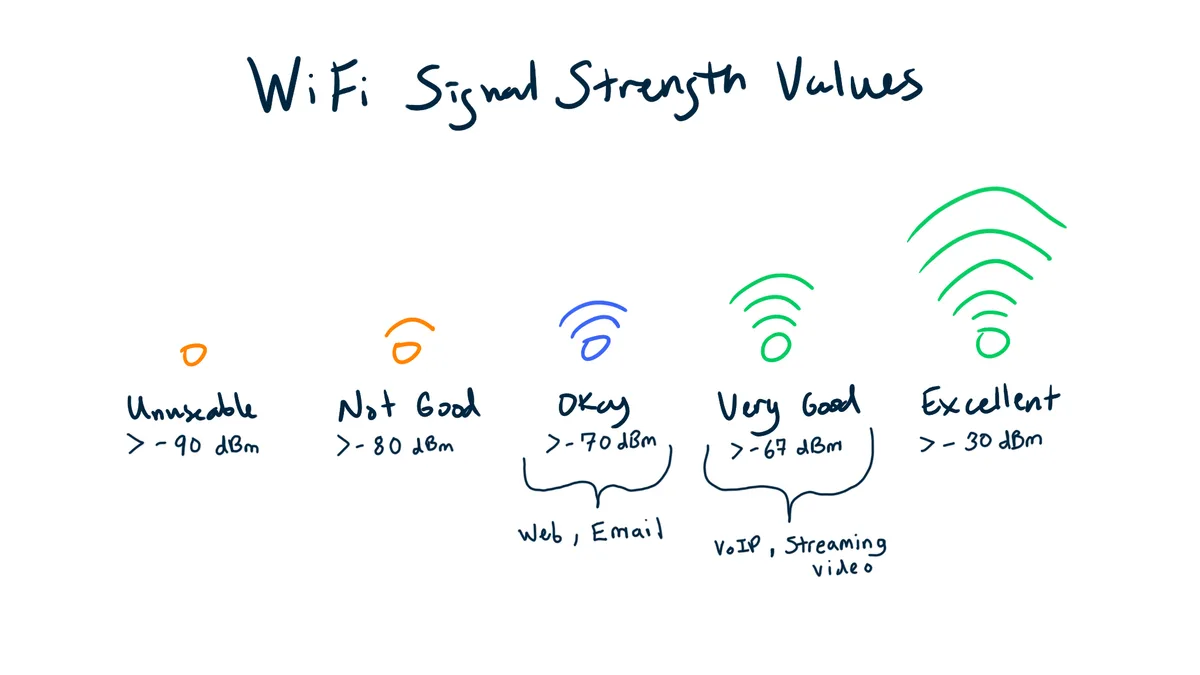
Image source: Web (Bing) / techgrid.com (Web image (fair-use with source credit))
"Network Not Found" or "Cannot Connect" Errors
If your system can't find your WiFi network, it’s often a matter of proximity or the network being hidden. Ensure your router is powered on and broadcasting its SSID. If your SSID is hidden (not broadcast), you’ll need to manually enter it into the security system’s app.
Also, try moving the security system’s base station closer to the router during the initial setup. Aggregate reviews suggest this error often means the system is too far away to detect the signal reliably.
Weak Signal or Frequent Disconnections
A weak signal is usually a sign that the base station is too far from the router, or there are significant obstructions. Try repositioning your router or the security system's base station. Sometimes, simply rotating your router slightly can improve the signal path.
If you have a dual-band router (2.4GHz and 5GHz), ensure your system is connecting to the 2.4GHz band if it’s the stronger signal in that location, as 2.4GHz generally has a longer range than 5GHz. You can check how often security systems need to be replaced, but a strong connection is key to longevity. How Often Should a Security System Be Replaced
Incorrect Password or Security Settings
Typos are surprisingly common when entering WiFi passwords. Even a single misplaced character or incorrect capitalization will prevent connection. Try typing your password into a text note first to ensure accuracy, then copy and paste it if the app allows.
If you’ve recently changed your WiFi password, make sure you're using the new one. Also, verify that your router is using WPA2 or WPA3 security protocols. If your router is set to WEP or has no security, it's a significant vulnerability.
Interference and Congestion Issues
Other electronic devices can interfere with WiFi signals. Microwaves, cordless phones, Bluetooth devices, and even some older fluorescent lights can disrupt the signal. If your security system is experiencing intermittent issues, try moving it away from potential sources of interference.
Network congestion, where too many devices are trying to use your WiFi bandwidth simultaneously, can also be a problem, especially if you have many smart home devices. Consider if your current home setup how much power does a home security system use and if that’s impacting overall network performance.
Optimizing Your WiFi for a Reliable Security System
Getting your security system connected is one thing; ensuring that connection is stable and secure is another. A few tweaks to your home network can make a big difference in the reliability and performance of your security setup.
Router Placement and Best Practices
The placement of your router is paramount. For the best signal coverage throughout your home, position your router in a central location, away from exterior walls and metal objects that can block signals. Avoid placing it near other electronics that can cause interference, such as microwaves or cordless phone bases.
Many modern routers have external antennas that can be adjusted to direct the signal where it's needed most. Regularly rebooting your router, perhaps once a month, can also help clear out minor glitches and maintain optimal performance.
Understanding 2.4GHz vs. 5GHz Bands
Most modern routers broadcast on two frequency bands: 2.4GHz and 5GHz. The 2.4GHz band offers a wider range and better penetration through walls but has slower data speeds and is more prone to interference. The 5GHz band offers much faster speeds and less interference but has a shorter range.
Security systems, especially those with cameras, often perform better on the 5GHz band if the signal is strong enough. However, if the base station is far from the router, the 2.4GHz band might provide a more stable, albeit slower, connection. Check your system's manual to see which bands it supports and if there's a recommendation.
Network Security Settings (WPA2/WPA3)
Security protocols like WPA2 and WPA3 are essential for protecting your home network from unauthorized access, which is especially important when connecting sensitive devices like security systems. WPA3 is the latest standard and offers enhanced security features. If your router supports WPA3, it’s generally recommended to use it.
If not, WPA2 is a robust and widely adopted standard. Avoid using older, less secure protocols like WEP or disabling encryption altogether, as this leaves your network vulnerable. This aligns with understanding what features should a home security system have, network security is a critical feature.
When to Call for Help
If you've gone through the troubleshooting steps and your security system still won't connect to your WiFi, it might be time to seek assistance. Your first point of contact should usually be the support team for your specific security system. They are experts on their product's requirements and common issues.
They can guide you through any system-specific settings or confirm if there might be a defect with the unit. If they suspect a router issue, they may advise you to contact your Internet Service Provider (ISP) or the manufacturer of your router for further assistance.
System-Specific Support
Security system manufacturers often provide detailed FAQs, troubleshooting guides, and direct customer support channels. Check their official website for a support section or contact number. They can often resolve issues related to their product's firmware or specific connection requirements.
For example, some systems may require a specific firmware version on your router to function correctly.
Router or ISP Support
If the security system manufacturer believes the issue lies with your network, your next step is your router or ISP. Many ISPs offer support for their provided modems and routers. They can help you check router settings, diagnose network issues, and confirm if your internet service is performing as expected.
If you own your router, consult its manual or the manufacturer's support website.
Frequently Asked Questions About WiFi Security System Connections
How long does setup typically take?
Setup usually takes between 30 minutes to an hour, depending on your familiarity with technology and your network's stability. This includes downloading the app, creating an account, and connecting the system to your WiFi.
Can I connect my security system to a mobile hotspot?
While technically possible, connecting to a mobile hotspot is generally not recommended for a primary security system. Mobile hotspots can be less reliable, have data caps, and may not provide the consistent bandwidth needed, especially for camera feeds.
What if my security system only supports 2.4GHz WiFi?
Many systems are designed to work with 2.4GHz networks because of their wider range, which is beneficial for covering larger homes. If your router broadcasts both 2.4GHz and 5GHz, ensure you select the 2.4GHz option during setup. Most routers allow you to set unique SSIDs for each band if needed.
Do I need to keep my phone near the security system during setup?
Yes, you'll typically need your smartphone or tablet that has the security system's app installed to be within Bluetooth or WiFi range of the base station during the initial setup process. This allows the app to communicate with the device to transfer network credentials.
How do I update my security system's firmware?
Firmware updates are usually handled automatically over your WiFi connection when the system is idle and connected. Some systems may prompt you to approve an update through the mobile app. Keeping your system updated ensures optimal performance and security.