Why Is My Security Camera Not Detecting Motion
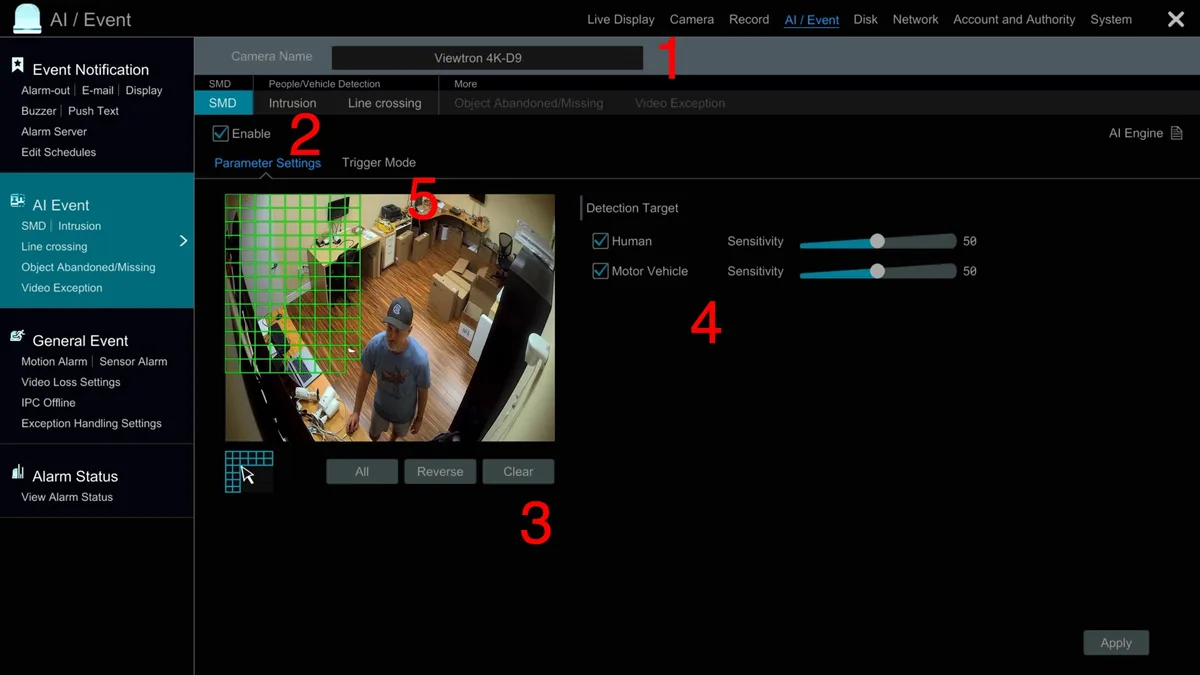
Image source: Web (Bing) / videos.cctvcamerapros.com (Web image (fair-use with source credit))
Why Your Security Camera Is Ignoring Motion
So, you’ve got a security camera set up, but it’s acting like it’s asleep on the job and not triggering alerts when someone walks by. That’s a real bummer, especially when you’re counting on it for peace of mind or to catch activity. It’s a common problem, and thankfully, usually fixable with a few checks.
Many modern security cameras rely on sophisticated motion detection algorithms, often exceeding a 90% accuracy rate in ideal conditions according to manufacturer specifications. When it stops working, it's often a simple setting or environmental issue that's easily overlooked, rather than a major hardware failure. Let's get your camera back to its vigilant self.
Is Your Camera Actually Set Up for Motion Detection?
Sometimes, the simplest explanation is the right one. You might have a fantastic camera, but if the motion detection feature itself isn’t enabled, it won't do anything. It's like having a high-tech alarm system with the power switch turned off.
Checking the Basic Settings
The first step is always to dive into your camera's settings. This is usually done through a smartphone app or a web interface provided by the camera manufacturer. You'll want to locate the main motion detection toggle.
- Find the On/Off Switch: Look for a clear option labeled "Motion Detection," "Activity Detection," or something similar. Ensure this is switched to the "On" position.
- Confirm Feature Availability: If you can't find this setting, double-check your camera's product manual or the manufacturer's website to confirm that motion detection is actually a feature of your specific model. Not all cameras are built with this capability.
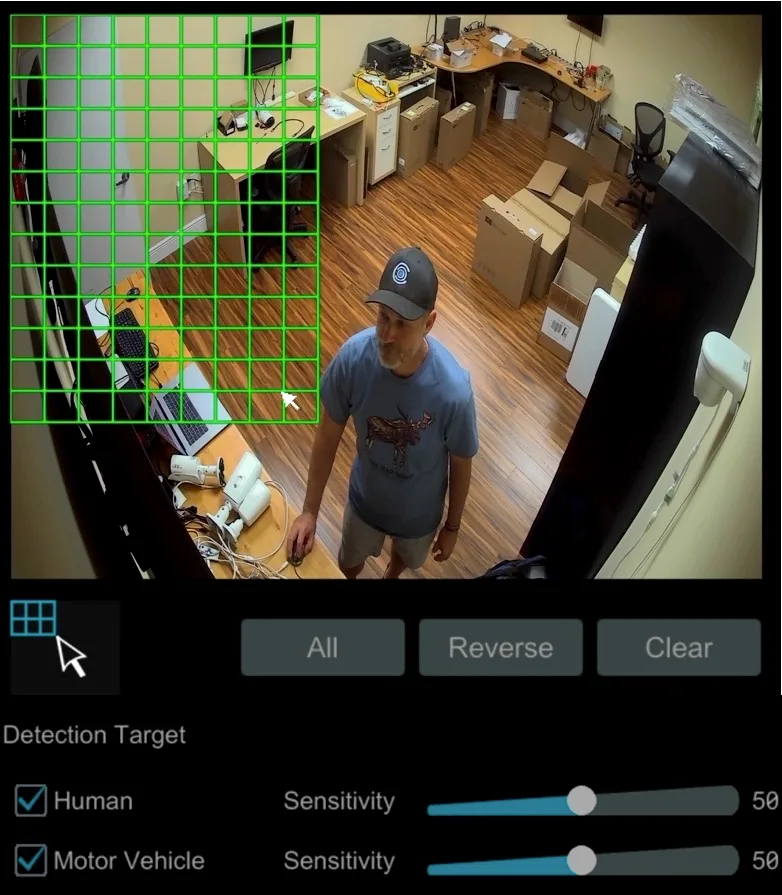
Image source: Web (Bing) / videos.cctvcamerapros.com (Web image (fair-use with source credit))
If the main switch is on, but you're still not seeing alerts, don't worry. We’ll move on to more granular settings that are often the real culprits. This initial check just ensures we're not trying to fix something that's intentionally disabled.
Fine-Tuning Sensitivity and Detection Zones
Once you've confirmed motion detection is on, the next common area to troubleshoot is how sensitive the camera is and where it's looking for movement. Think of these as the camera's "eyes" and "ears."
Adjusting Motion Sensitivity Levels
Motion sensors work by detecting changes in the image. Sensitivity dictates how much change is needed to trigger an alert. If it's too low, it might miss subtle movements.
If it's too high, it can be triggered by non-threats like leaves blowing in the wind or shadows.
- Locate the Sensitivity Setting: In your camera’s app or web interface, find an option like "Motion Sensitivity," "Detection Level," or "Sensitivity Adjustment." This is often represented by a slider or a numerical scale.
- Test and Adjust: Start by increasing the sensitivity slightly. Then, walk in front of the camera yourself to test if it triggers. If it still doesn’t, increase it more and test again. Repeat this process until you find a setting that reliably detects your movement without being overly sensitive to minor environmental changes. Aggregate reviews often suggest starting mid-range and adjusting up or down.
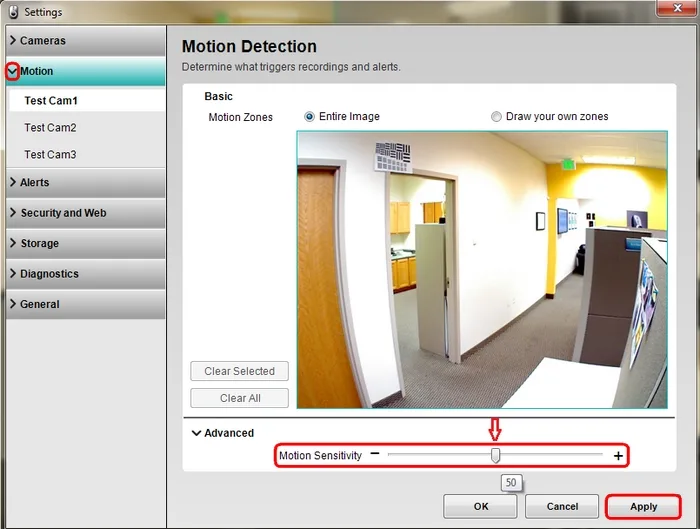
Image source: Web (Bing) / support.logi.com (Web image (fair-use with source credit))
Finding the right balance can take a few tries, but it’s crucial for effective motion detection.
Defining and Managing Detection/Privacy Zones
Many modern security cameras allow you to define specific areas within the camera's field of view where you want motion to be detected. These are often called "motion zones" or "detection zones." Conversely, you might also set up "privacy zones" where you don't want the camera to record or detect motion at all.
- Access Zone Settings: In your camera's application, look for settings related to "Motion Zones," "Activity Zones," or "Privacy Zones."
- Review and Redraw: Ensure that the areas where you expect to see motion are actually included within your active detection zones. If you've accidentally created a privacy zone that covers your doorway or walkway, the camera will ignore any activity there. You might need to redraw these zones to encompass the specific areas you want to monitor. Manufacturer documentation often provides visual guides for this.
It’s important to get these zones right, as they are a key factor in preventing false alarms and ensuring that actual events are captured.
Environmental Factors Messing with Detection
Even with perfectly set sensitivity and zones, external conditions can significantly impact your security camera's ability to detect motion accurately. Sometimes, it's not the camera's fault at all!
How Lighting Affects Motion Sensing
Lighting is a major player in how well motion detection works.
- Low Light or Darkness: Many cameras struggle to detect motion when it's very dark. While infrared (IR) night vision helps the camera see, it doesn't always guarantee reliable motion detection if there’s very little movement to reflect the IR light. Some cameras might need at least a faint ambient light source.
- Sudden Brightness Changes: Direct, intense sunlight suddenly hitting the lens or an area the camera monitors can sometimes confuse the motion sensor, causing it to ignore subsequent movement or trigger false alerts.
- What to Check: Observe the typical lighting conditions during the times you expect motion to be detected. Is it consistently pitch black? Is there a specific time of day when the sun causes a strong glare?
Adjusting the camera's position or adding supplemental lighting can often resolve these issues. If your camera has specific "low-light sensitivity" settings, explore those as well.
Clearing Obstructions in the Camera's View
Anything physically blocking the camera's view can prevent motion from being detected. This is more common than you might think.
- Natural Growth: Over time, tree branches, bushes, or tall grass can grow into the camera's line of sight. If these obstructions are dense enough, they might be hiding the area where motion should be detected.
- Dirt, Dust, or Cobwebs: A dirty lens is a surefire way to degrade image quality and hinder motion detection. Cobwebs forming over the lens are particularly common for outdoor cameras.
What to Check: Periodically review the live feed from your camera. Does it look clear? Are there any new branches or leaves obscuring the view?
Is the lens visibly dirty or covered in webs?
How to Fix It: Trim back any encroaching foliage. Clean the camera lens carefully using a soft microfiber cloth and a lens cleaning solution recommended by the manufacturer. For outdoor cameras, keeping the lens clear is an ongoing maintenance task.
Hardware and Connectivity Hiccups
If your settings are dialed in and the environment is clear, we need to look at the physical components and how everything is connected. These can be surprisingly common causes for motion detection failures.
Power Supply Issues
A stable and sufficient power supply is critical for any electronic device, and security cameras are no exception. If the camera isn't getting enough power, its sensors might not function correctly, or it could be rebooting unexpectedly, interrupting its ability to detect motion.
- Check Connections: Ensure the power adapter is securely plugged into both the camera and a working electrical outlet. If you're using an extension cord, verify it's rated for the power draw and isn't damaged.
- Consider the Source: For cameras that use Power over Ethernet (PoE), ensure the PoE switch or injector is functioning correctly and providing adequate power to the camera. Some cameras have specific voltage or amperage requirements that must be met.
- Test an Outlet: If possible, try plugging the camera into a different, known-good electrical outlet to rule out issues with the original power source.
Wi-Fi Signal Strength and Stability
For wireless security cameras, a robust and stable Wi-Fi connection is absolutely essential, not just for streaming video but also for reliably transmitting motion alerts. If the Wi-Fi signal is weak, intermittent, or overloaded, it can prevent motion detection events from being processed and sent to your device.
- Assess Signal Strength: Most camera apps will show you the current Wi-Fi signal strength at the camera's location. You can also use a Wi-Fi analyzer app on your smartphone to get a more detailed reading of signal bars and network congestion in that area.
- Troubleshooting Steps:
- Router Proximity: If the signal is weak, try moving your Wi-Fi router closer to the camera, or the camera closer to the router, if feasible.
- Extenders/Mesh Systems: Consider using a Wi-Fi extender or a mesh Wi-Fi system to boost coverage to the camera's location.
- Channel Congestion: If many devices are on your network, try changing the Wi-Fi channel on your router to a less congested one.
- Wired Option: If consistent wireless connectivity remains an issue, explore if your camera supports a wired Ethernet connection as a more stable alternative. As of 2026, many higher-resolution cameras still benefit from wired connections for optimal performance.
Software Glitches and Updates
Even when hardware and environmental factors seem fine, sometimes the problem lies within the camera’s internal software, its firmware. Just like your computer or smartphone, security cameras receive updates to improve performance, fix bugs, and add new features. If your camera’s software is outdated, it might be the reason motion detection isn't working as it should.
Checking Camera Firmware
Manufacturer specifications confirm that firmware updates can resolve a wide range of issues, including those related to sensor performance. Most camera systems provide a straightforward way to check for and install these updates.
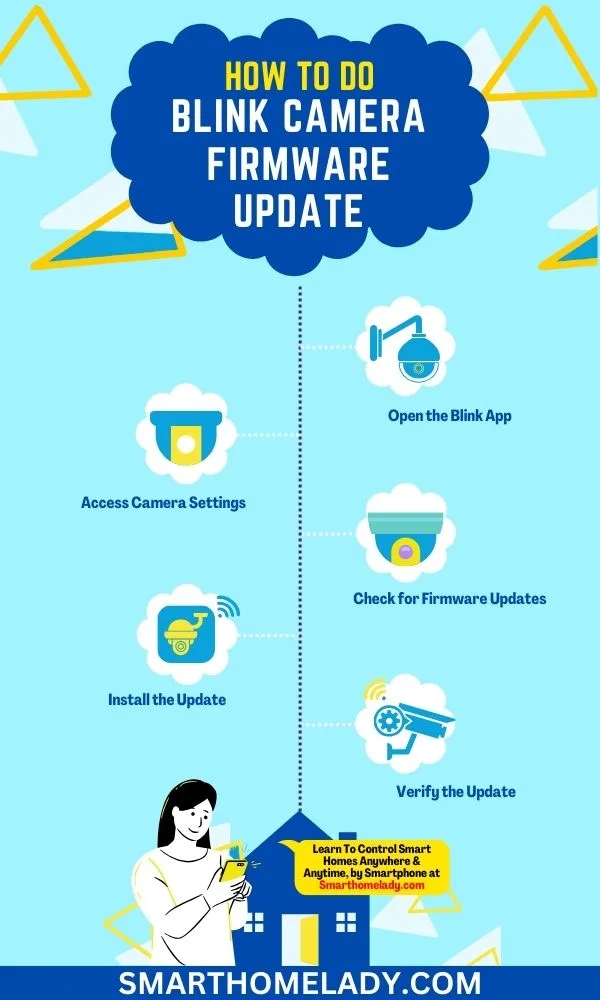
- Locate the Update Option: Navigate to the settings menu within your camera’s app or web interface. Look for sections labeled "Firmware Update," "Software Update," "About Device," or "System Information."
- Initiate the Check: Select the option to check for new firmware. The system will then communicate with the manufacturer’s servers to see if an update is available for your specific camera model. If an update is found, follow the on-screen prompts to download and install it.
Ensure your camera remains powered on and connected to the internet throughout the update process, as interruptions can cause serious issues. This is a critical step, as a recent firmware bug could be the direct cause of your detection problem.
The Case for a Factory Reset
If updating the firmware doesn't solve the problem, or if you suspect a deeper software conflict, a factory reset is often the next logical step. This process reverts all settings back to their original, out-of-the-box state, clearing out any corrupted configuration files or persistent glitches that might be interfering with motion detection.
- How to Perform a Reset: Typically, you’ll need to locate a small reset button on the camera itself. This might be a pinhole that requires a paperclip or a small button you can press with your fingertip. Consult your camera’s manual for the exact procedure, as it usually involves holding the button for a specific duration (often 10-30 seconds) while the camera is powered on.
- What Happens Next: After a successful reset, the camera will reboot. You will then need to go through the initial setup process again, including reconnecting to your Wi-Fi network and reconfiguring your motion detection settings, sensitivity, and zones.
While a reset requires some effort to reconfigure, it's an effective way to resolve many software-related issues that simple updates might miss. It ensures a clean slate for the camera's operating system.
Frequently Asked Questions About Motion Detection
This section addresses common concerns and queries related to why security cameras might not be detecting motion, offering quick insights for users facing these issues.
Why is my motion detection only triggering at certain times?
This often points to environmental factors like changes in lighting. For example, if motion is only detected during daylight hours, it could be that the camera's low-light sensitivity is too low, or its IR illuminators aren't functioning correctly. Conversely, if it triggers too often at night, there might be reflections from IR lights or external light sources causing false positives.
Can extreme temperatures affect motion detection?
Yes, extreme temperatures, especially very cold or very hot conditions, can sometimes impact the performance of electronic components, including sensors. While most modern security cameras are designed to operate within a certain temperature range, prolonged exposure to conditions outside their specified operating parameters, such as below -4°F (-20°C) or above 122°F (50°C) per some manufacturers' guidelines, can lead to erratic behavior, including compromised motion detection.
What's the difference between motion detection and person detection?
Basic motion detection registers any change in pixels within a defined area, which can include moving branches, pets, or insects. Person detection, on the other hand, uses artificial intelligence (AI) to specifically identify and alert only when a human figure is recognized. If your camera has both, and you're only getting alerts for general motion, the person detection algorithm might need adjustment or might be malfunctioning.
How often should I clean my security camera lens?
For outdoor cameras, cleaning the lens at least once every 1-3 months is recommended, depending on your environment. If you live in a dusty, pollen-heavy, or coastal area, more frequent cleaning might be necessary. For indoor cameras, a quick wipe down every 6 months is usually sufficient unless visible dust or smudges appear.
A dirty lens significantly degrades the camera's ability to accurately detect motion.
When to Get Further Help
If you’ve systematically gone through all the troubleshooting steps, checking settings, adjusting sensitivity, ensuring clear zones, ruling out environmental and connectivity issues, and performing firmware updates or even a factory reset, and your security camera still isn't detecting motion, it's likely time to seek expert assistance. Continuing to troubleshoot without a clear path forward can become frustrating and unproductive.
There are a few avenues for further help. Your first stop should always be the support resources provided by the camera's manufacturer. They have specific knowledge of your model's quirks and common issues.
- Manufacturer Support: Look for a "Support," "Help," or "Contact Us" section on their official website. Many companies offer detailed FAQs, troubleshooting guides, community forums, or direct customer service via phone, email, or live chat. They can often provide model-specific advice or diagnose potential hardware failures.
- Professional Installation Services: If your camera was professionally installed, the company that performed the installation may offer ongoing support or troubleshooting services. They would be familiar with your setup and home network.
In some cases, persistent motion detection failures, despite all troubleshooting efforts, can indicate a hardware defect with the camera's internal motion sensor. If your camera is still under warranty, contacting the manufacturer for a potential repair or replacement is your best course of action. They can guide you through the warranty claim process.
3 Comments