How to Connect Security Devices to a Smart Home
So, you've got some new smart security gadgets, maybe a camera, a smart lock, or some sensors. Awesome! Now you're probably wondering, "How do I get these talking to my existing smart home setup?" It can seem a little daunting at first, but honestly, it's usually pretty straightforward once you know the general steps.
Think of it like introducing new friends to your existing circle; you just need to make sure they speak the same language.
I've been doing this kind of thing for a while, and I can tell you, the biggest thing is knowing your players. What smart home system do you already have (like Google Home, Amazon Alexa, Apple HomeKit, or something else)? And what kind of security device are you trying to connect?
That's where we start.
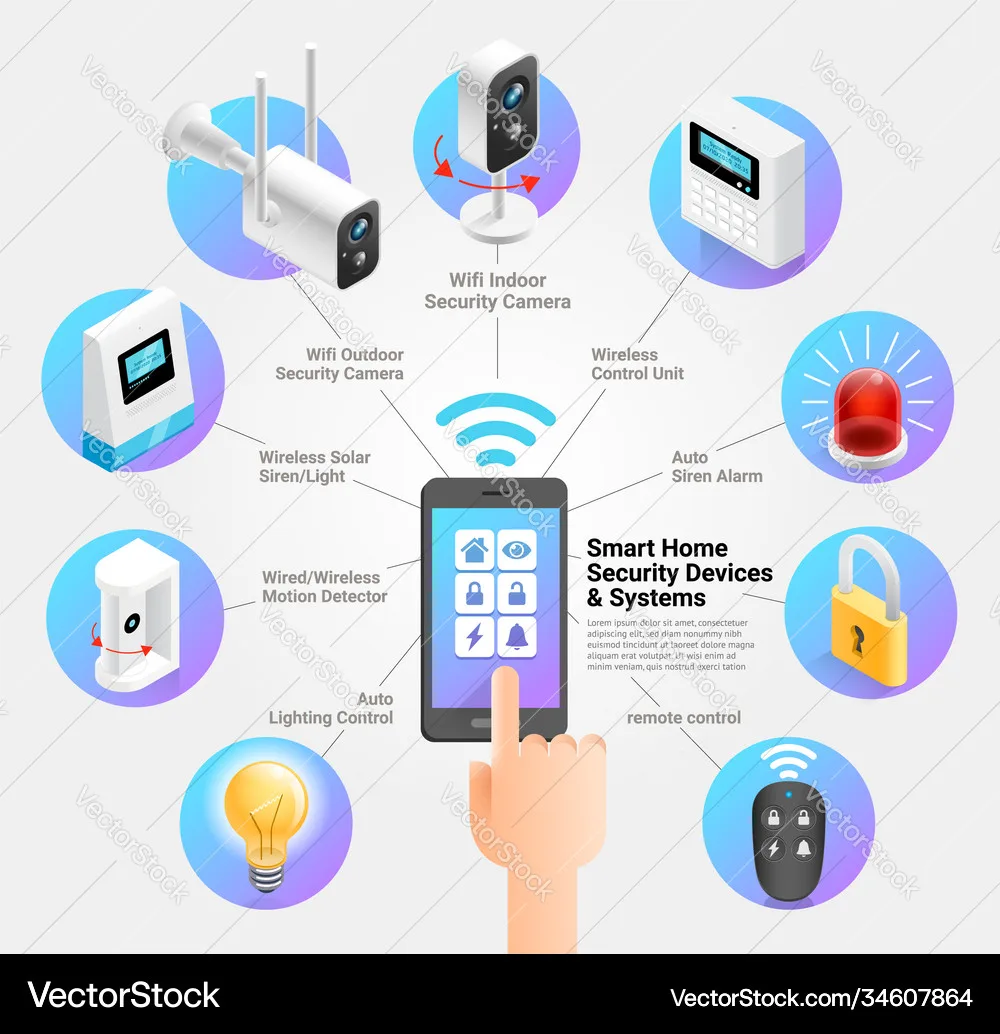
Quick Answer
To connect security devices to a smart home, first set up the device with its manufacturer's app. Then, use your smart home app to find and add the new device. Link accounts or scan codes as prompted.
Finally, test its functions and set up automations.
First Things First: What's Your Smart Home Vibe and What Security Gadget Do You Have?
Before we jump into connecting anything, it's super important to know what you're working with. Knowing your smart home system and the type of security device is the first step to making sure everything plays nicely together. This often involves checking compatibility, as not all devices speak the same digital language.
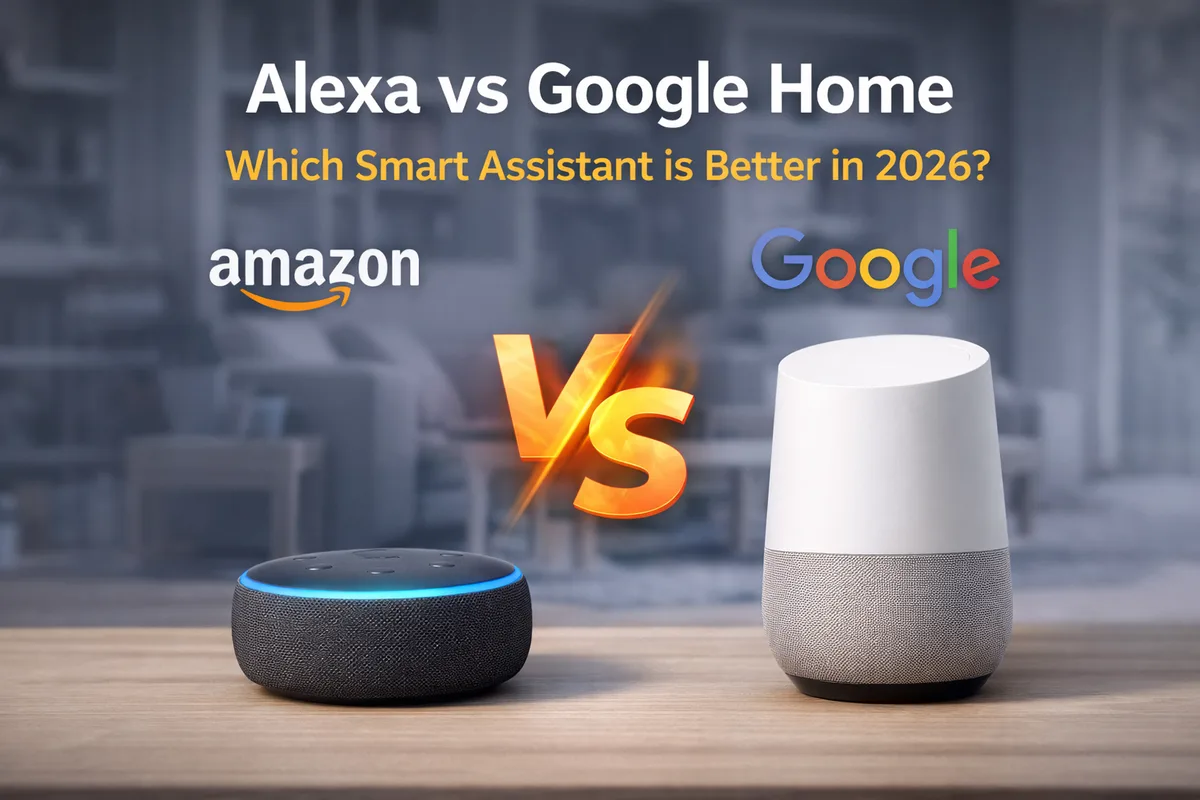
My Smart Home Ecosystem: Alexa, Google, HomeKit, or Others?
Most smart home devices, including security ones, are built to work with one or more of the major "ecosystems." Knowing which one you’re rocking is key. If you're unsure, check the branding on your smart speakers or the default app you use to control your smart lights or thermostats. For example, if you use Amazon Echo speakers, you’re likely in the Amazon Alexa ecosystem.
If you have Google Nest devices, you’re probably in the Google Home or Google Assistant ecosystem. Apple users often rely on Apple HomeKit for seamless integration. Samsung's SmartThings platform is another popular hub for those who like a bit more flexibility and have a mix of brands.
My Security Device Type: Wi-Fi, Zigbee, Z-Wave, or Proprietary?
Every security device is a little different, but they generally fall into a few categories when it comes to smart home integration. Understanding these types will help you anticipate the connection process.
- Wi-Fi Connected Devices: These connect directly to your home Wi-Fi network and often have their own app. They communicate by sending data packets over your existing wireless network.
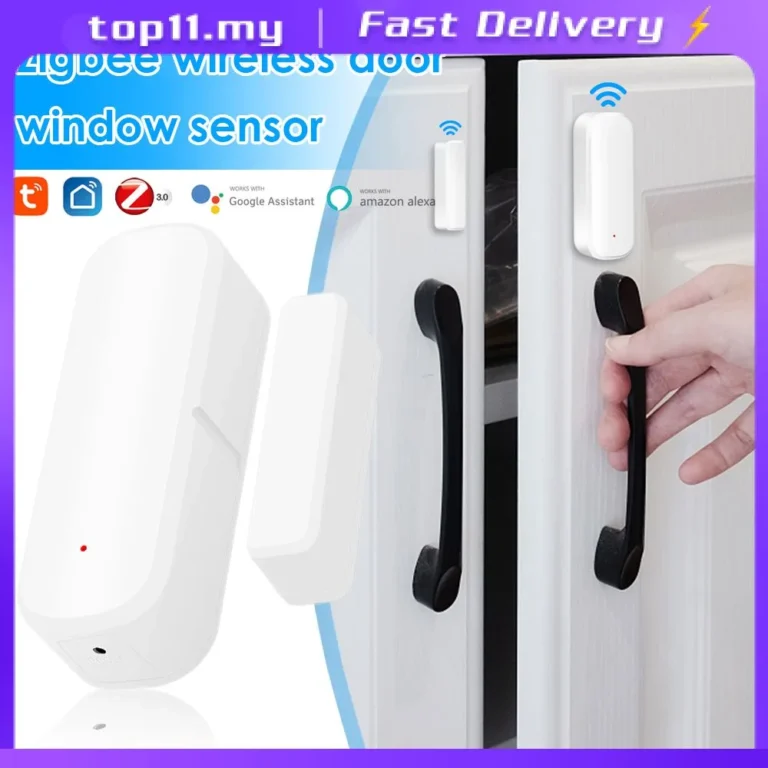
- Zigbee/Z-Wave Devices: These often require a separate "hub" that acts as a translator for your smart home system. Think of it as a central point for devices that don't speak Wi-Fi directly to your main hub. These low-power, short-range wireless technologies create their own mesh networks.
- Proprietary Systems: Some high-end security systems might have their own app and hub that don't integrate with others, or only integrate with a limited selection. These systems are designed to work exclusively within their own ecosystem.
The General Game Plan: How Smart Security Devices Connect
Connecting your smart security devices to your smart home system isn't usually about complex wiring or advanced IT knowledge. It's more about a series of digital handshakes and software configurations. The general flow is designed to be user-friendly, allowing devices from different manufacturers to communicate within a unified system.
The core idea is that your smart home hub or app acts as the conductor, orchestrating the actions of all your connected devices.
Manufacturer specifications for many popular smart home devices indicate they are designed to be compatible with at least one major ecosystem (e.g., Amazon Alexa, Google Assistant, Apple HomeKit). This ensures a wider range of potential integrations for consumers. The process typically involves downloading the security device's dedicated app first, getting it connected to your home network, and then linking that device's account or the device itself to your chosen smart home platform.
This allows for features like voice commands and inclusion in smart home routines.
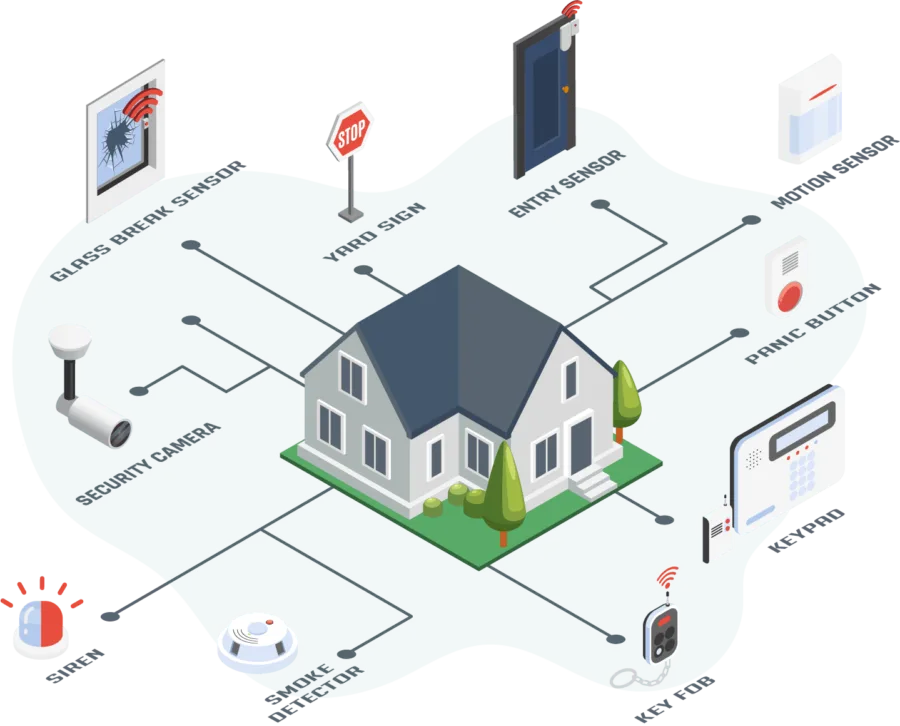
Step-by-Step: Wiring Up Your Security Devices (The Software Way!)
Connecting your security devices to your smart home is primarily a software-driven process. It involves guiding the devices to recognize and communicate with your existing smart home platform. While the exact screens and prompts will vary depending on the brands involved, the underlying steps are remarkably consistent.
You'll be navigating through apps and online accounts, rather than touching any physical wires beyond the initial power-up of the device.
Step 1: Get Your Security Device Online (Standalone First)
Before you even think about connecting it to your smart home, you've got to get the security device working by itself. This initial setup phase ensures the device is functioning correctly and can communicate with its manufacturer's servers. It's like making sure your new phone can turn on and connect to Wi-Fi before you try to link it to your email or cloud storage.
- Follow the Manufacturer's Instructions: This is non-negotiable. Unbox it, charge it or plug it in, and download its specific app. These instructions are typically found in a quick start guide or a more detailed manual included in the packaging.
- Connect to Your Wi-Fi: Most Wi-Fi devices will ask you to connect them to your home network through their app. Make sure you have your Wi-Fi password handy. The device will broadcast a temporary network or use Bluetooth to establish an initial connection with your phone for this process.
- Create an Account: You'll almost always need to create an account with the device manufacturer. This is how they manage your device and settings, and it's essential for cloud-based features and remote access.
Step 2: Link Your Security Device to Your Smart Home Hub/App
This is where the magic happens. You're essentially telling your main smart home system, "Hey, there's a new friend in town!" This step involves authorizing your smart home platform to communicate with and control your security device. Think of your smart home app as a central command center, and you're adding a new soldier to its ranks.
- Open Your Smart Home App: Whether it's the Alexa app, Google Home app, or HomeKit app, open it up. Ensure you're logged into the correct account associated with your smart home setup.
- Look for "Add Device" or "Set Up Device": This is usually in a prominent spot, often in a menu or under a specific "Devices" section. Some platforms might have a dedicated button for "Set up new device."
- Find the Brand or Type: Your app will likely show a list of brands or device types. Scroll until you find the brand of your security device. If the brand isn't listed directly, look for a general category like "Cameras" or "Sensors."
- Follow the Prompts: The app will guide you. You might need to:
- Log in to the device's account: This is the most common way, you authorize your smart home app to access your security device account via a secure OAuth process.
- Scan a QR Code: Some devices have a QR code on them or in their packaging.
- Search for the device: Your smart home app might scan your network for new devices.
- For Zigbee/Z-Wave: If you have a hub for these, you'll usually put the hub into "pairing mode" and then trigger the security device to enter its own pairing mode (often by pressing a button on the device). This process is designed to discover and onboard devices that use these specific low-power wireless protocols.
Step 3: Configure and Test Your New Connection
Once it's connected, you'll want to make sure it works the way you want it to. This phase is about personalizing the device's behavior within your smart home and verifying that everything is functioning as expected. Proper configuration ensures you get the most out of your smart security setup and can rely on it when needed.
- Name Your Device: Give it a clear name, like "Front Door Camera" or "Living Room Sensor." This is what you'll use for voice commands. A descriptive name helps avoid confusion when issuing commands.
- Assign to a Room: In your smart home app, assign the device to the room it's in. This helps with organization and certain voice commands (e.g., "Show me the living room camera").
- Test Basic Functions: Try arming/disarming (if it's a lock or alarm), checking the camera feed, or seeing if motion triggers an alert. For cameras, check the live stream quality and any recording features. For locks, test the locking and unlocking actions.
- Set Up Routines/Automations (Optional but Cool!): This is where smart homes shine. You can set things up so:
- When you say "I'm leaving," your smart lock locks and your security cameras start recording.
- When a motion sensor in the backyard detects movement at night, your porch light turns on.
- When your smart smoke detector goes off, all your smart lights turn red.
Common Hiccups: What to Do When Your Devices Don't Play Nice
It's not always a seamless experience, and that's okay. Sometimes, even with the best intentions, smart devices can be a bit stubborn. Fortunately, most connection issues have relatively simple explanations and solutions.
Understanding these common problems can save you a lot of frustration. Manufacturer troubleshooting guides often address these exact scenarios.
Compatibility Headaches
This is the most common issue. Not all devices are designed to work with every smart home system. For instance, a security camera might work flawlessly with Alexa and Google Assistant but not support Apple HomeKit.
This is often due to the specific communication protocols or APIs (Application Programming Interfaces) a device uses. For example, HomeKit requires devices to meet specific security and communication standards, which some manufacturers may not implement for all their products.
- Check the Box/Listing: Always look for compatibility logos like "Works with Alexa," "Works with Google Assistant," or "Works with Apple HomeKit" before you buy.
- Manufacturer Website: If you're unsure, the product's page on the manufacturer's official website will usually list compatible platforms.
- Hub Requirements: Some devices, particularly Zigbee or Z-Wave, require a compatible hub that bridges their signal to your Wi-Fi network and smart home system. Ensure your hub supports the device's protocol.
Weak Wi-Fi and Connectivity Snags
If your security camera is far from your router, or if your home has many signal-blocking materials (like thick walls or large metal appliances), you might experience intermittent connections or a complete lack of signal. This affects the device's ability to send data reliably, leading to missed alerts or unviewable footage. According to consumer feedback analysis, Wi-Fi signal strength is a primary driver of performance for connected devices.
- Signal Strength: Most Wi-Fi devices perform best when they have a strong signal from the router. Use your phone to check Wi-Fi signal strength in the device's intended location.
- Router Placement: Ensure your router is centrally located and not obstructed.
- Extenders/Mesh Systems: A Wi-Fi extender or a mesh Wi-Fi system can significantly boost coverage to dead zones in your home. These systems create a more robust and widespread network.
- Frequency Bands: Some older devices might only support the 2.4 GHz band, which has a longer range but can be more prone to interference than the 5 GHz band. Ensure your router is configured to broadcast the appropriate band.
Software Glitches and Update Woes
Sometimes, the problem isn't hardware at all, but a temporary glitch in the software or firmware. Like any complex system, smart devices and their associated apps can encounter bugs. These can manifest as connection failures, unresponsive controls, or unexpected behavior.
Manufacturer specifications often include requirements for regular firmware updates to address these issues.
- Restart Everything: A simple reboot of your router, your smart home hub, and the security device itself can resolve many temporary software conflicts. Unplug them, wait 30 seconds, and plug them back in.
- Check for Updates: Ensure both your security device's firmware and your smart home app are running the latest versions. Updates often fix bugs that prevent connections. You can usually check for firmware updates within the device's dedicated app.
- Re-link Device: If a device was previously connected but stopped working, try removing it from your smart home app and then re-adding it.
Expert Tips for a Seamless Smart Security Setup
To really make your smart security devices work well within your home, a few proactive steps can make a big difference. It's not just about getting them connected; it's about making sure they're reliable and useful. Think of these as the best practices that experienced users and installers follow to avoid headaches down the line.
From network optimization to thoughtful placement, these tips are designed to enhance both performance and usability.
- Prioritize Your Network: A stable and robust Wi-Fi network is the backbone of your smart home security. Consider a mesh Wi-Fi system, especially if you have a larger home or areas with weak signal. According to networking standards, a strong signal ensures devices can communicate efficiently and reliably.
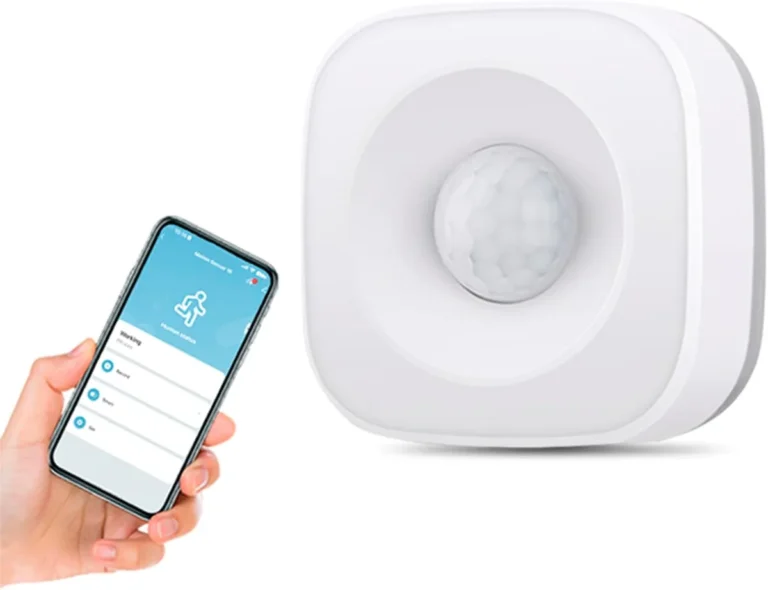
- Strategic Device Placement: Don't just stick cameras anywhere. Think about their purpose. For outdoor cameras, consider their field of view, potential for vandalism, and protection from the elements. For indoor motion sensors, ensure they aren't triggered by pets (unless designed to), HVAC vents, or curtains that move in a draft. Proper placement maximizes effectiveness and minimizes false alarms.
- Use Strong, Unique Passwords: This applies to your Wi-Fi network, your smart home account, and your individual security device accounts. A strong password is at least 12 characters, including a mix of uppercase and lowercase letters, numbers, and symbols. Unique passwords prevent a breach in one system from compromising another.
- Understand Device Limitations: Research what your devices can and cannot do. Some smart locks might not be compatible with all door types, and some cameras might have limited night vision range. Knowing these limitations upfront helps set realistic expectations.
- Create Useful Routines: Don't just connect devices; make them work together. For example, set your smart lights to turn on if an outdoor motion sensor is triggered after sunset, or have your smart speaker announce when a specific door is unlocked. This automation adds a layer of convenience and proactive security.
- Regularly Review Permissions: If you're linking multiple services or granting access to family members, periodically review who has access to your security system and what permissions they have. This is a good security hygiene practice.
Real Scenarios: Smart Security in Action
Seeing how smart security devices work in real-life situations can really help you understand their benefits. It’s not just about a list of features; it’s about how they make your everyday life more secure and convenient. For example, imagine you're away on vacation and get a notification on your phone that your smart doorbell detected motion.
You can then instantly check the live video feed from your phone, see it's just a delivery person, and even use the two-way audio to tell them where to leave the package.
Another common scenario involves smart locks and routines. Many users set up an automation where saying "goodnight" to their smart assistant locks the front door, turns off specific lights, and arms their smart security sensors. This single voice command streamlines your nightly routine and adds an immediate layer of security without you having to remember each individual step.
Per manufacturer documentation, these routines can be customized to include a wide array of connected devices, enhancing overall home management.
Making the Most of Your Smart Security: Optimization and Maintenance
Once your security devices are connected and working, you'll want to keep them running smoothly. Just like any technology, a little ongoing attention can prevent issues and ensure optimal performance. This involves a combination of software checks and physical upkeep, depending on the device.
Consistent maintenance is key to the long-term reliability of your smart security system.
- Regularly Check for Firmware Updates: Manufacturers frequently release updates that can improve performance, patch security vulnerabilities, and add new features. Make it a habit to check your device's dedicated app for these updates at least once a month. These updates are critical for maintaining device security, as discovered vulnerabilities are often patched in these releases.
- Test Your Devices Periodically: Don't wait for an emergency to find out something isn't working. Once a month, test your smart lock's locking/unlocking function, check your camera's live feed, and trigger a motion sensor to ensure it sends an alert. This proactive testing can catch issues before they become problems.
- Monitor Battery Levels: For battery-powered devices like many smart locks and sensors, keep an eye on battery indicators within their apps. Replace batteries promptly when they get low to avoid unexpected downtime. Some devices offer low-battery notifications well in advance, giving you ample time to swap them out.
- Clean Sensors and Lenses: Over time, dust or smudges can accumulate on camera lenses or motion sensor surfaces, affecting performance. Gently wipe them with a soft, dry microfiber cloth. For outdoor cameras, ensure they are not obstructed by growing branches or excessive dirt.
Frequently Asked Questions
How long does it typically take to connect a security device to a smart home?
The initial setup and connection process usually takes between 10 to 30 minutes per device. This includes unboxing, app setup, Wi-Fi connection, and linking to your smart home hub.
Can I connect security devices from different brands to the same smart home system?
Yes, generally you can. Most major smart home systems like Alexa, Google Home, and HomeKit are designed to be compatible with a wide range of third-party devices, provided they support the same communication protocols or are certified for that platform. Always check for compatibility badges.
Do I need a separate hub for every smart security device?
Not always. Wi-Fi-based devices connect directly to your home router. However, devices using protocols like Zigbee or Z-Wave often require a compatible hub that acts as a bridge to your Wi-Fi network and smart home system.
Some smart home hubs (like Samsung SmartThings) can support multiple protocols.
What should I do if my security camera won't connect to my Wi-Fi network?
Start by checking your Wi-Fi password and ensuring the camera is within range of your router. Try restarting your router, modem, and the camera. If problems persist, verify the camera supports your Wi-Fi band (2.4GHz vs. 5GHz) and consider using a Wi-Fi extender or mesh system if the signal is weak.