How to Control a Security System From a Phone
Can You Control Your Security System With Your Phone?
Yes, you absolutely can control most modern security systems from your smartphone. This offers incredible convenience, allowing you to arm or disarm your system, check cameras, and receive alerts from virtually anywhere. The ability to manage your home security remotely has become a standard feature, not just a luxury add-on.
Setting this up often involves downloading a dedicated mobile app provided by your security system's manufacturer. This app acts as your remote control panel, providing access to key functions. For optimal performance and security, ensure your system supports the latest communication protocols, such as Wi-Fi 6 or cellular backup, as recommended by organizations like the National Institute of Standards and Technology (NIST) for IoT device security.
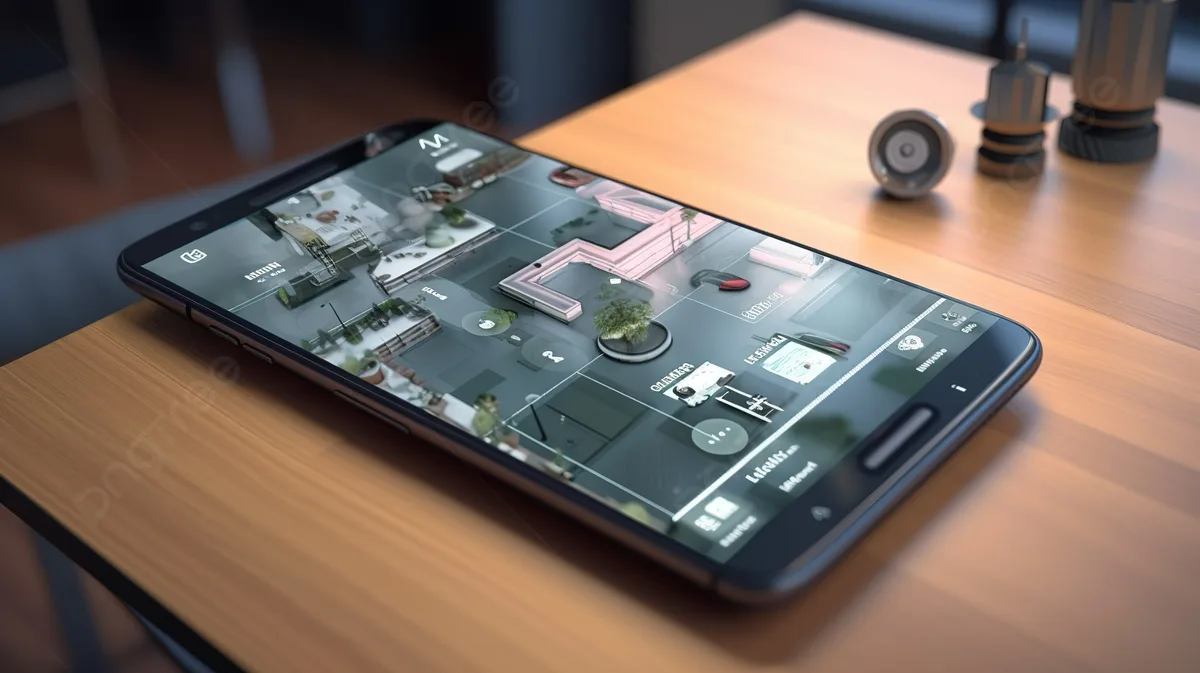
Image source: Web (Bing) / pngtree.com (Web image (fair-use with source credit))
Quick Answer
You can control your security system from your phone using a dedicated mobile app. This lets you arm, disarm, view cameras, and get alerts remotely. Ensure your system is app-compatible.
Download the app and link it to your hub. Check battery levels regularly. Prioritize strong passwords for security.
Your Existing System: The Starting Point
Before you get too excited about managing your home security from your couch or a beach halfway across the world, the very first thing we need to figure out is whether your current setup can even do this. It's not quite as simple as just downloading any old app. The capability hinges on your specific security system.
Is Your System App-Ready?
Many newer security systems, especially those installed in the last 5-10 years, are designed with smartphone integration in mind. These systems typically have a central hub or base station that communicates wirelessly with sensors and cameras, and crucially, connects to your home's internet router. If your system has features like Wi-Fi connectivity or a dedicated app interface advertised by the installer or manufacturer, there's a good chance it's already app-ready.
Think of systems from brands like SimpliSafe, Ring Alarm, ADT Command, or Vivint, these are generally built for mobile control.
What If It's Not?
If you have an older system, or one that was installed a decade ago or more, it might not have the built-in smarts for phone control. These older systems often rely solely on physical keypads, landline connections for monitoring, and don't possess the necessary networking hardware to communicate with a smartphone app. In such cases, you have a couple of primary paths forward.
You might be able to upgrade your existing system with a compatible hub or control panel, if the manufacturer offers such an option. Alternatively, you might consider a full system replacement with a modern, app-enabled setup. This is where deciding on a DIY system versus a professionally installed one can come into play, as DIY options often prioritize app integration.
How Phone Control Actually Works
So, how does that little app on your phone magically connect to and command your entire home security setup? It’s a combination of hardware, software, and network communication that works together seamlessly, as long as everything’s set up correctly.
The Tech Behind the App
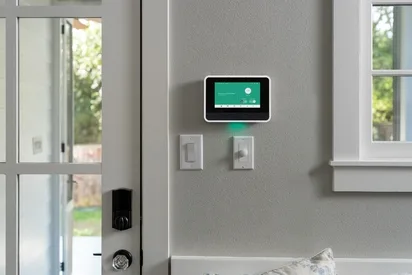
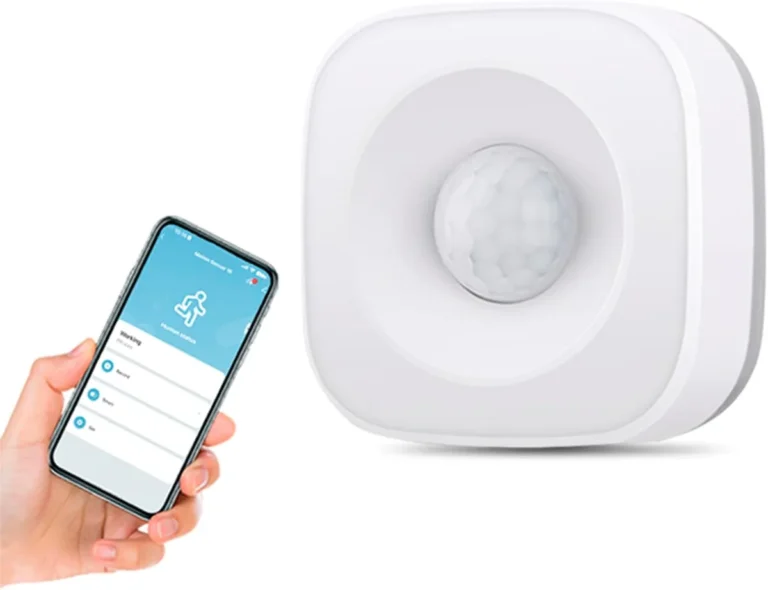
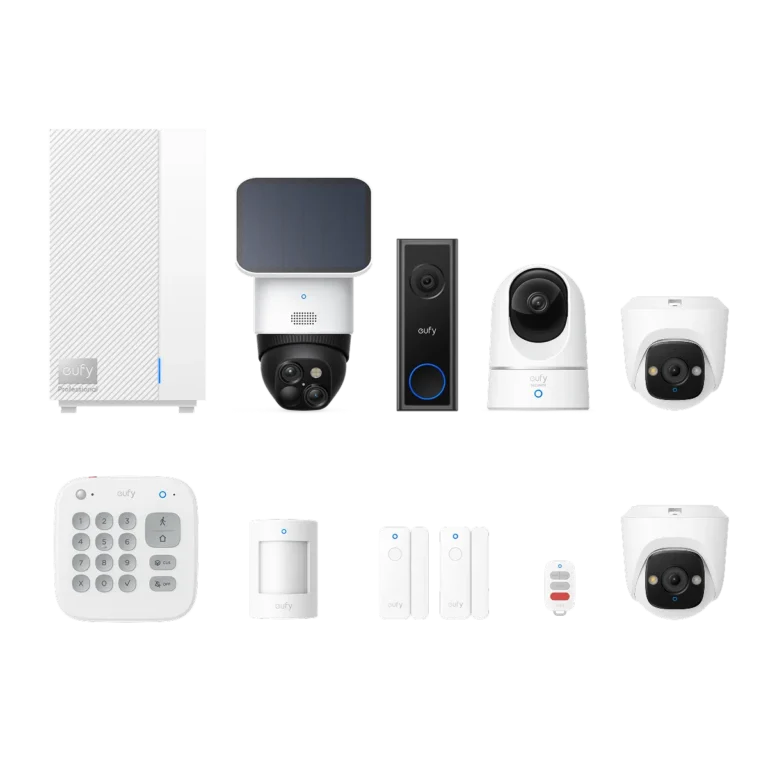
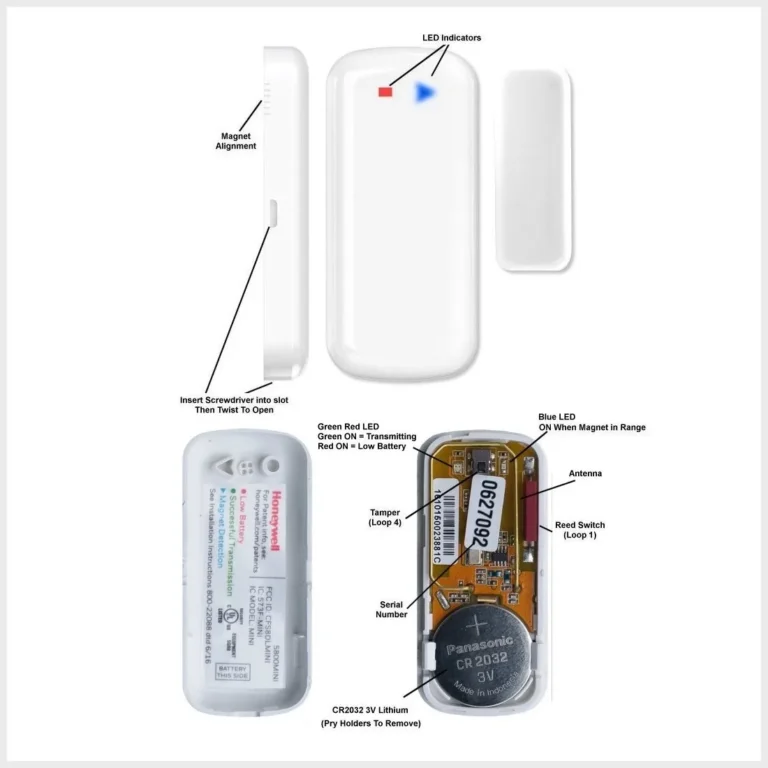
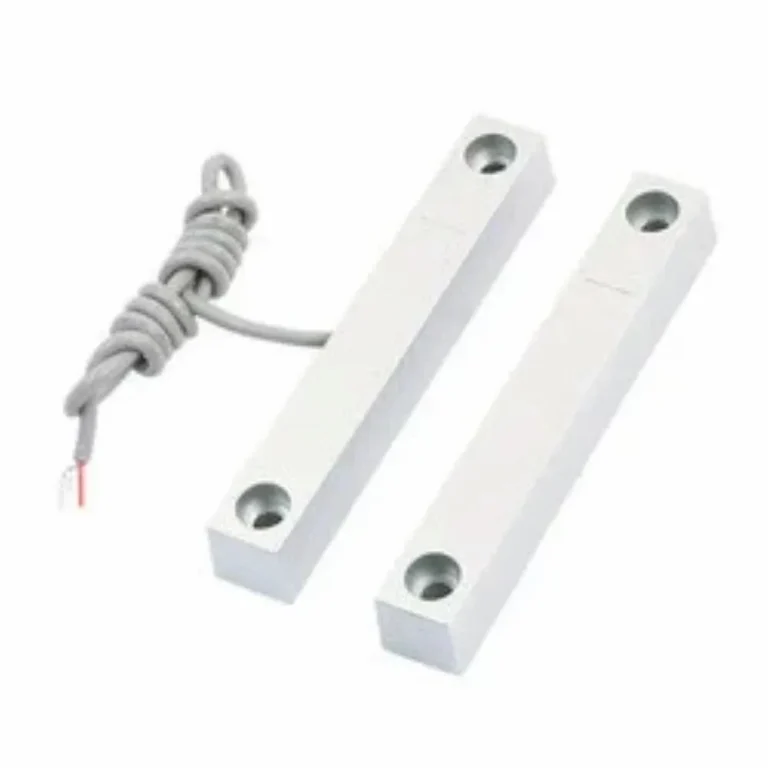
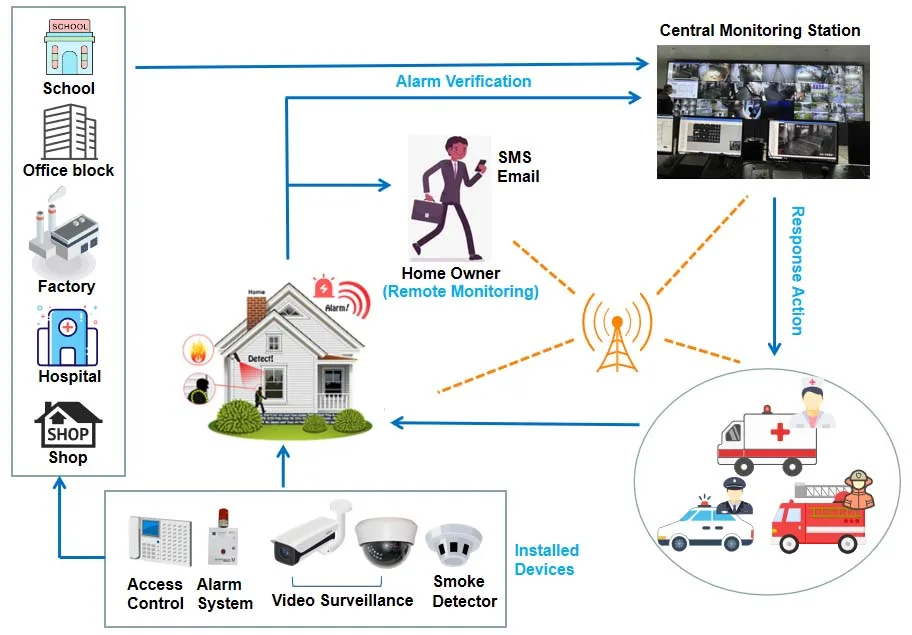
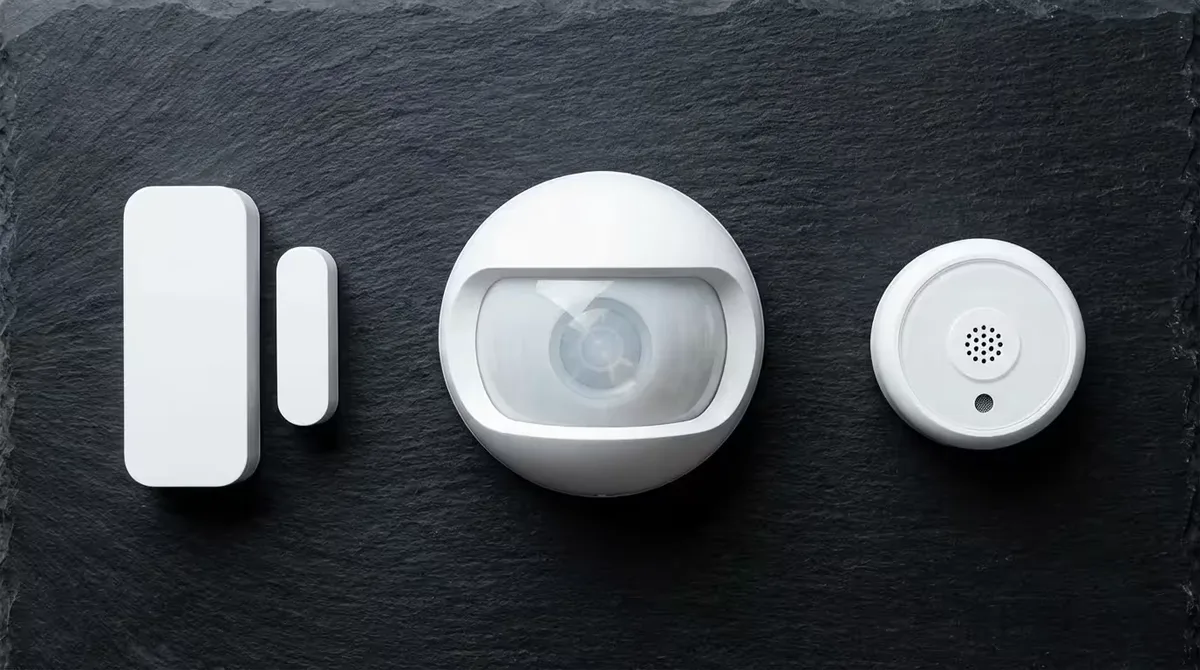
At its core, your security system uses a central hub or base station. This hub is the brain, communicating with all your sensors (like door/window contacts, motion detectors, and glass break sensors) and cameras. For your phone to talk to this hub, the hub needs to be connected to the internet, usually through your home Wi-Fi network.
Many systems also offer a cellular backup, which is a lifesaver if your internet goes down, ensuring you don't lose remote control or monitoring. The system's manufacturer provides a dedicated mobile application, available for both iOS and Android devices. This app is designed to securely communicate with your specific system's hub over the internet.
What Your Security App Does
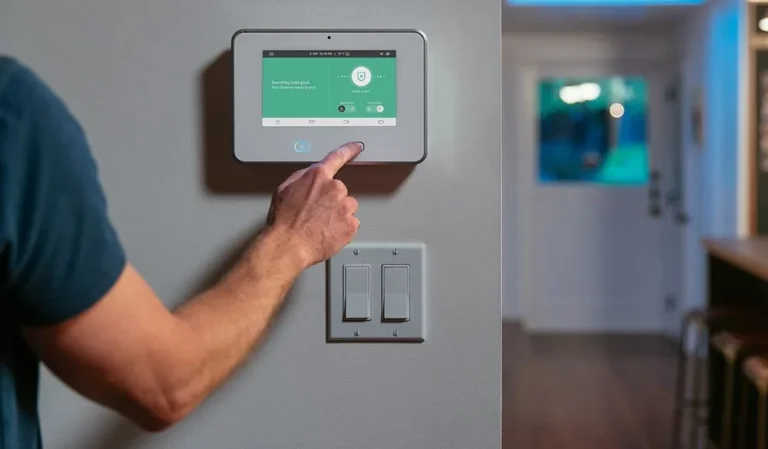
Once you’ve downloaded the app and linked it to your system, it acts as your personal command center. You can arm your system in “Away” mode (when you're out) or “Stay” mode (when you’re home but want perimeter protection). You can also disarm it with a tap.
Beyond basic control, the app is your eyes and ears. If a sensor is triggered, you'll get a real-time push notification on your phone, often with details like which specific sensor was activated. Many apps also allow you to view live video feeds from your security cameras, check recorded events, and sometimes even communicate through two-way audio if your cameras support it.
Some advanced systems even integrate with smart locks, letting you lock or unlock your doors remotely.
Setting Up Phone Control: A Step-by-Step Path
Getting your security system connected to your phone isn't usually complicated, but it does involve a few distinct steps. Think of it as bridging the gap between your physical security hardware and the digital convenience of your smartphone. If you're setting up a brand-new system, many of these steps are part of the initial installation.
If you're adding app control to an existing system, you might be working with a pre-installed hub.
Connecting Your System to the App
The first major step is downloading the official mobile app for your security system. You’ll find these apps in your smartphone’s app store (Apple App Store for iPhones, Google Play Store for Android). Search for the brand name of your security system.
Once installed, you’ll typically need to create an account or log in if you already have one. The app will then guide you through linking it to your security system’s hub. This usually involves scanning a QR code on the hub, entering a serial number, or connecting to a temporary Wi-Fi network the hub might create.
Ensure your home Wi-Fi is stable before starting this process.
Configuring Notifications and Features
After your app is successfully connected to your system, it's time to customize it to your needs. This is where you'll set up what kind of alerts you want to receive and how you want to receive them. For instance, you can choose to be notified immediately if a door sensor is triggered while the system is armed, or if motion is detected.
You can also configure geofencing, which uses your phone's location to automatically arm or disarm the system when you leave or arrive home, though it's wise to use this in conjunction with manual checks. Dive into the app's settings to explore options for managing user access (if others in your household will use the app), setting up custom event rules, and checking the battery status of your various sensors.
Real-World Scenarios: Who Benefits Most?
The convenience and enhanced security provided by controlling your system from your phone isn't just a neat tech trick; it genuinely solves problems and improves daily life for a wide range of people. It brings peace of mind and practical advantages, no matter your situation.
Peace of Mind on the Go
For anyone who travels frequently, whether for business or pleasure, app control is invaluable. You can check in on your home at any time, see if doors are secured, and get instant alerts if something unexpected happens. This remote monitoring capability significantly reduces worry, allowing you to relax knowing your property is secure.
It’s like having a virtual window into your home, accessible from thousands of miles away. You can even check on pets that might be home alone, ensuring they’re safe and sound.
Managing Multiple Properties
If you own more than one home, like a vacation property or an investment rental, managing security can be a logistical challenge. With an app-controlled system, you can oversee all your properties from a single dashboard on your phone. You can arm/disarm units remotely, check camera feeds, and respond to alerts at any of your locations, regardless of where you are.
This consolidation saves significant time and hassle compared to coordinating physical access or relying on local contacts for every property.
Staying Connected with Family
For families with older children or elderly relatives living independently, phone control offers a way to stay connected and ensure safety. Parents can check if their teenagers arrived home from school safely by viewing activity logs or camera feeds. For elderly individuals who may live alone, family members can discreetly monitor for any unusual activity without being intrusive.
This level of oversight provides a crucial layer of support and reassurance for everyone involved, ensuring help can be summoned quickly if needed.
Common Hiccups and How to Fix Them
Even with the best technology, things don't always run perfectly. When you're relying on your phone to manage your security, a few common issues can pop up. Knowing what to look for and how to troubleshoot can save you a lot of frustration.
Connectivity Issues
The most frequent culprit behind a non-responsive security app is a loss of internet connection. If your home Wi-Fi is down, or your cellular data is weak, your phone can’t communicate with your security hub. First, check your phone’s internet connection.
If that’s fine, try restarting your home router and modem. If your system has cellular backup, verify it's active and functioning by checking the app or hub status. Sometimes, simply re-establishing the connection between the hub and your Wi-Fi can resolve the problem.
App Glitches and Updates
Apps, like any software, can sometimes have bugs. If your security app is freezing, crashing, or not displaying information correctly, try closing it completely and reopening it. If that doesn’t work, check if there’s an update available for the app in your app store.
Manufacturers frequently release updates to fix bugs, improve performance, and enhance security. You might also need to clear the app’s cache through your phone's settings, though this is less common. If problems persist, contacting the security system's support is your next best step.
False Alarms from Your Phone
While not strictly an "issue" with the phone control itself, managing your system remotely can sometimes lead to accidental false alarms. This might happen if you inadvertently trigger the arming function, or if a notification is misinterpreted. If you accidentally set off the alarm, disarm it immediately via the app.
Most systems have a short grace period for disarming. It’s also crucial to ensure your system’s sensors are properly installed and calibrated to minimize false triggers, especially motion sensors in areas with pets or moving foliage visible through windows.
Protecting Your Remote Access: Security Essentials
The power to control your security system from anywhere is fantastic, but it also means you need to be extra vigilant about who can access that control. Protecting your remote access is paramount to keeping your home truly secure and preventing unauthorized entry. Think of your app login as another critical front door to your property.
Strong Passwords and Two-Factor Authentication
The first line of defense is a strong, unique password for your security system’s app account. Avoid using easily guessable information like birthdays, pet names, or sequential numbers. Aim for a mix of uppercase and lowercase letters, numbers, and symbols.
More importantly, enable two-factor authentication (2FA) if your system’s app offers it. This typically involves a code sent to your phone or generated by an authenticator app whenever you log in from a new device or location. It’s a crucial step that makes it much harder for unauthorized users to gain access, even if they somehow got hold of your password.
Understanding App Permissions
When you install the security app, it will ask for certain permissions on your phone, such as access to your location, notifications, and sometimes even your camera or microphone. It’s important to review these permissions carefully. Granting location access is often necessary for features like geofencing, but consider if the app truly needs constant access or if "while using the app" is sufficient.
Understanding what data the app collects and how it's used is vital for maintaining privacy and security, so always check the app's privacy policy.
Frequently Asked Questions About Phone Control
How long does setup typically take?
Setting up phone control for your security system usually takes between 15 to 45 minutes, depending on your system's complexity and whether you're installing it for the first time. This includes downloading the app, creating an account, linking the app to your system's hub, and configuring basic settings and notifications. If your system is already installed and just needs app integration, it can often be done in under 20 minutes.
Can I control my security system if my phone has no internet service?
If your phone has no internet service (e.g., poor cellular signal), you generally cannot control your security system via the app. However, if your home's internet service is down but your security system has a cellular backup, you can usually still control the system through the app using that cellular connection. The phone itself needs a data connection, and the hub needs a connection to the internet (either home Wi-Fi or cellular).
What if I lose my phone?
If you lose your phone, you should immediately log into your security system account from another device or computer and disable the app access associated with your lost phone. You should also change your account password as a precaution. Most systems allow you to deactivate specific app installations remotely.
This prevents anyone who might find your phone from accessing your security system controls.
Do I need a special type of smartphone?
No, you don't need a special or high-end smartphone. As long as your smartphone can download and run apps from the Apple App Store or Google Play Store (typically models from the last 5-7 years), it should be compatible. Most modern security system apps are designed to work on a wide range of iOS and Android devices.
Always check the app's requirements in the app store listing.
Will I have to pay a monthly fee for app control?
It depends on the security system provider. Many DIY systems offer basic app control and notifications for free. However, more advanced features like professional monitoring, cloud video storage for cameras, or extended event history often require a monthly subscription fee.
Always clarify what features are included with your system’s purchase versus what requires an ongoing payment.
What happens if my phone’s battery dies?
If your phone’s battery dies, you won't be able to use the app to control your security system. This is why having a reliable power source for your phone is important, or at least ensuring it's charged before you leave home. If you lose remote access due to a dead battery, you would need to rely on your system's physical keypad or a designated backup user to manage the system.
Many systems also have cellular backups that keep them operational even if your home internet is down, but the app still needs a working connection to the internet.
Can I add other smart home devices to the security app?
Some security system apps integrate with other smart home devices, like smart lights, thermostats, or smart locks. This allows you to control multiple aspects of your home from a single app. For example, you might set up a "scene" where arming your security system also turns off the lights and locks the doors.
Check your security system’s compatibility list or app features to see if it supports integration with your other smart home products. This requires compatible protocols and often a central hub that supports multiple communication standards.
Making the Right Choice for You
Deciding if controlling your security system from your phone is the right move for you involves weighing the benefits against your current needs and setup. It’s not a one-size-fits-all solution, but for many, the convenience and enhanced control it offers are significant advantages.
If you're comfortable using smartphone apps and value being able to check in on your home remotely, then app control is likely a great fit. Consider how often you travel or leave your home unoccupied. The ability to arm, disarm, and monitor activity from anywhere can provide considerable peace of mind.
Think about whether you already use other smart home devices; integrating your security system can streamline your home management even further.
However, if you prefer simplicity and have a very basic security setup that meets your needs, or if you're not comfortable with smartphone technology, sticking to traditional methods might be fine. Ensure your chosen system’s app is user-friendly and doesn’t have excessive subscription fees if you opt for premium features. Ultimately, the best choice depends on your lifestyle, budget, and comfort level with technology.