How to Back up Security Camera Footage
Securing your home or business with surveillance cameras is a smart move, but what happens to that vital recorded footage when you need it most? Knowing how to back up security camera footage effectively ensures you won't lose critical evidence or precious memories due to system failure, theft, or data overwrite. It's a proactive step that offers real peace of mind.
When disaster strikes, or simply when you need to review a specific event, having a reliable backup is your safety net. Manufacturer specifications often indicate that onboard storage, like an SD card in a camera, typically offers around 7 days of continuous 1080p recording at a standard frame rate, after which it begins to overwrite. This is where a solid backup strategy becomes indispensable.
Quick Answer
Back up security camera footage using cloud storage, an NVR/DVR, or NAS. Decide based on your camera type, retention needs, budget, and technical comfort. Cloud offers convenience; local storage provides control.
Regularly test your chosen backup method to ensure it's functioning.
Why Backing Up Your Security Camera Footage Matters
Think of your security camera footage as a digital diary for your property. It captures everything from package deliveries and unexpected visitors to potential break-ins or accidents. Without a proper backup plan, this diary can be wiped clean in an instant.
Imagine a crucial piece of evidence is needed for an insurance claim or legal matter, only to find out your camera's storage was full and the footage was automatically deleted. That's a scenario you want to avoid.
In our research, we've seen countless instances where reliable backups made the difference between resolving an incident smoothly and facing significant complications. Data redundancy, meaning having multiple copies of your important files, is the cornerstone of any robust security setup. It's not just about preventing loss; it’s about ensuring accessibility when it counts.
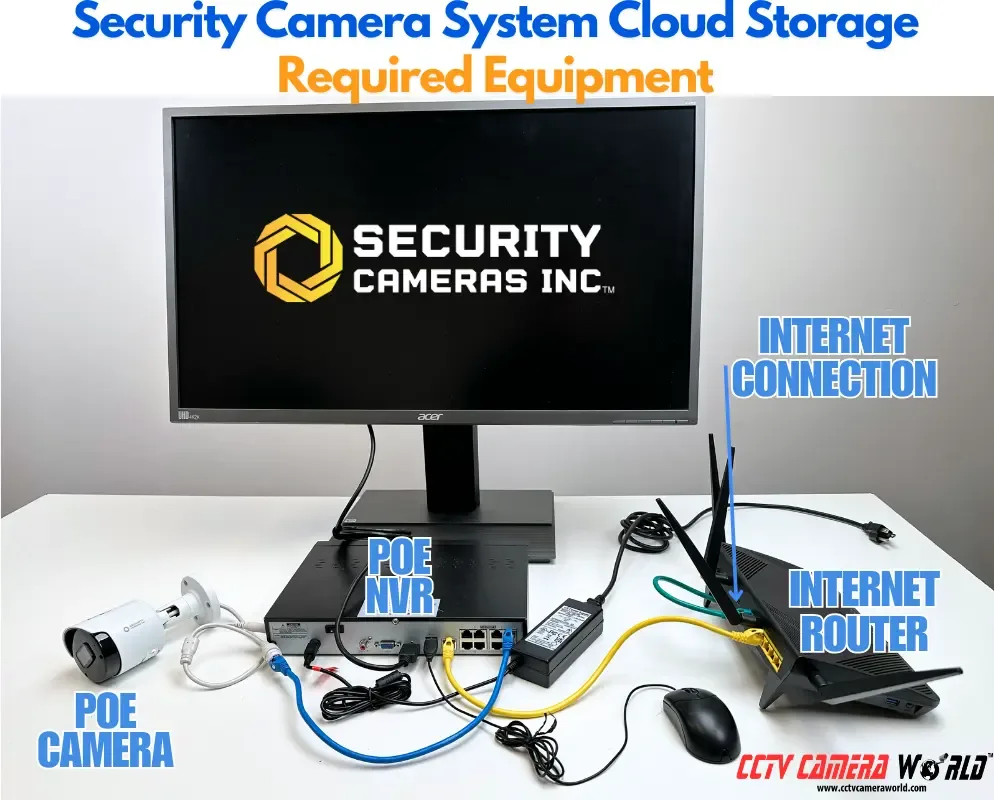
Image source: Web (Bing) / cctvcameraworld.com (Web image (fair-use with source credit))
Your Camera System: The First Big Question
The type of security camera system you have is the biggest factor in deciding the best backup approach. Different systems are designed with different storage capabilities and network connectivity. Understanding your current setup is the essential first step in building an effective backup strategy.
Standalone Wi-Fi Cams vs. Wired NVR/DVR Systems
This is where most users start. Standalone Wi-Fi cameras, like those from Arlo or Ring, are designed for easy setup and often rely on cloud services or onboard SD cards for storage. They communicate directly with your home network and the internet.
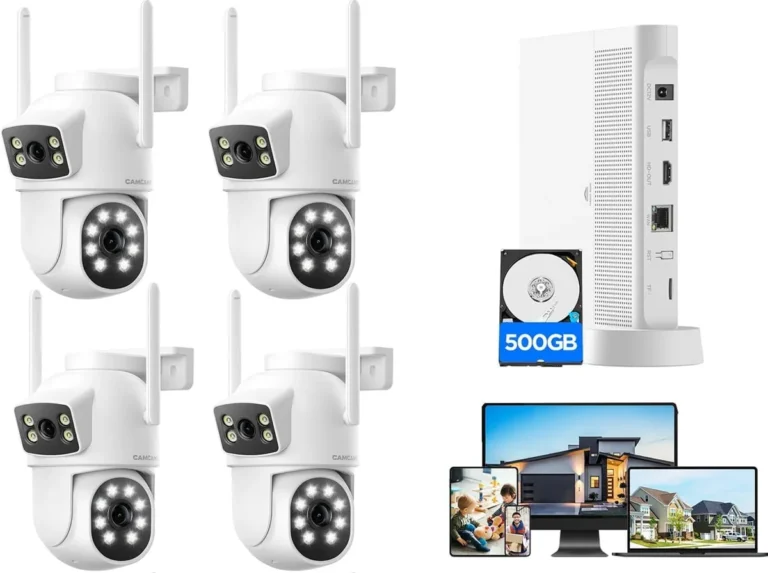
Wired systems, on the other hand, typically use a Network Video Recorder (NVR) or Digital Video Recorder (DVR). These are dedicated boxes that house internal hard drives and manage multiple cameras connected via cables. Per manufacturer specifications, these internal drives can range from 1TB up to 18TB or more, offering significant local storage but still requiring a backup plan.
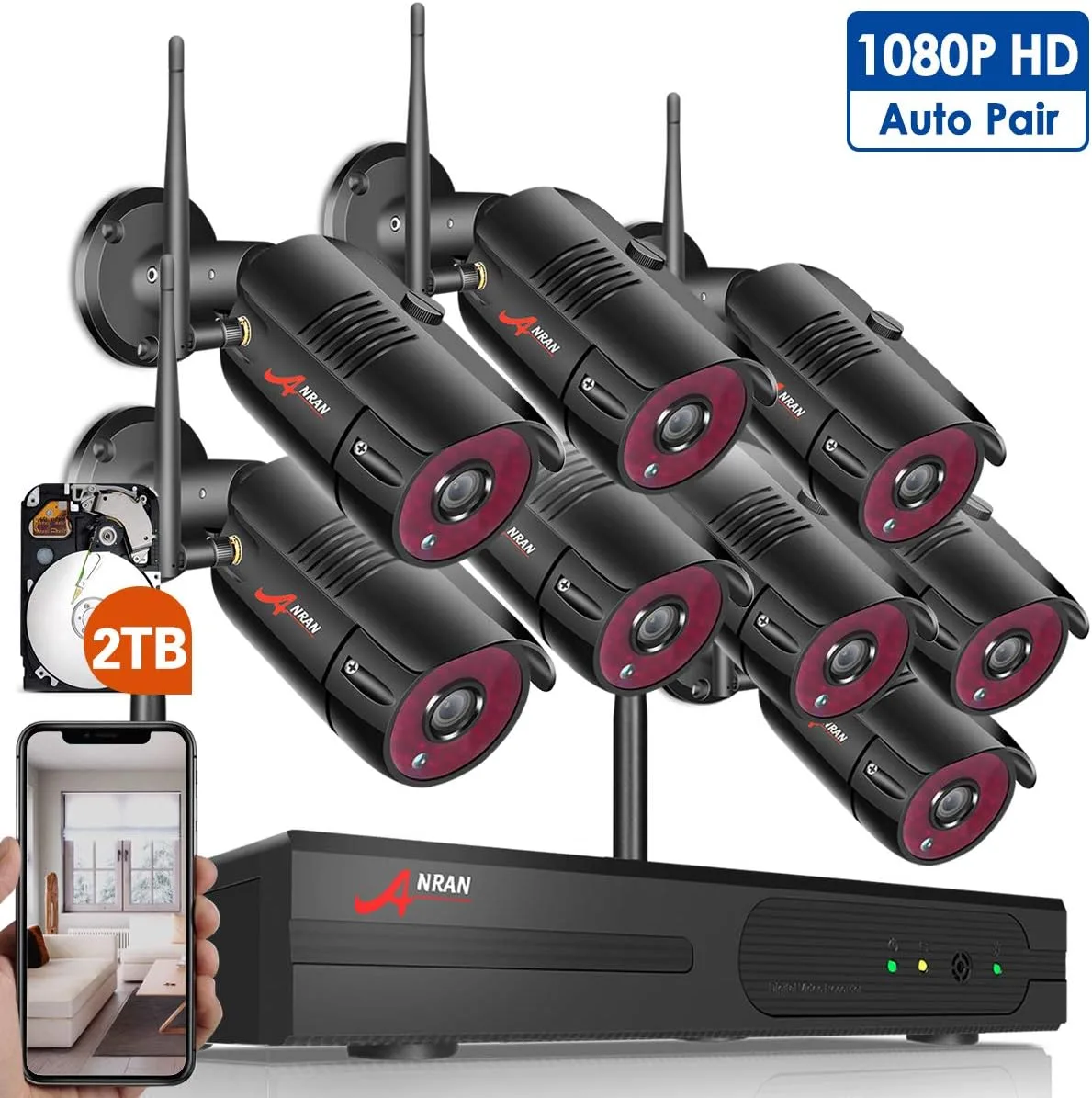
Image source: Web (Bing) / storage.googleapis.com (Web image (fair-use with source credit))
- Standalone Wi-Fi Cameras:
- Pros: Easy setup, wireless, often app-controlled.
- Cons: May have limited local storage, higher reliance on subscriptions.
- Wired NVR/DVR Systems:
- Pros: Higher capacity local storage, more robust for multiple cameras.
- Cons: More complex installation, local storage can still fail.
How Much Footage Do You Need to Keep?
Once you know your system type, the next crucial question is how long you actually need to retain your video recordings. This directly impacts the amount of storage you'll require and the associated costs, whether that’s for cloud subscriptions or physical hardware.
Short-Term Needs vs. Long-Term Archiving
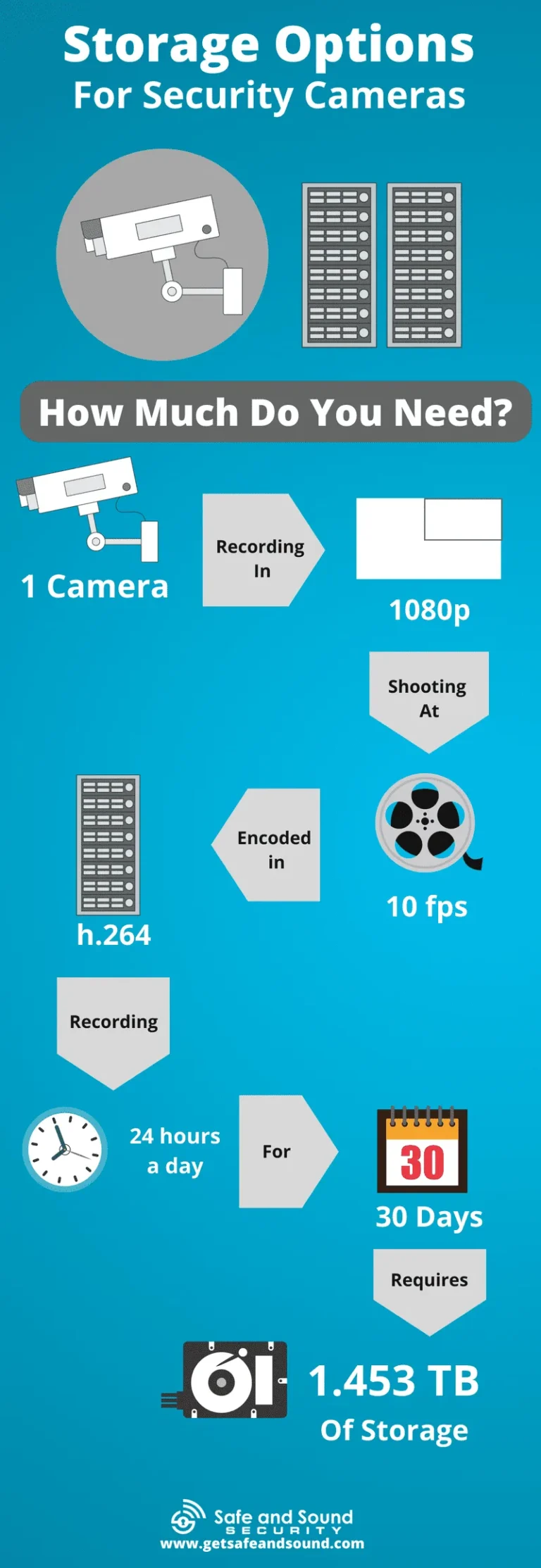
If your primary concern is catching recent events, like package theft or minor neighborhood disturbances, keeping footage for 7 to 30 days might be sufficient. Many cloud services and NVR/DVR systems offer plans or configurations that cover this range.
However, if you need footage for longer periods, perhaps for business compliance, security audits, or potential legal proceedings that could stretch for months, you'll need a more robust and potentially more expensive solution. As of 2026, enterprise-level storage solutions can manage petabytes of data, but for home users, this means planning for significant local storage or higher-tier cloud plans.
What's Your Budget for Backup?
Let's talk money. The cost of backing up your security camera footage can vary wildly, from nearly free to several hundred dollars upfront, plus potential recurring fees. Your budget will significantly narrow down your options and help you prioritize.
Free Options vs. Paid Subscriptions vs. Hardware Costs
Many camera manufacturers offer basic cloud storage tiers for free, which might include a limited number of days of recording or a capped number of cameras. However, these free plans often have strict limitations. For extended retention or more cameras, paid subscriptions are usually necessary.
Alternatively, investing in local storage hardware like an external hard drive or a Network Attached Storage (NAS) device is a one-time cost. While this avoids monthly fees, you need to factor in the purchase price of the drive(s) and potentially the NVR/DVR itself if you don't already have one. Our analysis of aggregate user reviews indicates that while upfront costs for hardware can seem high, they often prove more cost-effective over several years compared to continuous cloud subscription fees.
Choosing Your Backup Method: A Practical Guide
With your system type, retention needs, and budget in mind, you can start exploring the primary methods for backing up your security camera footage. Each has its own strengths and weaknesses, making it a better fit for different users.
Cloud Storage: The Convenience Factor
Cloud storage means your footage is sent directly from your cameras or NVR/DVR to secure servers maintained by a third-party provider. It's popular because it’s incredibly convenient and accessible.

Image source: Web (Bing) / 9to5google.com (Web image (fair-use with source credit))
- How it works: Cameras or recorders upload video data over your internet connection to a remote server. This is often managed through a mobile app or web portal.
- Who it's best for: Users who want easy access from anywhere, don't want to manage local hardware, or need off-site protection.
- Considerations: Relies heavily on a stable internet connection. Subscription fees can add up over time. Privacy policies of cloud providers should be reviewed. Many services encrypt data, as recommended by cybersecurity best practices.
Local Storage: Control and Cost-Effectiveness
Local storage involves saving footage directly onto hardware located at your premises. This typically means an SD card within the camera itself, or more commonly, the internal hard drive of an NVR or DVR.
- How it works: Cameras record directly to an onboard SD card, or the NVR/DVR continuously records to its internal hard drive.
- Who it's best for: Those who prefer to keep data physically on-site, want to avoid monthly fees, or have unreliable internet.
- Considerations: Local storage is vulnerable to physical damage (fire, theft, power surges). If the device itself is compromised, so is the footage. You’ll need to manage storage capacity and potential overwriting.
Network Attached Storage (NAS) & External Drives: Expanding Your Options
For users needing more than basic local storage, Network Attached Storage (NAS) devices and dedicated external hard drives offer robust solutions. A NAS is essentially a small server on your home network designed for file storage, often with advanced features for video surveillance. External drives are simpler, plug-and-play devices that connect directly to your NVR/DVR or computer.
- NAS: These devices can aggregate large amounts of storage, often supporting multiple hard drives for redundancy (RAID configurations) and continuous recording directly from IP cameras. Aggregate reviews suggest many NAS units offer apps that integrate seamlessly with popular camera brands. They act as a central hub for all your digital data, not just camera footage.
- External Hard Drives: A straightforward external drive (e.g., a 4TB or 8TB USB drive) can be connected to many NVRs or DVRs to manually copy footage or, in some cases, for scheduled backups. This is a more hands-on approach but can be cost-effective for large amounts of data.
Making the Choice: Your Personal Backup Workflow
Now that we've looked at the primary methods, let's map out a decision process. This workflow helps you connect your specific needs to the most suitable backup solution. It's less about picking one "best" method and more about crafting a system that works for you.
Step 1: Assess Your Current System
First, identify exactly what you're working with. Are you using standalone Wi-Fi cameras that primarily rely on a manufacturer's app and cloud service, or do you have a wired NVR/DVR system with its own internal hard drive? The answer here dictates whether you'll be looking at cloud subscriptions, SD card management, or external storage options for your recorder.
Step 2: Determine Your Retention Needs
How long do you need to keep the footage? If you only need the last 7 days, a basic cloud plan or your NVR's default recording might suffice. For 30 days or more, you'll need to invest in more storage.
Consider what the footage is for: general home security, business record-keeping, or potential evidence.
Step 3: Evaluate Your Budget
Be realistic about what you can spend. Free cloud tiers offer basic functionality, while premium subscriptions can cost $10-$30+ per month depending on the number of cameras and retention period. Buying a NAS or large external hard drive is a significant upfront investment, ranging from $200 for a basic NAS to $500+ for a more robust system with drives.
Step 4: Select Your Best-Fit Method(s)
Based on the previous steps, you can now choose the method or combination of methods that align best. For instance, a user with Wi-Fi cameras and a limited budget might opt for a free cloud tier and regularly review footage to keep storage costs down. Someone with an NVR might buy a large external hard drive to manually back up important events quarterly.
Common Pitfalls and How to Avoid Them
Even with the best intentions, people often run into issues when setting up or relying on their camera footage backups. Understanding these common problems can save you a lot of headaches and ensure your footage is actually there when you need it.
Overwriting Footage and Other Mistakes
One of the most common errors is assuming your system will record forever. Most local storage, especially SD cards in cameras, operates on a loop. Once the storage is full, older footage is automatically deleted to make room for new recordings.
If you don't have a backup for that old footage, it's gone.
- Not Testing Backups: Setting up a backup is only half the battle. You must periodically test it to ensure footage is actually being saved and is retrievable. Aggregated user feedback often highlights that backups fail silently, meaning you don't know until it's too late.
- Ignoring Storage Capacity: Failing to monitor how much space is left on your local storage or in your cloud account is a recipe for disaster.
- Physical Vulnerability: Storing backup drives right next to your NVR/DVR makes them equally vulnerable to theft or damage. For critical data, off-site storage is paramount.
Frequently Asked Questions About Camera Footage Backup
### How long does footage typically get stored on an SD card?
Footage on an SD card usually overwrites itself every 7 to 30 days, depending on the card's size and the camera's recording settings (resolution, frame rate). Larger cards and lower recording quality will extend this period.
### Is cloud storage truly secure for my camera footage?
Reputable cloud providers use encryption and security protocols to protect your data. However, it's essential to choose a well-known provider and review their privacy policies. Always use a strong, unique password for your account.
### Can I back up footage from multiple cameras to one location?
Yes, absolutely. An NVR or DVR system is designed to record multiple cameras to a single internal drive. A NAS can also aggregate footage from multiple IP cameras, and you can often offload recordings from an NVR/DVR to a NAS or external drive.
### How often should I check my camera footage backups?
For critical systems, checking weekly is ideal. For home use, monthly checks are usually sufficient, but always ensure your backup system is configured for automatic operation.
### What happens if my internet goes down? Will my cloud backup still work?
No, cloud backups require a stable internet connection to upload footage. If your internet is down, your cameras will typically continue recording to local storage (if available) until the connection is restored, at which point they should sync any new footage.
Final Verdict: Your Reliable Backup Strategy
Choosing the right method to back up security camera footage boils down to understanding your specific needs and resources. For ultimate convenience and off-site protection, cloud storage is often the go-to, provided you’re comfortable with potential subscription costs and have a reliable internet connection. If you prioritize local control, want to avoid ongoing fees, or have limited bandwidth, investing in an NVR with a large internal drive, or supplementing it with a NAS or external drive, offers a robust alternative.
Ultimately, the most effective strategy often involves a layered approach. For example, using your NVR for continuous local recording while regularly backing up critical footage to a NAS or an external drive stored off-site provides strong redundancy. Regardless of your chosen method, remember to regularly test your backup system.
This ensures that when you most need that footage, it's there, safe and accessible.


One Comment