How to Reset a Home Alarm System
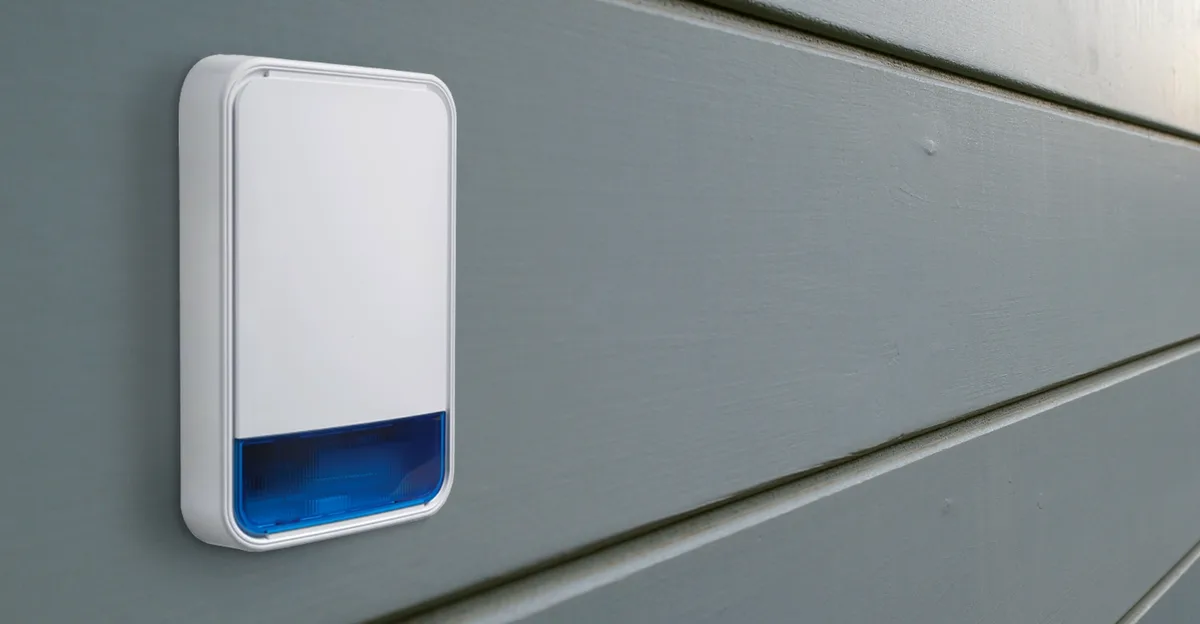
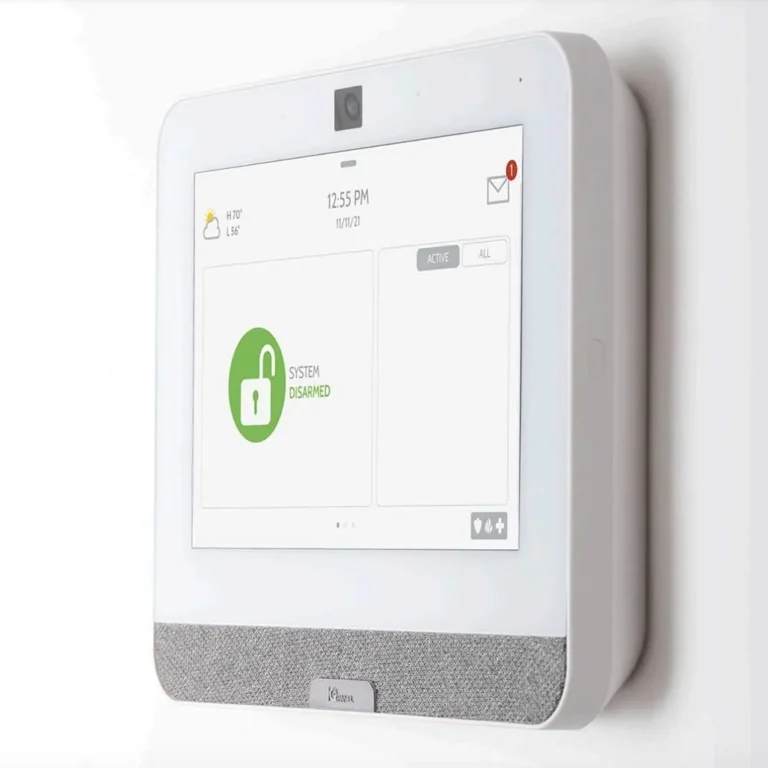
Image source: Web (Bing) / manuals.plus (Web image (fair-use with source credit))
When your home alarm system goes offline or acts up, figuring out how to reset it can feel like a puzzle. You're not alone if you've found yourself staring at a blank panel, wondering what went wrong and how to get it working again. Resetting your system is often the first step to troubleshooting and restoring your peace of mind.
Knowing the right procedure is key, as different systems have unique requirements. For example, some alarm systems might require a specific installer code, like the 4112 code found on many older panels, to perform a full factory reset, while others offer a simpler power-cycling method. This guide breaks down exactly what you need to do, depending on your situation.
Quick Answer
To reset a home alarm system, you often need the installer code to perform a factory reset, or you can try a soft reset by power cycling the main control panel. If you've forgotten codes, consult your system's manual or contact the manufacturer. Always test the system thoroughly after any reset to ensure it's functioning correctly and monitoring is re-established.
When Do You Need to Reset Your Home Alarm System?
You might find yourself needing to reset your home alarm system for a few common reasons. Sometimes, it's because you've forgotten critical codes, like your user code or the installer code that unlocks advanced settings. Other times, the system might just start behaving strangely: a sensor might be offline, the keypad could be unresponsive, or you're experiencing frequent false alarms.
A power outage can also sometimes knock the system out of sync, necessitating a reboot.
Ultimately, any time your system isn't performing as expected, or you need to reconfigure settings from scratch, a reset is likely the path forward. It’s essentially giving the system a fresh start. However, it's crucial to understand that not all resets are the same, and the process can vary significantly between manufacturers and models.
This guide aims to clarify those differences and walk you through the most common scenarios.
Understanding Your Alarm System's Codes
The heart of managing any home alarm system often boils down to knowing its codes. These aren't just random numbers; they're security keys that grant access to different levels of control. Getting them wrong, or forgetting them entirely, is a primary reason people look into how to reset their system.
User Codes vs. Installer Codes
Your alarm system typically has at least two main types of codes: user codes and installer codes. User codes are what you and your family members use daily to arm and disarm the system. They're generally easy to remember and can often be changed through the keypad.
The installer code, however, is a much more powerful tool. It’s typically set by the company that installed your system or a default code provided by the manufacturer. This code grants access to system programming, allowing you to change zone configurations, set up new sensors, adjust entry/exit delays, and, importantly, perform a factory reset.
You can think of it as the master key for the system's brain.
Manufacturer Default Codes
Many alarm systems come with default codes straight out of the box. These are often widely known and are intended for initial setup. For instance, a common default installer code for older systems might be 4112.
However, a critical security step after installation is to change these default codes immediately. If you've never changed them, you might be able to use these defaults to access programming.
Manufacturer specifications often list these default codes in the installation manual. It's essential to refer to your specific alarm panel's documentation, as these defaults can vary greatly. If you don't have the manual, a quick search on the manufacturer's support website can usually provide this information.
Image source: Web (Bing) / archiexpo.com (Web image (fair-use with source credit))
The Two Main Ways to Reset Your Alarm System
When your alarm system needs a refresh, there are generally two main approaches: a soft reset and a hard reset. The method you choose depends on the problem you're facing and how much you need to wipe clean.
Soft Reset: Power Cycling Your System
A soft reset, often called power cycling, is the least intrusive method. It's akin to restarting your computer when it freezes. This process involves temporarily cutting power to the main alarm panel and then restoring it.
Here's how it generally works:
- Disconnect power: You'll need to locate the main control panel, which is usually a metal box hidden away in a closet, basement, or garage. First, disconnect the transformer that powers the panel from its outlet.
- Remove backup battery: Inside the panel, there's a backup battery that keeps the system running during power outages. You'll need to disconnect this battery as well. This ensures the system loses all power completely.
- Wait a minute: Let the system sit with no power for about 60 seconds. This gives any residual charge time to dissipate.
- Reconnect: Reconnect the backup battery first, then plug the transformer back into the outlet.
This reboot can often clear temporary glitches, unfreeze the keypad, or resolve minor communication issues without erasing your custom settings like zone names or user codes.
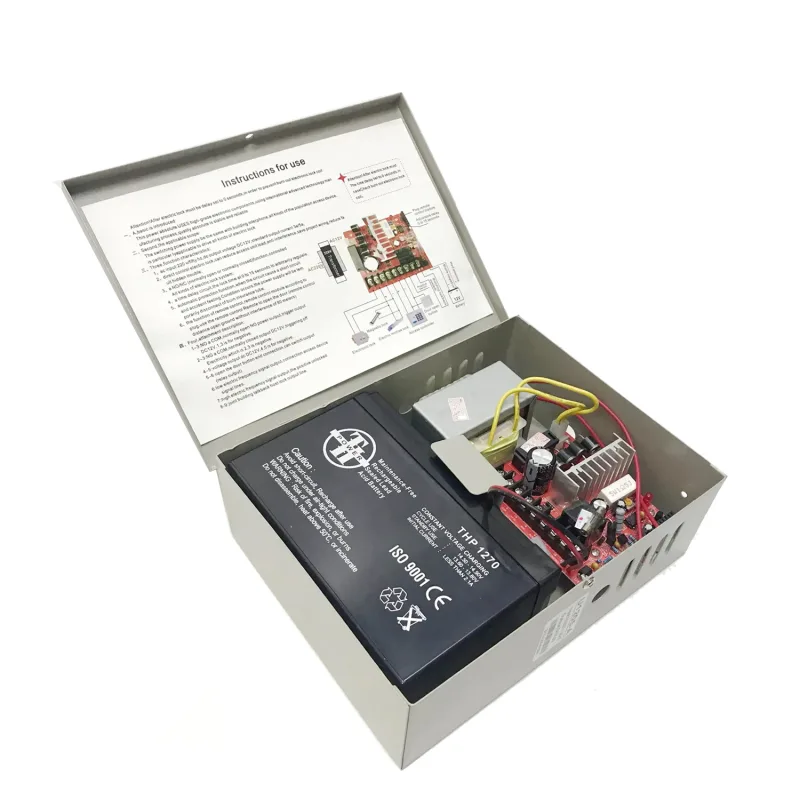
Image source: Web (Bing) / shopin.com.my (Web image (fair-use with source credit))
Hard Reset: Factory Defaults
A hard reset, or factory reset, is a more drastic measure. This process wipes the control panel clean, reverting all settings back to their original factory defaults. This means you'll lose all custom programming, including user codes, zone configurations, schedules, and any special instructions you've entered.
You'll typically need the installer code to initiate a factory reset directly from the keypad. If you don't have the installer code, some manufacturers provide a physical reset button on the circuit board itself, or the process might involve a specific sequence of button presses while reconnecting power. This is usually the last resort when other troubleshooting methods fail, or when you're selling a property and need to clear all user data.
How to Factory Reset Your Specific Alarm System (Step-by-Step)
Performing a factory reset is usually the most effective way to solve persistent issues or clear out old settings. However, the exact steps can differ quite a bit between alarm brands and models. It’s essential to have your system’s model number handy.
Find Your Control Panel and Manufacturer
The first step is to locate the physical control panel for your alarm system. This is the main brain of your security setup. It's typically a metal box, often found in a discreet location like a utility closet, basement, garage, or even a spare bedroom.
Look for a box with wires running into it.
Once you’ve found the panel, try to identify the manufacturer and model number. This information is usually printed on a sticker on the outside of the panel’s casing. Brands like Honeywell, DSC, Ademco, SimpliSafe, or Vivint are common.
Having this details is critical for finding the correct reset procedure.
Accessing the Reset Function (General Steps)
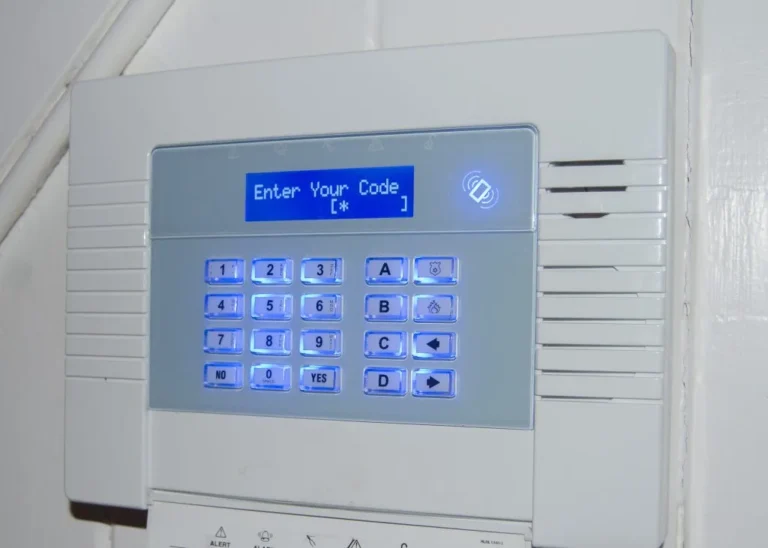
Most factory resets require you to enter the installer code. You’ll typically do this through the system's keypad. After entering the installer code, you'll navigate through a programming menu to find an option like "System Reset," "Initialize," or "Factory Defaults."
Here’s a common sequence:
- Go to the keypad.
- Enter your installer code. (e.g.,
* 8 + 4112for an older DSC system). - Look for a menu option related to programming or system settings.
- Navigate to the "Reset" or "Initialize" function.
- Confirm your selection.
The system will then reboot, and all settings will be restored to their factory state. This process can take a few minutes.
Specific Reset Procedures by Manufacturer (Examples)
Because manufacturers vary, here are a few examples of how resets might work. Always consult your specific system’s manual for the definitive instructions.
- For many DSC systems: You typically need to enter the installer code (default 4112 if never changed), then press
* 8. Navigate to module005(System Options) and enter000to initiate a keypad reset. A full system reset might involve other modules or a power cycle after entering installer code. - For Honeywell systems: Often, you'll enter programming mode by typing your installer code. Then, you'll typically navigate to a specific zone or module that controls system initialization. Some models may require a physical button press on the board while powering up.
- For wireless DIY systems (like SimpliSafe): These often have a simpler reset process managed through a mobile app or by removing and reinserting the battery, followed by a specific button press sequence. Some might involve sending a reset command from the company's support portal.
The official documentation from your alarm system’s manufacturer is the best and safest resource for this information. For example, you can often find user and installation manuals readily available on the manufacturer's support website.
Re-entering Default Codes and Basic Setup
After a factory reset, your system will be back to its original state. This means you'll need to re-enter at least a basic installer code and then set up your primary user codes. The system will likely prompt you for the default installer code upon its first boot-up after the reset.
You'll then need to go back into the programming menu using this installer code to:
- Set up your new primary user code.
- Re-program any other user codes you need.
- Re-configure your zones (e.g., naming them "Front Door," "Living Room Window").
- Re-enter your Wi-Fi or cellular connection details if it’s a smart system.
- If it’s a monitored system, you'll need to contact your alarm monitoring company to re-establish service and potentially provide them with new system information.
This re-setup process can take some time, so be prepared to dedicate a block of time to it.
Common Mistakes When Resetting Your Alarm System
Resetting your home alarm system might seem straightforward, but several common pitfalls can turn a simple fix into a bigger headache. Being aware of these mistakes can save you a lot of frustration and potential security gaps.
Forgetting Crucial Codes
The most frequent mistake is forgetting the installer code needed for a full factory reset. If you never changed it from the default, you might be able to look it up, but if it was changed and not recorded, you're stuck. Many DIY systems offer app-based resets, but older hardwired systems are much trickier without the installer code.
This can force you to call a professional or even replace the control panel.
Losing Custom Settings
When you perform a factory reset, you erase everything. This includes personalized zone names (e.g., "Master Bedroom Window" instead of just "Zone 3"), custom entry and exit delays, and specific sensor event reporting. If you don't have these settings documented somewhere, re-programming them can be a guesswork game, potentially leading to incorrect system behavior.
Make sure to have a list of your old settings ready if possible.
Triggering False Alarms During Reset
This is a significant issue, especially if your system is actively monitored. If you initiate a reset improperly or fail to disarm the system correctly before starting, you could trigger an alarm. If your system is connected to a monitoring service, this could dispatch emergency services unnecessarily.
Always try to put your system in "test mode" with your monitoring company before attempting a reset, if possible. This lets you test functions without dispatch.
Disabling Monitoring Service
If you reset a professionally monitored system without informing your alarm company, you could inadvertently disconnect your system from their service. When the system resets, it might lose its communication path (phone line, cellular, or internet connection) to the monitoring center. This leaves your home unprotected by professional monitoring until you re-establish the connection and potentially re-enter communication settings or have the company re-sync their system with yours.
Always notify your provider beforehand.
When to Call a Professional or Your Alarm Company
Sometimes, a DIY reset just isn't the answer. If you've tried power cycling and can't access a factory reset because you're missing the installer code, it's time to consider professional help. Many alarm companies offer support for their systems, and they can often guide you through a reset over the phone or schedule a technician to come out.
This is especially true for complex systems or when you're unsure about the technical steps involved.
Attempting a reset without the correct procedure or codes can lead to a completely non-functional system, potentially leaving your home unprotected. Furthermore, if your system is tied to a professional monitoring service, they might have specific protocols for system resets to ensure continuous coverage. Trying to bypass their procedures could void your service agreement or create a security gap you're unaware of.
It's often safer and more efficient to leverage their expertise.
Frequently Asked Questions About Resetting Home Alarms
Can I reset my alarm if I don't have the codes?
Yes, in many cases, you can reset your alarm even without the codes, but it depends on the system. For older, hardwired systems, you might need to physically access the control panel's circuit board to locate a reset button or perform a specific power-cycling sequence outlined by the manufacturer. Some modern smart systems allow for a remote reset through a mobile app or a password-protected online portal associated with your account.
If you're truly stuck, contacting the manufacturer or your alarm installer is the best next step.
How long does a system reset take?
A soft reset, or power cycle, usually takes only a few minutes. You disconnect power, wait about 60 seconds, and then reconnect it. A full factory reset typically takes a bit longer.
After initiating the reset from the keypad or through a specific procedure, the system needs time to wipe its memory and reboot, which can range from 5 to 15 minutes. The subsequent re-programming of basic settings like user codes and zone names can add another 30 minutes to an hour, depending on the system's complexity and your familiarity with it.
What happens to my sensor pairings after a reset?
After a factory reset, all your wireless sensor pairings are typically erased. This means you’ll need to re-enroll each sensor with the alarm panel. The process involves putting the control panel into a sensor learning mode and then activating each sensor (usually by pressing a tamper button or removing its battery briefly) so the panel can detect and register it.
Wired sensors, however, remain physically connected and generally do not need to be re-paired unless there was a wiring issue.
Will resetting my alarm affect my monitoring service?
A factory reset will likely disconnect your alarm system from its monitoring service because it erases all communication and account information stored in the panel. If your system uses cellular or internet communication, the reset will clear those network settings. It’s crucial to contact your alarm monitoring company before performing a factory reset.
They can guide you through the process, advise on how to re-establish communication, and ensure your service remains active without interruption or false dispatches.