How to Fix Security Camera Motion Detection
When your security cameras are supposed to be alerting you to activity but aren't, it's not just annoying, it's a security gap. Whether you're getting too many notifications for nothing or missing actual events, troubleshooting is key. Understanding how to fix security camera motion detection issues can save you time, reduce stress, and keep your property safer.
We've compiled expert insights to help you get your system working reliably. By focusing on common settings and environmental factors, you can fine-tune your cameras to catch what matters without the constant false alarms. Let's get your motion detection back on track.
Quick Answer
To fix security camera motion detection, check sensitivity and detection zones. Adjust sensitivity lower for fewer false alerts. Define specific detection zones to ignore irrelevant areas.
Ensure firmware is updated and the camera lens is clean. Check for environmental factors like lighting changes.
Common Security Camera Motion Detection Problems
If you're getting alerts for falling leaves or, worse, missing a delivery person, your security camera's motion detection is likely misconfigured. The most frequent issues boil down to how sensitive the camera is to movement and where it's set to look for that movement. Too high a sensitivity setting means even a slight breeze or a shadow can trigger an alert, flooding your notification system.
Conversely, if it's too low, it might not pick up an actual person walking by, especially if they're at a distance or the lighting isn't ideal. Manufacturer specifications often detail optimal ranges for sensitivity, but these need to be tuned for your specific environment.
Why Your Security Camera is Missing Motion (And How to Fix It)
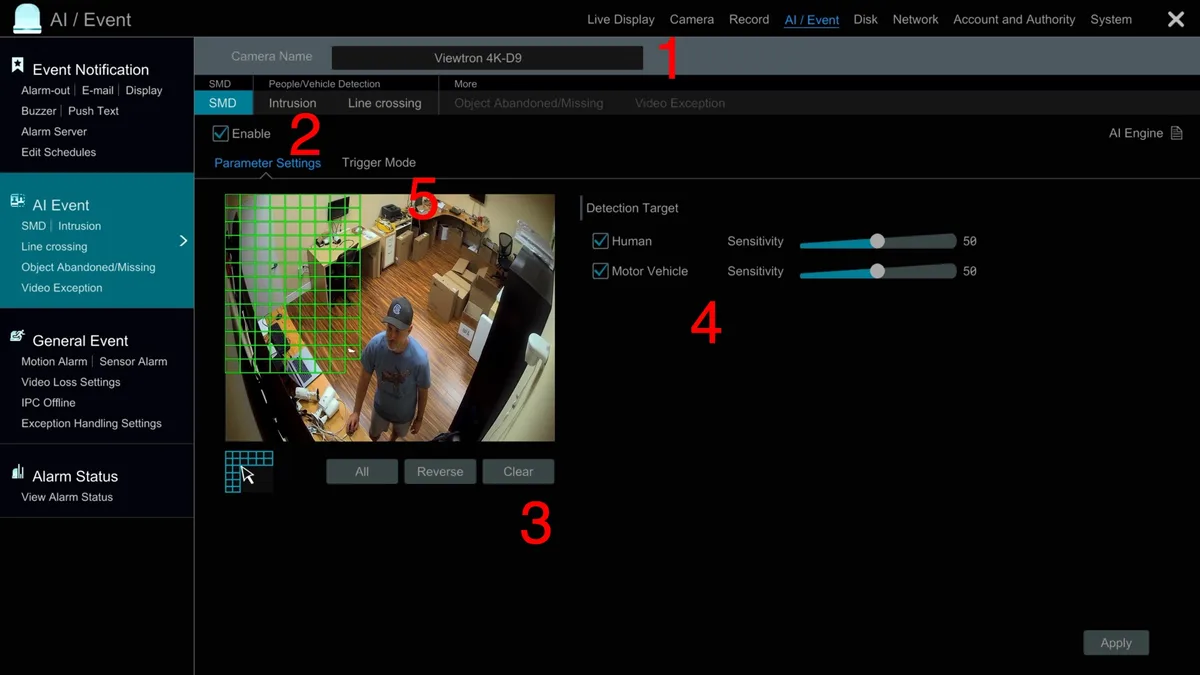
Image source: Web (Bing) / videos.cctvcam araştırma.com (Web image (fair-use with source credit))
Quick Fixes: Basic Checks for Motion Detection Issues
Before diving into complex settings, let's run through some simple checks. Sometimes, the solution is surprisingly straightforward.
- Power and Connectivity: Confirm the camera has a stable power source and that its Wi-Fi connection is strong. A weak or intermittent signal can cause the camera to miss events or fail to process motion data correctly. Aggregate reviews report that signal strength below two bars frequently leads to detection problems.
- Clean the Lens: Dust, dirt, cobwebs, or even smudges on the camera lens can interfere with its ability to accurately detect motion. Gently clean the lens with a soft, microfiber cloth. Avoid using abrasive materials or harsh chemicals that could damage the lens coating.
- Restart the Camera: Like many electronic devices, a simple restart can resolve temporary glitches. Power cycle the camera by unplugging it, waiting 30 seconds, and plugging it back in.
Adjusting Motion Sensitivity: Finding the Sweet Spot
Sensitivity is arguably the most critical setting for motion detection. It dictates how much a change in pixels on the camera's image sensor is required to trigger an alert. Think of it like a volume knob for motion detection.
- Too High Sensitivity: If you're getting alerts for every passing car, a pet in the yard, or even swaying branches, your sensitivity is likely set too high. This can be overwhelming and lead you to ignore important notifications.
- Too Low Sensitivity: On the flip side, if your camera isn't picking up people walking in front of it, the sensitivity might be set too low. This defeats the purpose of having a motion-activated alert system.
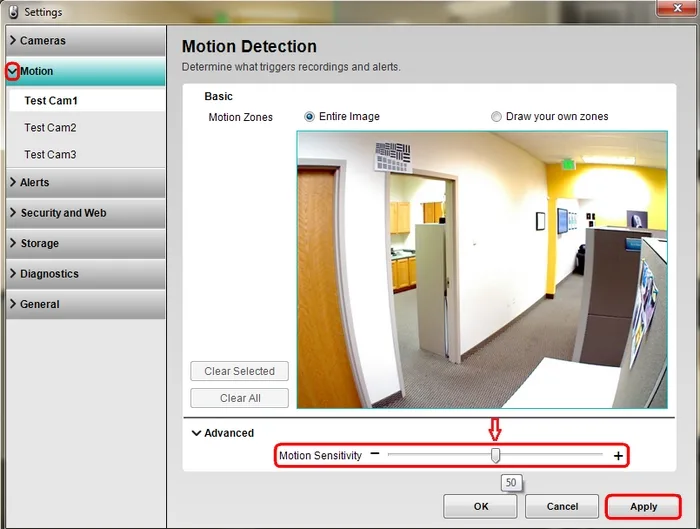
Image source: Bing (Web (fair-use with source credit))
What to do:
- Test and Adjust Incrementally: Most camera apps allow you to adjust sensitivity on a scale, often from 1 to 10 or low to high. Make small changes and then test the camera by walking in front of it.
- Observe the Environment: Consider what typically moves in the camera's field of view. If it's a busy street, you'll need lower sensitivity than a camera pointed at a private backyard.
- Use Manufacturer Guidelines: Some manufacturers provide recommended sensitivity levels based on camera models or typical environments on their support pages. For example, some outdoor cameras might suggest a sensitivity setting of 7 or 8 for general detection, while indoor cameras might be fine at 5.
Fine-Tuning Detection Zones: Where to Look, Where Not To
Detection zones, often called activity zones or privacy zones, allow you to designate specific areas within the camera's view that you want it to monitor for motion. This is incredibly powerful for filtering out constant but unimportant movement.
- Ignoring Irrelevant Areas: For example, if your camera has a view of a public sidewalk, you can draw a zone around that sidewalk so that people walking by don't trigger an alert, but someone approaching your door does.
- Focusing on Critical Points: You can draw smaller, more precise zones around entry points like doors, windows, or your driveway.
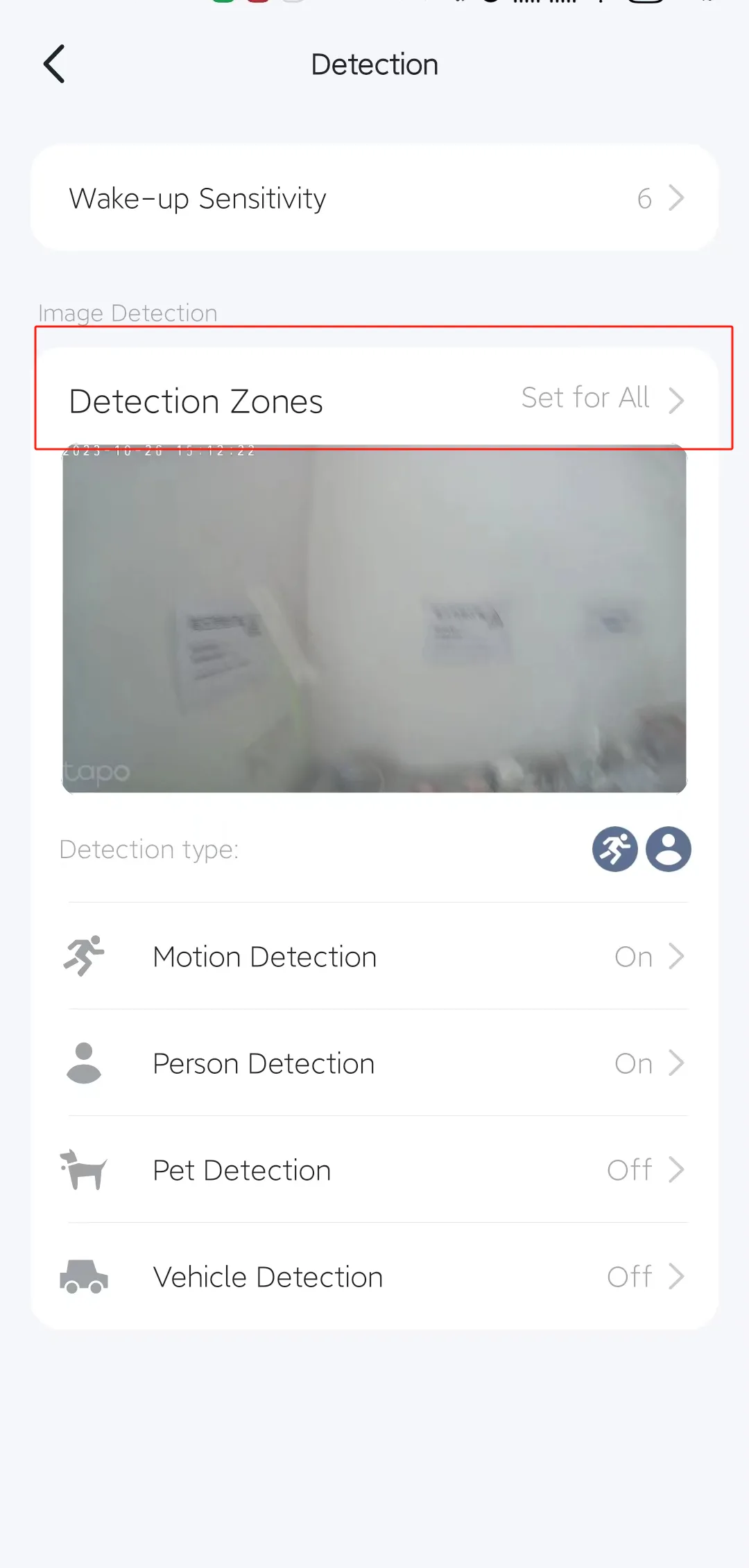
Image source: Web (Bing) / tapo.com (Web image (fair-use with source credit))
How to Set Up Detection Zones:
- Access Camera Settings: Open your security camera's mobile app or web interface.
- Locate "Detection Zone" or "Activity Zone": This setting is usually found within the motion detection or advanced settings menu.
- Draw Your Zones: Use the on-screen tools to draw rectangles or polygons over the areas you want to monitor.
- Exclude Other Areas: Ensure you are not drawing zones over areas that frequently have unwanted motion, like trees that sway significantly in the wind or areas with constant foot traffic you don't need to monitor.
- Test and Refine: After setting your zones, walk through different parts of the camera's view to ensure motion is detected only within your desired areas. You might need to adjust the size and position of the zones a few times to get it right.
Person Detection vs. General Motion: Smarter Alerts
Many modern security cameras offer advanced detection capabilities beyond just basic motion. They can often differentiate between various types of movement, such as people, vehicles, animals, or general motion. This feature is a game-changer for reducing false alerts.
- How Person Detection Works: Using AI algorithms, these cameras analyze the shape and movement patterns of detected objects. If it recognizes a human form, it sends a specific alert. This is far more effective than simply detecting any change in pixels.
- Benefits: If you only care about human activity at your doorstep, enabling "Person Detection" and disabling general motion detection can drastically cut down on notifications caused by pets, cars, or even flapping flags.
When to Use Specific Detection Types:
- Person Detection: Ideal for monitoring entry points (doors, windows, gates) where you primarily want to know if people are present.
- Vehicle Detection: Useful for driveways or street-facing cameras where you want to be alerted to cars but not necessarily pedestrians.
- Animal Detection: Helpful for pet owners who want to know when their pet is active but don't need an alert every time a squirrel runs across the lawn.
- General Motion Detection: This is the most basic setting and is suitable for areas where any movement is significant, or for older cameras that don't offer specific detection types. However, it's also the most prone to false alarms.
Troubleshooting with Specific Detection:
If you're experiencing issues, check that the correct detection type is enabled for your needs. Ensure the camera's AI has enough data (clear view, good lighting) to accurately identify the object. Sometimes, updating the camera's firmware is necessary for the AI algorithms to perform optimally.
Per industry standards, person detection accuracy can drop significantly in low-light conditions or when the subject is more than 30 feet away.
Camera Firmware & Environmental Factors
Even with perfect settings, external factors can throw off your motion detection. Firmware updates are crucial because they often include improvements to how the camera processes motion and filters out noise. Manufacturers release these updates to fix bugs, enhance AI performance, and sometimes add new features.
- Updating Firmware: Always check your camera's app or software for available firmware updates. This is typically a simple process that can be initiated with a single click. It's good practice to perform these updates whenever they become available, especially if you're experiencing detection issues.
- Lighting Changes: Rapid shifts in lighting can confuse motion sensors. This includes headlights from cars sweeping across the camera's view, the sun directly hitting the lens, or even quick changes as clouds pass. Many cameras struggle with these sudden illuminations.
- Weather: Heavy rain, snow, or strong winds can cause movement that the camera interprets as motion. If you're experiencing excessive alerts during bad weather, this is the likely cause. Some cameras have specific "weather modes" or settings to help mitigate this.
Environmental Adjustments:
- Camera Placement: Avoid pointing cameras directly into strong light sources like the sun, especially during sunrise or sunset.
- Reflective Surfaces: Be mindful of placing cameras where they might capture reflections from windows or polished surfaces, as these can sometimes trigger false positives. If a reflective surface is causing issues, you might need to reposition the camera or use a matte finish spray on the surface if it's on your property.
When to Call in the Experts (Or Get a New Camera)
If you've diligently worked through adjusting sensitivity, fine-tuning detection zones, ensuring firmware is up-to-date, and considering environmental factors, and your motion detection is still unreliable, it might be time to seek further assistance or consider an upgrade.
- Consult the Manual: Every camera system is a bit different. Your user manual is the best resource for model-specific troubleshooting steps and settings explanations.
- Contact Customer Support: Manufacturers' support teams have deep knowledge of their products. They can often guide you through advanced troubleshooting or identify if there's a hardware issue with your specific camera. You can typically find support contact information on the manufacturer's official website.
- Consider Camera Age and Capabilities: Older cameras may simply lack the advanced AI processing needed for reliable person detection or sophisticated motion filtering. If your camera is several years old, it might be time to invest in a newer model that offers improved performance and features. For instance, current generation cameras often boast higher resolution sensors and more advanced machine learning for better accuracy, as confirmed by user reviews and technical analyses.
Frequently Asked Questions About Motion Detection Fixes
Why is my security camera sending too many motion alerts?
This usually means your motion sensitivity is set too high, or your detection zones are too broad. Try lowering the sensitivity setting and drawing tighter zones around only the most critical areas you need to monitor. Also, check if general motion detection is enabled when you could be using more specific person or vehicle detection.
My camera isn't detecting motion at all. What should I do?
First, check that the camera is powered on and properly connected to your Wi-Fi network. Ensure motion detection is actually enabled in the settings. If those are fine, try increasing the sensitivity setting gradually and test by walking in front of the camera.
Make sure the lens is clean and free of obstructions.
Can weather affect motion detection?
Yes, heavy rain, snow, wind, and even rapid lighting changes can trigger false motion alerts or cause the camera to miss events. If you're getting alerts during a storm, this is likely the reason. You may need to adjust sensitivity or detection zones during severe weather, or rely on more advanced AI detection like person detection that's less affected by environmental noise.