Can Security Cameras Record Continuously
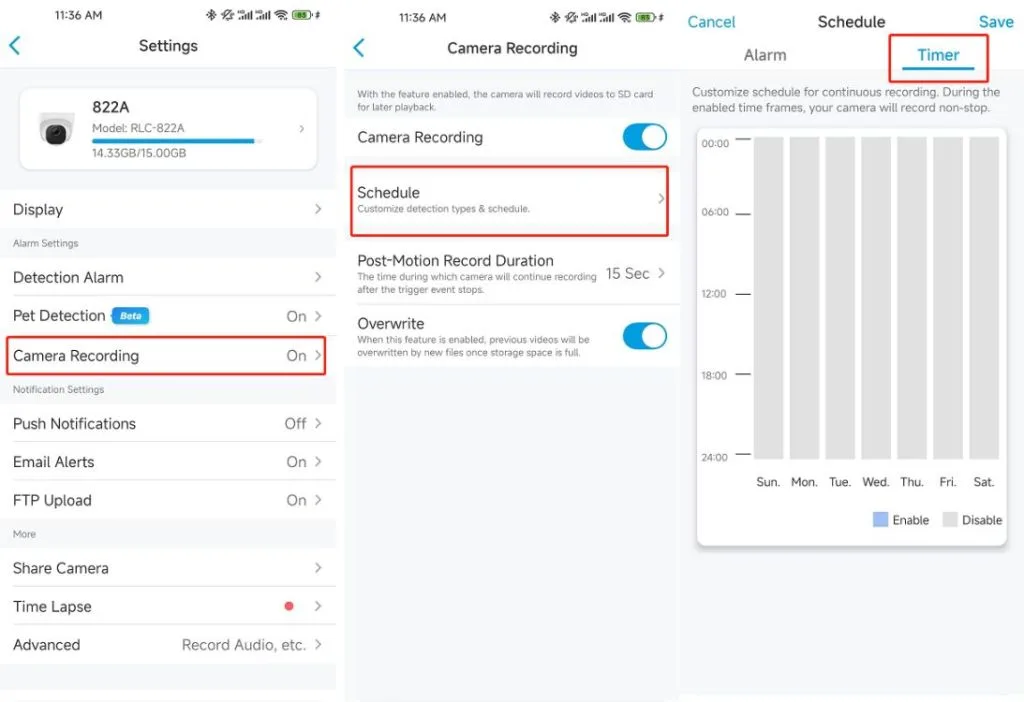
Image source: Web (Bing) / beebom.com (Web image (fair-use with source credit))
Can Your Security Cameras Record Continuously? Let's Figure It Out
So, you're wondering if your security cameras can just keep rolling, 24/7. That's a really common question, and the short answer is: usually, yes, but there are definitely things you need to think about. It's not quite as simple as just plugging them in and assuming they'll record forever.
Think of it like this: your camera is essentially a tiny detective, always watching. To keep watching non-stop, it needs a few things to work smoothly. Manufacturer specifications indicate that many modern cameras support continuous recording, provided sufficient storage.
Quick Answer: How to Get Your Cameras Recording 24/7
Yes, most security cameras can record continuously, but it depends on the camera's features and available storage. Continuous recording requires a camera set to "always-on" mode and ample space on an SD card, Network Video Recorder (NVR), or Digital Video Recorder (DVR). Cloud storage can also offer continuous recording, often with subscription fees.
The Storage Hurdle: What You Need for Non-Stop Recording
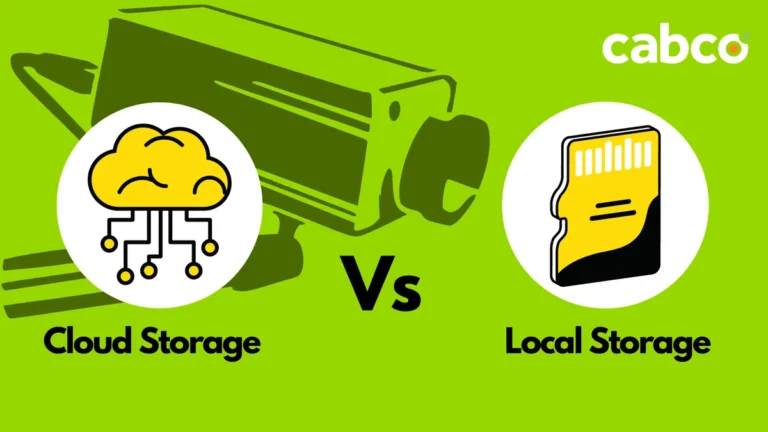
The biggest factor dictating whether your security cameras can record continuously comes down to where all that video footage will be stored. Recording 24/7 means a constant stream of data, and without enough space, your system will either stop recording or start overwriting older footage. This is where the type of storage you're using becomes absolutely critical.
Local Storage: NVRs, DVRs, and SD Cards
When you're aiming for uninterrupted recording, local storage is often the most straightforward. This means the storage device is physically located with your cameras, either inside them or in a nearby unit.
- SD Cards: These are small memory cards that slot directly into many individual security cameras. They're convenient for single-camera setups but have limited capacity. A typical 128GB SD card might hold a few days of continuous recording before it needs to overwrite the oldest files. Manufacturer specifications for cameras often list estimated recording times based on different card sizes and video quality settings.
- Digital Video Recorders (DVRs): DVR systems are usually paired with analog or older-generation cameras. They capture video signals from these cameras and store them on an internal hard drive, similar to a computer's hard drive. These can offer significant storage capacity.
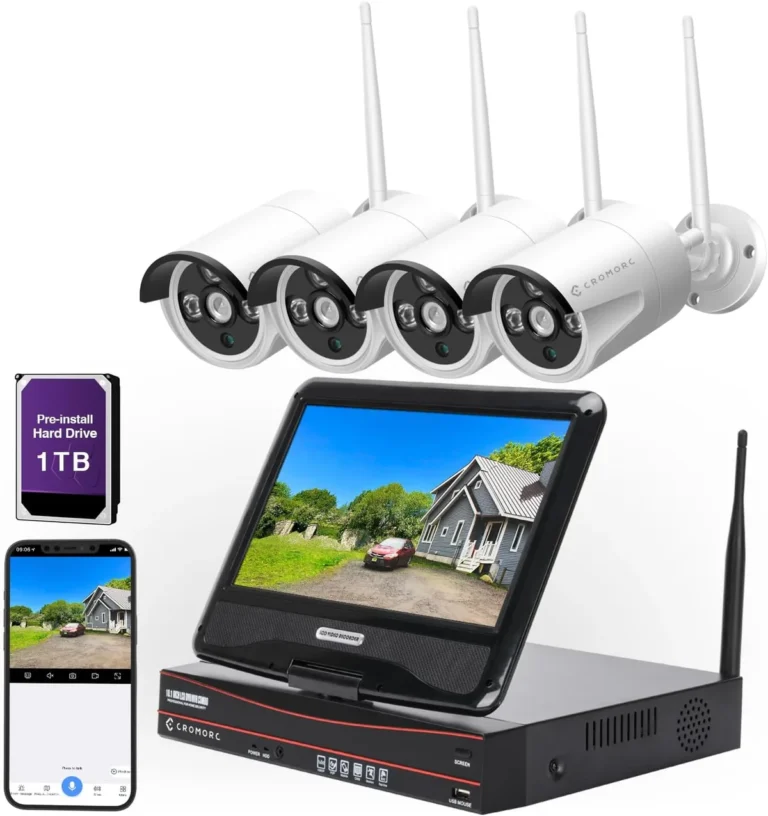
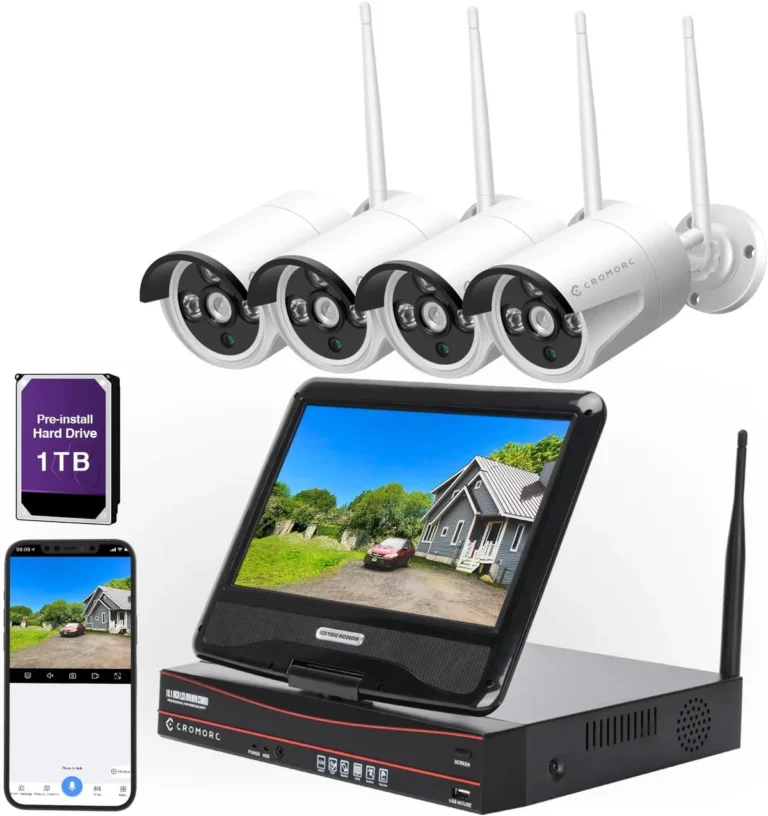
- Network Video Recorders (NVRs): NVRs are the modern equivalent for IP (Internet Protocol) cameras. They connect to your cameras over a network and record the digital video streams to a built-in hard drive. NVRs typically offer higher capacity and more advanced features than DVRs. Aggregate reviews report that NVR systems with multi-terabyte drives (e.g., 4TB or more) can store weeks or even months of footage, depending on the number of cameras and their resolution.
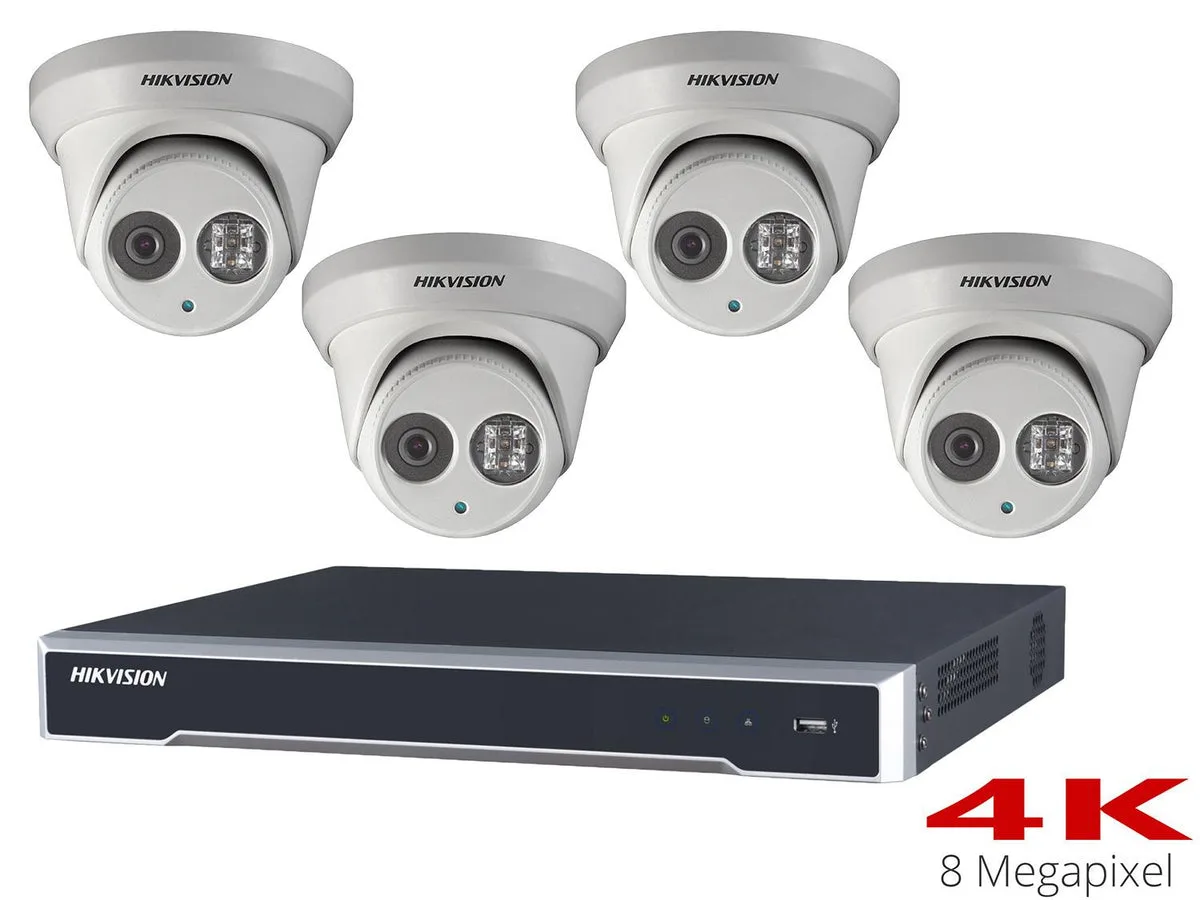
Image source: Web (Bing) / spycameracctv.com (Web image (fair-use with source credit))
Cloud Storage: Subscription Models and Limitations
Cloud storage offers an alternative by storing your footage remotely on servers managed by a service provider. This can be appealing for off-site backup and accessibility.
- How It Works: With cloud storage, your cameras stream video data over the internet to the provider's data centers. You can then access this footage via an app or web portal.
- Subscription Models: Most cloud storage services for security cameras require a recurring subscription fee. This fee typically depends on the number of cameras you're connecting and how long you want to retain the footage. For instance, some plans might offer 7 days of continuous recording history for a set monthly price per camera.
- Pros and Cons: A major benefit is that your footage is safe even if your local equipment is stolen or damaged. However, continuous cloud recording relies heavily on a stable and fast internet connection. If your internet service goes down, your recording stops, and you might miss crucial events. Additionally, long-term cloud storage can become more expensive over time compared to a one-time purchase of a local NVR/DVR. Per industry standards, reliable cloud services often require upload speeds of at least 1Mbps per camera for HD quality continuous recording.
Choosing Your Recording Style: Continuous vs. Motion Detection
Beyond just where the footage goes, you also have to decide how your cameras capture it. The two main modes are continuous recording and motion detection. Understanding the differences helps you pick the best approach for your needs and how much storage you'll realistically need.
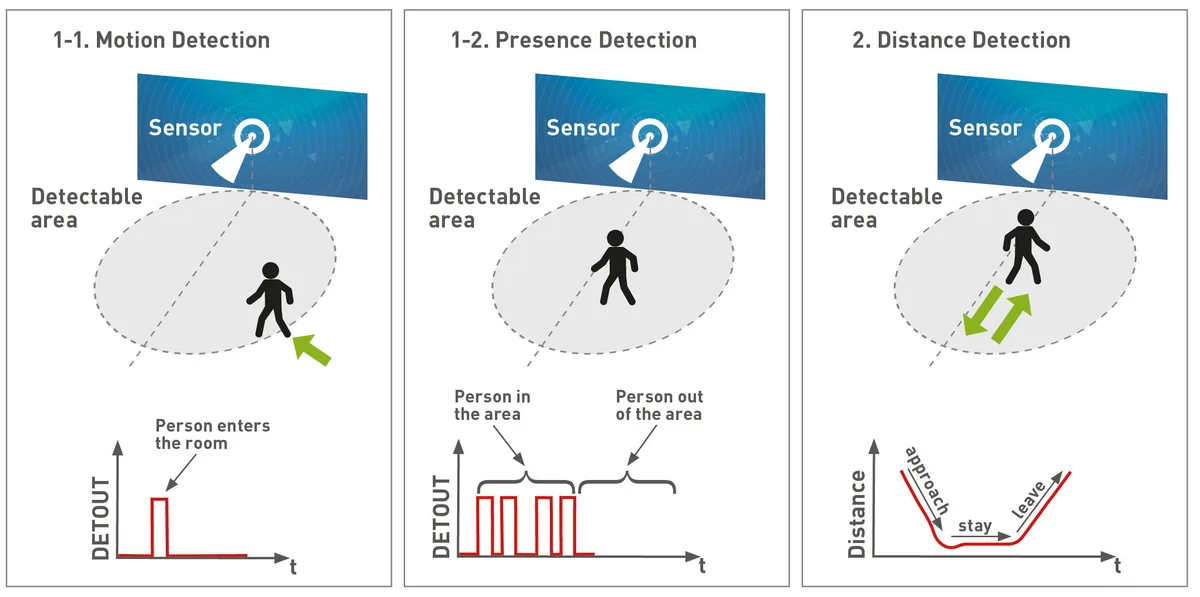
Image source: Web (Bing) / fity.club (Web image (fair-use with source credit))
When Continuous Recording Makes Sense
True continuous recording means the camera is always saving video, 24 hours a day, 7 days a week. It captures every moment, no matter how mundane.
- Comprehensive Event Capture: This is the primary advantage. You won't miss a thing, making it ideal for situations where you need an unbroken record. If an incident occurs, you can rewind to any point in time to see exactly what happened, from start to finish.
- Reduced False Alarms: Unlike motion detection, which can sometimes be triggered by environmental factors like shifting shadows or pets, continuous recording isn't prone to false alarms because it's always recording.
- Ideal Scenarios: It's particularly useful for monitoring high-traffic areas, ensuring clear evidence trails for businesses, or if you have specific concerns about activity occurring at all times. For example, a retail store might use continuous recording to monitor checkout areas for employee theft or customer disputes throughout the entire business day.
When Motion Detection Saves the Day (and Space)
Motion detection is a more efficient way to record footage, as it only activates the recording function when the camera's sensors detect movement within its field of view.
- Storage Efficiency: This is the biggest win. Instead of storing hours of uneventful footage, you're only saving clips when something actually happens. This dramatically reduces the amount of storage space required, meaning smaller SD cards or DVR/NVR hard drives can last much longer, or you might opt for less expensive cloud plans with shorter retention periods.
- Easier Review: When you need to check your recordings, you can jump straight to the clips where activity occurred, saving you a lot of time sifting through empty recordings. Instead of scrolling through 24 hours of footage, you might only have a dozen short clips to review.
- Battery Savings: For battery-powered cameras, motion detection is essential for conserving power, as continuous recording would drain the battery very quickly.
- Potential Drawbacks: The main challenge with motion detection is that it can sometimes miss the very beginning of an event if the motion detection zone isn't perfectly calibrated, or if the event happens very quickly. Environmental factors like rain, snow, or even strong winds blowing trees can sometimes trigger false recordings.
Setting Up for Continuous Recording: A Step-by-Step Guide
Getting your security cameras to record non-stop involves a few key checks and configurations. It’s less about a single button and more about ensuring all the pieces of your system are working together correctly.
Step 1: Check Your Camera's Capabilities
First, you need to know if your specific camera model even supports continuous recording. Not all do.
- Consult the Manual: The best place to start is the user manual that came with your camera or NVR/DVR system. It will clearly state the available recording modes.
- Manufacturer Website: If you can't find the manual, visit the manufacturer's website and look up your model number. The product specifications or support section should detail its recording capabilities.
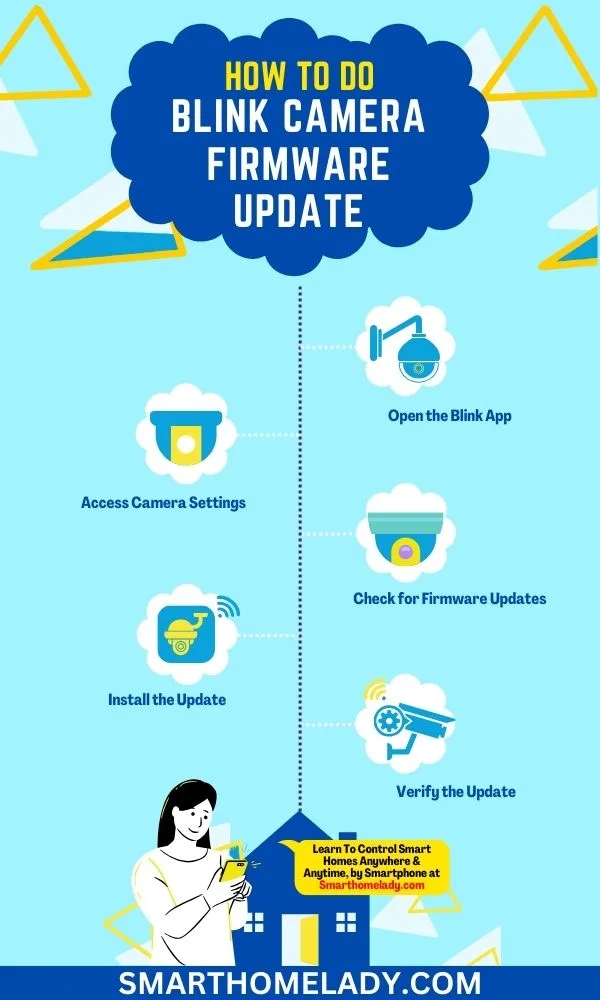
- Settings Menu: Many modern cameras allow you to choose the recording mode directly within their mobile app or web interface. Look for options labeled "Recording Mode," "Schedule," "Continuous," or "Motion Detection."
Step 2: Assess Your Storage Needs
This is where the rubber meets the road for continuous recording. You need enough storage to hold the footage for as long as you want to keep it.
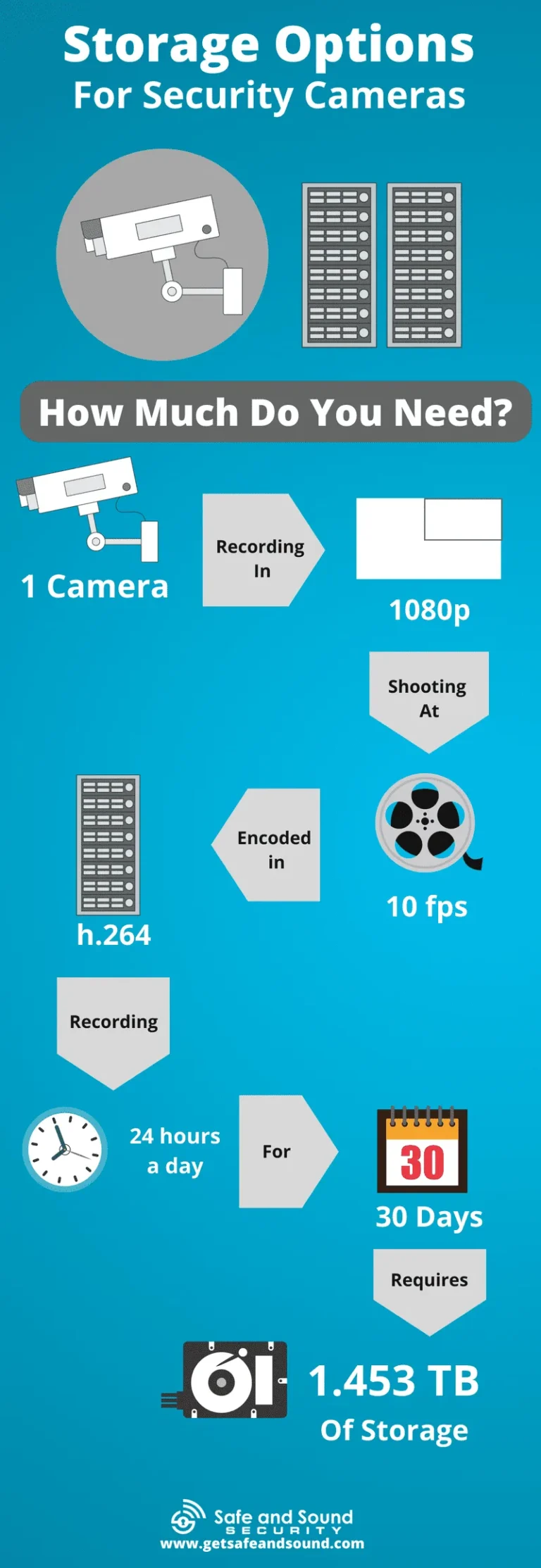
- Calculate Usage: Video quality (resolution and frame rate) directly impacts storage. Higher quality means more data. A common estimate from manufacturers is that a 1080p camera recording continuously might use around 5-10 GB of storage per day. For a 4TB NVR, this could mean over a year of footage, but for a 128GB SD card, it’s only about 12-25 days.
- Estimate Retention Time: How long do you realistically need to keep recordings? 7 days? 30 days? Longer retention requires significantly more storage space.
- Storage Type Impact:
- SD Cards: Best for short-term recording (days to a week) or as a backup.
- NVR/DVR: Ideal for longer-term, continuous recording (weeks to months), especially for multiple cameras.
Step 3: Configure Camera Settings
Once you know your camera supports it and you have the storage, it's time to tell the camera what to do.
- Access Camera Interface: Log into your camera's app or web interface.
- Find Recording Settings: Navigate to the settings related to recording or storage.
- Select "Continuous" or "Always-On": Choose this option over "Motion Detection" or "Scheduled."
- Set Overwrite: Ensure the "overwrite" or "loop recording" function is enabled if you're using a system with finite storage (like an SD card or NVR/DVR). This ensures that as storage fills up, the oldest footage is automatically deleted to make room for new recordings. Without this, recording will simply stop when the storage is full.
Step 4: Power and Connectivity Checks
For continuous recording, a stable power supply and a reliable network connection (if applicable) are non-negotiable.
- Uninterrupted Power: Ensure your camera is connected to a stable power source. For critical systems, consider a UPS (Uninterruptible Power Supply) for your NVR/DVR and router, as power outages can halt recording.
- Network Stability: If you’re using IP cameras with an NVR or cloud storage, a strong and consistent Wi-Fi signal or wired Ethernet connection is vital. Fluctuations in network connectivity can lead to dropped frames or incomplete recordings.
Common Roadblocks: Mistakes to Avoid for Uninterrupted Recording
Even with the best intentions, setting up continuous recording can hit a few snags. Avoiding these common mistakes will save you a lot of frustration and ensure your cameras are always watching.
- Underestimating Storage Needs: This is by far the most frequent error. People often buy a small SD card or a basic DVR and expect it to hold weeks of footage. Remember, high-definition video files are large. For continuous recording, you typically need significantly more storage than for motion-triggered clips. As of 2026, a good rule of thumb for 1080p continuous recording is about 10GB per camera per day.
- Not Enabling Overwrite/Loop Recording: If you have finite local storage (like an SD card or NVR/DVR hard drive) and don't enable the overwrite feature, recording will stop dead once the storage is full. This leaves you with a gap in your footage precisely when you might need it most. Always check this setting.
- Incorrectly Setting Motion Detection (Instead of Continuous): Some users might intend to set up continuous recording but accidentally leave the camera in motion detection mode, or set a schedule that effectively means it’s not recording 24/7. Double-check your settings menu to ensure "Continuous" is selected if that's your goal.
- Ignoring Camera Temperature Limits: While not directly related to recording functionality, extreme heat can shorten the lifespan of camera components and SD cards, potentially leading to failures that interrupt recording. Always ensure cameras are installed within their operating temperature ranges, as specified by the manufacturer, which can be as wide as -20°C to 60°C (-4°F to 140°F) for some models.
- Forgetting About Internet Bandwidth for Cloud: If you're relying on cloud storage, ensure your internet upload speed is sufficient for the number of cameras and the quality of video you're streaming. Insufficient bandwidth will lead to choppy, incomplete, or failed cloud uploads, defeating the purpose of continuous recording.
Frequently Asked Questions About Continuous Recording
How long can a security camera record continuously?
The recording duration depends entirely on the available storage space and the camera's video quality settings. A small SD card might only last a few days, while a large NVR hard drive could store months of footage.
Does continuous recording drain the battery on wireless cameras?
Yes, continuous recording will drastically shorten battery life on wireless cameras. Most battery-powered cameras are designed for motion-triggered recording to conserve power.
What's the difference between continuous recording and motion-activated recording?
Continuous recording captures footage all the time, filling up storage quickly. Motion-activated recording only starts recording when movement is detected, saving storage space and making footage easier to review.
Do I need a special camera for continuous recording?
Not necessarily. Most modern security cameras, especially those designed for NVR/DVR systems, support continuous recording. You primarily need to ensure you have adequate storage capacity.
What happens when my camera's storage is full if I'm recording continuously?
If overwrite or loop recording is enabled, the oldest footage will automatically be deleted to make room for new recordings. If this feature is disabled, recording will simply stop.
Your Continuous Recording Decision Guide
Deciding if continuous recording is right for you boils down to weighing your priorities against practical limitations, primarily storage and cost. If your main goal is to capture every single moment, no matter how uneventful, then continuous recording is the way to go. This is especially true if you anticipate needing to review events that might start subtly before escalating.
However, if budget, storage management, or ease of reviewing footage are bigger concerns, motion-activated recording might be a better fit. It’s crucial to assess your specific needs. For a small home setup, a camera with a decent SD card and motion detection might suffice.
For a business or a property requiring constant oversight, a robust NVR system with continuous recording capabilities is likely necessary.
Consider these questions:
- What is the primary purpose of the camera? (e.g., crime deterrence, evidence, monitoring activity)
- How long do you need to store footage? (e.g., 7 days, 30 days, 90 days)
- What is your budget for storage? (e.g., monthly subscriptions vs. one-time hardware purchase)
- How much internet upload speed do you have? (Crucial for cloud-based systems)
By honestly answering these, you can make an informed choice about whether continuous recording is the right operational mode for your security cameras.