How to Fix Security Camera Video Lag
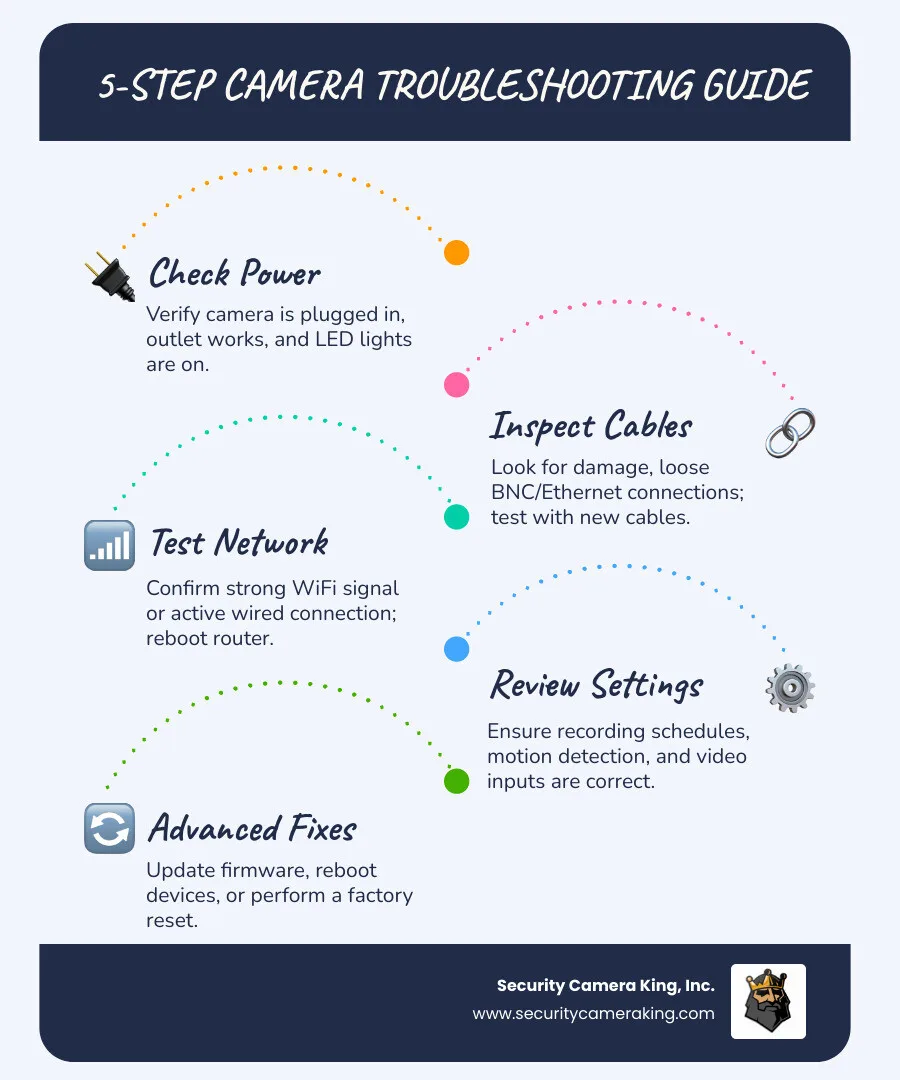
Image source: Web (Bing) / fissionreview.com (Web image (fair-use with source credit))
Ever stare at a choppy security camera feed and feel like you're watching a glitchy old movie? That frustrating video lag can make surveillance systems feel useless, turning vital recordings into unusable stutter-fests. You need clear, real-time footage, not a series of frozen frames.
Fortunately, most lag issues stem from common, fixable problems. Our research indicates that by systematically troubleshooting your network and camera setup, you can significantly improve your video quality. This guide walks you through identifying the bottleneck and getting your cameras back to smooth operation, often without needing professional help.
Quick Answer
Security camera video lag is fixed by systematically checking your network and camera setup. Common causes include weak internet connections, poor Wi-Fi signal, network congestion, or hardware issues. Rebooting your router, improving Wi-Fi strength, and ensuring adequate bandwidth are key steps.
For wired cameras, check Ethernet cables and power. Ensure your camera firmware and viewing software are updated.
Is Your Internet Connection the Culprit?
This is where most people need to start. Your cameras rely on your internet connection to send video data, whether it's to a cloud service or your viewing device. If that connection isn't solid, everything else will suffer.
Think of it like trying to pour a gallon of water through a drinking straw, it's just not going to flow quickly or smoothly.
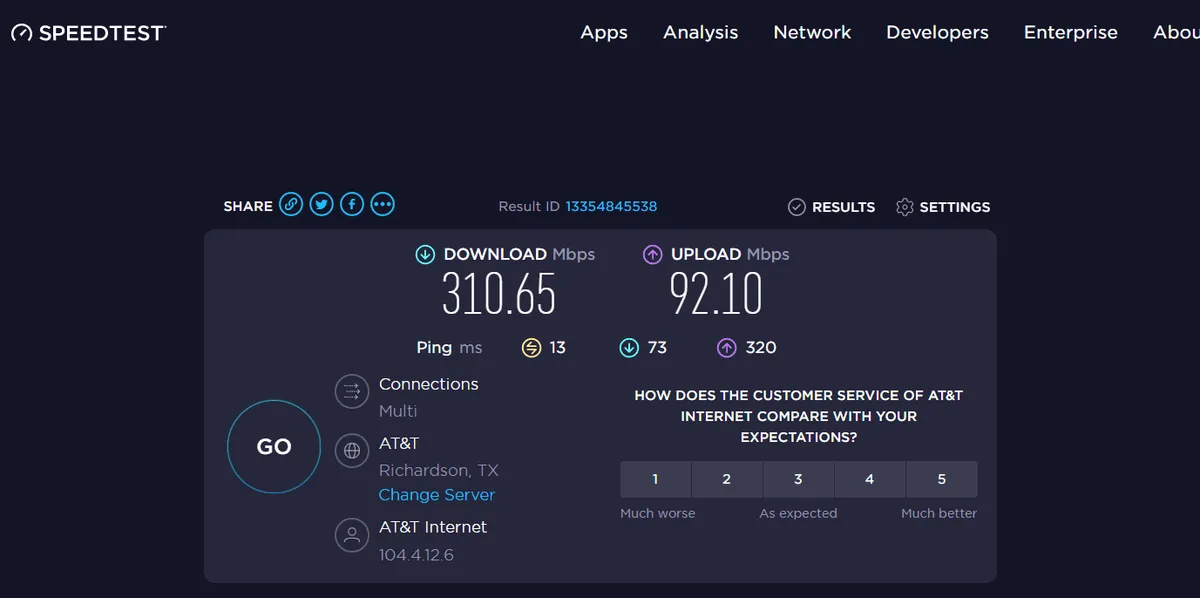
- Speed Test & Router Reboot: The first thing to do is test your internet speed. Use a speed test tool on your phone or computer while you're connected to the same network as your cameras. Look for your upload speed; this is crucial for sending video out. If it's significantly lower than what you're paying your Internet Service Provider (ISP) for, or if it fluctuates wildly, that's a big clue. After testing, a simple router reboot can often clear temporary glitches. Just unplug your router for about 30 seconds, then plug it back in. This resets the device and can resolve many connectivity issues.
- Bandwidth Hogging Devices: Consider what else is using your internet bandwidth at the same time. Are other family members streaming 4K video on multiple TVs? Is someone downloading a massive game update? Is your smart home system constantly communicating? These activities consume upload and download bandwidth, leaving less for your cameras. Some routers offer Quality of Service (QoS) settings, which allow you to prioritize certain devices or traffic types, like your security cameras. Manufacturer specifications for a typical 1080p IP camera suggest it can use between 2 to 5 Mbps of upload bandwidth, and this requirement increases significantly for higher resolutions like 4K. As of 2026, maintaining sufficient dedicated bandwidth is paramount for smooth surveillance.
Wi-Fi Woes: When Wireless Signals Cause Lag
If your security cameras connect wirelessly, their Wi-Fi signal strength is absolutely critical. A weak or unstable connection means data packets get lost or delayed, leading directly to that annoying video lag. It’s like trying to have a conversation across a noisy, crowded room, parts of the message get missed.
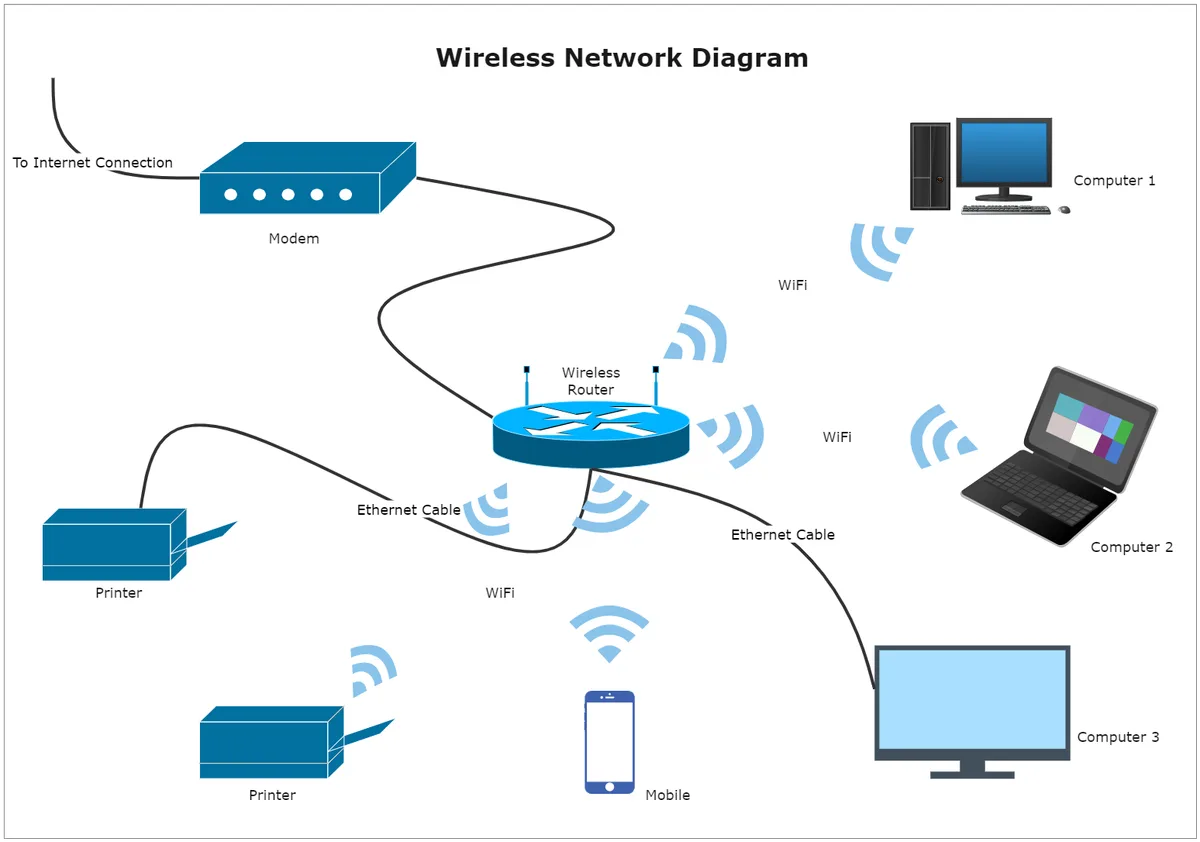
- Checking Signal Strength: Most camera management apps will show you a Wi-Fi signal indicator for each camera. If you see just one or two bars, that’s a major problem. The further a camera is from your router, or the more obstacles are in between (thick walls, large metal appliances, even fish tanks), the weaker the signal will be.
- Interference and Distance: Other electronic devices can interfere with your Wi-Fi signal. Things like microwaves, cordless phones, Bluetooth devices, and even some baby monitors operate on similar frequencies and can disrupt your camera's connection. If your camera is placed near these, try moving it or the interfering device to see if it helps. Sometimes, simply repositioning the camera or router can make a world of difference. If distance is the main issue, consider a Wi-Fi extender or a mesh Wi-Fi system to create a stronger, more consistent network throughout your home or property.
Camera Hardware & Cable Checks
Sometimes, the problem isn't your internet or Wi-Fi at all; it's the camera itself or the physical connection it uses. These are often overlooked but can be simple fixes.
- Wired Connection Issues: For security cameras that use Ethernet cables to connect directly to your router or NVR/DVR, the cable itself can be a point of failure. Check that the Ethernet cable is firmly plugged in at both ends, at the camera and at the router/recorder. If you have a spare cable, try swapping it out. A damaged Ethernet cable, even if it looks fine externally, can cause intermittent data loss and lag.
- Power Supply & Physical Condition: Ensure the camera is receiving adequate power. Some cameras, especially higher-end models, require a specific power adapter or Power over Ethernet (PoE) setup. If the camera isn't getting enough juice, it might not be able to process and transmit video data efficiently. Also, give the camera a quick visual inspection. Is the lens dirty or smudged? Is the camera housing damaged in any way? While less common causes of lag, a dirty lens can degrade image quality, and physical damage could impact internal components.
Keeping Your System Sharp: Firmware & Software
Just like your smartphone or computer, your security cameras and their associated software need to be up-to-date to function optimally. Manufacturers frequently release updates to fix bugs, improve performance, and patch security vulnerabilities. Neglecting these updates can leave you with laggy performance and potential security risks.
- Camera Updates: Check your camera's management app or web interface for any available firmware updates. The process usually involves a few clicks, and the camera will download and install the update automatically. It's wise to do this when you know you won't need immediate access to the camera feed, as some updates might require the camera to restart.
- App & Management Software: Similarly, make sure the app you use on your phone or tablet, or the software you run on your computer to view your cameras, is also updated to the latest version. Outdated apps can sometimes have compatibility issues with newer camera firmware or operating systems, leading to performance problems, including lag.
Router Settings & Network Optimization
Your router is the central hub for your home network, and its settings can significantly impact how well your security cameras perform. Fine-tuning your router can often unlock smoother video streams, especially if your network is busy.
- Prioritizing Camera Traffic (QoS): Many modern routers include a feature called Quality of Service (QoS). QoS allows you to tell your router which types of network traffic are most important. By configuring QoS to prioritize your security cameras' data stream, you ensure they get the bandwidth they need, even when other devices are heavily using the network. You'll typically find QoS settings within the router's advanced configuration menu.
- Checking Network Load: Beyond just bandwidth, the overall load on your router can cause issues. If you have a large number of connected devices, or if your router is older and not designed for high traffic, it might struggle to manage everything efficiently. A simple router reboot, as mentioned earlier, can help clear temporary overload. For persistent issues with busy networks, consider upgrading to a router that can handle more devices and higher data throughput.
Frequently Asked Questions About Camera Lag
What's the most common cause of security camera lag?
The most frequent cause is a weak or inconsistent internet connection, particularly low upload speed, followed closely by poor Wi-Fi signal for wireless cameras.
Can I fix camera lag without buying new equipment?
Yes, many lag issues can be resolved by rebooting your router, optimizing network usage, updating firmware, checking cables, and improving Wi-Fi placement.
How much internet upload speed do I need for security cameras?
Manufacturer specifications indicate that a 1080p camera typically needs 2-5 Mbps upload speed, but this increases significantly for higher resolutions like 4K or if you have multiple cameras running simultaneously.
How often should I reboot my router for camera performance?
Rebooting your router weekly or whenever you notice performance issues can help maintain a stable connection.
Is it possible for the camera itself to be too old or slow to prevent lag?
Yes, older camera models might have less efficient processors or outdated video compression technology, which can contribute to lag, especially on congested networks.
When to Get Expert Help
If you've tried all the basic troubleshooting steps and your security camera video lag persists, it might be time to bring in professional help. You've checked your internet speed, rebooted your router, ensured your Wi-Fi has a good signal, updated firmware, and inspected your cables. When these efforts don't yield results, the problem might be more complex or beyond typical DIY fixes.
This could involve advanced router configuration, such as setting up detailed QoS rules that you're not comfortable with, or diagnosing issues with your ISP's equipment or the network infrastructure outside your home. It's also possible there's a hardware defect with the camera itself that isn't visible externally. If your cameras are critical for security or business operations, investing in professional diagnostics can save you time and frustration in the long run.
They can also advise on whether a system upgrade is the most cost-effective solution.
2 Comments