How to Enable Two-Factor Authentication on Security Devices
Protecting your online accounts just got a lot easier. If you've ever worried about someone getting into your email or social media, learning how to enable two-factor authentication on security devices is your next best step. It's a simple yet incredibly effective way to add a strong layer of defense against unauthorized access.
This process acts as a digital bodyguard, ensuring that even if your password is compromised, your accounts remain secure. Experts consistently recommend this practice, and it aligns with security standards like those from the National Institute of Standards and Technology (NIST). Let's break down how to get this essential security feature up and running for your digital life.
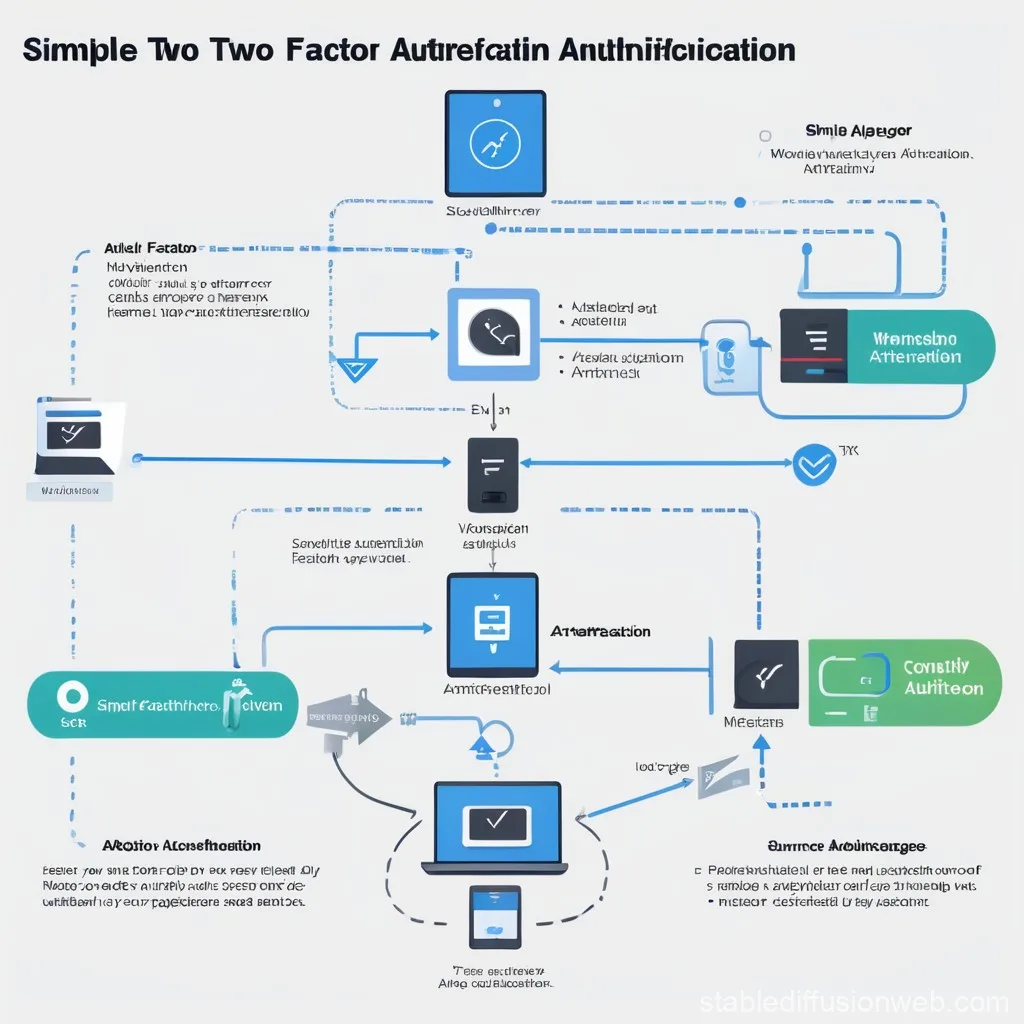
Image source: Web (Bing) / stablediffusionweb.com (Web image (fair-use with source credit))
Quick Answer
To enable two-factor authentication on security devices, you'll typically find the option in your account's security settings. You'll choose a second verification method like an app, SMS code, or hardware key. Follow the on-screen prompts to link your chosen method to your account.
This adds a crucial second layer of protection beyond just your password.
Why Two-Factor Authentication is Your Security Superpower
Think of your password as the front door to your digital life. It's important, but it's not impenetrable. Two-factor authentication (2FA) means adding a second lock to that door.
It ensures that even if someone gets your password, they still need a second piece of evidence, something you have or something you are, to get in.
This extra step dramatically reduces the risk of account takeover, which can lead to identity theft, financial loss, and personal data breaches. Our research indicates that accounts with 2FA enabled are significantly less likely to be successfully compromised. It’s a vital component of a robust digital security strategy, recommended by cybersecurity experts and organizations like NIST.
Properly enabling this feature is one of the most impactful steps you can take for your online safety.
What's Really Happening When You Log In
When you set up two-factor authentication, you're essentially telling a service, "I'm here, and I have this other thing, too." This "other thing" is the second factor. The first factor is almost always your password (something you know). The second factor falls into one of two main categories: something you have (like your phone or a hardware key) or something you are (like your fingerprint or face).
When you log in, the system first checks your password. Once it confirms that's correct, it then asks for your second factor. This could be a code sent to your phone via SMS, a code generated by an authentication app, or a tap on a physical security key.
If you can provide both, you’re in. If not, access is denied, even if your password was correct. This process effectively layers your defenses, making it much harder for unauthorized individuals to gain entry.
Picking Your Second Factor: Apps, Keys, and Codes
The convenience and security of 2FA can vary depending on the type of second factor you choose. Each has its own strengths and weaknesses, and the best option often depends on your personal needs and the services you use. Understanding these options helps you make an informed decision about your account security.
Here's a quick look at the most common types of second factors:
- SMS Codes: This is one of the most widespread methods. When you log in, a temporary code is sent via text message to your registered phone number.
- Pros: Very common, easy to understand, and requires minimal setup if you have a mobile phone.
- Cons: Can be vulnerable to SIM swapping attacks. Delivery can also be delayed.
- Authentication Apps: Apps like Google Authenticator, Authy, or Microsoft Authenticator generate time-based one-time passwords (TOTP). These codes refresh every 30-60 seconds.
- Pros: Generally more secure than SMS codes as they don't rely on the cellular network. They work offline once the app is installed.
- Cons: Requires installing a separate app on your smartphone. If you lose your phone without backing up, you might lose access to your accounts.
- Hardware Security Keys: These are small physical devices, often resembling a USB drive, that you plug into your computer or tap on your phone. Popular examples include YubiKey and Google Titan Security Key.
- Pros: Considered the most secure option. They are resistant to phishing and can't be easily duplicated.
- Cons: Can be an additional purchase. If you lose the key, you need a backup method. Some services might not yet support them as widely as other options.
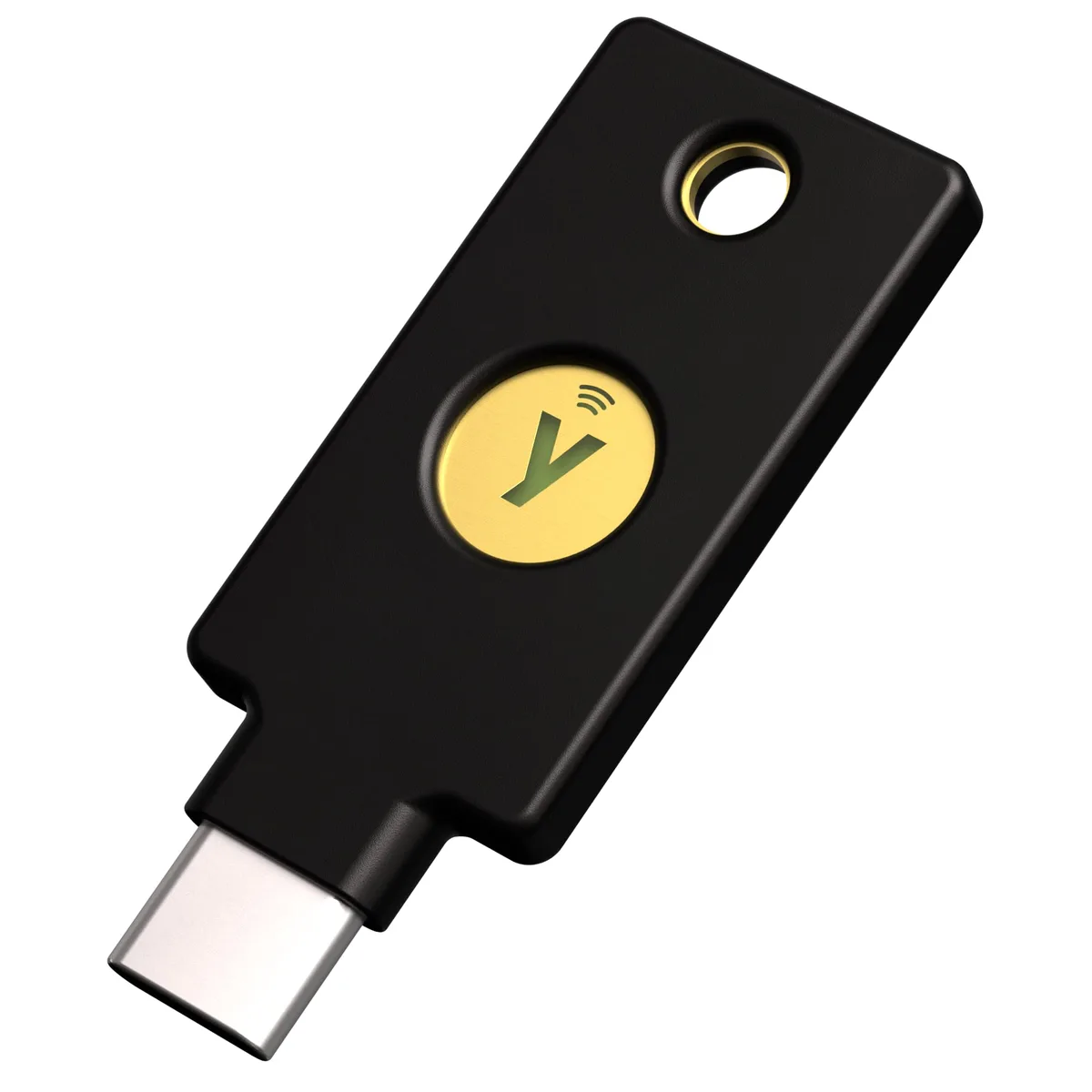
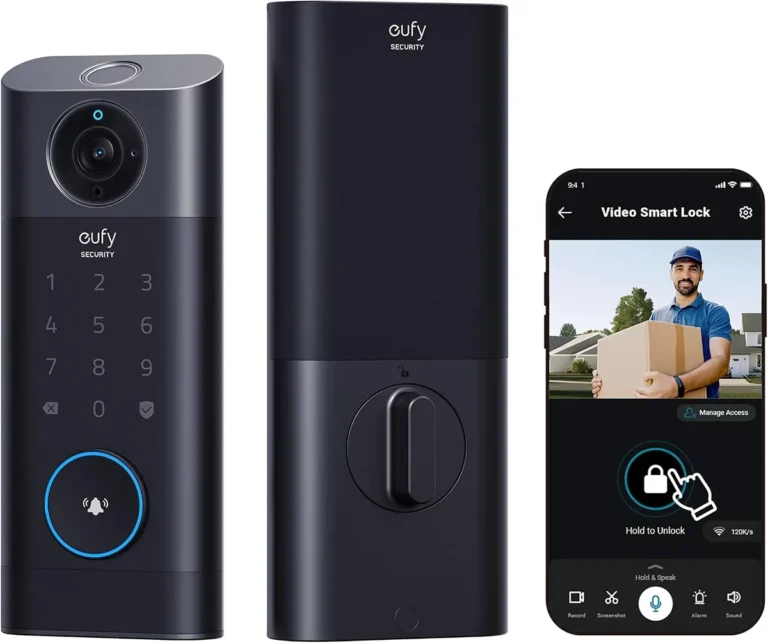
Image source: Web (Bing) / desertcart.co.th (Web image (fair-use with source credit))
The National Institute of Standards and Technology (NIST) provides guidance on selecting appropriate authentication factors, generally favoring methods resistant to phishing and interception.
The Actual Steps: Turning On 2FA for Your Devices
Enabling two-factor authentication generally follows a similar pattern across most online services and security devices. The exact menu names might differ, but the core idea is to find the security settings for your account and activate the 2FA option. If you're setting up 2FA for a dedicated security device or a security-focused platform, the steps might be integrated into the device's initial setup process.
Here’s a typical workflow you can expect:
- Locate Security Settings: Log in to the account or service you want to secure. Navigate to your profile, account settings, or security dashboard. Look for options like "Security," "Login Verification," "Two-Step Verification," or "Two-Factor Authentication."
- Choose Your Method: You'll usually be presented with a choice of 2FA methods. This might include:
- Setting up an authentication app (you'll be given a QR code to scan).
- Registering a hardware security key (you'll be prompted to insert and activate it).
- Verifying a phone number for SMS codes.
- Scan or Link:
- For Apps: Open your chosen authenticator app on your smartphone and select "Add account." Scan the QR code displayed on your screen. The app will then show a 6-digit code that you'll enter back into the service's website to confirm the link.
- For Hardware Keys: Follow the service's prompts to register your key. This usually involves inserting the key into a USB port or tapping it on your device when prompted. You might need to create a PIN for the key itself.
- For SMS: Enter the phone number you wish to use. The service will send a code to that number, which you'll then enter back into the website to confirm.
- Save Backup Codes: This is CRITICAL. Most services will provide you with a set of one-time backup codes. These are essential recovery codes in case you lose your phone, your hardware key, or can't access your usual 2FA method. Store these codes in a very safe place, like a secure password manager or a printed document kept offline in a secure location. Treat them like a spare key to your digital kingdom.
- Confirm and Activate: Once you've completed these steps, you'll typically see a confirmation that 2FA is now active. You might be asked to log out and log back in to test the new setup.
Image source: Web (Bing) / pngtree.com (Web image (fair-use with source credit))
When implementing 2FA on devices like smart home hubs or specific security system components, the process is often guided during the initial setup via the device's companion app. For instance, a smart security camera system might ask you to enable 2FA for the associated cloud account as part of its onboarding.
What Could Go Wrong? Common 2FA Pitfalls
While two-factor authentication is a powerful security tool, it’s not foolproof if not managed correctly. Users can fall into a few common traps that weaken its effectiveness or even lock them out of their own accounts. Being aware of these pitfalls can help you avoid them and ensure your 2FA setup remains robust.
Here are some common mistakes to watch out for:
- Losing Your Second Factor: If you rely solely on your smartphone for authenticator app codes or SMS, losing your phone can be a major problem. Without a backup method or recovery codes, you could be locked out of your accounts. This is why saving those backup codes is non-negotiable.
- Ignoring Backup Codes: Many users set up 2FA but then misplace or never write down the crucial backup codes. If your primary 2FA method becomes unavailable, these codes are your only way back in. Aggregate user feedback reports show that a significant number of lockouts stem from forgotten or missing backup codes.
- Falling for Phishing: Sophisticated phishing attacks can trick you into revealing your password and your current 2FA code. Attackers might send you to a fake login page that looks identical to the real one, prompting you for both pieces of information. This is a key reason why hardware security keys are often considered superior, as they are much harder to phish.
- Using Insecure Second Factors: Relying solely on SMS for 2FA is risky due to SIM swapping vulnerabilities. While convenient, it's not as secure as an authenticator app or a hardware key. Our research suggests that while SMS 2FA is better than no 2FA, it shouldn't be the only line of defense for highly sensitive accounts.
- Not Enabling 2FA Everywhere: Many people enable 2FA on their email or banking but forget about other important accounts like social media, cloud storage, or online shopping sites. A breach in any of these can still lead to significant problems. Experts recommend enabling 2FA on every service that offers it.
- Trusting Unverified Recovery Options: Some services offer alternative recovery methods that might be less secure. Be cautious about linking recovery options that are too easily compromised, like easily guessable security questions.
Keeping Your 2FA Strong: Beyond Just Setup
Setting up two-factor authentication is a fantastic first step, but good security practices don't stop there. To ensure your 2FA remains a strong shield, you need to maintain it and stay vigilant. Think of it like maintaining a car; a one-time setup isn't enough for long-term reliability.
Here are key practices to keep your 2FA effective:
- Regularly Review Connected Devices: Most services that use 2FA allow you to see which devices or apps are linked to your account. Periodically check this list and remove any unfamiliar or old devices. This helps prevent unauthorized access if a device was compromised or lost and someone else gained access.
- Safeguard Your Backup Codes: As mentioned, these are your lifeline. Store them securely. A password manager is an excellent place for digital copies, ensuring they are encrypted and protected. If you print them, keep the physical copy in a fireproof safe or a very secure offline location.
- Understand Account Recovery: Familiarize yourself with the account recovery process for each service where you use 2FA. Know what information you'll need if you lose access to your primary and backup methods. This knowledge can save you a lot of stress during an emergency.
- Stay Updated on Threats: The landscape of cyber threats is always evolving. Be aware of new phishing tactics or vulnerabilities that might affect your chosen 2FA methods. For example, advancements in phishing kits are constantly being developed.
- Use Strong, Unique Passwords: This might seem obvious, but it’s foundational. Your password is still the first line of defense. Ensure all your passwords are long, complex, and unique for each account. Using a password manager can help you generate and store these.
- Consider Hardware Keys for High-Value Accounts: For critical accounts like your primary email, banking, or cryptocurrency wallets, consider upgrading to hardware security keys. Their resistance to phishing offers a significant security advantage over app-based or SMS codes.
- Enable 2FA on All Offerings: Don't stop at just one or two accounts. For services that offer 2FA, turn it on. This includes your email provider, social media platforms, online banking, cloud storage, and any platform that stores sensitive personal or financial information. This consistent approach to security limits potential entry points for attackers.
The National Institute of Standards and Technology (NIST) recommends using strong authentication methods, and for highly sensitive data, this often means favoring out-of-band or hardware-based authenticators over SMS. Following these practices ensures your 2FA continues to be a robust defense as recommended by leading cybersecurity organizations.