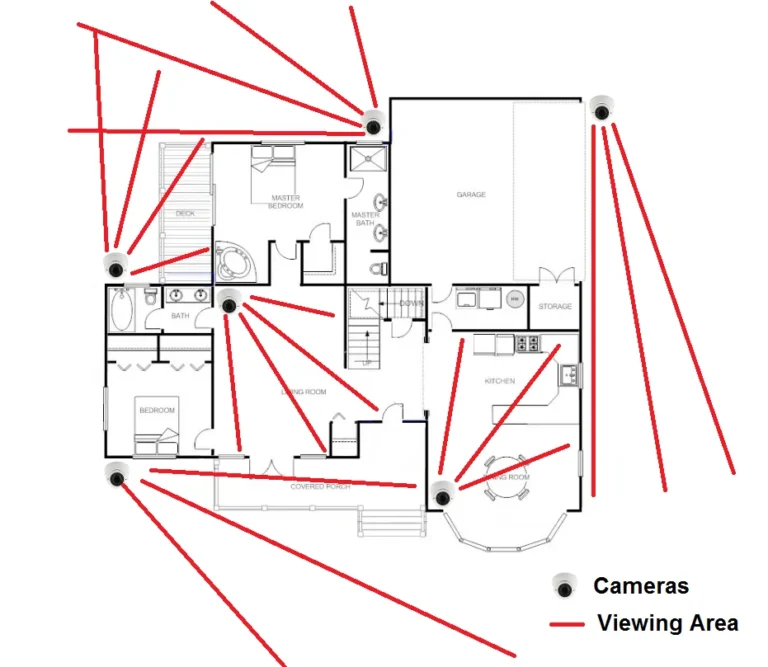
How Do Wireless Security Cameras Work
Ever wondered how those little wireless cameras keep an eye on your home or business without a mess of wires? It’s a fascinating blend of digital imaging and radio wave magic. Understanding how they work can help you choose the right setup and troubleshoot common issues.
These devices capture video using tiny sensors, convert it into data, and then beam it to your Wi-Fi network. This data travels wirelessly, typically using the 2.4GHz or 5GHz frequency bands, similar to how your smartphone connects to the internet. Per the Federal Communications Commission (FCC) guidelines for wireless devices, understanding these frequencies is key to ensuring a stable connection.
Quick Answer
Wireless security cameras work by capturing video with a digital sensor, processing it into a data stream, and transmitting it over your home's Wi-Fi network. This signal then travels to a receiver, usually your smartphone, tablet, or computer, allowing for remote viewing and recording. Key components include the camera sensor, lens, Wi-Fi transmitter, and a receiver app.
The Magic Behind Wireless Video Transmission
Wireless security cameras are essentially small, sophisticated computers designed to capture and share video. They use a combination of hardware and software to achieve this. The fundamental process involves taking light, turning it into digital information, and then sending that information wirelessly.
It’s a pretty neat trick when you think about it.
What Your Camera Sees: The Sensor and Lens
At the heart of every camera is its lens and image sensor. The lens, much like the lens in your eye, focuses light from the scene in front of the camera onto the image sensor. This sensor is typically a CMOS (Complementary Metal-Oxide-Semiconductor) chip.
It's made up of millions of tiny pixels, each capable of detecting light intensity and color. When light hits these pixels, it generates an electrical charge, which is then converted into digital data. The quality of the lens and the size and density of the sensor directly impact the clarity and detail of the image.
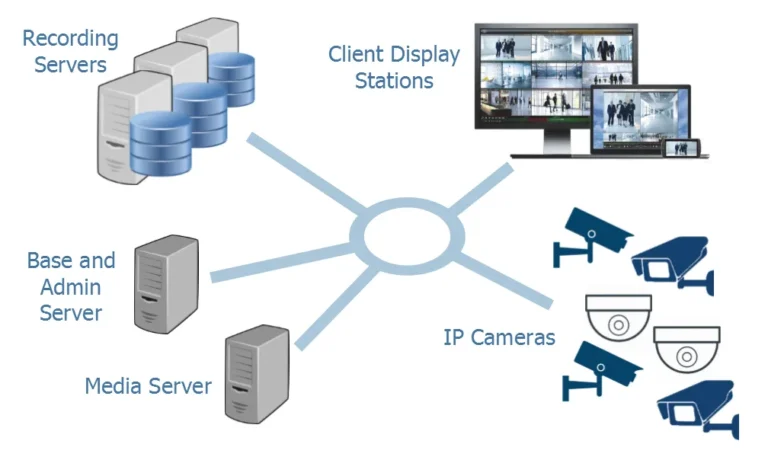
Image source: Web (Bing) / macsources.com (Web image (fair-use with source credit))
How It Becomes a Digital Signal: Image Processing
Once the light is captured as electrical signals by the sensor, that raw data needs to be processed. A dedicated chip inside the camera takes these electrical signals and translates them into a digital format that computers can understand, think of it as turning raw pixels into a picture file. This processing step also handles tasks like adjusting for brightness, contrast, and color balance.
For cameras with higher resolutions, like 2K or 4K, this processing is more intensive as it’s dealing with a much larger number of pixels. This digital stream is then ready to be compressed and transmitted.
Sending the Signal: Wi-Fi and Your Network
This is where the "wireless" part really comes into play. The processed video data is compressed to reduce its size and then sent out over your home's Wi-Fi network. The camera acts like another device on your network, similar to your laptop or phone.
It uses a built-in Wi-Fi transmitter to broadcast the video signal. Most cameras operate on either the 2.4GHz or 5GHz Wi-Fi bands. The 2.4GHz band offers a longer range and better penetration through walls but is more susceptible to interference.
The 5GHz band is faster and less congested but has a shorter range.
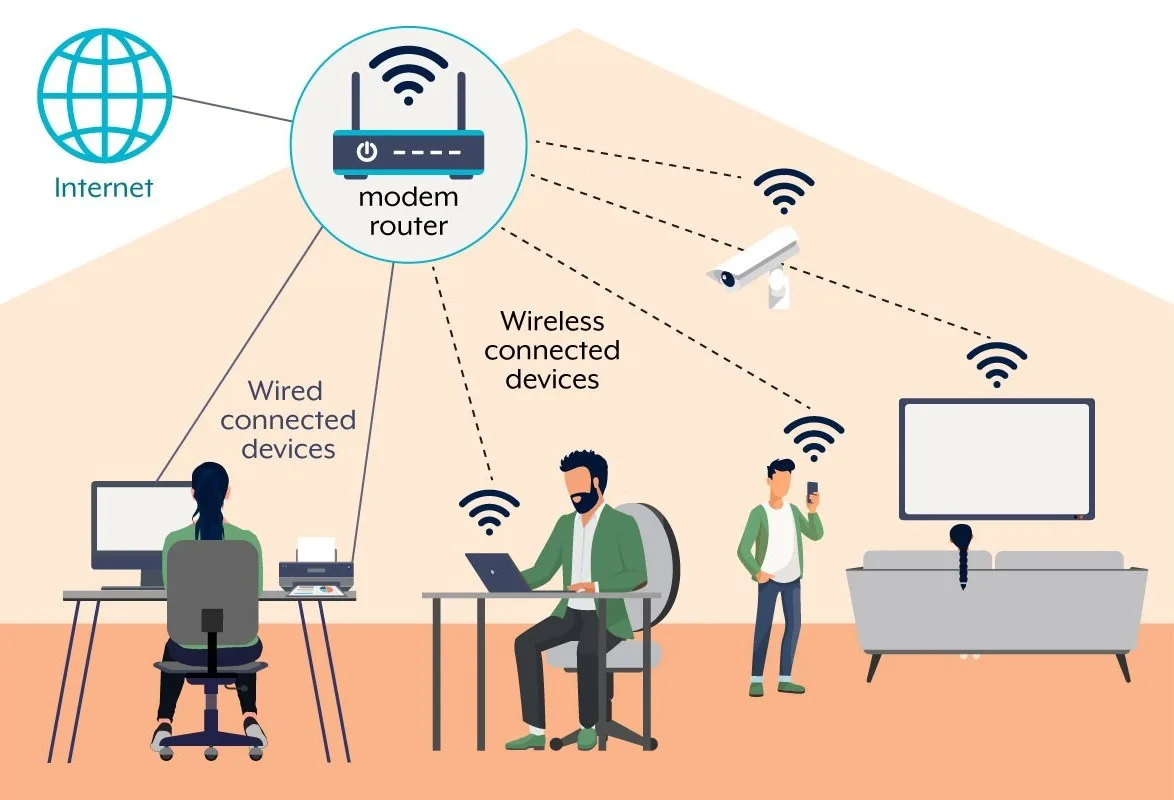
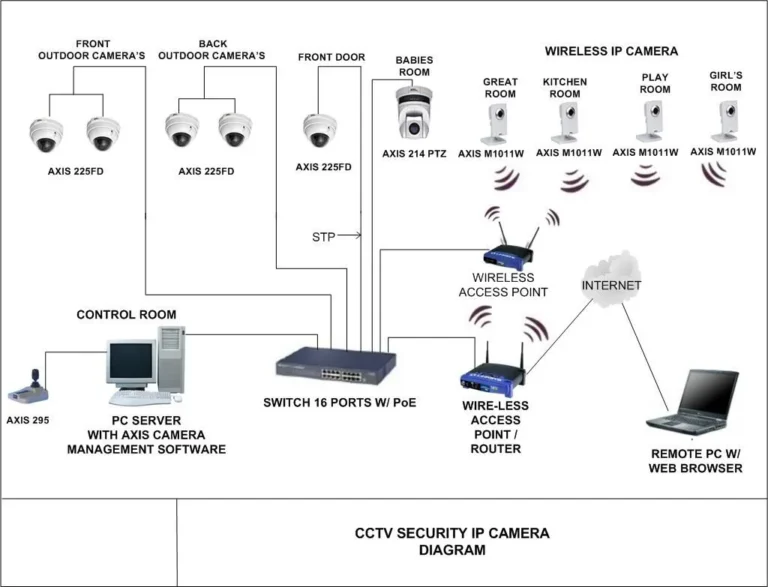
Image source: Web (Bing) / fity.club (Web image (fair-use with source credit))
Receiving the Signal: Your Phone, Tablet, or Computer
The video data, now traveling wirelessly through your Wi-Fi, needs to be picked up. This is usually done by a mobile app on your smartphone or tablet, or through a web interface on your computer. Your router directs the data stream from the camera to the intended device.
The app or interface then decompresses the video and displays it for you in real-time, or allows you to access recorded footage. Many systems also allow you to view your cameras remotely over the internet, provided your camera and receiver device are both connected online.
Key Features That Matter for Wireless Camera Performance
When you’re looking at wireless security cameras, you’ll see a lot of specs and features. Not all of them are essential for everyone, but understanding what they mean can help you pick the best camera for your needs. These features directly influence what the camera can capture and how it alerts you to activity.
Night Vision: Seeing in the Dark
Most wireless security cameras include some form of night vision. This is usually achieved through infrared (IR) LEDs built into the camera housing. When it gets dark, these LEDs emit infrared light, which is invisible to the human eye but can be detected by the camera's image sensor.
The sensor then interprets this IR light, creating a black-and-white image of the scene. The range of this night vision, often specified in feet or meters (e.g., 30 feet), indicates how far the camera can "see" in complete darkness. Some advanced cameras might use color night vision technology, which attempts to produce color images even in low light conditions by using sensitive sensors and sometimes ambient light.
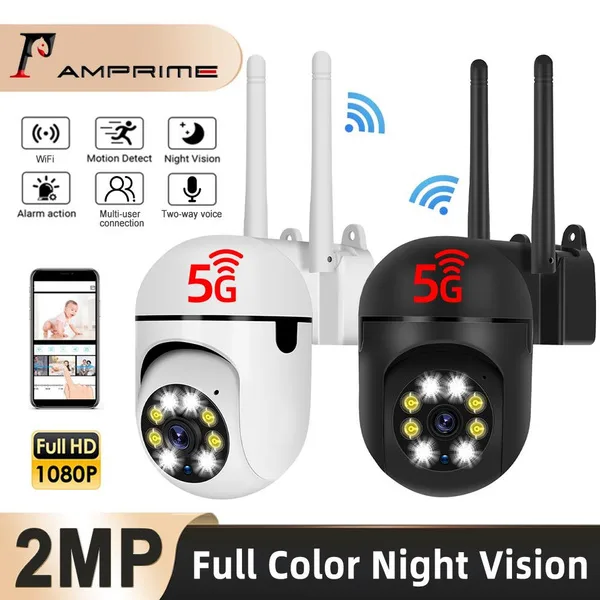
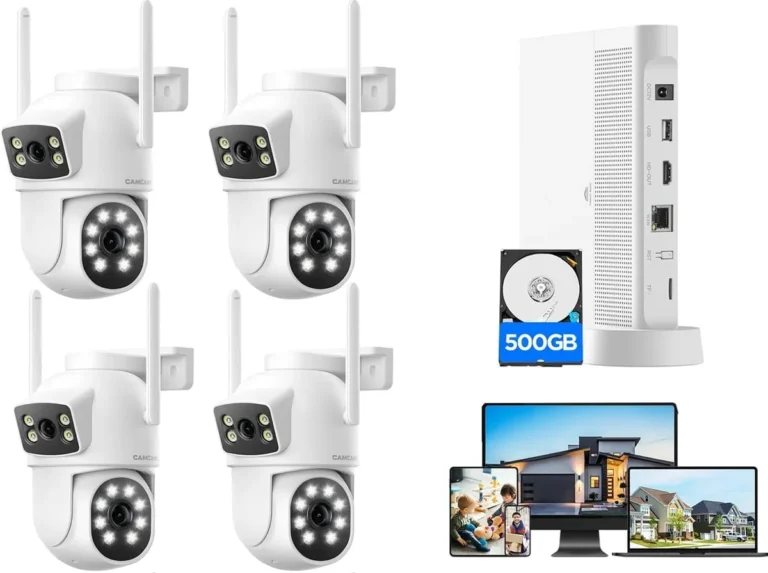
Image source: Bing (Web (fair-use with source credit))
Motion Detection: Knowing When Something Happens
Motion detection is a core function for most wireless security cameras, as it allows them to be efficient. Instead of recording constantly, they can be set to only start recording or send you an alert when they detect movement. This technology works by analyzing the video feed for changes.
Advanced cameras use passive infrared (PIR) sensors or even AI-powered analysis to distinguish between actual events, like a person walking by, and minor disturbances, like a tree branch swaying in the wind. You can often customize the sensitivity of motion detection and set up specific "zones" within the camera's view where you want it to focus on detecting movement, reducing unnecessary alerts.
Storage: Where Your Recordings Live (SD Card vs. Cloud)
When a wireless camera detects motion or you manually start recording, that video needs to be stored somewhere. The two main options are local storage and cloud storage.
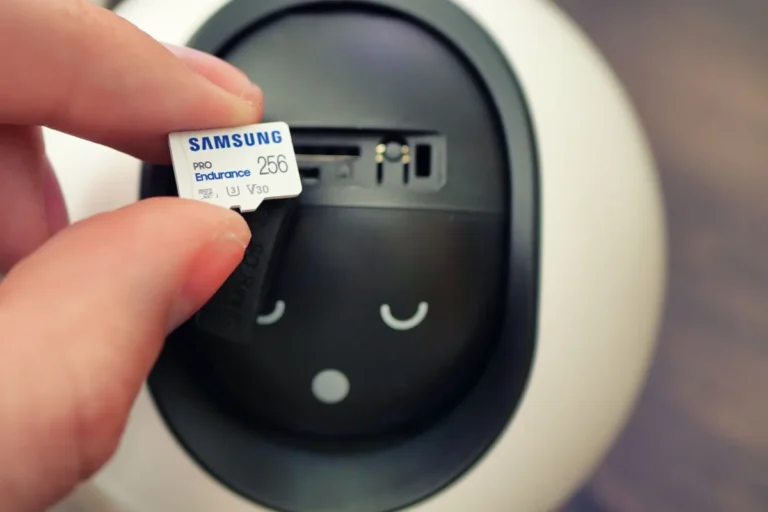
- Local Storage: This typically involves a microSD card inserted directly into the camera. It's a one-time cost, and you have physical control over your recordings. However, if the camera is stolen, the footage is lost too. Storage capacity can also be limited, often to 128GB or 256GB, meaning older footage gets overwritten.
- Cloud Storage: This means your video footage is uploaded and stored on remote servers managed by the camera manufacturer or a third-party service. This is generally accessed via a subscription fee, often monthly or annually. The benefit is that your footage is safe even if the camera is damaged or stolen. It also offers easy access from anywhere with an internet connection.
Powering Your Cameras: Battery vs. Plug-In
Wireless cameras still need power, and this is a significant consideration.
- Battery-Powered Cameras: These offer the most flexibility in placement since they don't need to be near a power outlet. However, batteries need to be recharged or replaced periodically. The lifespan of a battery can vary greatly depending on usage, Wi-Fi signal strength, and features like frequent motion detection. Some manufacturers claim months of battery life, but in practice, with frequent alerts and recording, it might be closer to a few weeks or a month or two.
- Plug-In Cameras: These cameras require a constant power source from a standard wall outlet. This means you have to place them within reach of an outlet, potentially limiting your placement options or requiring you to use extension cords, which can be less aesthetically pleasing. The upside is you never have to worry about recharging or replacing batteries.
Common Hiccups and How to Avoid Them
Even the best wireless security cameras can run into problems. Most of these issues boil down to how they connect to your network and how they're powered. By understanding these common pain points, you can often head them off before they become major annoyances or cause your camera to miss important events.
Wi-Fi Signal Strength: The Biggest Hurdle
The most frequent issue people encounter with wireless cameras is a weak Wi-Fi signal. If the camera is too far from your router, or if there are too many physical obstructions (like thick walls, metal doors, or even certain types of insulation), the signal can become unreliable. This leads to dropped connections, poor video quality, and delayed alerts.
Manufacturer specifications often recommend placing cameras within a certain range of the router, but real-world performance depends heavily on your home's construction. If you’re experiencing this, consider a Wi-Fi extender or a mesh network system to boost signal strength.
Interference and How to Minimize It
Your Wi-Fi signal isn't the only thing broadcasting wirelessly in your home. Microwaves, cordless phones, Bluetooth devices, and even neighboring Wi-Fi networks can all cause interference, disrupting your camera's connection. This interference can manifest as choppy video, static, or complete signal loss.
Using the less congested 5GHz Wi-Fi band can help if your router and camera support it. Also, try to position your camera and router away from common sources of electronic interference. Keeping your router's firmware updated can also sometimes improve its ability to manage traffic and reduce interference.
Keeping Your Cameras Secure from Hackers
Because wireless cameras connect to your network, they can potentially be vulnerable to cyber threats. If a hacker gains access to your camera's feed, they could spy on you or use it as a backdoor into your home network. It’s crucial to take security seriously.
Always use strong, unique passwords for your camera system and your Wi-Fi network. Enable two-factor authentication if your camera system offers it. Regularly update your camera's firmware, as manufacturers release patches to fix security vulnerabilities.
Also, avoid using default usernames and passwords that come with the camera.
When to Choose Wireless: Smart Use Cases
Wireless security cameras aren't a one-size-fits-all solution, but for many situations, they offer a compelling blend of convenience, flexibility, and effectiveness. Understanding where they shine can help you decide if they're the right fit for your specific needs. Their ease of installation and remote accessibility make them popular for a variety of users.
For Homeowners: Peace of Mind and Deterrence
Homeowners often choose wireless cameras for a simple reason: security and peace of mind. They can easily monitor entry points like doors and windows, watch over children or pets playing in the yard, or keep an eye on the property when away. The wireless nature means you can often set them up yourself without needing to hire an installer, saving money and time.
The visible presence of a camera can also act as a deterrent to potential intruders. Many systems integrate with smart home hubs, allowing for more complex automation, like turning on lights when motion is detected.
For Renters and Small Businesses: Easy, Flexible Surveillance
For those who rent their homes or operate small businesses, wireless cameras are particularly attractive. Since they don't require permanent wiring, renters can install them without violating their lease agreements or needing landlord permission. They can be easily moved or taken with you when you relocate.
Small businesses can use them to monitor stock rooms, entrances, or customer areas without the hassle and expense of running extensive cabling. The ability to quickly set up and access footage remotely is invaluable for managing a business on the go.
Getting Your Wireless Cameras Set Up Right
Setting up your wireless security cameras is usually straightforward, but a few key steps ensure they perform reliably. The goal is to connect the camera to your network and then configure its features to suit your monitoring needs. Think of it as giving your camera its "eyes" and then teaching it what to "look" for and when to "report" it.
Initial Setup and Connecting to Wi-Fi
Most wireless cameras come with a companion mobile app. The first step is usually downloading this app to your smartphone or tablet. You'll then typically power on the camera and follow the app's prompts to connect it to your Wi-Fi network.
This often involves scanning a QR code displayed on your phone screen with the camera lens or manually entering your Wi-Fi network name (SSID) and password into the app. It's crucial here to have your Wi-Fi password ready and to ensure your router is broadcasting a signal on a compatible frequency band (usually 2.4GHz for initial setup, though some cameras support 5GHz).
Configuring Motion Alerts and Recording
Once your camera is connected to Wi-Fi, you'll want to configure its smart features. This is done through the app. You can set up motion detection sensitivity, defining how much movement is needed to trigger an alert or recording.
Many systems allow you to draw specific "activity zones" on the camera's live view; the camera will only send alerts if motion is detected within these designated areas. You'll also configure recording settings, whether to record continuously, only when motion is detected, or on a schedule. For cameras with cloud storage, you'll link your subscription during this phase.
Making Your Wireless Camera System Work Best for You
Once your wireless security cameras are set up and running, a little ongoing attention can ensure they keep performing reliably. This isn't about major maintenance, but rather small, proactive steps that prevent issues down the line. Think of it as tending to a smart garden, it mostly takes care of itself, but a little pruning here and there keeps it healthy.
Firmware Updates and Security Patches
Manufacturers frequently release firmware updates for their wireless cameras. These updates aren't just for adding new features; they are critical for patching security vulnerabilities. A camera with outdated firmware can be an easy target for hackers trying to gain unauthorized access to your network.
Most apps will notify you when an update is available. It’s a good practice to install these promptly, usually via the camera’s mobile app. Always ensure you are connected to a stable Wi-Fi network during the update process to avoid interruptions.
Checking Battery Levels and Recharging Habits
For battery-powered wireless cameras, keeping an eye on battery levels is essential. Most apps will provide an indicator for each camera's battery status. When a battery gets low, it's time to recharge or swap it out.
If you have multiple cameras, try to establish a routine, perhaps charging them all at once every few weeks or months, depending on their usage. This prevents the surprise of a camera suddenly going offline. Some users find it helpful to keep a spare charged battery on hand for quick replacements, minimizing downtime.
Wi-Fi Network Health and Signal Optimization
Your home's Wi-Fi network is the backbone for your wireless cameras. If you start experiencing issues like dropped connections or poor video quality, it's often a sign that your network needs attention. Ensure your router is centrally located and not obstructed.
If you have a large home or many dead zones, consider upgrading to a mesh Wi-Fi system or using Wi-Fi extenders. Regularly restarting your router can also help clear temporary glitches. A strong, stable Wi-Fi signal is the single most important factor for reliable wireless camera performance.
Frequently Asked Questions About Wireless Cameras
How far can a wireless security camera transmit video?
The transmission range depends heavily on your Wi-Fi router's power and your home's layout. Generally, a camera can work reliably within 150 to 200 feet of a standard router in open space. However, thick walls, metal objects, and interference can significantly reduce this range, sometimes to less than 50 feet.
Do wireless cameras require a subscription?
Not all wireless cameras require a subscription. Many offer local storage via a microSD card, which is a one-time purchase. However, manufacturers often charge a monthly or annual fee for cloud storage, which provides remote access and backup of your footage.
Can I view my wireless cameras when I'm away from home?
Yes, most wireless security camera systems are designed for remote viewing. As long as your camera is connected to your home Wi-Fi and your smartphone or device has an internet connection, you can access the live feed and recorded footage from virtually anywhere.
What happens if my Wi-Fi goes down?
If your Wi-Fi network goes offline, your wireless security cameras will lose their connection to the internet and your receiver device. If the camera has a microSD card slot, it may continue to record locally until the Wi-Fi connection is restored. However, you will not be able to view the feed or receive alerts during the outage.
How often do battery-powered cameras need recharging?
This varies greatly. Factors like motion detection frequency, recording duration, Wi-Fi signal strength, and ambient temperature all affect battery life. Some cameras might last 1-2 months on a charge with moderate use, while others might need recharging every few weeks if they are constantly detecting motion or have a weak signal.