Can Security Cameras Work Without WiFi
Can your security cameras keep an eye on things even if your WiFi goes down? It's a super common question, and the short answer is: it really depends on the kind of cameras you have and how they're set up. It's not a simple yes or no!
Think of it like this: your WiFi is usually the highway that lets your cameras send their video streams to your phone or computer, and also how they might get updates. But just like you can still drive a car if the internet is down, some cameras have their own ways of working independently. Manufacturer specifications confirm that systems with local recording capabilities, such as those using an SD card or NVR, can continue to capture footage even without an internet connection.
Quick Answer: It Depends on Local Storage!
Yes, many cameras can work without WiFi. If your system records locally to an SD card, NVR, or DVR, it will keep recording. You'll lose remote viewing and alerts.
Purely cloud cameras often stop working entirely.
How Security Cameras Use WiFi (and When They Don't Have To)
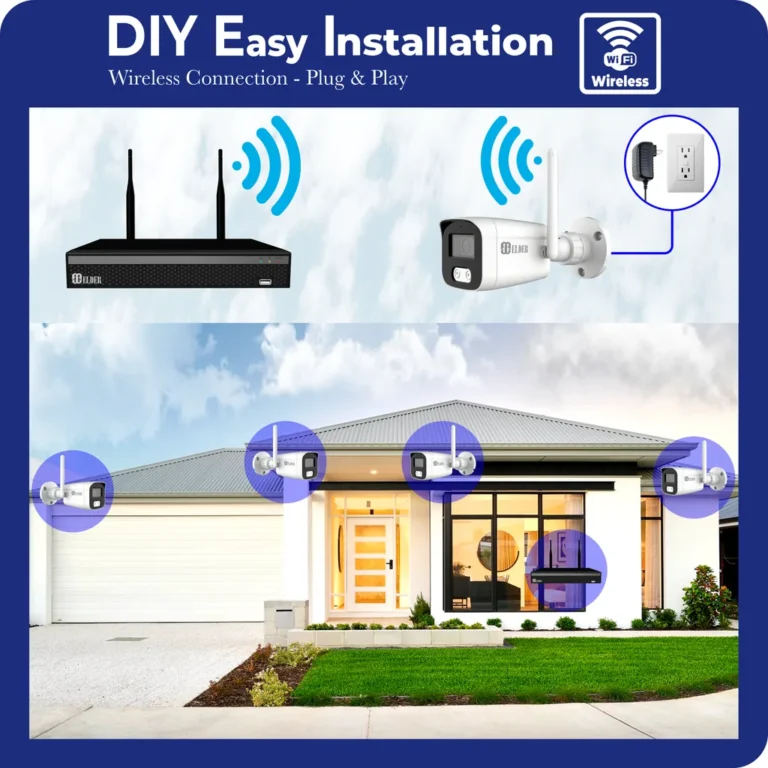
Security cameras generally rely on a connection to transmit their video feed. For most modern home security systems, this connection is your home's WiFi network. The WiFi acts as the bridge, sending the live or recorded video data from the camera to your router, and then out to the internet so you can access it on your smartphone, tablet, or computer.
It also allows the camera to receive commands, like firmware updates or changes to motion detection settings.

Image source: Web (Bing) / reolink.com (Web image (fair-use with source credit))
However, not all cameras are designed to be entirely dependent on WiFi. The crucial factor is whether the camera system has its own built-in method for storing footage. If it does, it can often function for recording purposes even when its link to the outside internet world is severed.
Local Storage vs. Cloud: The Recording Difference
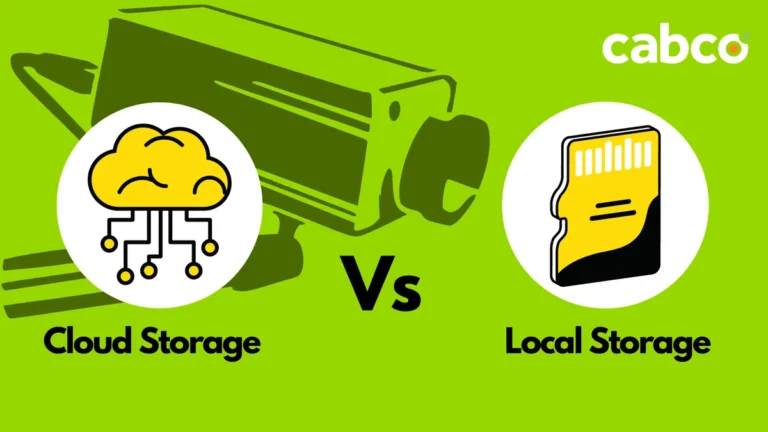
The biggest differentiator for whether a camera keeps working without WiFi is its storage method. Systems designed for local storage can keep functioning for recording even if your internet connection drops.
- Local Storage: This means the camera or its connected hub (like an NVR or DVR) saves the video footage directly onto a physical storage device. This could be:
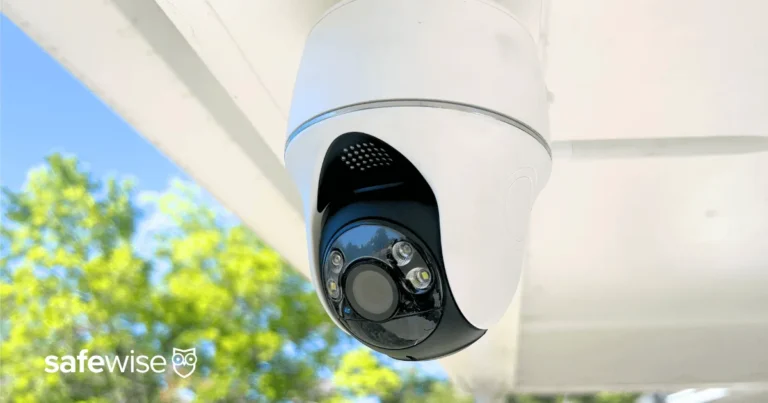
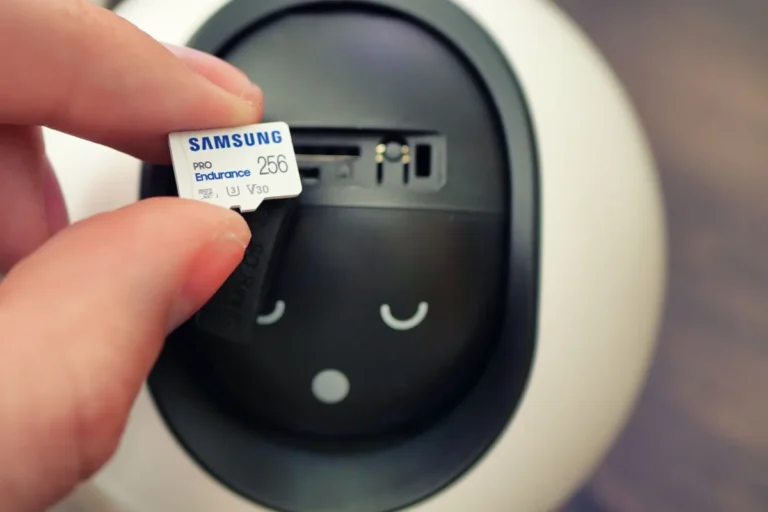
- An SD card (Secure Digital card) inserted directly into the camera.
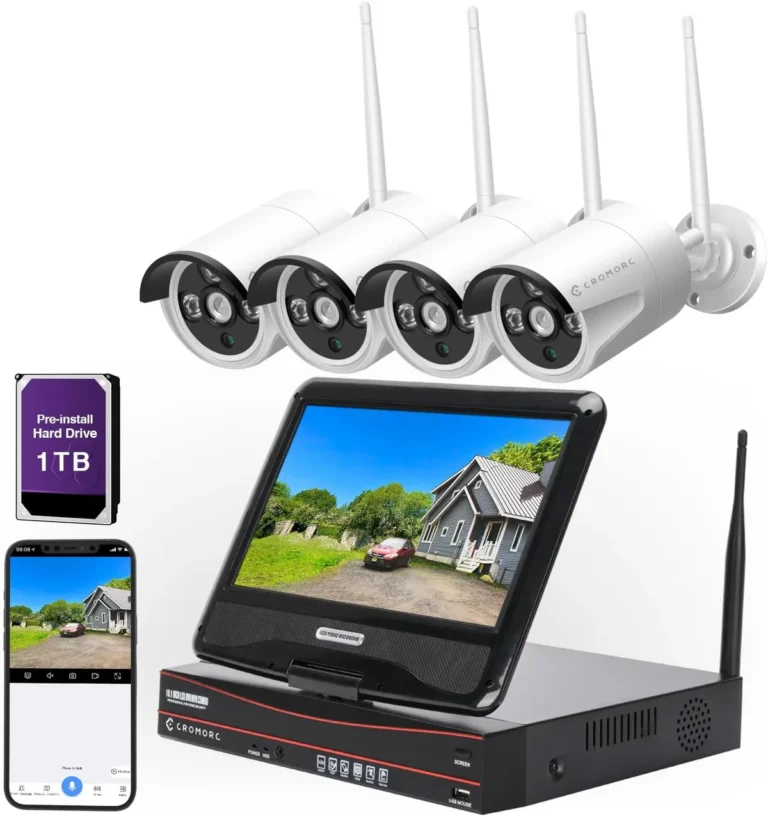
- A hard drive inside a Network Video Recorder (NVR) or Digital Video Recorder (DVR).
Manufacturer specifications from various brands indicate SD card capacities can range from 32 GB up to 1 TB or more.
- Cloud Storage: With cloud-based cameras, the video footage is sent over the internet to remote servers managed by the camera company. The footage is stored there, and you access it via an app.
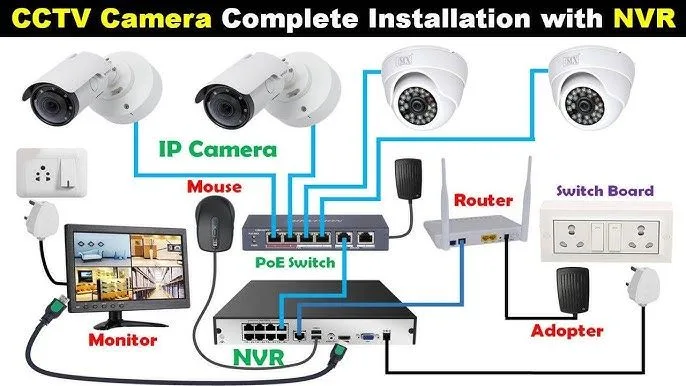
Image source: Web (Bing) / pinterest.com (Web image (fair-use with source credit))
If your WiFi is out and your camera relies solely on the cloud, it usually means it can't record or send you any new information.
PoE and Cellular: WiFi-Free Alternatives
While WiFi is common, it's not the only way cameras can connect and operate. Two other significant methods bypass home WiFi entirely:
- PoE (Power over Ethernet) Cameras: These cameras connect to your network using standard Ethernet cables. Crucially, these cables provide both the data connection and the power needed for the camera to operate. This eliminates the need for a separate power adapter and, more importantly for this discussion, any reliance on your WiFi signal. They typically connect to an NVR or a PoE switch.
- Cellular Security Cameras: These cameras use a built-in cellular modem, much like a smartphone, to transmit data. They require a SIM card and a data plan. This makes them ideal for remote locations where WiFi isn't available or for temporary surveillance needs. As of 2026, many cellular camera providers offer plans suitable for continuous monitoring.
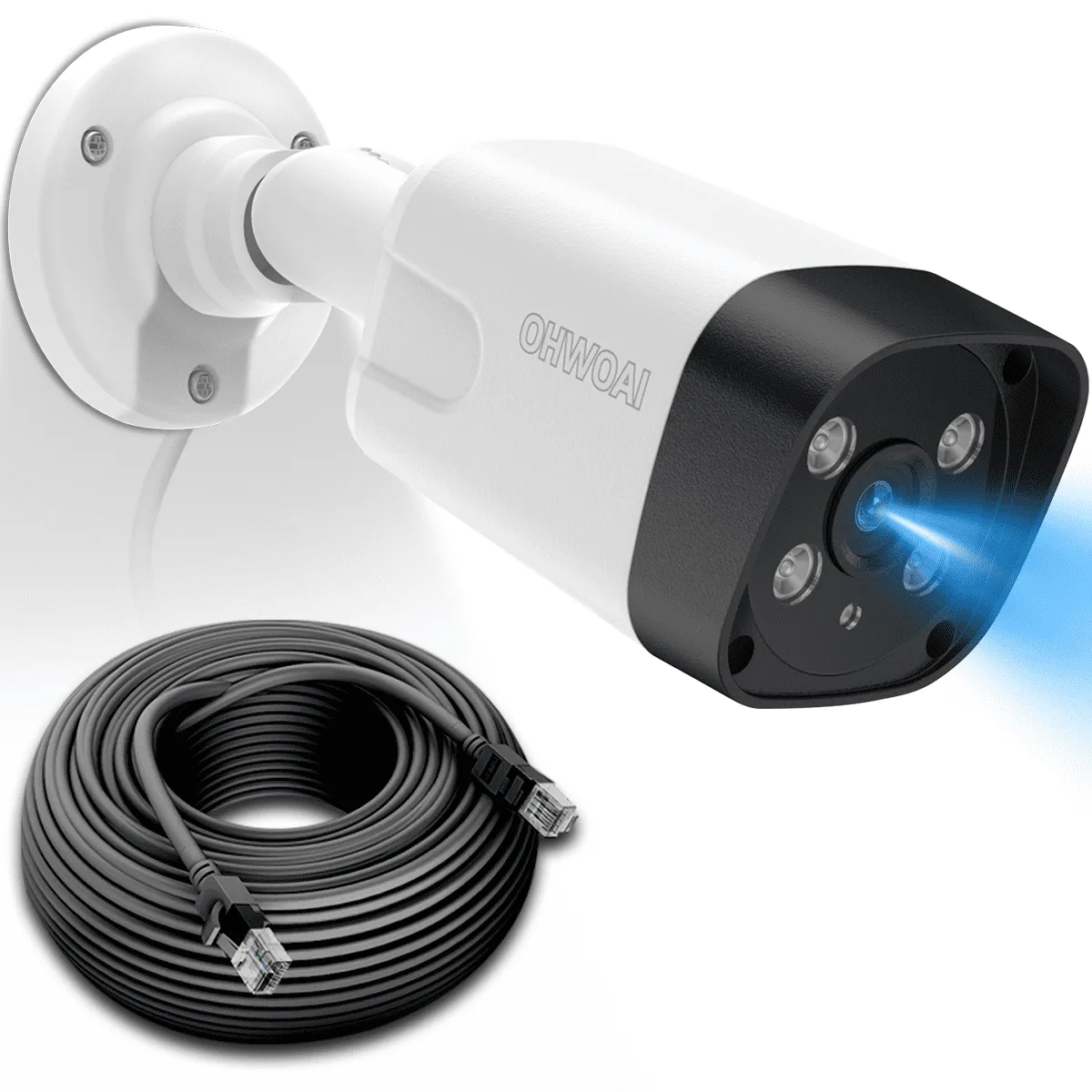
Image source: Web (Bing) / walmart.com (Web image (fair-use with source credit))
Both PoE and cellular systems offer a robust way to maintain surveillance independently of your home's internet network.
What Happens to Remote Viewing and Alerts Without WiFi?
When your WiFi network goes offline, the ability to remotely view your security cameras and receive instant alerts is almost always the first thing to be impacted. Think of your WiFi as the mail carrier for your camera's messages. If the carrier isn't running, those messages can't get to you, no matter how quickly the camera sends them out.
- Remote Viewing: If your cameras are WiFi-dependent, you simply won't be able to connect to them through their app or web interface when you're away from home. The connection is broken.
- Motion Alerts: Push notifications or email alerts that signal motion detection require an active internet connection to be sent from the camera's server to your device. Without WiFi, these alerts won't reach you.
Even if your cameras continue to record locally (using an SD card or NVR), you won't know about an event until you can physically access the recorded footage once your internet is restored. This is a significant drawback if real-time monitoring is a primary reason you installed cameras.
Can You Still Access Recordings?
This is where the distinction between camera types really matters. If your goal is to know what happened after an event, even if you couldn't see it happen in real-time, then local storage is your best friend.
For systems designed with on-site recording capabilities, the answer is generally yes, you can still access recordings. The camera continues to capture video, and that footage is saved locally.
- If your cameras have an SD card slot: The video is saved directly onto that card. You would need to remove the card and insert it into a computer or use a card reader to view the footage.
- If your cameras are connected to an NVR or DVR: These devices are specifically designed to record and store footage from multiple cameras. They often have their own displays or can be connected to a monitor.
The key takeaway is that the recording function is independent of the internet connection, provided the hardware for local storage is present and functioning.
Accessing Footage from NVRs and DVRs
Network Video Recorders (NVRs) and Digital Video Recorders (DVRs) are central hubs for many camera systems. When your WiFi fails, these recorders usually continue to do their primary job: recording.
- How it works: Cameras are wired directly to the NVR/DVR (or sometimes wirelessly to a base station that's wired to the NVR/DVR). The NVR/DVR itself has a hard drive where all the video streams are saved.
- What you can do without WiFi:
- Continue recording: The system will keep saving video to the hard drive.
- Playback locally: You can connect a monitor directly to the NVR/DVR's video output port to watch live feeds or review recorded events. This bypasses your home WiFi and the internet entirely.
Many NVRs support video outputs like HDMI or VGA for direct monitor connection.
This local playback capability means that even without internet access, your security system can still function as a closed-circuit television (CCTV) system for immediate review of recorded activity.
Checking SD Card Recordings
For simpler camera setups, especially standalone IP cameras or older analog cameras, an SD card often serves as the sole recording medium.
- How it works: The camera records video directly onto the SD card inserted into it.
- What you can do without WiFi:
- Continue recording: The camera will keep saving footage to the SD card as long as it has power.
- Access recordings: You'll need to physically retrieve the camera or, more commonly, remove the SD card. You can then insert this card into a compatible device like a computer or a dedicated SD card reader to view the saved video files.
This method is straightforward but requires physical access to the camera or its storage for review. If the camera itself is damaged or inaccessible, retrieving the footage can be challenging.
Step-by-Step Process: Accessing Footage When WiFi Is Out
If your security cameras continue to record without WiFi, knowing how to access that footage is key. The process varies depending on your system, but generally involves direct interaction with the recording device or storage media.
- For NVR/DVR Systems: You'll typically need to connect a monitor directly to the NVR or DVR. Many units have HDMI or VGA ports for this. Once connected, you can navigate the NVR/DVR's on-screen menu to find recorded footage, often sorted by date and time. You might also be able to connect a USB drive to the NVR/DVR to copy footage for later viewing on a computer.
- For SD Card Cameras: You'll need to remove the SD card from the camera. This usually requires a small screwdriver or even just your fingernail, depending on the camera's design. Then, insert the SD card into a computer's SD card reader or use an external USB reader. The video files will appear as standard video files (like .mp4 or .avi) that you can play with common media players.
Remember to handle SD cards and external drives carefully to avoid data corruption.
How to Playback Recordings from an NVR or DVR
Playback on an NVR or DVR is designed to be straightforward. Once a monitor is connected and powered on, the NVR/DVR's interface should appear.
- Navigate the Menu: Use the connected mouse (most NVRs/DVRs come with a USB mouse) to click through the on-screen options. Look for a "Playback," "Record," or "Archive" menu.
- Select Camera and Time: You'll usually see a calendar or timeline. Select the camera you want to review and choose the specific date and time range you're interested in.
- Control Playback: Standard playback controls like play, pause, fast-forward, and rewind will be available. Some systems allow you to zoom into specific areas of the frame.
- Export Footage: If you need to save evidence, look for an "Export," "Backup," or "Download" option. This usually involves selecting a time range and saving it to a USB drive.
How to View Footage from an SD Card
Accessing footage from an SD card is akin to retrieving photos from a digital camera.
- Safely Remove Card: Power down the camera if possible, then gently remove the SD card.
- Insert into Reader/Computer: Place the SD card into your computer's built-in reader or a USB external reader.
- Open Video Files: Your computer should recognize the card as a removable drive. Navigate to the storage folder (often labeled "DCIM" or a specific camera folder) to find the video files.
- Play Videos: Double-click the video files to open them with your computer's default media player.
When Do You Absolutely Need WiFi for Your Cameras?
While some cameras can function without an internet connection, many modern features and even basic operation rely heavily on WiFi. If your primary goal is real-time, remote security, then WiFi is essential.
- Remote Monitoring: The most obvious need for WiFi is to view your cameras from outside your home. Without it, you can't check in on your property while you're at work, on vacation, or just away for the day.
- Instant Alerts: If you depend on your camera system to notify you immediately about motion detection, a break-in, or other events, WiFi is non-negotiable. These alerts are pushed to your phone or email via the internet.
- Cloud Storage & Backups: If your chosen camera system uses cloud storage, or if you rely on cloud backups for your footage, an active internet connection is mandatory. Without it, neither recording to the cloud nor retrieving cloud-stored footage is possible.
- Smart Features & Integrations: Many advanced camera features, such as two-way audio, integration with smart home assistants (like Alexa or Google Home), or AI-powered person detection, require constant connection to the camera manufacturer's servers via WiFi.
Mistakes to Avoid When Your WiFi Fails
When your WiFi goes out, it's easy to panic about your security. But understanding a few common pitfalls can save you a lot of frustration.
- Assuming all cameras will stop working: Many people assume their entire security system is down when the WiFi blips. However, as we've seen, systems with local storage can keep recording. Don't assume the worst if you haven't checked your system's specific capabilities.
- Forgetting about local playback: If your cameras record to an NVR/DVR, you might forget you can connect a monitor directly to the unit. You're so used to app-based viewing that you overlook the direct hardware connection.
- Not checking battery backups: For battery-powered cameras that might still have some local recording ability, a dead battery means no recording. Ensure essential devices have reliable backup power if continuous recording is critical. Some high-end systems offer power backup solutions that can last for hours.
- Overlooking wired alternatives: If WiFi reliability is a constant concern, failing to consider PoE or cellular cameras from the start can leave you vulnerable during outages. These are often a better long-term solution for critical surveillance needs.
When Do You Absolutely Need WiFi for Your Cameras?
While some cameras can function without an internet connection, many modern features and even basic operation rely heavily on WiFi. If your primary goal is real-time, remote security, then WiFi is essential.
- Remote Monitoring: The most obvious need for WiFi is to view your cameras from outside your home. Without it, you can't check in on your property while you're at work, on vacation, or just away for the day.
- Instant Alerts: If you depend on your camera system to notify you immediately about motion detection, a break-in, or other events, WiFi is non-negotiable. These alerts are pushed to your phone or email via the internet.
- Cloud Storage & Backups: If your chosen camera system uses cloud storage, or if you rely on cloud backups for your footage, an active internet connection is mandatory. Without it, neither recording to the cloud nor retrieving cloud-stored footage is possible.
- Smart Features & Integrations: Many advanced camera features, such as two-way audio, integration with smart home assistants (like Alexa or Google Home), or AI-powered person detection, require constant connection to the camera manufacturer's servers via WiFi.
FAQs About Cameras Without WiFi
Can my security cameras record if my WiFi is down?
Yes, if your cameras have local storage capabilities like an SD card slot or are connected to an NVR or DVR, they can continue to record footage even when your WiFi is not functioning.
Will I receive motion alerts if my WiFi is out?
No, you will not receive motion alerts or other push notifications if your WiFi is down. These alerts require an active internet connection to be sent to your mobile device or email.
Can I still view live footage from my cameras without WiFi?
Generally, no. Remote live viewing of your cameras requires an internet connection via WiFi. However, some systems allow direct local playback on a monitor connected to an NVR or DVR.
What's the difference between NVR and DVR for WiFi-free recording?
An NVR (Network Video Recorder) typically works with IP cameras connected via Ethernet cables, while a DVR (Digital Video Recorder) usually works with analog cameras. Both are designed to record and store footage locally.
Are PoE cameras completely independent of WiFi?
Yes, PoE (Power over Ethernet) cameras use Ethernet cables for both power and data transmission. They do not rely on your home's WiFi network for operation, though they still need to be connected to a router or switch that is part of your network.