Why Is My Video Doorbell Offline
Image source: Web (Bing) / ring.com (Web image (fair-use with source credit))
Why Is My Video Doorbell Offline? Let's Get It Back Online!
So, you've noticed your video doorbell is showing as offline, and you're probably wondering why it suddenly decided to go silent. It's frustrating when a device meant for constant connection goes dark, especially when you're expecting a delivery or want to see who's at the door. This is a common hiccup, and usually, there's a straightforward fix.
The issue often boils down to how the doorbell communicates with your home network and the internet. Most smart video doorbells rely on a stable Wi-Fi signal, and if that connection is interrupted or weak, the device can appear offline. Manufacturer specifications typically recommend a minimum download speed of 2 Mbps and an upload speed of 1 Mbps for basic doorbell functionality.
Quick Answer
Your video doorbell is likely offline because of a Wi-Fi connection issue. This can stem from your home internet being down, a weak Wi-Fi signal reaching the doorbell, your router needing a restart, or outdated device software. Sometimes, the doorbell itself might have a power issue.
Quick Check: Is Your Wi-Fi The Culprit?
Before we dive into the more technical bits, let's rule out the most common culprits. Nine times out of ten, the problem lies somewhere in your home's internet setup.
Is Your Internet Service Working?
This might sound obvious, but it's the most frequent reason for an offline video doorbell. If your home internet is down, your doorbell can't connect to the internet to send you notifications or video feeds. Try browsing a few websites on your phone or computer using the same Wi-Fi network.
If other devices are also struggling to connect, the issue is almost certainly with your internet service provider (ISP) or your modem/router.
Router and Modem Reboot: The First Step
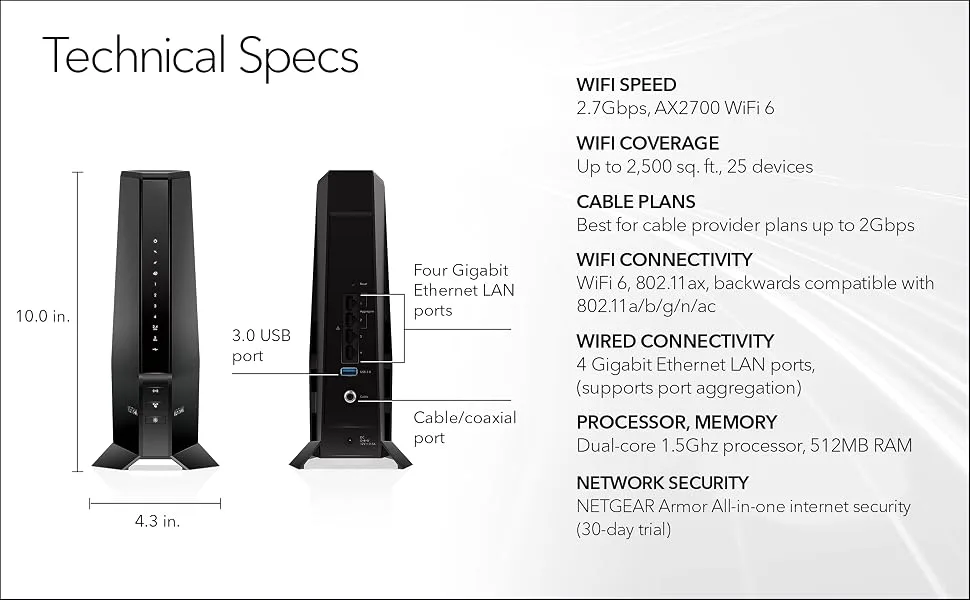
A simple restart of your modem and router can often resolve temporary glitches that might be preventing your doorbell from connecting. It's like giving your network equipment a fresh start.
- Unplug: Disconnect the power cords from both your modem and your router.
- Wait: Leave them unplugged for at least 30 seconds. This allows them to fully discharge and reset.
- Plug In Modem: Reconnect the power to your modem first and wait for all its indicator lights to stabilize, which usually takes a minute or two.
- Plug In Router: Once the modem is back online, plug your router back in. Wait for its lights to stabilize as well.
- Check Doorbell: After your network is back up, check your video doorbell's app to see if it has reconnected.
Decoding Your Doorbell's Connection: What's Actually Happening
Understanding how your video doorbell works can help you troubleshoot when things go wrong. It’s a small piece of technology that relies on a few key components to stay connected.
How Video Doorbells Connect to Your Network
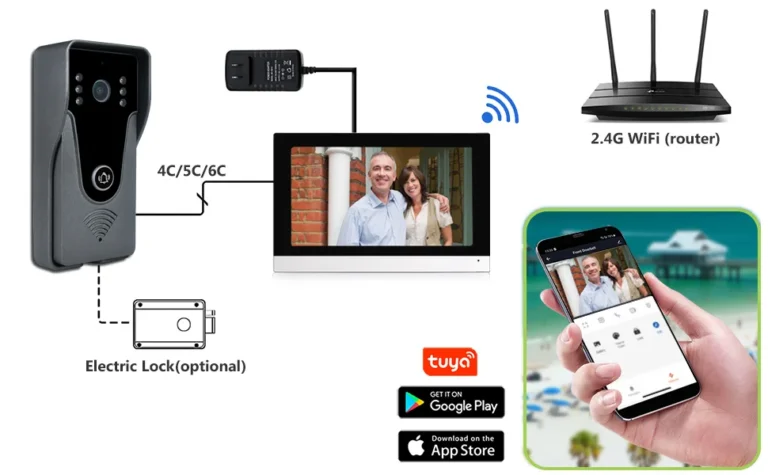
At its core, your video doorbell is a smart device. When someone presses the button, or motion is detected, it uses your home's Wi-Fi network to send a signal. This signal travels from the doorbell to your Wi-Fi router, then through your modem to your internet service provider, and finally to the cloud servers managed by the doorbell's manufacturer.
From those servers, notifications and video streams are sent to your smartphone or tablet via the associated app. A stable, strong connection at every step is crucial for uninterrupted service.
Troubleshooting Your Offline Doorbell: A Step-by-Step Workflow
If the basic checks didn't solve the problem, it's time to get more specific with our troubleshooting. We'll follow a logical sequence to identify and fix the issue.
Step 1: Power and Connectivity Basics
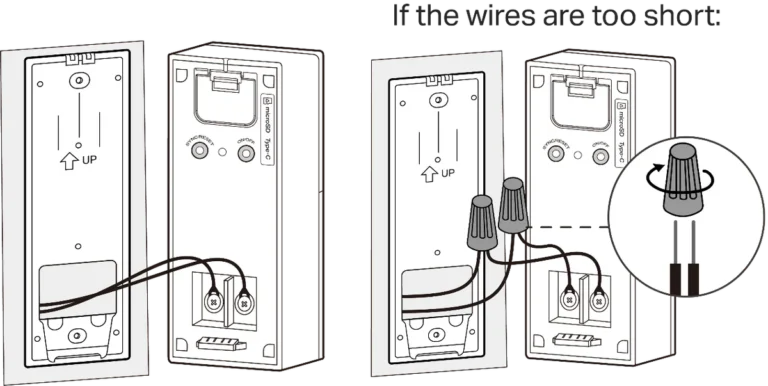
First, ensure your doorbell has sufficient power. For battery-powered models, check the battery level within the app or if it needs to be recharged or replaced. For wired doorbells, verify that the power connection to the doorbell itself is secure and hasn't been disturbed.
Sometimes, a loose wire or a tripped breaker can interrupt power. Also, double-check that your Wi-Fi network is still active and accessible by other devices. If you have a separate modem and router, ensure both are powered on and showing stable connection lights.
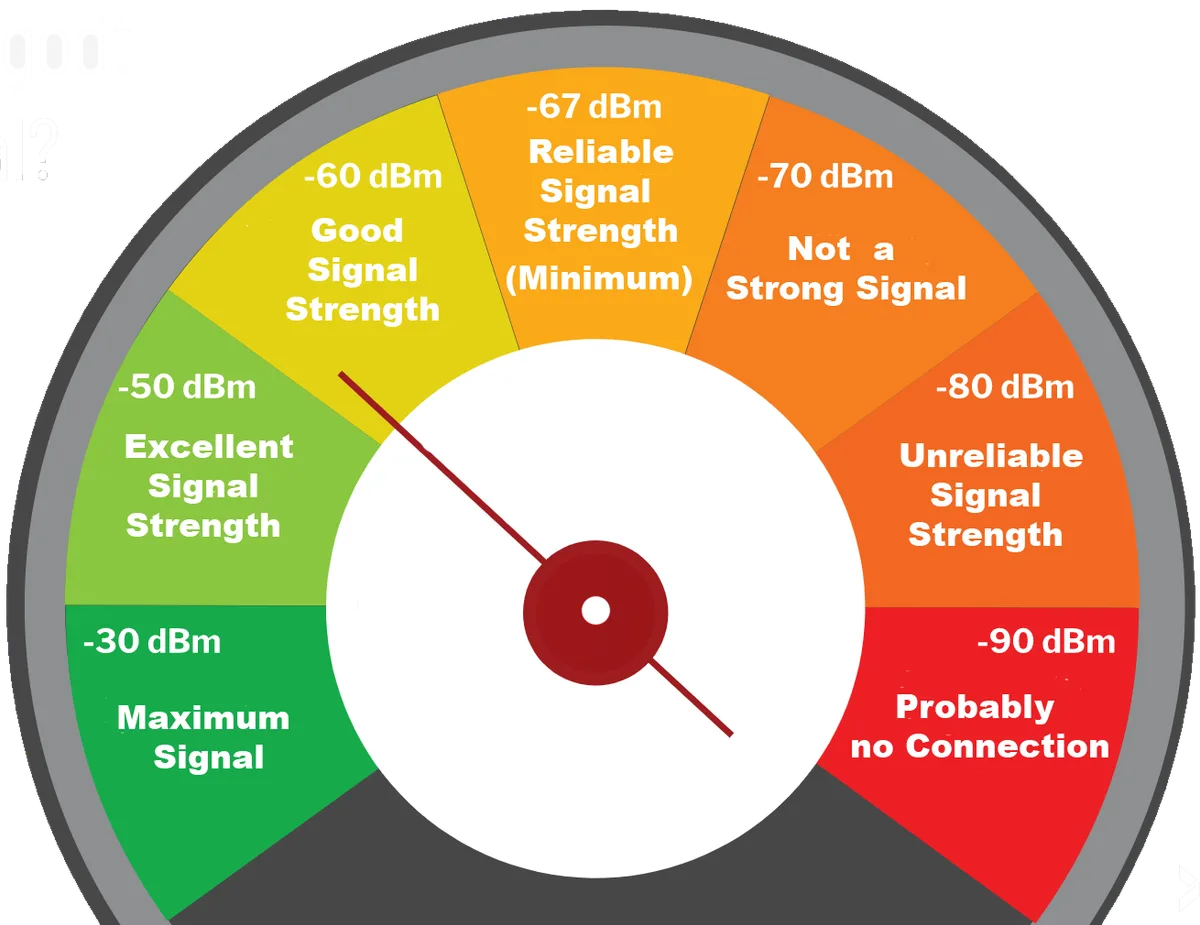
Step 2: Checking Your Wi-Fi Signal Strength
A weak Wi-Fi signal is one of the most common reasons for a video doorbell to drop offline. The doorbell needs a consistent signal to maintain its connection to your router. If the signal is too weak, it might connect intermittently or not at all.
- Check Signal in App: Most video doorbell apps provide a signal strength indicator. Look for a Wi-Fi icon or a numerical value representing signal quality.
- Physical Distance: Consider how far your doorbell is from your Wi-Fi router. Walls, especially brick or concrete, and other electronic devices can interfere with Wi-Fi signals.
- Improve Signal: If the signal is weak, you might need to reposition your router to be closer to the doorbell, or use a Wi-Fi extender or mesh system to boost coverage in that area of your home.
Step 3: Addressing Router Settings and Interference
Sometimes, it's not just the signal strength but also how your router is configured or what else is on your network.
- Network Congestion: If you have many devices actively using your Wi-Fi simultaneously (streaming, gaming, downloading), it can overload your router. Try temporarily disconnecting some devices to see if your doorbell reconnects.
- Frequency Band: Most video doorbells perform best on the 2.4 GHz Wi-Fi band, which offers better range and penetration through obstacles than the 5 GHz band. Ensure your doorbell is connected to the 2.4 GHz network if your router broadcasts both. Some routers might automatically switch bands, which can cause connection drops for devices that prefer a specific band.
- Router Firmware: Just like your doorbell, your router has firmware that needs to be up-to-date. Check your router's administration page for available firmware updates.
Step 4: Updating Doorbell Firmware and Apps
Software updates are crucial for maintaining device performance and security. Outdated firmware on your doorbell or an outdated app on your phone can cause compatibility issues, leading to connection problems.
- Doorbell Firmware: Your doorbell's manufacturer periodically releases updates to fix bugs, improve performance, and add new features. These are usually delivered automatically, but sometimes require manual initiation through the app. Check your doorbell’s settings within its dedicated app for any pending firmware updates.
- Mobile App: Ensure you have the latest version of the video doorbell app installed on your smartphone or tablet. App updates often include crucial fixes for connectivity and communication protocols. Visit your device’s app store to check for available updates.
Common Doorbell Offline Mistakes to Sidestep
When troubleshooting, it's easy to overlook simple things or make assumptions that lead you down the wrong path. Here are a few common mistakes people make when their video doorbell goes offline.
Overlooking Simple Power Issues
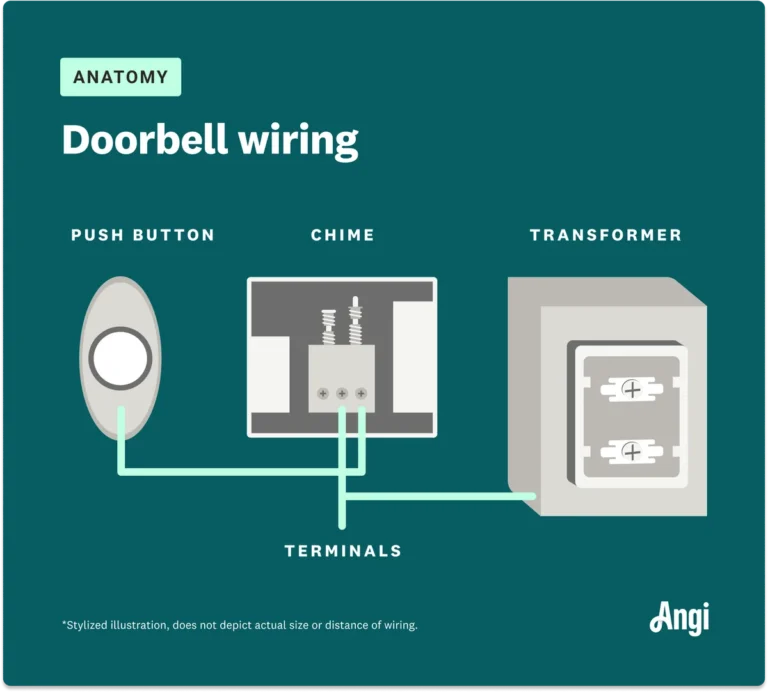
Many users jump straight to Wi-Fi when their doorbell is offline, but sometimes the device just isn't getting enough power. For battery models, a dead or dying battery is the obvious cause, but for wired doorbells, a loose connection at the doorbell or transformer, or even a tripped breaker in your electrical panel, can cut off power. Always confirm the device itself is powered before diving deep into network diagnostics.
Neglecting Wi-Fi Signal Range
People often assume their Wi-Fi signal is strong everywhere in their home, but dead zones are common, especially for devices placed on exterior walls far from the router. Pushing the limits of your router's range without a signal booster or mesh system is a recipe for intermittent connectivity. If your app shows a weak signal, address that physical limitation first.
Forgetting About Firmware Updates
Just like your computer or phone, your video doorbell has software that needs periodic updates. Manufacturers release firmware updates to fix bugs, improve performance, and patch security vulnerabilities. If you’ve never updated your doorbell’s firmware, or if automatic updates are disabled, this can lead to compatibility issues with your network or the manufacturer’s servers, causing it to appear offline.
Regularly checking for and applying these updates is a key part of maintaining a stable connection.
When to Call in the Experts (or Manufacturer Support)
If you've gone through all the troubleshooting steps, restarting your router and modem, checking Wi-Fi signal strength, updating firmware and apps, and confirming power, and your video doorbell is still offline, it might be time to seek external help.
- Manufacturer Support: Your first port of call should be the support channel for your specific video doorbell brand. They have in-depth knowledge of their products and common issues. You can usually find contact information, FAQs, and troubleshooting guides on their official website.
- ISP Assistance: If you suspect a broader internet connectivity problem that you can't resolve yourself, contact your Internet Service Provider (ISP). They can check your line for issues or help diagnose problems with your modem.
- Professional Installation: For wired doorbells, if you're uncomfortable with electrical connections or suspect a wiring fault, consider hiring a qualified electrician or a smart home installer. They can safely check power sources and connections.
- Hardware Failure: In rare cases, the doorbell itself may have a hardware defect. If the manufacturer confirms this after you've exhausted other troubleshooting, they can guide you through warranty claims or replacement options.
Frequently Asked Questions About Offline Video Doorbells
Why does my video doorbell keep disconnecting and reconnecting?
This intermittent issue often points to a borderline Wi-Fi signal. Your doorbell might be connecting when the signal is strong enough, but dropping off when it fluctuates. Check your signal strength in the app and consider moving your router or using a Wi-Fi extender.
Can a temporary internet outage cause my doorbell to stay offline?
Yes, absolutely. If your home's internet service is down for any reason, your video doorbell, which relies on that connection, will also be offline. Once your internet is restored, your doorbell should automatically reconnect.
How often should I update my video doorbell's firmware?
While many doorbells update automatically, it's good practice to check for updates within the app every few months. Manufacturers release updates to improve performance and security. If your doorbell is consistently offline, an outdated firmware version could be a contributing factor.
What's the difference between 2.4 GHz and 5 GHz Wi-Fi for my doorbell?
The 2.4 GHz band generally offers a longer range and better penetration through walls, making it ideal for devices like video doorbells that might be further from your router. The 5 GHz band is faster but has a shorter range and is more easily blocked by obstacles. For stable doorbell connections, the 2.4 GHz band is usually preferred.