How Do I Reset a CCTV Camera?
Resetting your CCTV camera can feel like a magic button when things go wrong, or when you need to start a setup from scratch. It’s a common troubleshooting step, especially if you're experiencing persistent issues or preparing to pass a system on. Knowing how to perform this action ensures your security system remains functional and secure.
In our research, we've found that most resets involve a specific sequence or button press, though the exact method varies significantly by camera type and brand. Manufacturer specifications often detail a reset procedure that requires holding a physical button for at least 10 seconds while the device is powered on, as per many security device guidelines. This process brings the camera back to its original factory settings, clearing out any user-defined configurations.
Quick Answer
To reset a CCTV camera, locate its physical reset button, usually a small pinhole, and press it with a paperclip for 10-30 seconds while powered on. Alternatively, use the camera's mobile app or web interface settings to find a "Factory Reset" option. This action erases all custom configurations.
Why Resetting Your CCTV Camera?
Sometimes, a simple reboot isn't enough to fix what's ailing your security camera. Resetting it to its factory defaults acts like a hard reboot for your system, clearing out any software glitches, configuration errors, or network conflicts that might be causing problems. It’s a fundamental troubleshooting step recommended by most manufacturers when a camera isn't behaving as it should.
Common Reasons to Reset
- Troubleshooting Persistent Issues: If your camera is exhibiting unusual behavior, like constant disconnections, motion detection failures, or video lag, a factory reset can often resolve these software-related problems.
- Forgotten Passwords: If you can't remember your camera's login password, a reset is usually the only way to regain access, allowing you to set a new password.
- Selling or Transferring Ownership: Before passing your camera to a new owner, a reset ensures all your personal settings, network information, and data are completely wiped clean.
- Network Configuration Changes: If you've drastically changed your home network (e.g., new router, new Wi-Fi name/password), resetting the camera makes it easier to re-establish its connection.
- Resolving Software Glitches: Like any electronic device, cameras can develop software bugs. A reset essentially reinstalls the original operating system for the camera.
What Happens When You Reset?
Performing a factory reset on your CCTV camera means it will revert to the state it was in when it first came out of the box. This means:
- All custom settings are erased: This includes Wi-Fi credentials, motion detection zones, recording schedules, alert settings, and any custom naming you assigned to the camera.
- Default login information is restored: You'll need to use the camera's original default username and password to access it after the reset. These are usually found in the user manual or on the manufacturer's website.
- Network connections are cleared: The camera will no longer be connected to your Wi-Fi network or your NVR/DVR system. You'll need to set up its network connection again.
Essentially, a reset is a fresh start for your device, and you’ll have to go through the initial setup process once more.
Identifying Your Camera Type
Before you attempt a reset, it’s crucial to know what kind of CCTV camera you’re dealing with. The process can vary quite a bit, and attempting the wrong method could be ineffective or even cause unintended issues. Generally, cameras fall into a few broad categories, each with slightly different reset approaches.
Standalone IP Cameras vs. NVR/DVR Systems
The primary distinction is between cameras that operate independently and those that are part of a larger recording system.
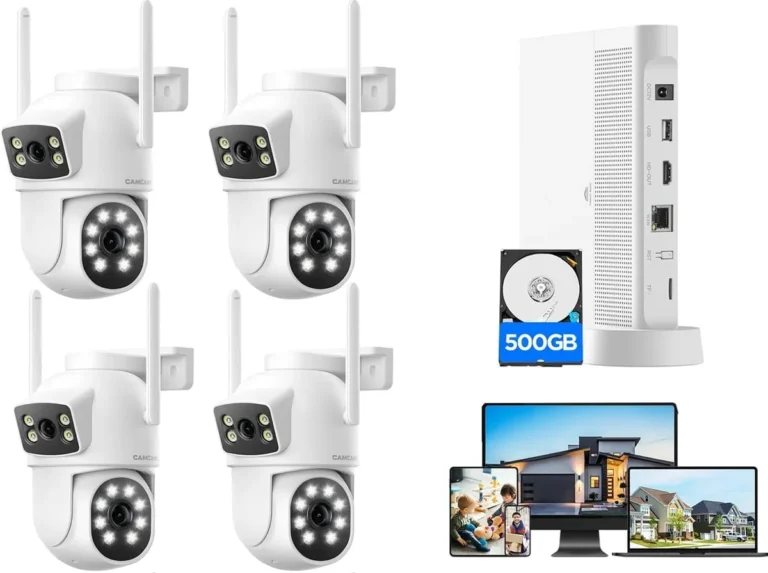
- Standalone IP Cameras: These are often wireless (Wi-Fi) or wired cameras that connect directly to your home network and are managed via a mobile app or web interface. They function as individual units. Resetting them usually involves interacting directly with the camera hardware or its specific software.
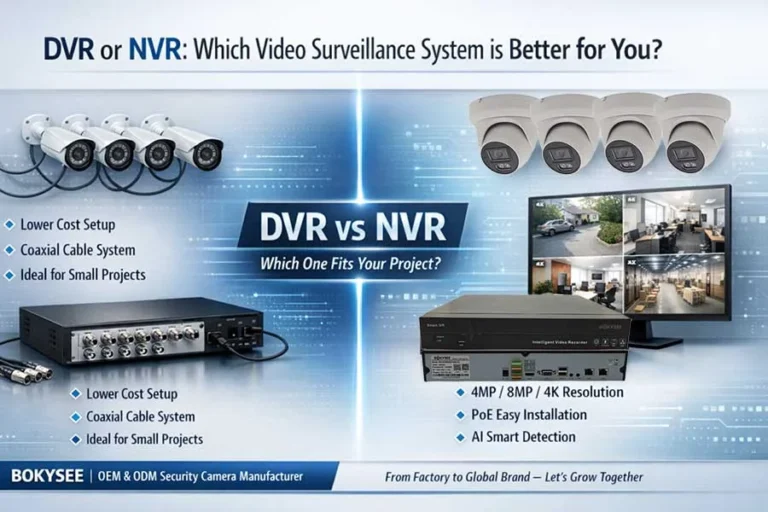
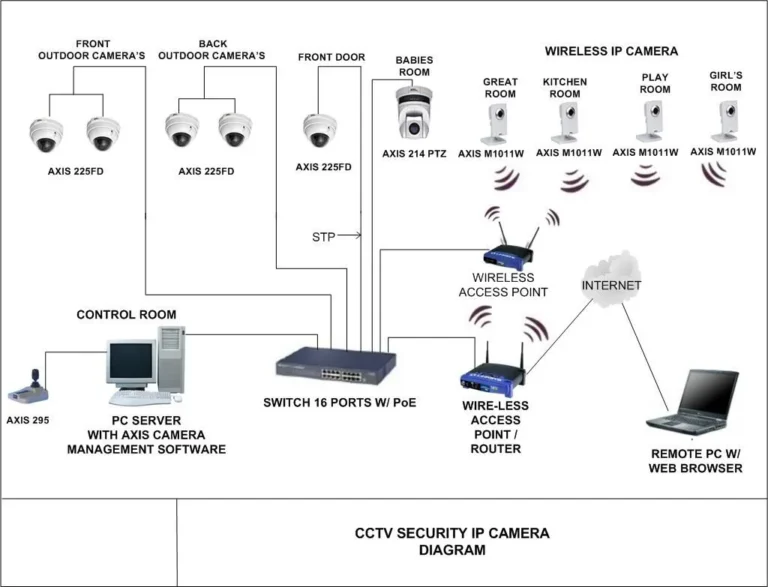
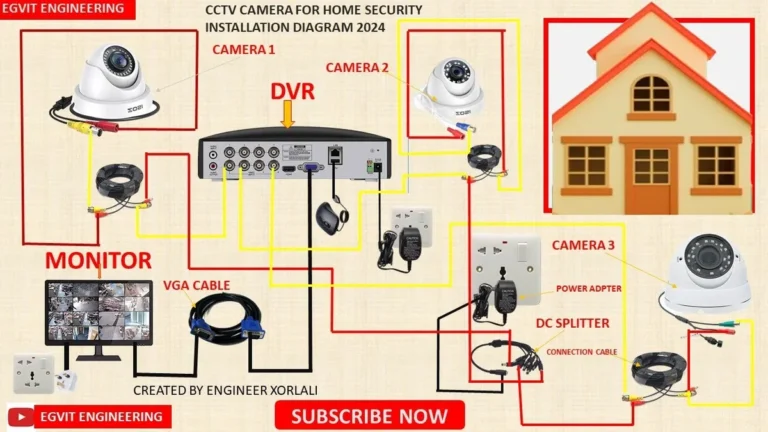
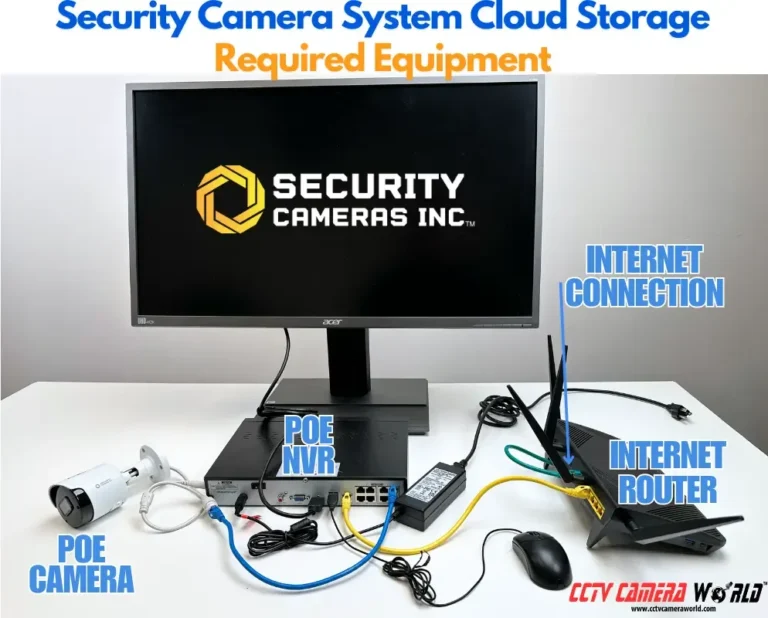
- NVR/DVR Systems: An NVR (Network Video Recorder) or DVR (Digital Video Recorder) is a central hub that manages multiple cameras. Cameras in these systems are typically wired directly to the recorder. Resetting here might involve the recorder itself, or sometimes individual cameras if they are network-enabled IP cameras.
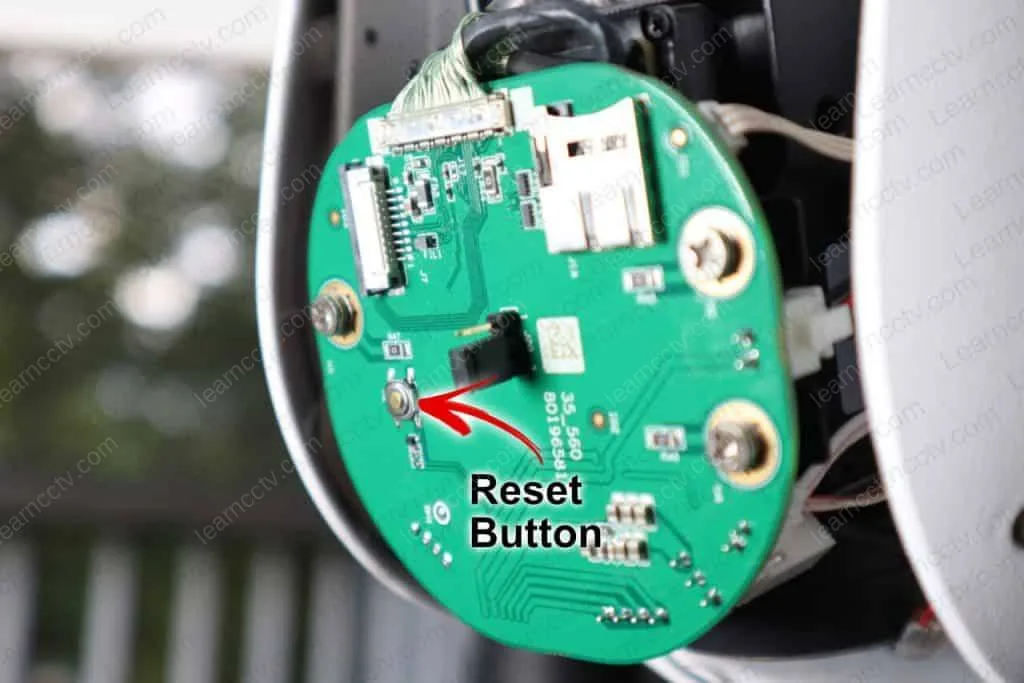
Image source: Bing (Web (fair-use with source credit))
Resetting Standalone IP Cameras
For most homeowners and small businesses using individual cameras, this is the most common scenario. These cameras, often connected via Wi-Fi, require specific steps to revert to factory settings.
The Physical Reset Button Method
This is often the quickest and most direct way to reset your standalone IP camera. The reset button is a physical control on the camera itself, designed for this purpose.
- Locate the button: Carefully inspect the camera body for a small, recessed button. It's often a pinhole, requiring a paperclip, a straightened staple, or a similar pointed object to press. Common locations include the bottom of the camera, near the lens, or on the mounting bracket.
- Power up the camera: Ensure the camera is powered on. Many reset functions require the device to be active to register the command.
- Press and hold: Gently insert your tool into the pinhole and press the button firmly. Hold it down for a period ranging from 10 to 30 seconds. You might feel a click, or see indicator lights on the camera flash or change color, signifying the reset is in progress.
- Release and wait: Let go of the button and allow the camera several minutes to reboot completely. It will go through its startup sequence, much like when you first unboxed it.
Using the Camera's Software Interface
If you can still access your camera's settings through its app or web interface, you might be able to perform a reset digitally. This is useful if the physical button is hard to reach or doesn't seem to be working.
- Access the camera's settings: Open the dedicated mobile app or log into the camera's web interface via a browser. You’ll need the camera's IP address for the web interface.
- Navigate to system or maintenance menus: Look for sections labeled "Settings," "System," "Advanced," "Maintenance," or "Device Management."
- Find the reset option: Within these menus, you should find an option like "Factory Reset," "Restore Defaults," or "Reboot to Factory Settings."
- Confirm the action: The system will likely prompt you to confirm that you wish to proceed, as this action is irreversible and will erase all your custom configurations.
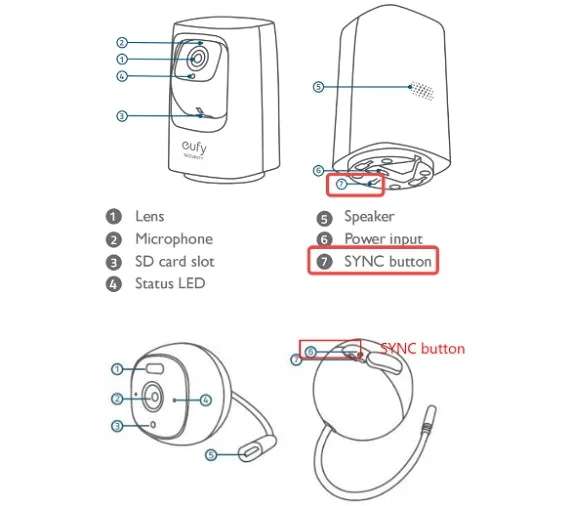
Image source: Web (Bing) / eufy.com (Web image (fair-use with source credit))
When to Grab Your Camera's Manual
Every camera brand and model can have slight variations in its reset process. While the methods above cover most cases, the most definitive guide is always your camera's user manual. If you've misplaced it, a quick online search for "[Your Camera Brand and Model] manual PDF" should yield the necessary documentation.
The manual will specify the exact button location, the required hold time, and any specific sequences needed for your particular device.
Resetting NVR/DVR Systems
If your cameras are part of a larger Network Video Recorder (NVR) or Digital Video Recorder (DVR) setup, the reset procedure often involves the recorder unit itself rather than just individual cameras. This is especially true for older analog camera systems where the recorder handles most of the processing and configuration.
- Resetting the Recorder Unit: Most NVRs and DVRs have a physical reset button, typically found on the back panel near the power connector or USB ports. Similar to standalone cameras, you’ll usually need to press and hold this button with a paperclip for 10-30 seconds while the unit is powered on. This action restores the recorder's settings to their factory defaults.
- Accessing the Recorder's Interface: If your NVR/DVR has an on-screen display (OSD) menu accessible via a connected monitor, or a web interface you can log into, you can often initiate a factory reset through those settings. Look for system, maintenance, or advanced configuration options within the menu.
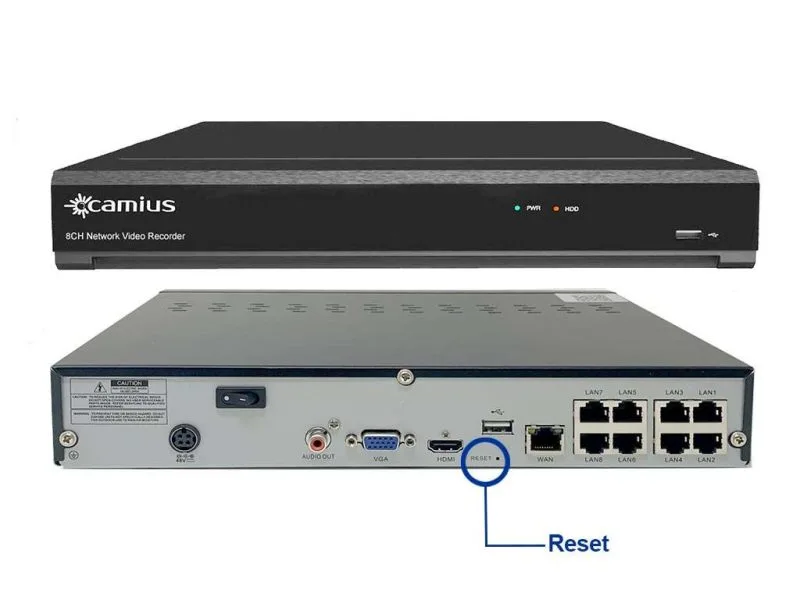
Image source: Bing (Web (fair-use with source credit))
- Individual Camera Resets in NVR/DVR Systems: If your NVR/DVR system uses IP cameras, these cameras might still have their own individual reset buttons, just like standalone IP cameras. In such cases, you would follow the procedures outlined for standalone IP cameras to reset each individual camera. However, remember that after resetting an individual camera, you may also need to re-register or re-add it to your NVR/DVR system through the recorder's interface.
Essential Steps After a Reset
Once you've successfully reset your CCTV camera or NVR/DVR system, it's back to its factory state. This means all your custom configurations, network settings, and personalized preferences are gone. You'll need to go through a re-setup process to get it back online and functioning as you need it to.
Reconnecting to Your Network
After a reset, the camera loses its connection to your Wi-Fi network or its assigned IP address within your local network.
- Find your network details: Make sure you have your Wi-Fi network name (SSID) and password readily available. If you're using a wired connection, ensure the Ethernet cable is securely plugged into both the camera and your router or NVR/DVR.
- Use the setup wizard: Most cameras, especially IP cameras, come with a setup wizard in their mobile app or on a web interface. Follow these prompts to connect the camera to your Wi-Fi network or assign it an IP address. You might need to check our guide on how to improve security camera WiFi signal if you encounter connection issues later.
- Re-add to NVR/DVR: If the camera is part of an NVR/DVR system, you'll likely need to go into the recorder's settings and manually add the camera back to the system. This process often involves searching for new devices on the network. You might need to re-enter the camera's default login credentials during this step.
Reconfiguring Camera Settings
With the camera back on your network, it's time to tailor its settings to your needs. This is a crucial step for ensuring your security system functions effectively.
- Set a strong new password: This is vital for security. Always choose a complex, unique password for your camera and NVR/DVR.
- Configure motion detection: If you use motion detection, you'll need to re-set the detection zones, sensitivity levels, and any scheduling for alerts. You can refer to our guide on how to fix security camera motion detection for advanced tips.
- Adjust recording settings: Decide if you want continuous recording, event-based recording, or a schedule. Understanding what is continuous recording on security cameras can help you make the best choice.
- Name your camera: Assign a descriptive name (e.g., "Front Door Cam," "Driveway Camera") to easily identify it in your system, especially if you have multiple cameras.
- Update firmware: It's often a good idea to check for and install the latest firmware updates after a reset to ensure you have the most secure and stable version of the camera's software. Our guide on how to update security camera firmware can assist with this.
Common Mistakes When Resetting Cameras
While resetting a CCTV camera is a straightforward process, a few common missteps can turn a simple fix into a frustrating ordeal. Being aware of these pitfalls can save you time and hassle.
Forgetting Default Credentials
This is perhaps the most frequent issue. After a factory reset, the camera reverts to its original default username and password. If you haven't noted these down or can't find them in the manual, you might find yourself locked out of a freshly reset camera.
Always have the default credentials handy before you begin the reset. You can often find these by searching online for "[Your Camera Brand] default password."
Not Backing Up Settings (If Possible)
Some advanced NVRs or even some standalone cameras offer a feature to back up their current configuration settings. If your device has this capability, taking a backup before performing a reset can save you significant time in reconfiguring everything. If your system doesn't offer this, be prepared to manually re-enter all your preferences.
Resetting the Wrong Device
In systems with multiple cameras or a recorder, it’s possible to accidentally initiate a reset on the wrong component. Always double-check which device you are targeting before pressing any buttons or confirming a digital reset. Resetting an NVR when you intended to reset a camera, for example, will undo much more configuration than you planned.
Your CCTV Camera Reset Decision Guide
When faced with a malfunctioning or misconfigured CCTV camera, a factory reset is often your most effective tool. However, it's not always the first step you should take, and it's crucial to understand the implications.
- If your camera is completely unresponsive or locked: A physical reset is your primary option. If that fails, then you'll need to consult the manufacturer's support.
- If you've forgotten your password: A reset is almost always necessary. Check your manual for default credentials, as you'll need them immediately after the reset.
- If the camera has minor glitches (e.g., occasional lag): Try a simple reboot first. If the problem persists, then consider a full factory reset. You might find tips for how to fix security camera video lag helpful before resorting to a reset.
- Before selling or giving away: A reset is mandatory to protect your privacy. Ensure all personal data is wiped. Our article on how to delete security camera recordings might be relevant if you're preparing to sell.
- If you've made significant network changes: Resetting the camera simplifies the process of re-establishing its connection to your new network.
Remember that a reset erases all custom settings. Always be prepared to reconfigure your camera after the process is complete. If you're unsure about any step, consulting the manufacturer's official documentation or support is always the safest bet.