Why Is My CCTV Camera Not Connecting to Wi-Fi?
Staring at a blank screen instead of your security feed is incredibly frustrating, and figuring out why your CCTV camera isn't connecting to Wi-Fi is a common headache. Many factors can interrupt this crucial link, from simple power issues to complex router settings. Fortunately, most connection problems are fixable with a systematic approach.
Let's break down the typical causes and walk through the solutions, drawing on manufacturer specifications and common network principles. As of 2026, the underlying technology for Wi-Fi connections hasn't changed drastically, so these troubleshooting steps remain highly effective.
Quick Answer: Why is my CCTV camera not connecting to Wi-Fi?
Your CCTV camera might not connect to Wi-Fi due to a weak signal. It could also be an incorrect password. Router settings like firewall rules or band selection can interfere.
Camera firmware issues or hardware faults are also possibilities.
Quick Fixes: The First Things to Check
Before diving into technical settings, let's cover the most basic reasons your camera might be offline. These simple checks often solve the problem faster than you might think.
Is the Camera Powered On?
This sounds obvious, but it's the most frequent culprit. Ensure the camera's power adapter is securely plugged into both the camera and a working electrical outlet. If your camera has an indicator light, check if it's illuminated.
Different models use different colors or blinking patterns to signify power status, so consult your camera's manual if you're unsure what the light means.
Is Your Home Wi-Fi Working?
If your other devices, like your smartphone or laptop, can't get online, the problem isn't with the camera; it's with your entire internet connection. Check if your modem and router have active internet lights. Try restarting your modem and router by unplugging them for about 30 seconds, then plugging them back in.
Wait a few minutes for them to fully boot up before checking your camera again.
Any Recent Changes to Your Network?
Did you recently change your Wi-Fi password, update your router's firmware, or even move your router? Any of these changes can disconnect your camera. If you changed your Wi-Fi password, you will absolutely need to update it in the camera's settings for it to reconnect.
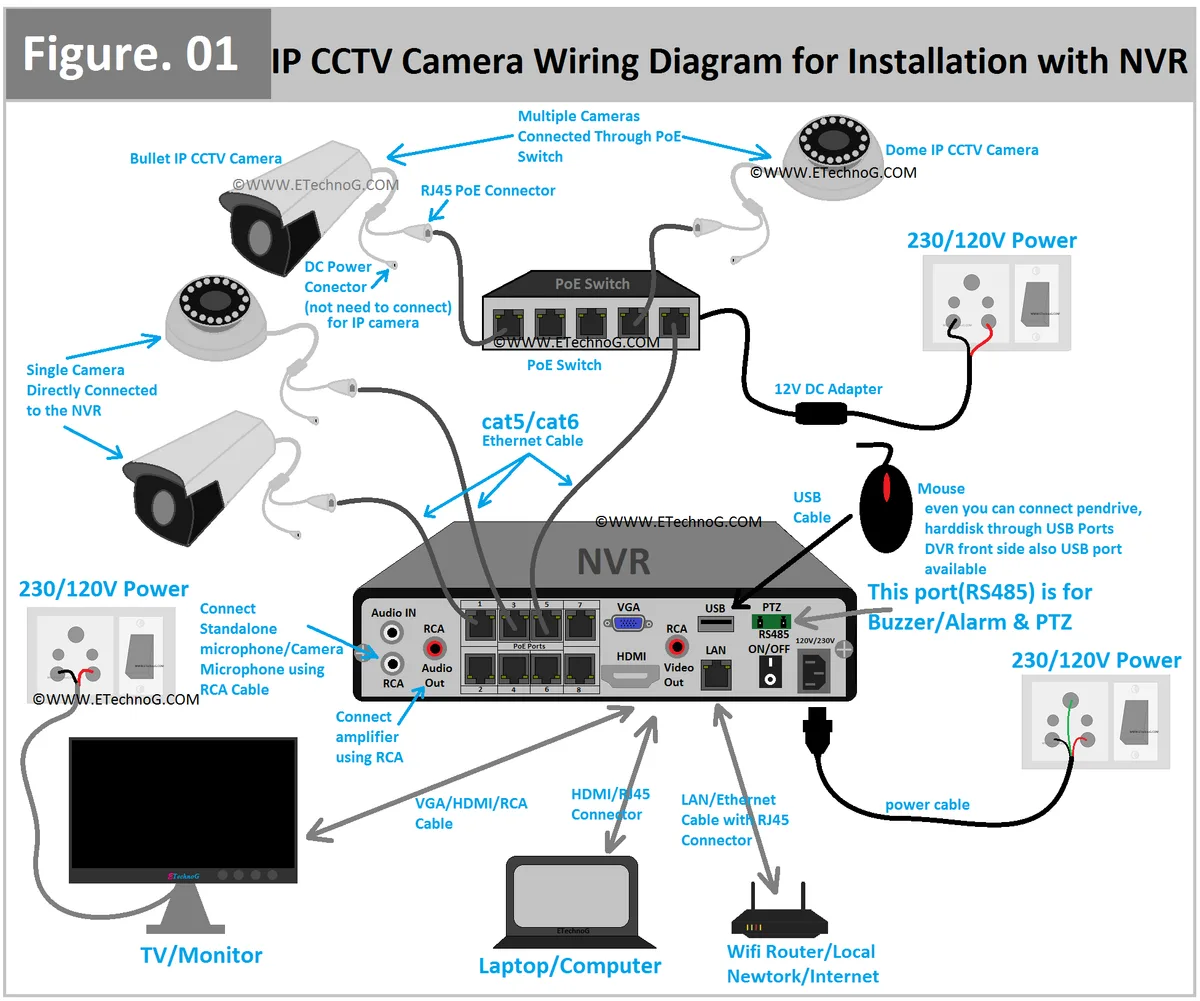
Image source: Web (Bing) / mx.pinterest.com (Web image (fair-use with source credit))
Understanding the Wi-Fi Connection Basics
CCTV cameras rely on a stable Wi-Fi connection to send video streams and receive commands. Understanding a couple of fundamental concepts can help pinpoint why that connection might be failing.
Signal Strength: The Invisible Link
Your camera needs a strong, consistent Wi-Fi signal to maintain a connection. If the camera is too far from your router, or if there are significant physical obstructions like thick walls, metal appliances, or even large furniture, the signal can weaken considerably. Aggregated user feedback suggests that a signal strength of at least -70 dBm is often needed for reliable video streaming.
If you suspect signal strength is the issue, try temporarily moving the camera closer to your router. If it connects, you know the problem lies in the distance or interference. This might necessitate using a Wi-Fi extender or a mesh Wi-Fi system to improve coverage.
You can learn more about how to improve security camera wifi signal in our dedicated guide.
2.4GHz vs. 5GHz Networks: Which Does Your Camera Need?
Most modern routers broadcast on two main Wi-Fi frequencies: 2.4GHz and 5GHz. The 2.4GHz band offers a wider range and better penetration through walls, making it ideal for devices further away from the router. However, it's more prone to interference from other devices like microwaves and Bluetooth gadgets, and it offers slower speeds.
The 5GHz band provides faster speeds and less interference but has a shorter range and struggles to pass through solid objects.
Many CCTV cameras, especially older or more budget-friendly models, are designed to work only on the 2.4GHz band. If your router broadcasts both and you've set them up with the same network name (SSID), your camera might struggle to connect to the correct band or might not connect at all. Some routers allow you to create separate SSIDs for each band.
For a 2.4GHz-only camera, ensuring it attempts to connect to the designated 2.4GHz network is crucial.
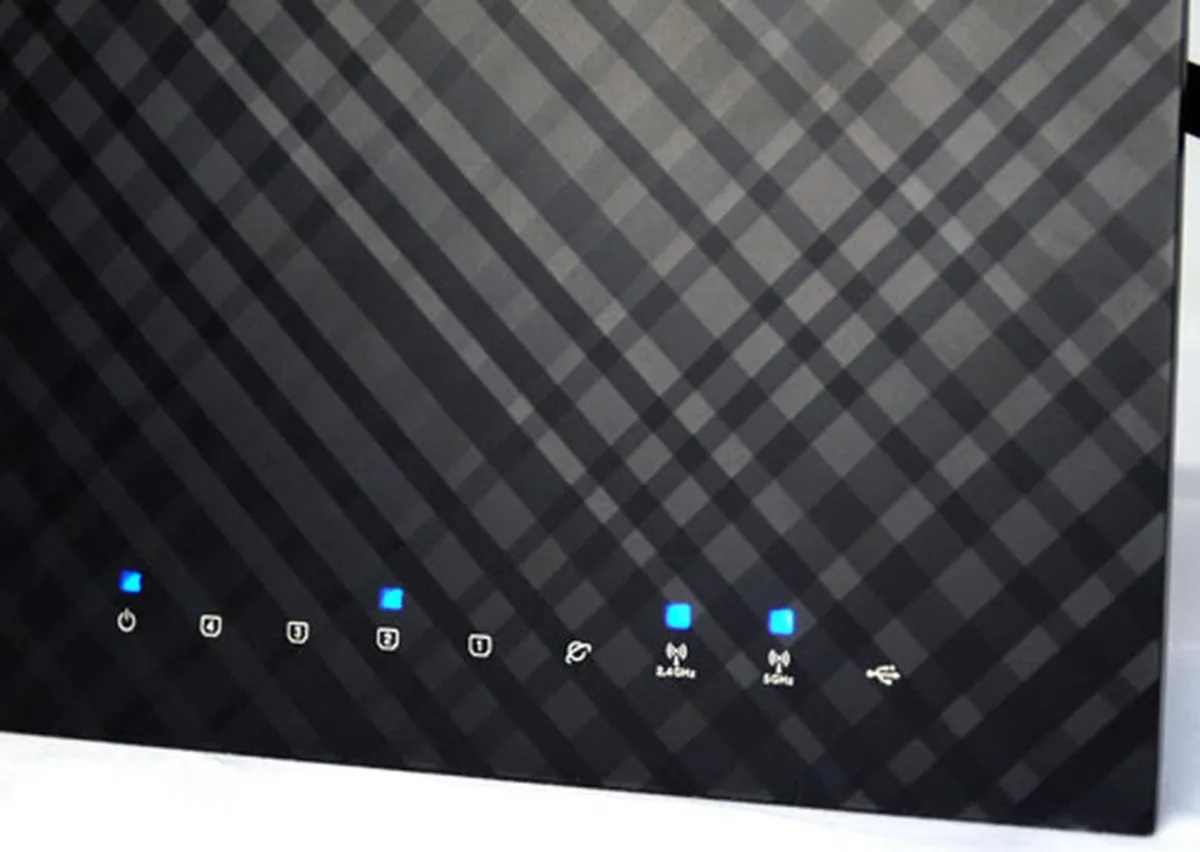
Image source: Bing (Web (fair-use with source credit))
Router Settings: The Gatekeeper of Connectivity
Your router is the central hub for your home network, and its settings play a critical role in device connectivity. Sometimes, specific configurations on your router can inadvertently block your CCTV camera.
Router Login and Network Name (SSID)
If you've recently changed your Wi-Fi network name (SSID) or password, your camera won't automatically recognize the new credentials. You'll need to access your camera's settings through its dedicated app or web interface to input the updated information. Sometimes, the camera's app will prompt you to re-enter network details if it detects a connection issue after a network change.
To access your router's settings, you'll typically type an IP address (like 192.168.1.1 or 192.168.0.1) into a web browser. The exact address and login details are usually found on a sticker on the router itself or in its manual.
MAC Address Filtering Explained
MAC (Media Access Control) address filtering is a security feature that restricts network access to only those devices whose unique MAC addresses are on an approved list. While it adds a layer of security, it can prevent new devices, like your CCTV camera, from connecting if their MAC address isn't added to the allowed list. To check this, log into your router's administrative interface.
Look for a section often labeled "Access Control," "MAC Filtering," or "Security Settings." If MAC filtering is enabled, you'll need to find your camera's MAC address (usually printed on the camera itself or in its app's device information) and add it to your router's whitelist. If you're unsure how to do this, consult your router's manual.
Firewall and DHCP Settings
Your router's firewall protects your network from external threats, but overly strict settings can sometimes block legitimate devices like your camera from communicating. Similarly, if your router's Dynamic Host Configuration Protocol (DHCP) server is full or malfunctioning, it won't be able to assign an IP address to your camera, preventing it from joining the network. Troubleshooting firewall issues might require temporarily disabling it to test connectivity.
If that works, re-enable the firewall and configure it to allow your camera's traffic. A simple restart of your router can often resolve temporary DHCP problems.
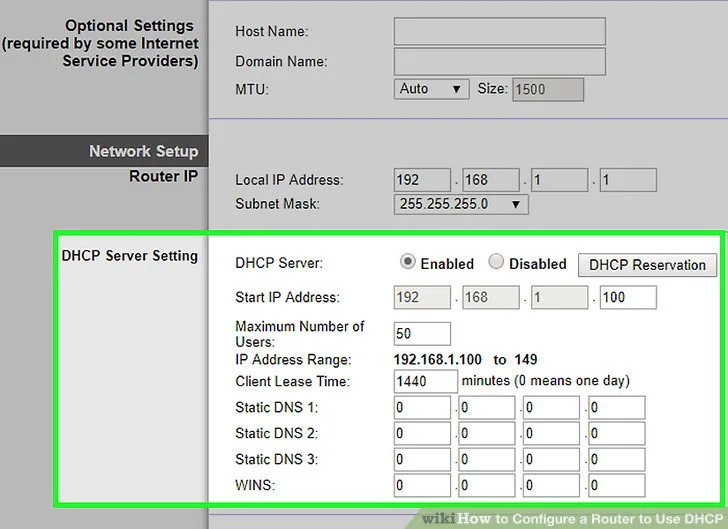
Image source: Web (Bing) / wikihow.com (Web image (fair-use with source credit))
Camera-Specific Troubleshooting
Sometimes, the issue isn't with your Wi-Fi network but with the camera itself. These internal factors can prevent a successful connection.
Camera Firmware Updates
Just like your smartphone or computer, CCTV cameras receive software updates, known as firmware. These updates often include bug fixes, performance improvements, and compatibility enhancements that can resolve connectivity issues. An outdated firmware version might no longer be compatible with recent router updates or security protocols.
To check for updates, open your camera's mobile app or web interface. Look for a section related to "Settings," "Device Info," or "Firmware Update." If an update is available, follow the on-screen prompts to install it. Ensure your camera remains powered on and connected to the network (if it was partially connected) during the update process.
You can learn how to update security camera firmware on our detailed guide.
Camera Reset: The Last Resort
If all other troubleshooting steps fail, performing a factory reset on your CCTV camera can often resolve persistent connectivity problems. A factory reset will revert the camera's settings back to their original default state, effectively clearing out any corrupted data or misconfigurations that might be causing the Wi-Fi connection failure. To perform a reset, locate the small reset button on the camera body.
You'll typically need a paperclip or a similar pointed object to press and hold this button for about 10-15 seconds, usually while the camera is powered on. After the reset, you will need to go through the initial setup process again using the camera's app to reconnect it to your Wi-Fi network. This process is detailed in our guide on how to reset a security camera.
Common Mistakes That Block Your Camera
Even with the best intentions, a few common oversights can keep your CCTV camera from connecting to your Wi-Fi. Recognizing these pitfalls can save you hours of troubleshooting.
Overlooking Signal Obstacles
It's easy to assume a camera should connect if it's "close enough" to the router. However, real-world environments are full of signal-blocking materials. Metal, thick concrete, even dense insulation can significantly degrade Wi-Fi strength.
Imagine trying to shout through a brick wall; your Wi-Fi signal faces similar challenges.
A common mistake is placing a camera behind a large appliance, inside a metal cabinet, or near multiple internal walls. If you've tried moving the camera closer with success, you know signal strength is the primary issue. For permanent fixes, consider solutions like how to improve security camera wifi signal.
Incorrectly Re-entering Passwords
This is incredibly common, especially after you've just changed your Wi-Fi password. Passwords are case-sensitive, and a single typo, like mistaking a '0' for an 'O' or missing a capital letter, will prevent connection. Many users assume the password entered is correct when it's not, leading to endless frustration.
If your camera is connected to a network with a new password, you must re-enter that exact password into the camera's settings. If you're still experiencing issues, it might be worth reviewing why is my security camera delayed. Sometimes, a connection issue can manifest as a performance problem later on.
When to Seek Professional Help
If you've gone through all the troubleshooting steps and your CCTV camera still won't connect to Wi-Fi, it might be time to call in an expert. Sometimes, the problem lies beyond basic network adjustments. This could involve complex router configurations that require advanced knowledge, such as setting up port forwarding or resolving IP address conflicts.
If your camera is older, or if you suspect a hardware failure, manufacturer support can be invaluable. They can diagnose potential internal component issues or guide you on replacement options. Don't hesitate to reach out to your internet service provider if you suspect your router itself is malfunctioning or if your overall internet service is unstable.
Frequently Asked Questions
Why does my CCTV camera keep disconnecting from Wi-Fi?
Disconnections often stem from an unstable Wi-Fi signal due to distance or interference. Router issues, like an overloaded DHCP server or weak signal strength, are also common. Sometimes, firmware glitches in either the camera or router can cause intermittent drops.
Can I connect my CCTV camera using a wired Ethernet cable instead of Wi-Fi?
Yes, many CCTV cameras offer an Ethernet port, allowing for a more stable, wired connection. This is often recommended for critical surveillance needs if a reliable Wi-Fi connection proves difficult to maintain. This bypasses wireless interference altogether.
How do I find my camera's MAC address?
Your camera's MAC address is typically found on a sticker on the device itself, often on the bottom or back. It's also usually listed within the camera's mobile app under device settings or specifications. This unique identifier is crucial for network access control.
What is the average range for a CCTV camera's Wi-Fi connection?
Manufacturer specifications for Wi-Fi range vary, but generally, a clear line of sight can extend up to 100-150 feet (30-45 meters) for 2.4GHz networks. However, real-world performance is significantly reduced by walls, floors, and other obstructions. For consistent performance, it's best to keep the camera within 50 feet (15 meters) of the router if possible.