Why Is My CCTV Camera Not Recording?
You rely on your CCTV camera to capture important moments, but when it suddenly stops recording, that peace of mind vanishes. It's a frustrating situation, especially when you need footage for security or evidence. Fortunately, most recording issues are not insurmountable and can often be fixed with a bit of troubleshooting.
Our research into common CCTV malfunctions shows that recording failures typically stem from a few key areas, often related to power, storage, or connectivity. Understanding these potential pitfalls is the first step to getting your system back online. We'll help you diagnose the problem, starting with the simplest fixes.
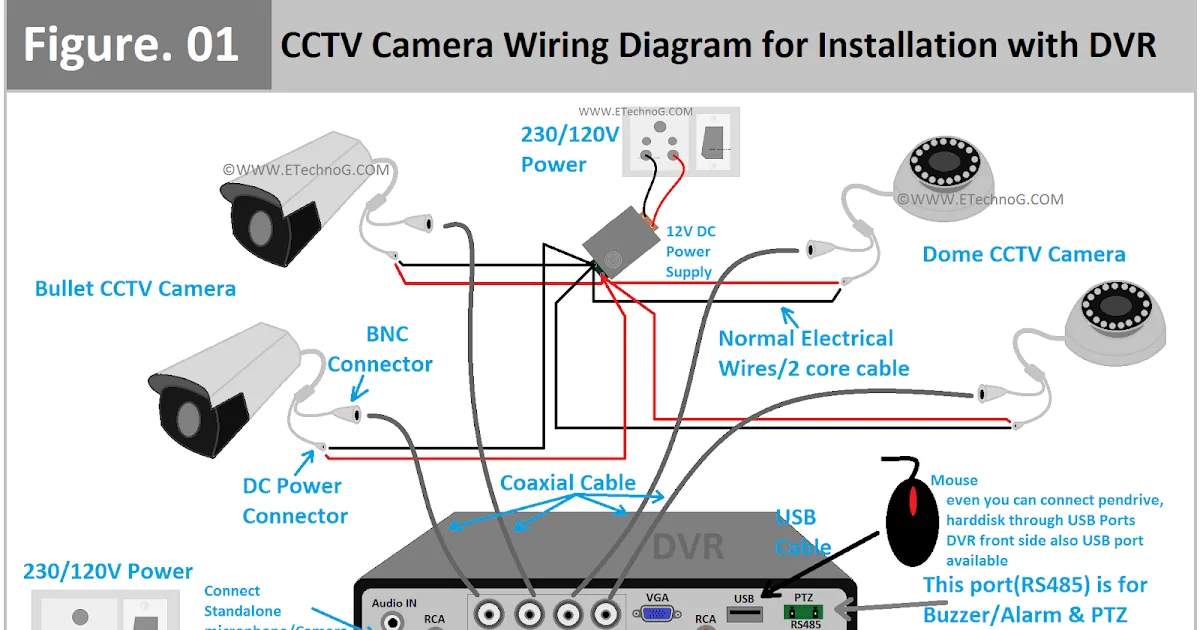
Image source: Bing (Web (fair-use with source credit))
Quick Answer: Common Causes for No Recording
Your CCTV camera might not be recording because of a power interruption, a full or faulty storage device (like a hard drive or SD card), a loose network connection, or incorrect software settings. Issues with firmware or the camera's internal components can also prevent recording. Checking power, storage status, and network links are the fastest ways to diagnose the problem.
1. Power & Basic Connections: The First Check
Before diving into complex settings, let's confirm the absolute basics are in order. A lack of power is the most straightforward reason a camera won't record, and it's easily overlooked. This stage is all about making sure your hardware has the juice it needs to operate.
Is the Camera Getting Power?
If your camera isn't powering on, it certainly can't record. This seems obvious, but double-checking connections is crucial. Ensure the power adapter is plugged firmly into both the camera and the electrical outlet or power source.
If your camera uses batteries, confirm they are fully charged or recently replaced. For systems connected to a central power supply, verify that unit is active and properly connected.
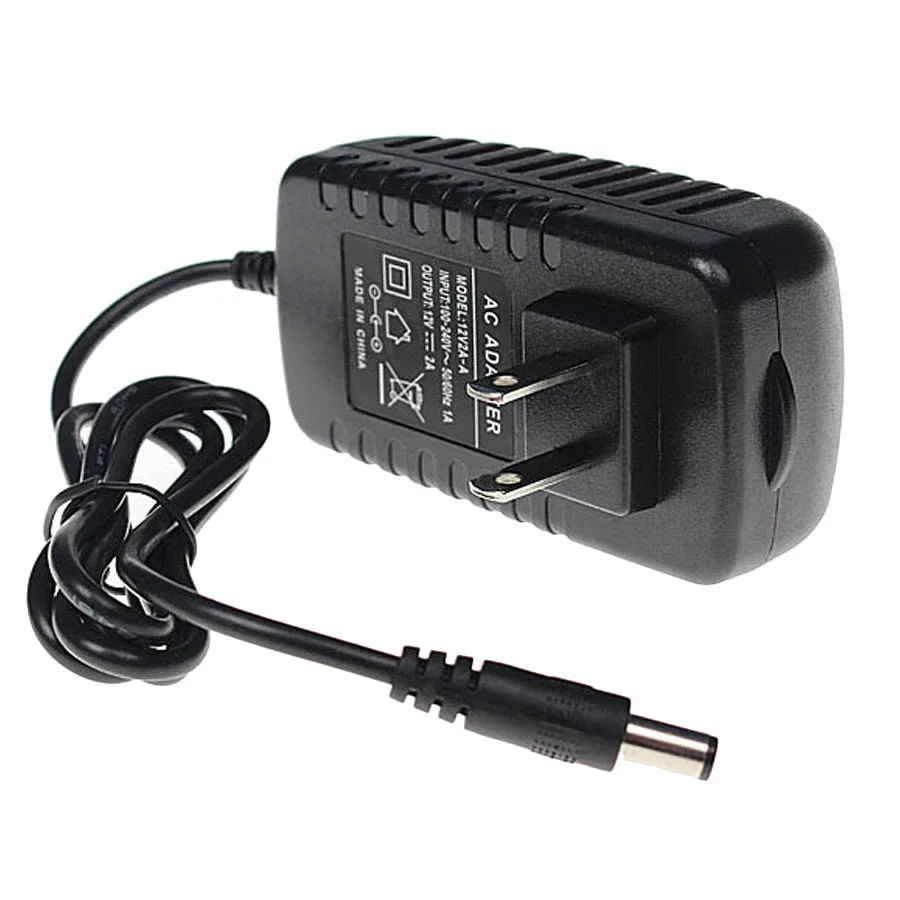
Image source: Bing (Web (fair-use with source credit))
- Check Adapter Connection: Make sure the power adapter's plug is fully seated in the camera's power port.
- Verify Outlet: Test the outlet with another small appliance, like a lamp, to confirm it's providing power.
- Battery Status: For battery-powered cameras, check the battery indicator in the app or on the device itself. A low battery will prevent recording.
- System Power: If you have a Network Video Recorder (NVR) or Digital Video Recorder (DVR) powering multiple cameras, ensure the recorder itself is powered on and its power indicator light is lit.
Are Recorder Cables Secure?
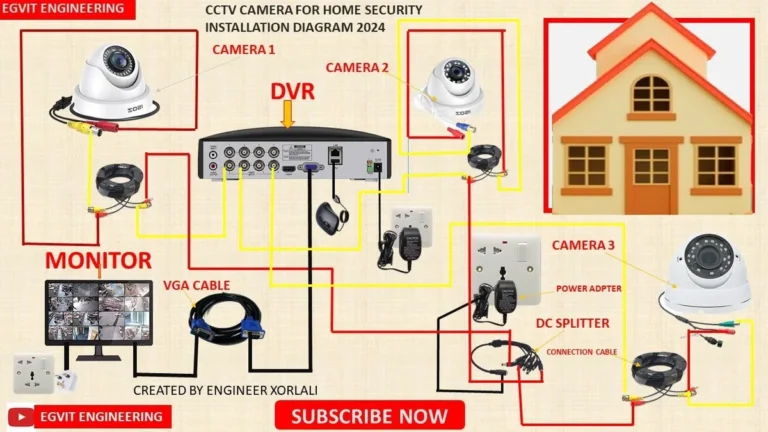
Your camera needs to communicate with its recording device, whether that's a local NVR/DVR or a cloud service. Loose or damaged cables can easily interrupt this communication, halting recordings. For wired setups, this means checking the physical connections.
- Ethernet Cables (for wired cameras): Ensure the Ethernet cable is securely plugged into both the camera's Ethernet port and the corresponding port on your NVR/DVR or router. A loose connection here means no data transfer.
- Video Cables (for some DVR systems): If you're using older coaxial or BNC cables, verify they are tightly connected at both the camera and the DVR.
- Power Cables for Recorders: Don't forget the recorder itself needs power. Just like the camera, its power adapter must be securely connected.
2. Storage Issues: Where Will Recordings Go?
A camera's ability to record hinges on having a place to store the video files. If the storage is full, corrupted, or faulty, recordings will stop. This is one of the most frequent reasons for a CCTV system to cease recording.
Hard Drive Problems: Full, Faulty, or Failing?
For NVRs and DVRs, a hard drive (HDD) is the primary storage medium. Over time, these drives can develop issues that prevent recording.
- Drive Full: Most systems are set to continuously overwrite old footage once the drive is full, a setting known as loop recording. However, if this feature is disabled or if the drive is encountering errors, it might simply stop recording when it runs out of space. Check your NVR/DVR's display or app for "Disk Full" or "HDD Error" messages. Aggregate user reviews report that drives typically last 3-5 years under continuous use.
- Drive Faulty or Failing: Hard drives have a finite lifespan. A failing drive can cause recording interruptions, errors, or even prevent the system from booting correctly. You might hear clicking or grinding noises from the recorder's location. Manufacturer specifications for surveillance-grade HDDs often indicate a Mean Time Between Failures (MTBF) of 1 million hours, but physical damage or age can cause premature failure.
- Drive Not Detected: The system might not "see" the hard drive at all. This could be due to a loose SATA data or power cable inside the recorder, or the drive itself may have failed completely.
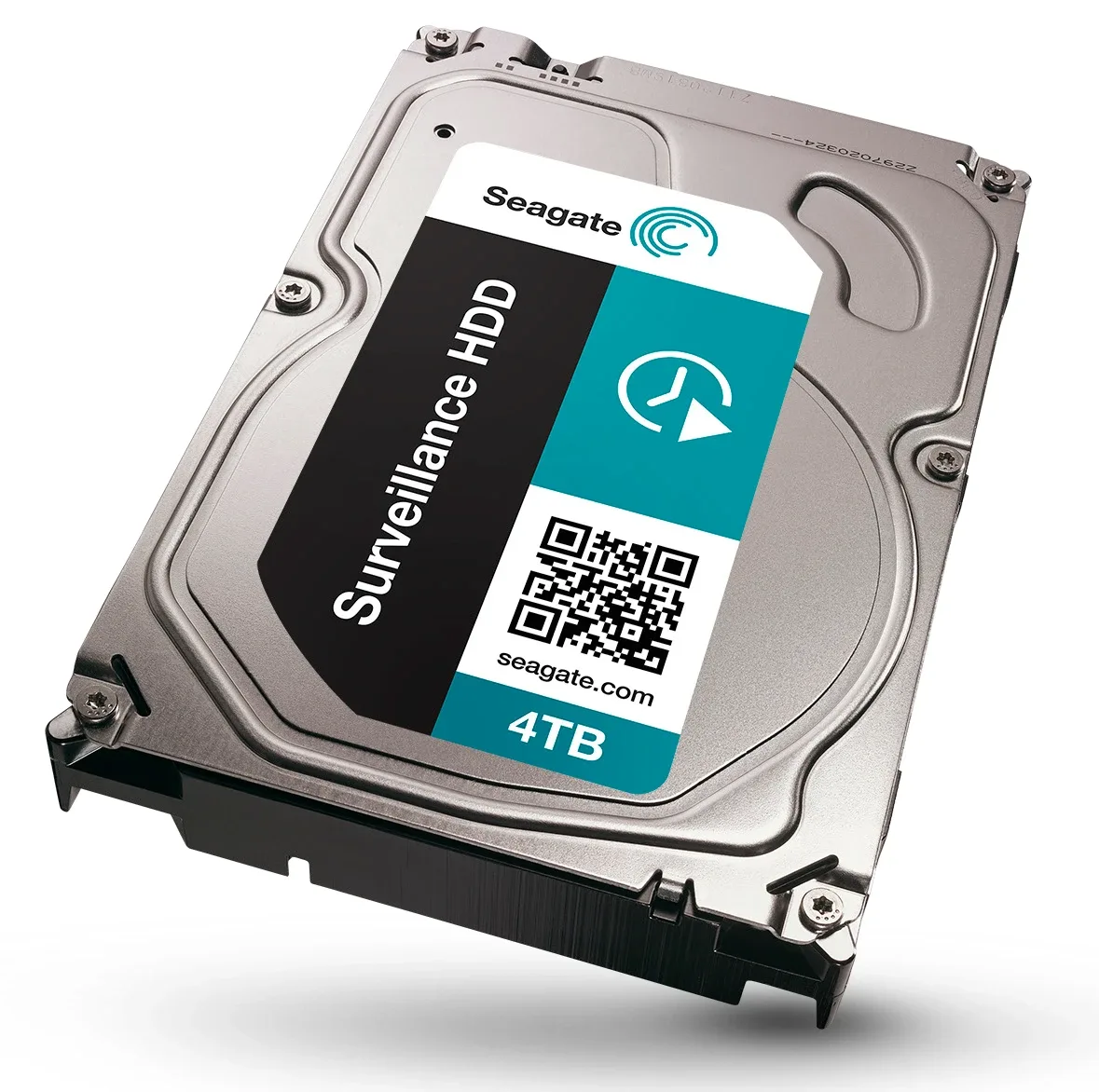
Image source: Web (Bing) / newtechindustries.com (Web image (fair-use with source credit))
SD Card Woes: Full, Corrupt, or Wrong Type?
Cameras that record directly to a removable Secure Digital (SD) card bypass the need for a separate NVR/DVR for basic recording. However, SD cards come with their own set of potential problems.
- Card Full: Like a hard drive, an SD card can only hold so much data. If loop recording isn't enabled, or if it malfunctions, the card will fill up and stop recording. You'll usually need to manually delete old footage or format the card to free up space. Per our research, a 256GB SD card can typically store around 1-2 weeks of continuous HD footage, depending on the camera's settings.
- Card Corrupted: SD cards can become corrupted due to sudden power loss, improper removal, or general wear and tear. A corrupted card may not be readable by the camera, leading to recording failures. Reformatting the card often resolves this, but it will erase all data.
- Incompatible or Low-Quality Card: Not all SD cards are created equal. Cameras, especially those recording high-resolution video, require specific types of cards (e.g., Class 10, U3, V30, or A2 rated for endurance). Using a card that's too slow or not designed for continuous writing can lead to recording errors and premature failure. Always check your camera's manual for recommended SD card specifications.
3. Network & Connectivity: Talking to the Recorder
For cameras that transmit footage over a network to an NVR, DVR, or cloud storage, a stable connection is paramount. Any interruption or degradation in the network signal can prevent recordings from being saved. This applies to both wired Ethernet connections and wireless Wi-Fi links.
Wired Camera Connection Check
If your CCTV camera uses an Ethernet cable to connect to your network or recorder, a solid physical connection is essential. This is often the most reliable type of connection, but even it can have issues.
- Cable Integrity: Visually inspect the Ethernet cable for any signs of damage, such as kinks, cuts, or worn insulation. A damaged cable can cause intermittent signal loss or complete failure.
- Port Connections: Ensure the cable is firmly seated in the Ethernet port on both the camera and the NVR/DVR or router. You should feel or hear a slight click when it's properly plugged in.
- Router/NVR Port Functionality: Try plugging the Ethernet cable into a different port on your router or NVR. One of the ports might have failed, or the specific port might be experiencing issues. If you notice your camera's link light isn't illuminated on the NVR/DVR, it's a strong indicator of a connection problem.
Wireless Camera Wi-Fi Status
Wireless cameras offer flexibility but introduce more potential points of failure, primarily related to the Wi-Fi signal. If the camera can't maintain a stable connection to your Wi-Fi network, it won't be able to send its video stream for recording.
- Signal Strength: Check the Wi-Fi signal strength reported by the camera in its mobile app or web interface. Weak signals can lead to dropped connections and recording interruptions. Obstructions like thick walls, metal objects, or other electronic devices can interfere. Our research indicates that Wi-Fi signal strength often drops significantly beyond 50 feet from the router or when passing through multiple walls.
- Network Congestion: If your Wi-Fi network is overloaded with many devices, it can cause issues for your security cameras. Reducing the number of active devices or upgrading your router might help.
- Router Settings: Ensure your router's firmware is up to date and that it’s not blocking the camera's connection through MAC filtering or firewall rules. A router reboot can sometimes resolve temporary network glitches. You may need to re-enter your Wi-Fi password on the camera if the network details have changed. A common recommendation from network engineers is to keep security cameras on a dedicated 2.4GHz band if possible, as it offers better range through obstacles than 5GHz.
4. Software & Settings: The Hidden Culprits
Sometimes, the hardware is working perfectly, but incorrect software configurations are preventing your CCTV camera from recording. These settings, often buried within menus, can easily be overlooked. As of 2026, most modern systems offer a wide array of customization options, making misconfiguration a common issue.
Recording Schedule Glitches
Many CCTV systems allow you to set specific times or days for recording. If your camera is only configured to record during certain hours, it will appear to have stopped recording outside those times. This is often mistaken for a malfunction.
- Check Scheduled Times: Access your camera's or recorder's settings menu and look for a "Recording Schedule" or "Schedule Settings" option. Ensure that recording is enabled for the times you expect it to be active.
- Continuous vs. Event Recording: Understand if your system is set to record continuously or only when motion is detected. If you're expecting continuous footage but have it set to event-based recording with no events triggered, it won't record. This is detailed further in guides on what is event-based recording.
- Daylight Saving Time: Some older systems may not automatically adjust for daylight saving time, causing recording schedules to be off by an hour.
Motion Detection & Trigger Settings
If your camera is set to record only when motion is detected, and it's not recording, the motion detection system itself might be the problem. This means either no motion is being registered, or the system isn't set up to trigger a recording when it does. Per industry standards for motion detection, sensitivity levels are crucial.
- Sensitivity Too Low: If the motion detection sensitivity is set too low, the camera might not pick up even significant movements. Try increasing the sensitivity.
- Detection Zone Misconfiguration: The defined area where the camera looks for motion might be incorrectly set. Perhaps it's too small, or it's focused on an area where no movement occurs. Adjust the detection zone to cover the relevant areas.
- No Motion Occurring: It's possible that no significant motion has occurred within the camera's view during the times you expected recordings. Reviewing the live feed or checking event logs can help confirm if motion was actually present. Issues with motion detection often lead to frustration, and many find solutions on how to fix security camera motion detection.
Firmware Updates & Bugs
Firmware is the internal software that controls your camera's or recorder's operations. Like any software, it can have bugs or glitches that affect performance, including recording capabilities. Outdated firmware can also sometimes cause compatibility issues with newer storage devices or network protocols.
- Check for Updates: Manufacturers regularly release firmware updates to fix bugs and improve functionality. Check your camera manufacturer's website or your NVR/DVR's interface for available updates. Guides on how to update security camera firmware can provide detailed steps.
- Recent Update Issues: In rare cases, a newly installed firmware update might introduce a problem. If recording stopped immediately after an update, consider rolling back the firmware if possible, or contact the manufacturer for support.
- Compatibility: Ensure the firmware is compatible with your specific camera model and operating system. Using incorrect firmware can render the device inoperable.
5. When the Camera Itself Might Be the Problem
If you've diligently worked through power, storage, and connection checks, and the software settings seem correct, the issue might lie within the camera's hardware itself. Sometimes, a component fails, or the device enters an error state that prevents normal operation. This is less common than configuration issues but certainly possible.
No Lights, No Life: Camera Power Failure
If the camera shows absolutely no signs of life, no indicator lights, no response when you try to access it, and you've confirmed its power adapter is working and securely connected, the camera itself might have suffered a power failure. This can happen due to internal component failure, power surges, or simply reaching the end of its operational life. Replacing the power adapter with a known good one is the first step.
If that doesn't work, the camera might be the part that needs replacement.
Error Codes & Diagnostics
Many advanced CCTV cameras and recorders will display specific error codes or messages on their interface or within their mobile app when something is wrong. These codes are designed to give you a precise clue about the problem. For instance, an "Error 21" might point to a storage issue, while an "Error 53" could indicate a network communication failure.
Consult your camera's or recorder's user manual for a full list of error codes and their meanings. These manuals are your best bet for deciphering what the device is trying to tell you directly.
6. Troubleshooting Mistakes to Avoid
When you're trying to get your CCTV system back up and running, it's easy to make a few common mistakes that can either waste your time or even worsen the problem. Being aware of these pitfalls can save you a lot of headaches.
- Skipping the Basics: Jumping straight to advanced settings without first checking power and cable connections is a classic error. Always start with the simplest potential causes. This includes ensuring your NVR or DVR has a stable internet connection, which is crucial for remote viewing and cloud storage functionalities.
- Ignoring Error Messages: If your system displays an error code, don't just ignore it hoping it will go away. These messages are your system's way of telling you exactly what's wrong. Referring to the user manual for these codes is critical.
- Reformatting Without Backing Up: If you're prompted to reformat an SD card or hard drive, remember this erases all data. If there's any chance some footage might be salvageable or important, try to back it up first. Data recovery specialists are an option, but they can be costly.
- Using Generic Parts: Substituting power adapters or cables with generic ones that aren't specifically rated for your camera or recorder can lead to damage or unreliable performance. Always use manufacturer-approved accessories or those with identical specifications. Using components that don't meet the original equipment manufacturer's (OEM) standards can void warranties.
7. Is the Camera Getting Enough Bandwidth?
Even if your camera is powered on and connected, it needs sufficient bandwidth to transmit video data reliably for recording. Bandwidth is the maximum amount of data that can be sent over your network connection in a given time. If your network is congested or the camera is trying to send more data than your connection can handle, recording can fail or become intermittent.
Understanding Bandwidth Needs
The amount of bandwidth a camera requires depends heavily on its resolution, frame rate (FPS), and compression technology. For example, a 4K camera recording at 30 frames per second will consume significantly more bandwidth than a 1080p camera at 15 FPS. Our research indicates that a single 1080p camera streaming at 30 FPS typically requires about 4-8 Mbps of upload bandwidth.
If you have multiple cameras, these requirements add up quickly. Understanding how much data a security camera uses is key.
Common Bandwidth Bottlenecks
- Home Network Congestion: Many devices using your Wi-Fi simultaneously can saturate your available bandwidth. If other family members are streaming HD video, gaming, or downloading large files, your camera's data stream can be pushed aside.
- Router Limitations: Older routers may not be able to handle the demands of multiple high-resolution security cameras, especially if they are also struggling with other network traffic. Features like Quality of Service (QoS) settings on your router can help prioritize traffic for your cameras.
- Internet Service Provider (ISP) Caps: Your internet plan has a maximum upload speed. If your cameras' combined bandwidth needs exceed your ISP's offered speed, recordings may be incomplete or stop altogether. This is particularly relevant for cloud recording systems.
8. When to Call in the Professionals
While many recording issues are fixable with basic troubleshooting, some problems are more complex and might require expert attention. If you've exhausted all the steps outlined here and your camera still isn't recording, it might be time to seek professional help.
- Persistent Hardware Failures: If you suspect a failing hard drive in your NVR/DVR, a damaged camera component, or a recurring power issue that you can't resolve, a technician can diagnose and replace the faulty hardware. They have the specialized tools and knowledge to safely handle these components.
- Complex Network Setup: If your network is particularly complex, with multiple routers, switches, or advanced configurations, a network specialist can help identify subtle connectivity issues that are impacting your camera's recording. This is especially true for larger business installations.
- System Integration Problems: If you have a mixed system with cameras and recorders from different manufacturers, integration issues can arise. A professional installer can ensure all components are compatible and configured correctly.
When calling for service, be prepared to describe the troubleshooting steps you've already taken. This helps the technician narrow down the problem faster. You can also find information on how to transfer security camera footage if you need to provide evidence of the issue.
9. Frequently Asked Questions About Recording Failures
### Why did my camera stop recording after a power outage?
Power outages can disrupt recording in several ways. The system might have shut down abruptly, potentially corrupting data or causing a temporary glitch. Your recorder's hard drive might be full and unable to restart recording without a reboot, or the network connection might need to be re-established.
Always check your power source, network connection, and storage device status after an outage.
### Can I recover deleted security camera footage if my camera isn't recording?
Recovering deleted footage is sometimes possible, but it depends on whether the data has been overwritten and the storage method used. If you acted quickly after deleting files or if the drive is not yet full, professional data recovery services or specific software might help. However, success is not guaranteed, and for continuously recording systems, deleted files are often lost permanently once new data is written over them.
You can find resources on how to recover deleted security camera footage.
### How long should security footage be kept?
The duration for which security footage should be kept varies based on legal requirements, industry standards, and personal needs. Some jurisdictions mandate keeping footage for 30, 60, or 90 days. For businesses, this might be dictated by compliance regulations.
For home use, it's often a balance between storage capacity and how far back you realistically might need to check. It's important to know how long security footage should be kept.
### My camera is recording, but the video is delayed. What's wrong?
Video delay, often called lag, can be caused by several factors. Your network connection might be too slow or unstable, leading to packet loss. The camera's processing power might be struggling with the resolution or frame rate settings, or the NVR/DVR could be overloaded.
High bandwidth usage on your network can also contribute to this issue. You can explore solutions by looking into how to fix security camera video lag.
### Do security cameras use a lot of WiFi?
Yes, security cameras, especially those recording high-definition video continuously or sending large files to the cloud, can use a significant amount of WiFi bandwidth. A single HD camera can consume several megabits per second (Mbps) of upload and download bandwidth. The total usage depends on the camera's resolution, frame rate, and whether it's recording events or continuously.
It's worth checking if security cameras use a lot of WiFi to plan your network capacity.
### How much data does a security camera use?
The amount of data a security camera uses varies greatly. A basic 1080p camera recording at 15 frames per second (FPS) might use around 2-4 GB per day. However, a 4K camera recording at 30 FPS could use upwards of 20-50 GB per day or more.
Continuous recording uses significantly more data than event-based recording. Understanding how much data a security camera uses is crucial for managing storage and internet plans.