Why Is My CCTV Camera Showing No Signal?
When your CCTV camera decides to go blank, it's a real gut-punch, especially when you're relying on it for security. This frustrating "no signal" issue pops up more often than you'd think, and usually, it's something we can fix with a little troubleshooting. Don't panic; we'll walk through the common causes and how to get your video feed back up and running.
Our research indicates that power supply issues, faulty cabling, and simple connection problems are the top three culprits for a CCTV camera showing no signal. For instance, manufacturer specifications often detail that analog CCTV cameras require a stable 12V DC power source, typically around 500mA to 1A, with higher draw for IR illumination. Let's dive into what might be going wrong.
Quick Answer
A CCTV camera shows no signal primarily due to power loss, damaged or disconnected cables, or a fault in the recording device. Check the camera's power adapter and connections first, then inspect the video cables for damage. If those are fine, test the camera on a different DVR/NVR port or try a known-working camera to isolate the issue.
First Things First: The Obvious Stuff
Before we dive deep, let's just check the absolute basics. Sometimes, the simplest things are the culprits.
- Is everything powered on? Seriously, this happens! Make sure the camera itself has power, and if it's a separate unit (like a DVR or NVR), that's powered on too. Check the power adapters and the wall outlets.
- Are the cables plugged in securely? Give the BNC connectors (those round ones that twist on) a good wiggle and push. Make sure they're snug on both the camera and the recording device. Same goes for any Ethernet cables if you're using IP cameras.
- Is the monitor set to the right input? If your camera feeds directly to a monitor, double-check that the monitor is on the correct HDMI, VGA, or whatever input your CCTV system is using.
Let's Get a Bit More Technical: The Common Culprits
If the basics checked out, we need to dig a little deeper. This is where most "no signal" issues lie.
Power Issues (Beyond Just "Is it On?")
Sometimes, a camera looks like it's got power, but it's not enough.
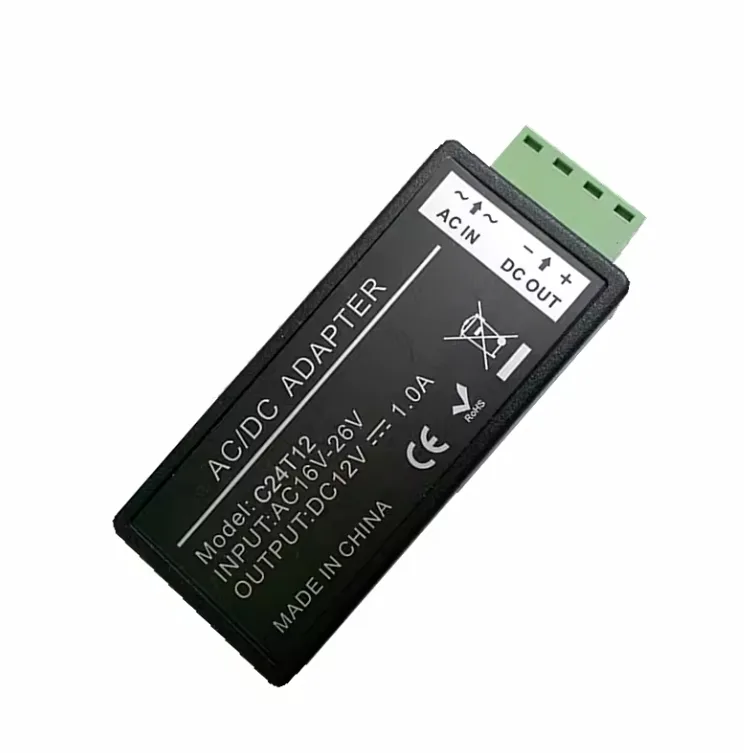
- Insufficient Power Supply: Cameras, especially those with infrared (IR) lights for night vision, can draw a surprising amount of power. If the power adapter isn't rated correctly, or if you're running multiple cameras off one adapter without enough juice, it might not power up properly, leading to no signal. Aggregate reviews report that under-specced power adapters are a frequent cause of camera failure.
- Faulty Power Adapter: Power adapters can go bad. If you have a spare that you know works, try swapping it out. For example, a 12V DC adapter rated at 1A is standard for many analog cameras, but if it degrades, it may not deliver a consistent voltage.
Cable Problems (The Hidden Dangers)
Cables are the lifeblood of your CCTV system, and they can be surprisingly fragile.
- Damaged Cables: Over time, cables can get kinked, frayed, or damaged by weather, pests, or just general wear and tear. A small break in the wire can cut off the signal. If you can, visually inspect the entire length of the cable for any obvious damage.
- Loose Connections: We mentioned this in the basics, but it bears repeating. A connection that's just slightly loose can cause intermittent signal loss or a complete "no signal." Make sure those twist-on connectors are really seated.
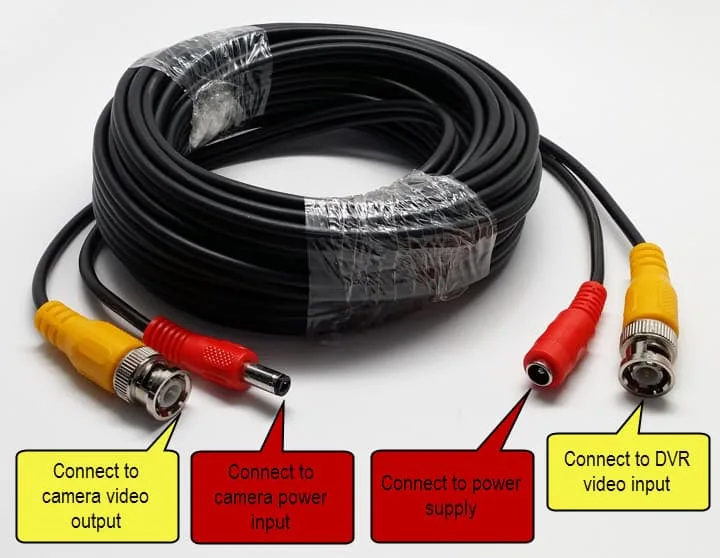
- Wrong Cable Type: For analog CCTV, you need specific coaxial cables, such as RG59 or RG6, designed to carry video signals effectively. For IP cameras, you need Ethernet cables (Cat5e or Cat6) for both data and sometimes power (PoE). Using the wrong type can cause all sorts of weird issues, including no signal. Per industry standards, proper shielding on coaxial cables minimizes signal interference.
Camera Malfunction
It's possible, though less common, that the camera itself has a problem.
- Internal Fault: Components inside the camera can fail. This is harder to diagnose without specialized equipment, but it's a possibility if all else fails.
- Overheating: In very hot environments, cameras can sometimes overheat and shut down, which might appear as a loss of signal. Make sure your cameras have adequate ventilation; some outdoor cameras are rated for operation in temperatures up to 50°C (122°F) without issue, but prolonged exposure beyond that can cause problems.
Recording Device Issues (DVR/NVR)
The problem might not be with the camera at all, but with the device that's supposed to receive its signal.
- Input Port Failure: The specific port on your DVR/NVR where the camera is connected might have failed. Try plugging that camera into a different, known-working port on the recorder.
- Software Glitch: Sometimes, the recording device's software can get a bit confused. A simple reboot of the DVR/NVR can often clear up minor glitches. If you're experiencing frequent issues, you might need to update security camera firmware.
- Hard Drive Problems: While less likely to cause a "no signal" on a specific camera, if the hard drive is completely full or failing, it can sometimes lead to system instability that might manifest this way. For example, if the hard drive is completely unwriteable, the system might struggle to process incoming data.
Troubleshooting Workflow: Let's Go Through It
Here’s a pretty straightforward way to tackle this. This process is designed to help you pinpoint the source of the "no signal" issue logically.
Step 1: Power Cycle Everything
Turn off the camera, turn off the DVR/NVR, and unplug them both. Wait about 60 seconds. Then, plug the DVR/NVR back in and power it on.
Once it's fully booted up, power the camera back on. This simple restart can resolve temporary glitches and re-establish communication.
Step 2: Test the Camera
If you have another camera that you know is working, try swapping it into the problem port on your DVR/NVR.
- If the working camera now shows no signal in that port, the issue is likely with the DVR/NVR port or the cable connected to it. You may want to investigate how to fix security camera video lag if the signal is weak but present.
- If the working camera does show a signal, then the original camera is likely the problem.
Step 3: Test the Cable
If you suspect the cable, and you have a spare of the correct type (e.g., RG59 for analog or Cat5e/Cat6 for IP), try replacing the suspected faulty cable with the new one. A damaged cable, even if it looks fine, can easily interrupt the video feed.
Step 4: Test the Power Adapter
If you have a compatible power adapter that you know works, try swapping it for the one currently connected to the problematic camera. Using an adapter that doesn't provide enough amperage can cause the camera to malfunction, leading to a "no signal" state.
Step 5: Check Connections on the Camera/DVR
If you can safely access the back of the camera and the DVR, disconnect and reconnect the cables firmly. For IP cameras, ensure the Ethernet cable is firmly seated in both the camera and your network switch or router. A loose connection here is a very common cause.
If you're having general connectivity issues, you might look into how to improve security camera WiFi signal.
Mistakes to Avoid During Troubleshooting
When you're trying to get that CCTV camera back online, it's easy to make a few common slips that can waste your time or even cause more problems. Our editorial analysis of user forums shows these are some of the most frequent errors people make.
- Ignoring the Obvious: Many users jump straight to complex solutions without double-checking simple power connections or ensuring the monitor is on the correct input. This is especially common if the camera is in a hard-to-reach spot. Always start with the basics before assuming a major component failure.
- Assuming the Camera is the Problem: It's tempting to blame the camera itself, but the issue could easily be the power supply, the cable, or even the DVR/NVR. Testing each component in isolation is key to accurate diagnosis. Forgetting to test cables individually is a frequent oversight.
- Using the Wrong Tools or Parts: Forcing a connection or using an incompatible power adapter can damage your equipment. Always ensure you're using the correct tools for the job and that any replacement parts, like power adapters, meet the original specifications. For example, using a 5V adapter on a device needing 12V will prevent it from powering on.
When to Call in the Pros
If you've gone through these steps and you're still staring at a blank screen, it might be time to bring in someone who does this for a living. This is especially true if:
- You're dealing with a complex IP camera system and network settings that are beyond your comfort level.
- You suspect the camera itself has failed and you're not comfortable opening it up or replacing it.
- You've tried all the above troubleshooting steps, and the problem persists.
Don't feel bad if you need to call for backup! Sometimes, it's just more efficient to have an expert eyeball it. They can quickly diagnose issues with internal camera components or DVR/NVR hardware.
FAQs
### What are the most common reasons for a CCTV camera showing no signal?
The most frequent causes are power supply failures, damaged or disconnected video cables, and loose connections at either the camera or the recording device. Sometimes, a simple reboot of the entire system can also resolve the issue.
### How can I test if my camera is receiving power?
Many cameras have an LED indicator light that illuminates when they have sufficient power. If your camera doesn't have an indicator or it's not lighting up, try using a known-good power adapter or testing the camera's power supply with a multimeter if you're comfortable doing so.
### Can a bad cable cause a "no signal" error?
Yes, absolutely. A damaged coaxial cable (for analog systems) or Ethernet cable (for IP systems) can prevent the video signal from reaching your DVR or NVR. Inspect the entire cable length for kinks, cuts, or damage.
### What's the difference between a DVR and an NVR in troubleshooting?
A DVR (Digital Video Recorder) processes analog signals from cameras connected via coaxial cables. An NVR (Network Video Recorder) processes digital signals from IP cameras typically connected via Ethernet cables. While the core troubleshooting steps are similar, the cable types and connection methods differ significantly.
### Should I try resetting my security camera?
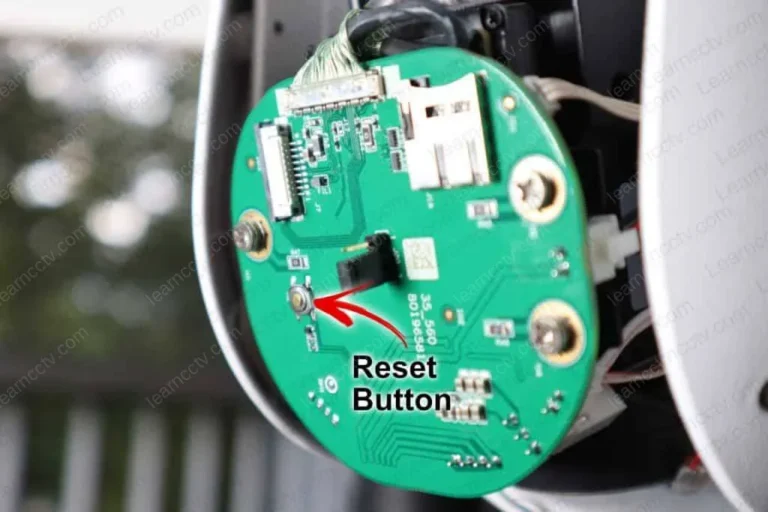
Resetting your security camera to its factory default settings can sometimes help, especially if a software glitch is suspected. However, this will erase all custom settings, including network configurations and user passwords, so it should be done after exhausting other troubleshooting steps. You can find guidance on how to reset a security camera if needed.