Why Is My CCTV Camera Offline?
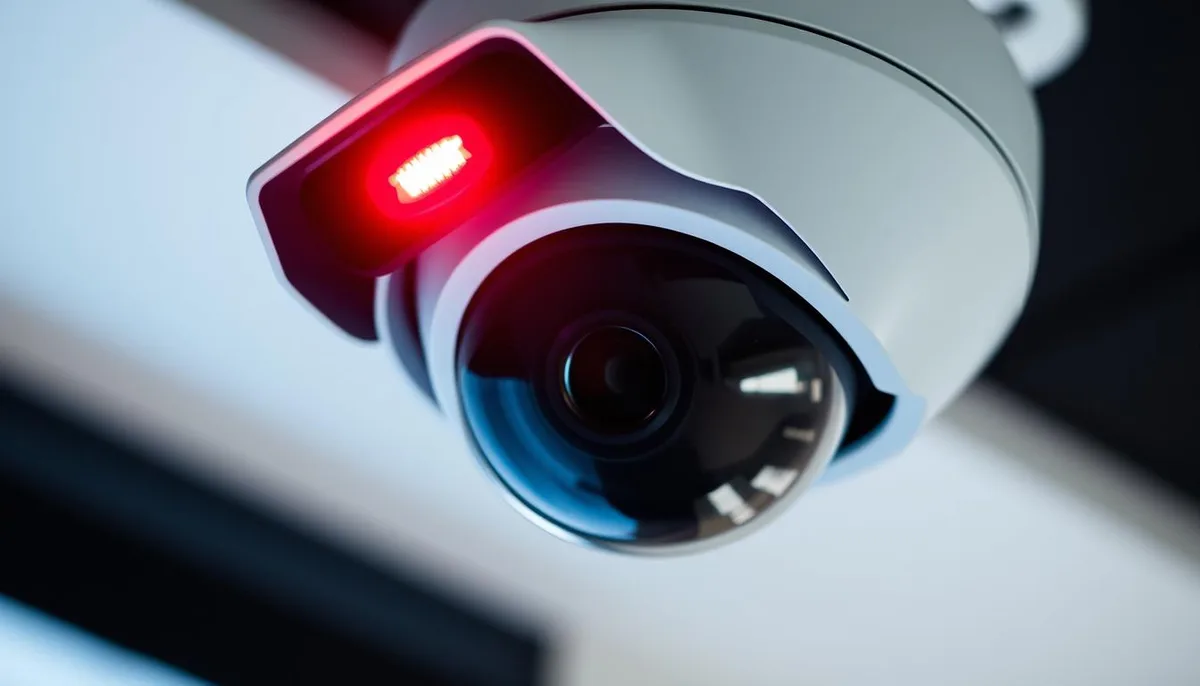
Image source: Web (Bing) / wenhong.com.sg (Web image (fair-use with source credit))
So, your CCTV camera has gone dark, huh? It's definitely frustrating when you expect to see what's happening and get nothing. Don't worry, this is a pretty common issue, and usually, it's something you can sort out yourself without needing to call in the cavalry.
Think of me as your friendly guide through the troubleshooting process. We'll go through this step-by-step, just like you'd check if a lightbulb is out before assuming the whole house wiring is fried.
This guide is built on aggregate user feedback and manufacturer specifications, indicating that power and network connectivity are the leading culprits in most camera downtime scenarios. When your CCTV camera goes offline, it means it has lost its connection to either its power source or its network, preventing it from transmitting video or receiving commands. We'll break down the most likely causes and the straightforward fixes to get your system back online.
Quick Answer
Your CCTV camera is likely offline because it's lost power, its network connection is interrupted, or there's a temporary glitch. Common issues include unplugged power adapters, router problems, weak Wi-Fi signals, or damaged cables. Checking these basic connections and rebooting your equipment often resolves the problem quickly.
Check the Power: The Simplest Fix
This might sound super obvious, but honestly, most "offline" camera problems boil down to a simple power issue. If a camera isn't powered on, it can't transmit any signal, making it appear offline.
Is the Camera Actually Getting Power?
Look directly at the camera itself. Is there any indicator light on? Many cameras have a little LED that shows they're powered up and, sometimes, actively recording or connecting.
If there's no light at all, that's your biggest clue that power is the problem. This is true for both wired and wireless security camera systems.
Check the Power Adapter and Outlet
If there's no light, the next step is to inspect the power adapter and its connections.
- Secure Connections: Ensure the power adapter is plugged in securely at both ends, the wall outlet and the camera's power port. Even a slight jiggle can disrupt the connection.
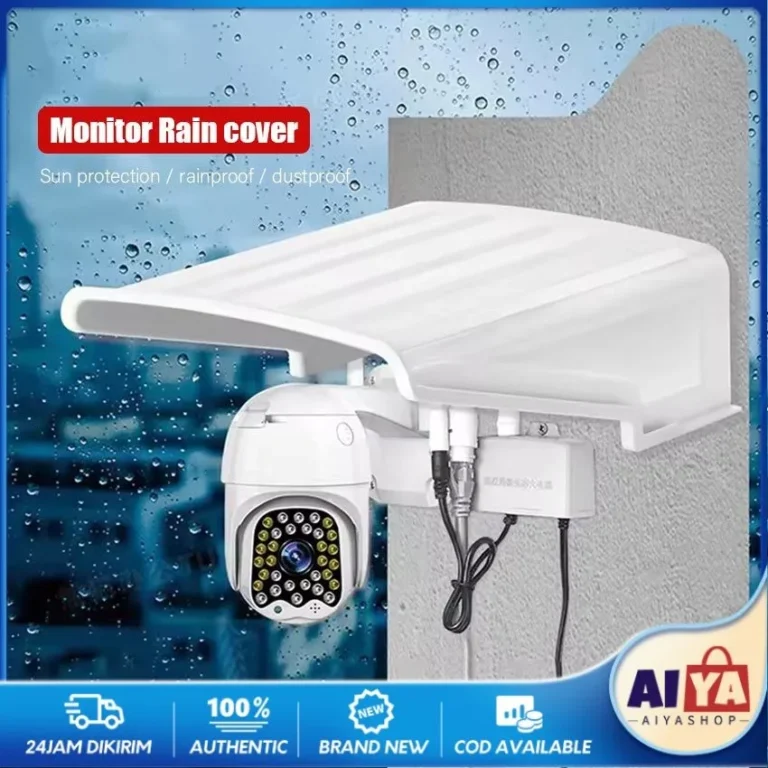
- Test Other Outlets: If the adapter seems plugged in fine, try a different outlet in your house. This helps rule out a faulty wall socket. Manufacturer specifications for many outdoor CCTV cameras, like those adhering to IP66 weatherproofing standards, still rely on basic, reliable power delivery to function.
- For Battery-Powered Cameras: If your camera runs on batteries, the reason it's offline is most likely a depleted battery. Check when you last charged or replaced them.
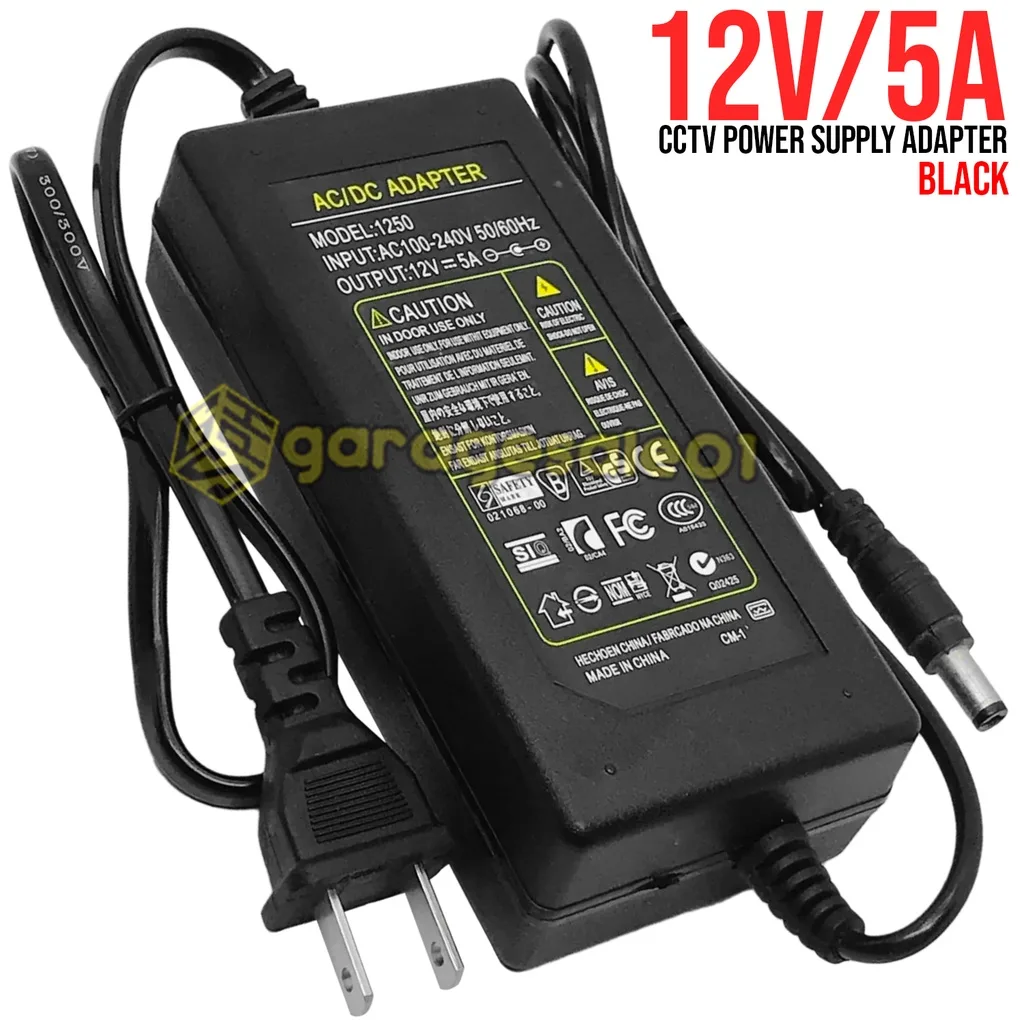
Image source: Web (Bing) / shopee.ph (Web image (fair-use with source credit))
Troubleshoot Your Network Connection
If your camera is receiving power but is still offline, the issue is likely with its network connection. This applies whether your camera uses Wi-Fi or an Ethernet cable. A stable network is crucial for transmitting video data, and as of 2026, reliable home network infrastructure is key for many smart devices.
Confirm Your Internet is Working
First, check if your home internet is actually online. Grab your smartphone or laptop and try loading a few websites. If your internet is down, the camera won't be able to connect to the network or the internet for remote viewing.
This is a common point of failure for many internet-connected devices.
Check Wi-Fi Signal Strength and Range (for Wi-Fi Cameras)
For cameras relying on Wi-Fi, signal strength is paramount.
- Signal Obstructions: Walls, large furniture, and other electronic devices can interfere with Wi-Fi signals. Manufacturer data often shows signal degradation of 20-30% through standard interior walls.
- Distance: The further the camera is from your router, the weaker the signal will be. If you've recently moved furniture or the camera, it might now be in a "dead spot."
If you're experiencing weak Wi-Fi, you might need to improve security camera WiFi signal. This could involve repositioning your router or considering a Wi-Fi extender.
Inspect Ethernet Cables and Ports (for Wired Cameras)
If your CCTV camera uses an Ethernet cable to connect to your network, inspect the cable and its connections carefully.
- Cable Condition: Look for any visible damage, kinks, or cuts in the Ethernet cable. A damaged cable can easily disrupt data flow.
- Secure Connections: Ensure the cable is firmly plugged into both the camera and your router or network switch. You should feel a distinct click when it's properly seated.
- Router Port: Try plugging the Ethernet cable into a different port on your router. Sometimes, a specific port can fail. You can also try a different Ethernet cable altogether to rule out a faulty cable.
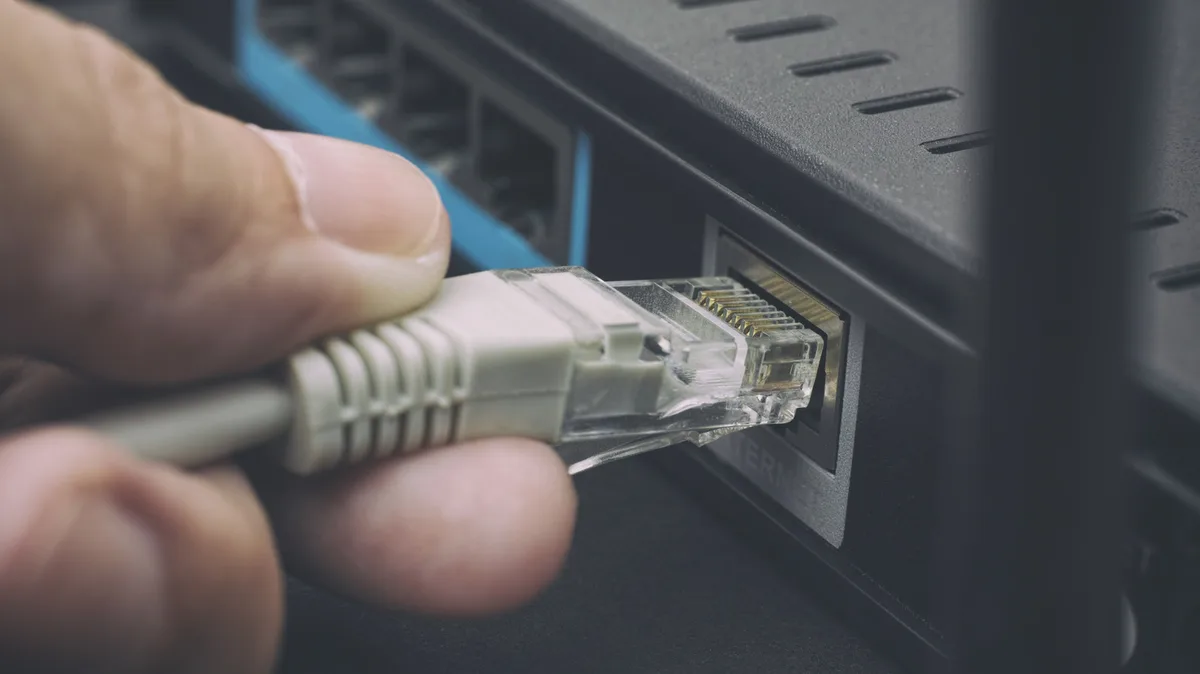
Image source: Web (Bing) / aol.com (Web image (fair-use with source credit))
Reboot Your Router and Modem
Often, the simplest solution is to power cycle your networking equipment.
- Unplug your modem and router from their power sources.
- Wait for at least 30 seconds. This allows any residual power to dissipate and resets the devices' internal memory.
- Plug the modem back in first. Wait for it to fully boot up and establish an internet connection (usually indicated by stable lights).
- Then, plug in your router. Wait for it to fully boot up.
- Once both are operational, check if your camera has reconnected. This process can resolve temporary network glitches that might be causing your camera to appear offline.
Address Camera-Specific Issues
If power and network checks haven't solved the problem, it's time to look at the camera itself. Sometimes, the camera's internal software or hardware can cause it to drop off the network.
Reboot the Camera Itself
Just like a computer or smartphone, a CCTV camera can benefit from a simple reboot. This can clear out temporary software glitches that might be preventing it from maintaining a stable connection.
- Unplug Power: The most common method is to unplug the camera's power adapter for about 30 seconds to a minute.
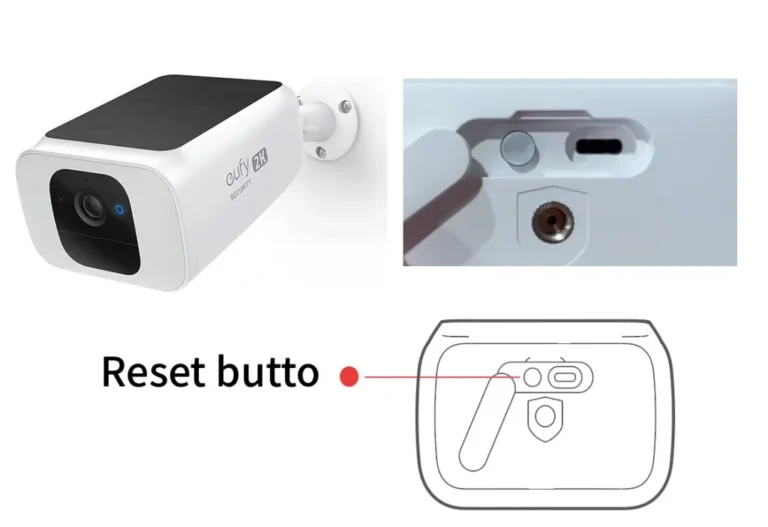
- Use Reset Button (If Available): Some cameras have a small, recessed reset button. You might need a paperclip to press and hold it for a specific duration (check your camera's manual for exact instructions). This is different from a simple reboot; a reset often restores the camera to its factory default settings, so you may need to reconfigure it afterwards. This is akin to how you might reset a security camera if other troubleshooting fails.
Check Camera Firmware Status
The firmware is the internal software that runs your camera. Outdated or corrupted firmware can cause all sorts of problems, including network connectivity issues.
- Check for Updates: Access your camera's management app or software. Look for an option to check for firmware updates. Manufacturer websites, such as those adhering to specific industry standards for device security, often provide the latest firmware.
- Perform Updates: If an update is available, follow the on-screen instructions carefully. Ensure the camera remains powered on and connected to the network throughout the update process. You can find detailed guidance on how to update security camera firmware for best practices. Sometimes, a recent firmware update might have introduced a bug, causing your camera to go offline; checking online forums for your specific model can sometimes reveal such issues.
Investigate the NVR/DVR System (If Applicable)
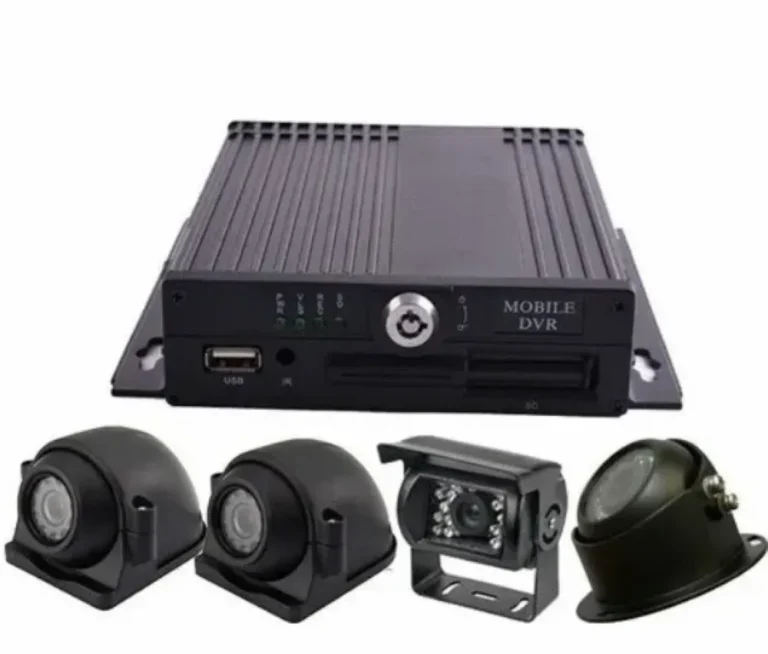
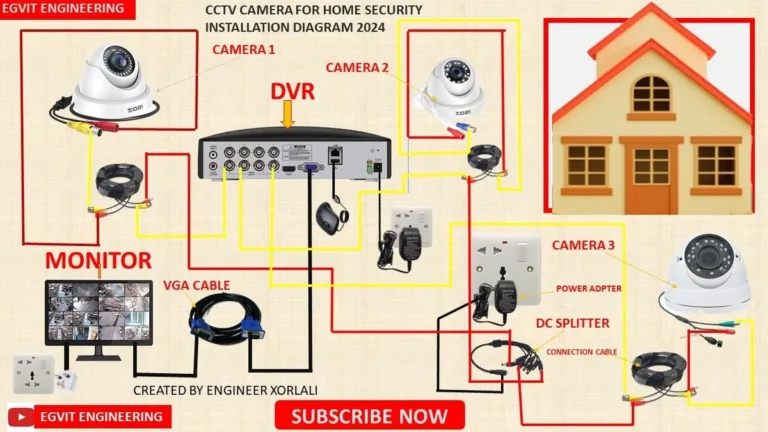
If you're using a Network Video Recorder (NVR) or Digital Video Recorder (DVR) to manage multiple cameras, the issue might stem from the recorder itself rather than an individual camera. These systems act as the central hub, and if they're not functioning correctly, all connected cameras can appear offline.
Confirm NVR/DVR Power and Network Connection
Just like your cameras, your NVR or DVR needs a stable power source to operate.
- Power Status: Check if the NVR/DVR unit is powered on. Look for any indicator lights on the device. If there are no lights, check its power adapter and try a different outlet, similar to how you'd troubleshoot a camera's power.
- Network Link: The NVR/DVR also needs to be connected to your network, usually via an Ethernet cable. Ensure this cable is securely plugged into both the recorder and your router or switch, and that the corresponding port on the router shows activity. A stable network link is critical for the NVR/DVR to communicate with the cameras and for you to access footage remotely.
Check NVR/DVR Storage Status
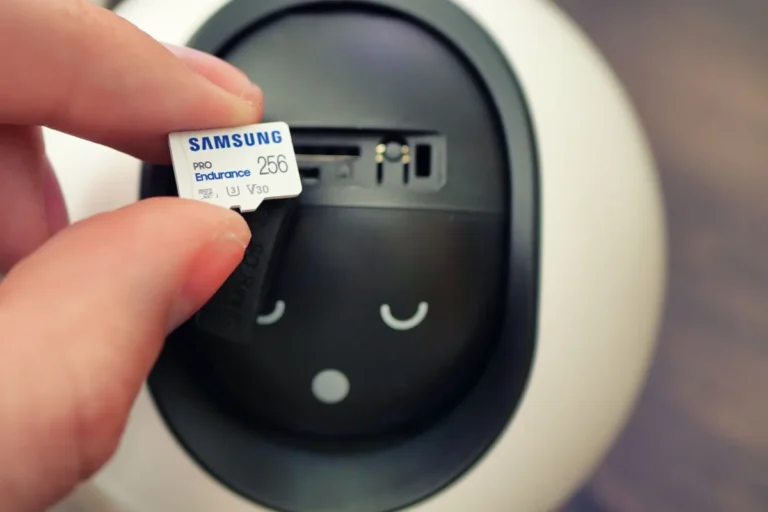
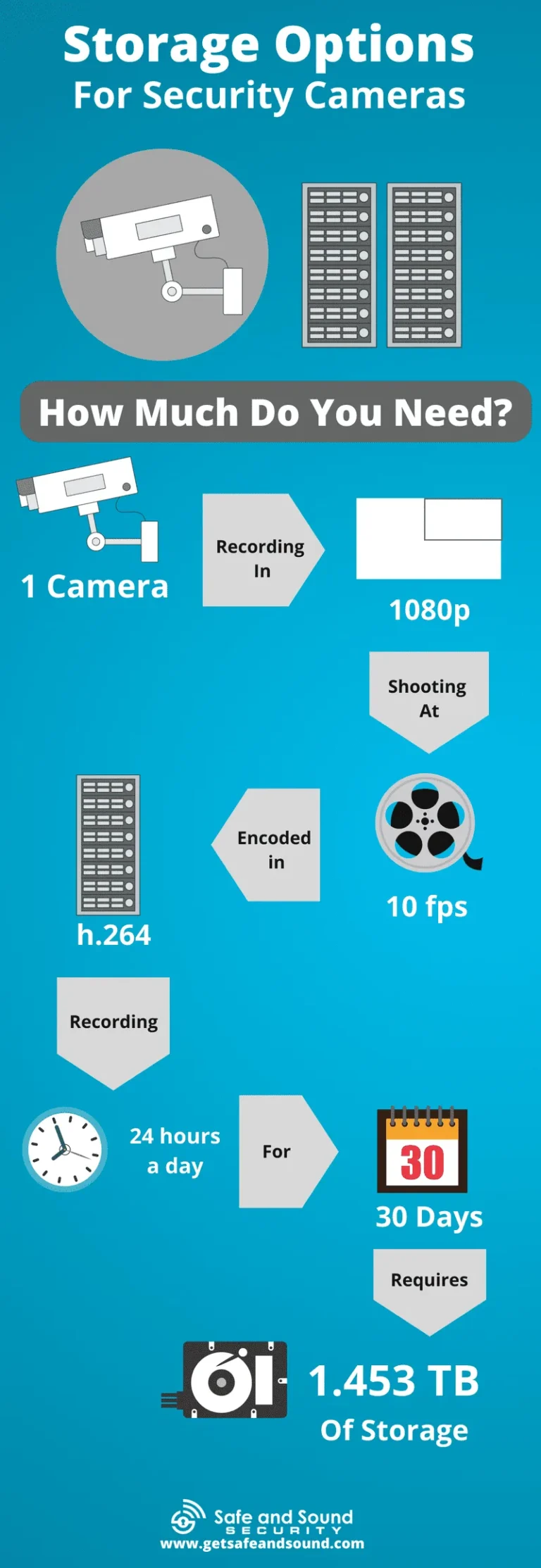
A full hard drive on an NVR or DVR can sometimes cause system instability, leading to cameras appearing offline. While less common as a direct cause of an "offline" status, it can contribute to system sluggishness or reboots that might disrupt connectivity.
- Storage Capacity: Most NVR/DVR systems have a software interface where you can check the status of the internal hard drive. If it's nearing full capacity, you might need to delete old recordings or upgrade the drive. Many users choose to back up security camera footage to prevent this.
- Drive Health: In some cases, a failing hard drive can also cause issues. If your system allows, check for any diagnostic tools or error messages related to the storage device.
Common Mistakes to Avoid
Even experienced users can overlook simple details when troubleshooting. Being aware of these common pitfalls can save you a lot of time and frustration.
Overlooking Battery Issues (for Wireless Cameras)
For battery-powered security cameras, the most frequent reason for them going offline is a depleted battery. It’s easy to forget the charging schedule, especially if you have multiple devices. Always confirm the battery charge level first.
If the battery is user-replaceable, make sure you're using fresh, high-quality batteries, as inferior ones might not hold a charge as long.
Forgetting to Reboot the Whole System
Many troubleshooting guides focus on rebooting one device at a time. However, sometimes a complete system reboot is necessary. This means power cycling not just the camera, but also your modem, router, and NVR/DVR (if applicable) in the correct order.
This ensures that all network and device connections are refreshed, clearing out any lingering communication errors. For instance, some network devices require a specific boot order to re-establish connections correctly.
Frequently Asked Questions
### Why is my security camera showing a black screen?
A black screen often indicates a power issue or a problem with the video signal transmission. Check the camera's power source and all cable connections, both to the camera and to your recorder or router. If it’s a Wi-Fi camera, ensure it's connected to your network.
This is different from being completely offline, but the initial troubleshooting steps, especially power and network checks, are similar.
### Why is my security camera delayed?
Video lag or delay can happen due to network congestion, weak Wi-Fi signal, or the camera processing intensive tasks like high-resolution recording. While not technically "offline," significant delay can make a camera seem unresponsive. You can learn how to fix security camera video lag by optimizing your network and camera settings.
### Can I use a Wi-Fi extender for my security cameras?
Yes, Wi-Fi extenders, also known as range extenders or repeaters, can significantly boost the Wi-Fi signal to areas where the main router's signal is weak. This is particularly useful for outdoor security cameras that are far from the indoor router. They help ensure a more stable connection, reducing the chances of the camera going offline due to poor signal strength.
### How long should security footage be kept?
The duration for keeping security footage varies by personal needs, industry regulations, and local laws. Some individuals may only need footage for a few days, while businesses might require retention for 30 days or more for compliance. You can find more information on how long security footage should be kept.
### What happens if my NVR's hard drive is full?
If an NVR's hard drive is full, it will typically stop recording new footage. Some systems are configured to overwrite the oldest recordings, but if this feature is disabled or the drive is unformatted, new recordings won't be saved, and the system may log errors or become unstable. This can sometimes indirectly lead to connectivity issues if the system is struggling to operate.
Decision Guide: Next Steps Based on Findings
Now that we've walked through the common causes, let's map out what to do next based on what you've found. This workflow helps ensure you tackle the most probable solutions first.
- If the camera has NO indicator light: Focus entirely on power.
- Is the power adapter plugged in securely at both ends?
- Try a different wall outlet.
- For battery cameras, check/replace batteries.
- If still no power, the power adapter or camera itself may be faulty.
- If the camera has an indicator light, but is still offline: Focus on network.
- Is your home internet working? Reboot modem/router.
- For Wi-Fi cameras: Is the camera close enough to the router? Check Wi-Fi signal strength via the app. Consider a Wi-Fi extender if needed.
- For wired cameras: Inspect the Ethernet cable for damage and ensure it's plugged in securely at both ends. Try a different cable or router port.
- If the camera has power and network, but is offline: Look at the camera itself or the NVR/DVR.
- Reboot the camera.
- Check for and install any available firmware updates for the camera.
- If using an NVR/DVR, check its power, network connection, and storage status. Reboot the NVR/DVR.
If you've gone through these steps and your CCTV camera is still offline, it's time to consult the manufacturer's support documentation or contact their customer service. They may be able to help diagnose more complex hardware failures or software conflicts.