How Do I Turn Off CCTV Audio?

Image source: Web (Bing) / pngtree.com (Web image (fair-use with source credit))
So, you're looking to mute your CCTV system. Maybe you're concerned about privacy, trying to reduce background noise in your recordings, or just don't need the audio function. Whatever your reason, figuring out how to turn off CCTV audio is often simpler than you might think.
We'll guide you through the common methods. Most modern systems allow this through their settings, but the exact steps vary. Manufacturer specifications for IP cameras, for example, often detail audio capabilities and settings within their manuals.
Quick Answer: Turning Off CCTV Audio
Most CCTV systems let you disable audio via their software settings or a mobile app. Look for "Audio," "Sound," or "Microphone" options within your camera's configuration menu or the DVR/NVR interface. For standalone smart cameras, toggle the microphone off within the device's app settings.
If software options fail, covering the physical microphone on the camera hardware can be a workaround.
Navigating Your CCTV System: Types and Access
Understanding what kind of CCTV system you have is the first crucial step. This determines where and how you'll find the audio settings. Different systems have different interfaces and capabilities, so identifying yours will streamline the process.
Your Camera System: IP, DVR/NVR, or Standalone?
The approach to disabling audio depends heavily on your camera's setup.
- IP Cameras (Network Cameras): These connect directly to your network, often via Wi-Fi or Ethernet. They are typically managed through a web browser interface or a dedicated desktop/mobile application. These systems offer the most flexibility in configuring individual camera settings.
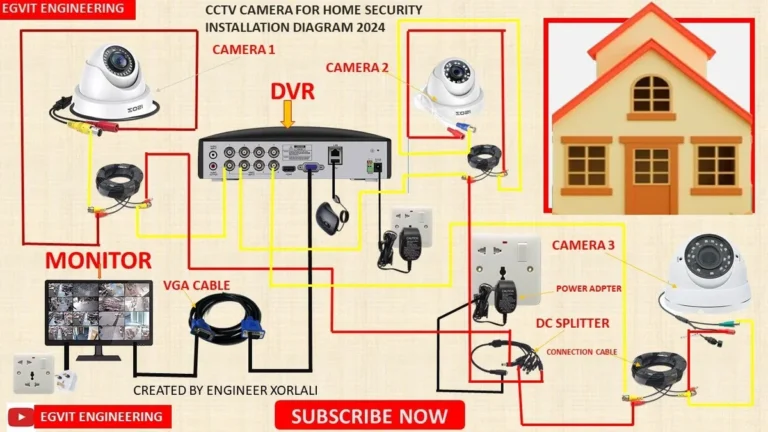
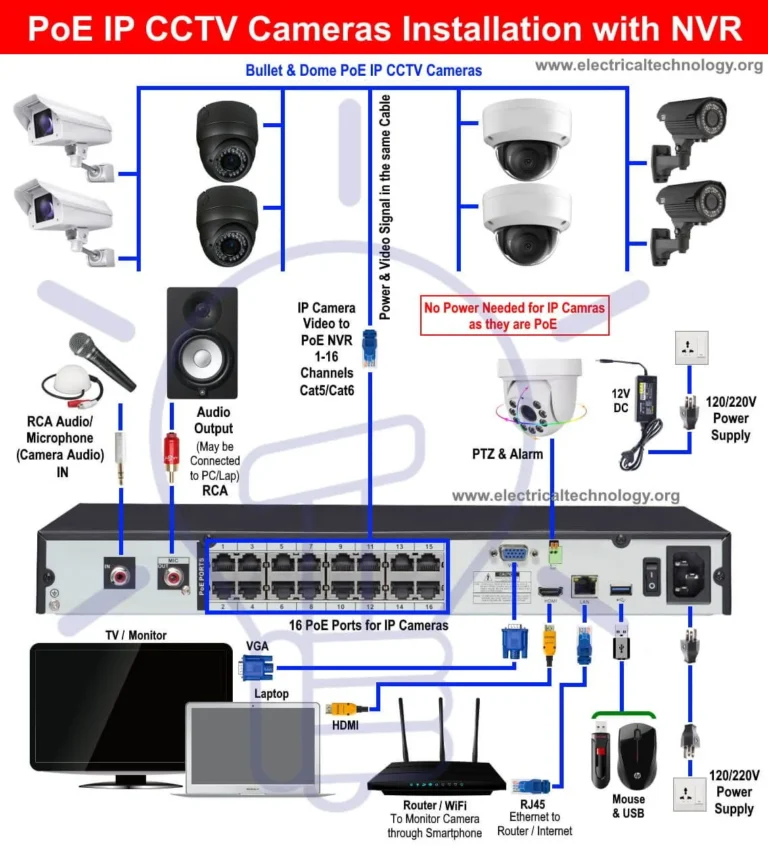
- DVR/NVR Systems: These involve cameras wired back to a central recording unit. You'll usually access settings through the DVR or NVR's on-screen menu, often controlled by a mouse or remote. The audio settings might be managed per camera channel on the recorder.
- Standalone Smart Cameras: Brands like Ring, Arlo, or Wyze fall into this category. They operate via their own cloud services and are almost exclusively controlled through a dedicated smartphone app. These apps are designed for user-friendliness, making settings adjustments straightforward.
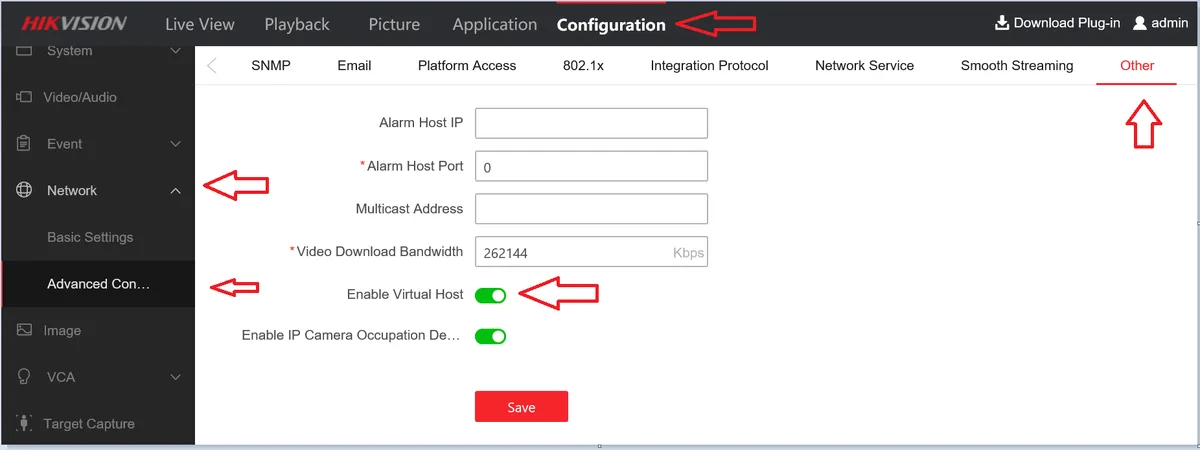
Image source: Web (Bing) / supportusa.hikvision.com (Web image (fair-use with source credit))
Step-by-Step: Disabling Audio Through Software
For the majority of users, the easiest way to turn off CCTV audio is through the system's built-in software or app. This method is non-intrusive and usually reversible.
Accessing Settings on IP Cameras & DVR/NVRs
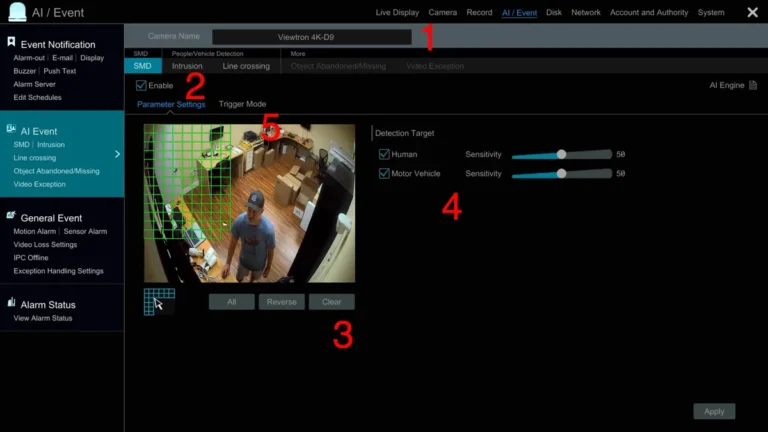
If you have an IP camera or a DVR/NVR system, you’ll typically access its settings through a web browser or a dedicated application.
- Log In: Open a web browser on a computer connected to the same network as your camera system. Type the camera's or recorder's IP address into the address bar. You'll be prompted for a username and password.
- Locate Configuration: Once logged in, look for menu options like "Settings," "Configuration," "Advanced," or "System Setup."
- Find Audio Options: Within the settings, navigate to sections labeled "Audio," "Sound," "Microphone," or "Record Settings." You should find options to enable/disable audio or adjust its volume.
- Disable and Save: Toggle the audio recording feature off or set the volume to zero. Always remember to click "Save" or "Apply" to confirm your changes.
Aggregate user reviews report that the exact naming of these menus can vary significantly between brands. If you're having trouble, consulting your system's manual is key.
Adjusting Audio in Standalone Smart Camera Apps
For smart cameras like those from Ring or Arlo, the process is usually managed through their mobile applications.
- Open the App: Launch the dedicated app for your camera brand on your smartphone or tablet.
- Select Device: Tap on the specific camera you wish to adjust.
- Access Camera Settings: Look for a gear icon or a "Settings" option related to that particular camera.
- Toggle Microphone Off: Within the camera's settings menu, you should find a clear option labeled "Microphone," "Audio Recording," or "Sound." Simply toggle this feature off.
- Save Changes: The app will usually save your changes automatically, but a confirmation prompt might appear.
This method is typically very intuitive, as these apps are designed for everyday users. For instance, Ring camera settings allow users to easily toggle the microphone on or off in just a few taps.
When Software Fails: Hardware Workarounds and Manuals
Sometimes, the software options might be limited, or you might not have access to them. In these situations, there are alternative approaches to consider before assuming it's impossible to disable the audio.
Physical Microphone Solutions
If you cannot find a software option to disable the audio, you might consider a physical workaround. Many modern cameras have integrated microphones that are quite small.
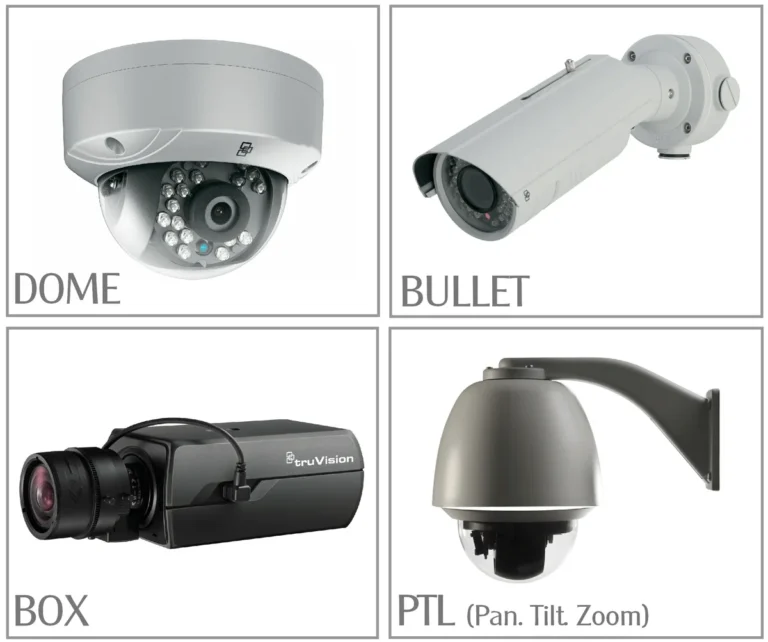
- Locate the Microphone: Carefully inspect your camera unit for a tiny hole or grille that houses the microphone. These are often on the front or side of the camera housing.
- Cover the Opening: Use a small piece of opaque tape, like electrical tape, to gently cover the microphone opening. Ensure the tape adheres well and doesn't interfere with the camera lens or other functions.
This is a direct, albeit rudimentary, method to block sound. While effective, it's a workaround and not a software-controlled solution. This approach is best utilized when no software setting exists or is accessible.
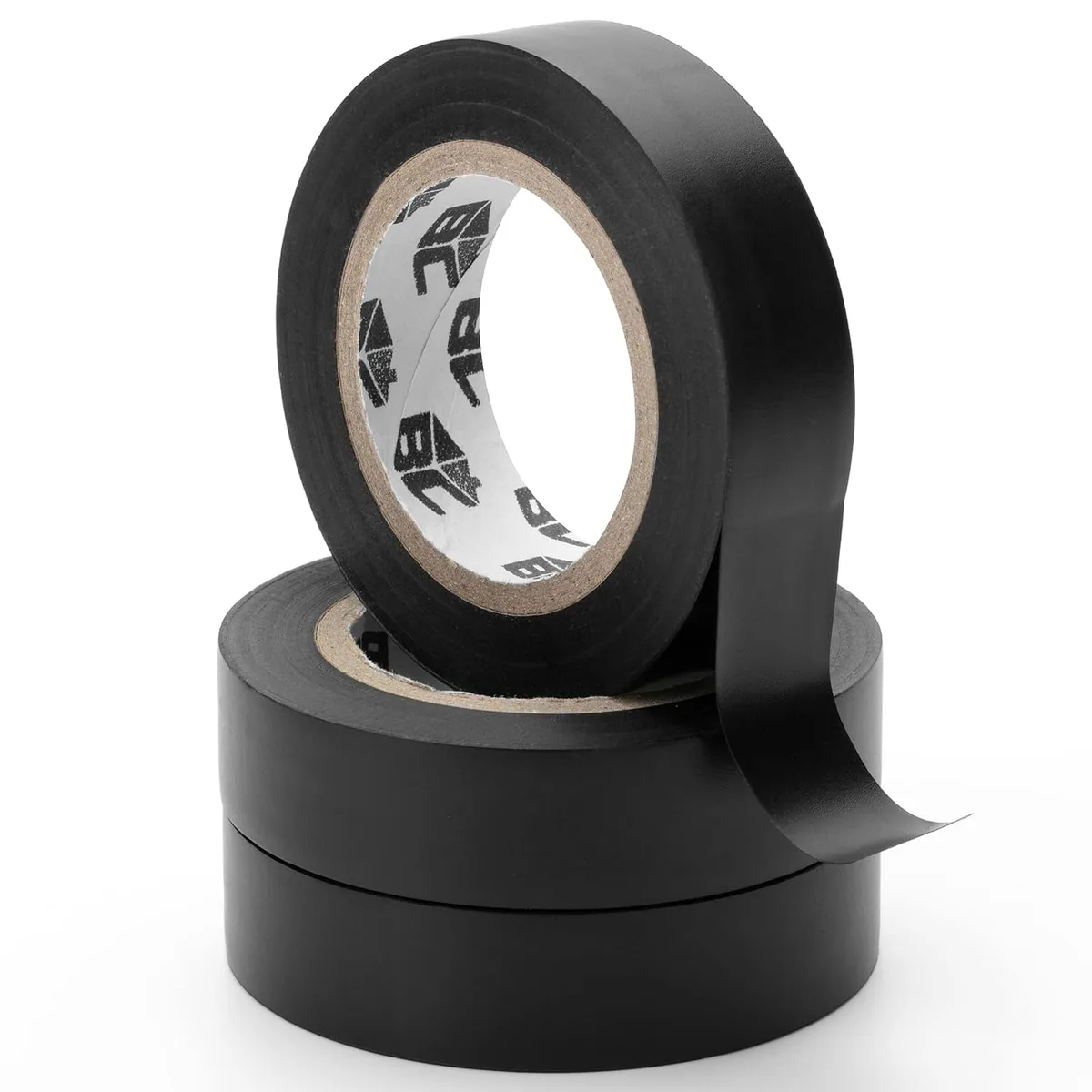
Image source: Web (Bing) / walmart.com (Web image (fair-use with source credit))
The Power of Your Camera's Manual
The user manual that came with your CCTV system or individual cameras is an invaluable resource. It's tailored to your specific model and will detail every available setting and function.
- Search for "Audio" or "Microphone": When you find your manual (often available online as a PDF), use its search function to find relevant keywords.
- Follow Instructions Precisely: The manual will provide exact steps for accessing and modifying audio settings, if available. It may also explain why audio cannot be disabled on certain models.
Manufacturer specifications, such as those provided by Hikvision for their IP cameras, typically include detailed sections on audio configuration and management within their product documentation. If you can't locate a physical copy, a quick web search for "[Your Camera Model] manual PDF" usually yields results.
Common Pitfalls and How to Avoid Them
Even with straightforward instructions, users can run into trouble when trying to manage their CCTV system's audio. Understanding these common issues can save you a lot of frustration.
Mistakes Users Make
One frequent mistake is assuming all cameras have the same settings. Different brands and even different models within the same brand can have vastly different user interfaces and feature sets. Some older or very basic systems might simply not offer an audio disable option through software.
Another error is not having the correct login credentials, which prevents access to any settings menu. Users sometimes also forget to save their changes after making an adjustment, leading them to believe the setting isn't working when it just wasn't applied. This can happen, for instance, when trying to fix motion detection issues without saving the new parameters.
Understanding System Limitations
It's also important to recognize that not all CCTV cameras are designed with user-controlled audio disabling. Some units may have the microphone permanently enabled, or its functionality might be tied to core firmware operations. For example, certain systems might require audio for specific security features or for firmware updates as per standards like those outlined by the ONVIF (Open Network Video Interface Forum) profile.
If your system's documentation explicitly states that audio cannot be disabled, attempting to force it through unsupported means could potentially damage the camera or void its warranty. You also might encounter situations where audio is necessary for certain legal or compliance requirements, making disabling it inadvisable.
Safety, Legal, and Privacy Considerations
Before you disable audio on your CCTV system, it's crucial to understand the legal and privacy implications. What might seem like a simple setting adjustment can have significant consequences if not handled correctly. Always consider the ethical and legal framework surrounding audio recording in your specific location.
Laws About Audio Recording
Many jurisdictions have laws that govern the recording of audio, often referred to as "wiretapping" or "eavesdropping" laws. These laws typically require consent from all parties involved before audio can be legally captured. For instance, in the United States, some states follow "one-party consent" where only one person in a conversation needs to agree to the recording, while others require "all-party consent" from everyone present.
Recording audio in a public space might have different rules than in a private residence. As of 2026, these regulations continue to evolve.
Protecting Your Privacy
Beyond legal requirements, personal privacy is a significant factor. If your CCTV system captures audio from areas where people have an expectation of privacy (like inside a home, a private office, or a bathroom), disabling the audio is often the most responsible choice. Even if you have a system that allows for audio recording, consider whether it's necessary or ethical.
If your goal is simply to monitor for security events, video alone is often sufficient. If you're unsure about the legality or privacy implications in your area, it's wise to consult local regulations or a legal professional. Understanding how to reduce security camera bandwidth is also important if you're managing storage or network resources.
Frequently Asked Questions (FAQs)
### Can I turn off audio on all CCTV cameras?
Not necessarily. While most modern IP cameras and smart security cameras allow you to disable audio through their software settings or an app, some older or basic models may not have this feature. In such cases, you might need to consider a physical workaround, like covering the microphone, or accept that the audio function cannot be turned off.
### Will turning off audio affect my camera's video recording?
No, turning off the audio function will not typically affect your camera's ability to record video. Audio and video are usually separate streams within the CCTV system. Disabling audio simply stops the sound data from being captured and processed.
### How can I tell if my CCTV camera has a microphone?
Most CCTV cameras with built-in microphones will have a small hole or grille visible on the camera housing, usually near the lens. Some manufacturers also explicitly list "audio recording" or "two-way audio" in their product specifications. If you can't find a physical indicator, check the camera's user manual or product page online.
### What should I do if I can't find the audio settings?
If you're unable to locate audio settings in your camera's software or app, first consult the user manual for your specific model. If the manual doesn't mention audio controls, it's possible the feature isn't supported. In that case, your options are limited to covering the physical microphone with tape or, if available, updating your camera's firmware, as some updates might introduce new features.
If your camera system is showing a black screen, that's a separate video issue that might require different troubleshooting.